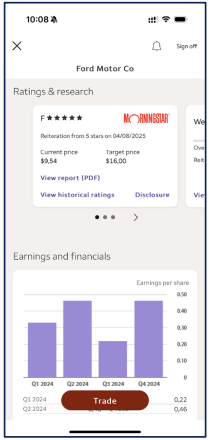
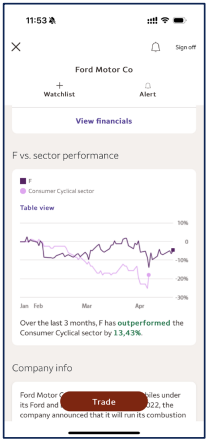
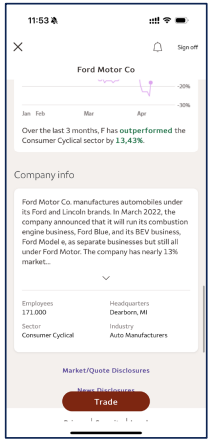
Competitor details
Click a row to expand and read the audit analysis and view screenshot thumbnails for that institution.
Ally (Bank + investing)
Primary navigation
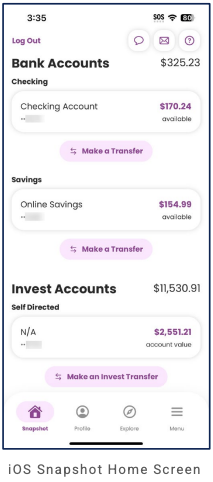
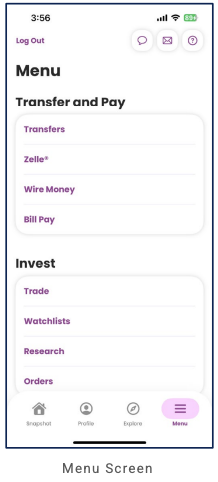
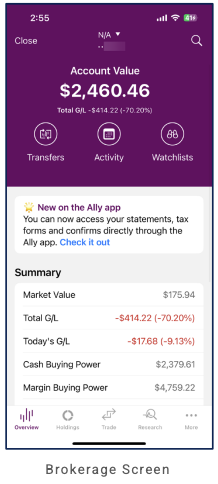
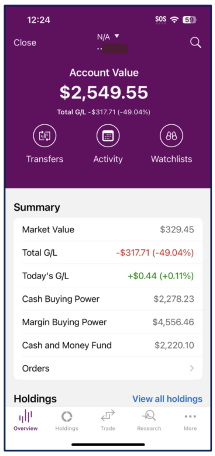
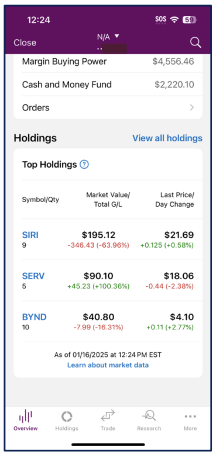
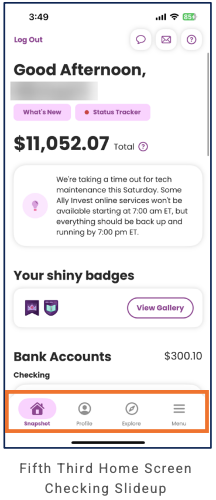
4 tabs, bottom nav: Snapshot (home), Profile, Explore, Menu. Menu holds Transfer & Pay + Invest (Trade, Watchlists, Research, Orders). Brokerage (Invest) has secondary 5-tab nav: Overview | Holdings | Trade | Research | More.
Home / dashboard
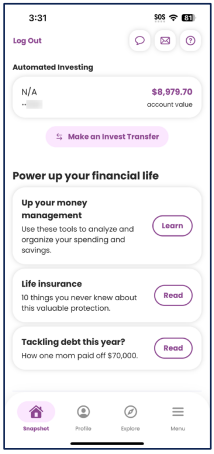
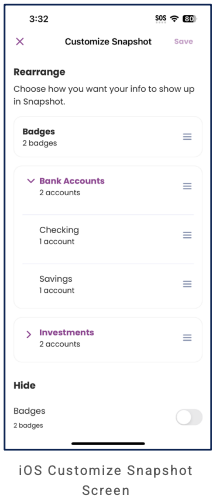
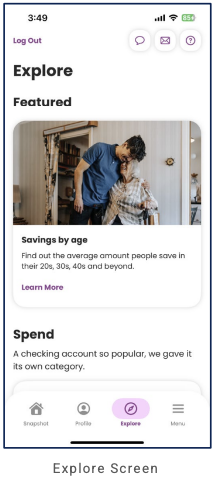
Snapshot (scrollable/customizable): greeting, Total; Ally Insurance/Ladder promo; "Your shiny badges"; Bank Accounts (Checking, then Savings) with per-account balance and "Make a Transfer"; Invest Accounts (Self Directed) with "Make an Invest Transfer"; Automated Investing block; Power up your financial life content cards (money management, life insurance, debt story). Order controlled via Customize Snapshot (Badges, Bank Accounts, Investments). Explore tab: discovery hub—Featured, Spend; educational + product content.
LOB placement
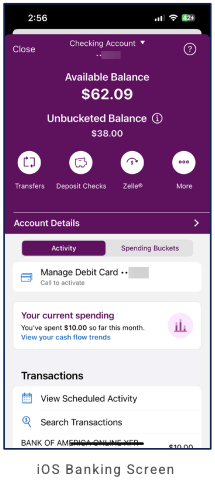
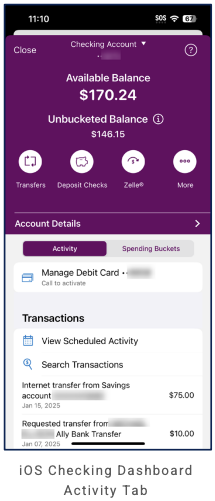
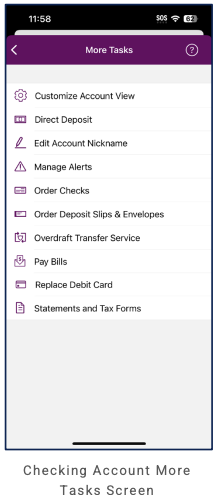
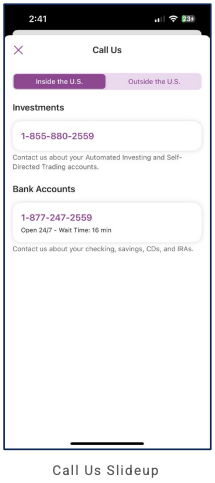
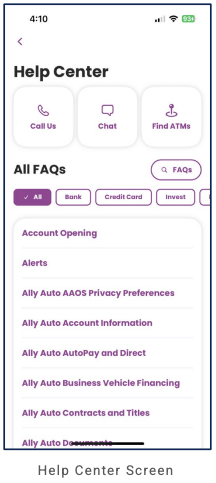
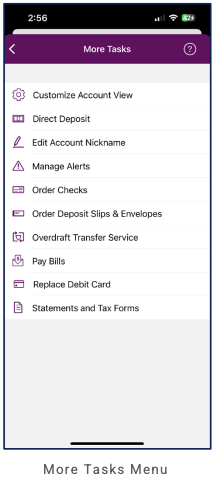
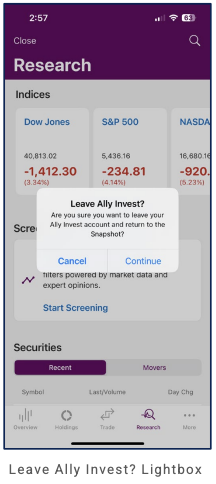
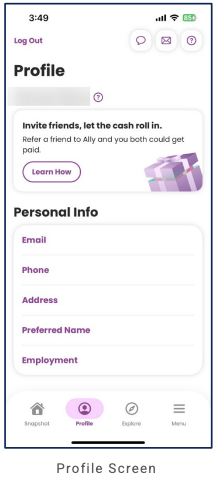
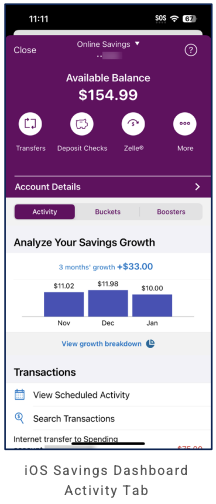
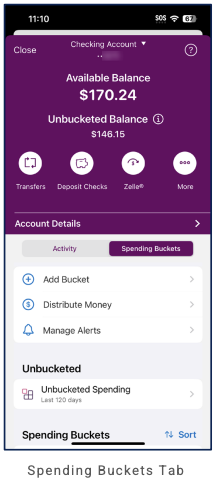
Banking: Home (Bank Accounts) + Menu "Transfer and Pay" (Transfers, Zelle, Wire, Bill Pay). Checking: tabs Activity | Spending Buckets (Add Bucket, Distribute Money, Manage Alerts, Unbucketed Spending, Sort). Savings: tabs Activity | Buckets | Boosters; Activity includes "Analyze Your Savings Growth" (3-month chart) and Transactions. Buckets = goal-based savings; Boosters = Recurring Transfers, Round Ups, Surprise Savings. From checking, More → More Tasks (Customize Account View, Direct Deposit, Edit Nickname, Manage Alerts, Order Checks, Overdraft Transfer, Pay Bills, Replace Debit Card, Statements and Tax Forms). Invest: On Snapshot when customized and under Menu; brokerage: Overview, Holdings, Trade, Research (Indices, Screening, Securities Recent/Movers), More; statements/tax in app. Profile: referral card, Personal Info (Email, Phone, Address, Preferred Name, Employment). Close brokerage → "Leave Ally Invest?" confirmation. Insurance: Cross-sell on Home (Ally Insurance / Ladder). Planning/Goals: Buckets + Boosters inside banking; Badges. No dedicated Plan tab. Support: Call Us by region and LOB; Help Center: Call, Chat, Find ATMs; FAQs by Bank, Credit Card, Invest, Ally Auto.
Depth of hierarchy
View portfolio: 2 taps (Menu → Trade). Account details: 2 taps (Snapshot → account → details). Set savings goal: Snapshot → savings → Buckets → Manage. More → More Tasks: 1 tap from account. Close brokerage: "Leave Ally Invest?" confirmation before return to Snapshot.
Cross-LOB patterns
Total on Home aggregates; Snapshot can show Bank + Savings + Invest with per-section transfer CTAs. Insurance and educational cards on Snapshot. Buckets and Boosters embed goals inside banking; brokerage has own 5-tab nav. Support segmented by product (Investments vs Bank Accounts).
Personalization
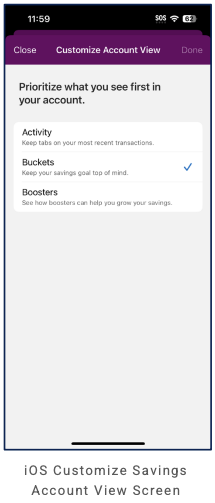
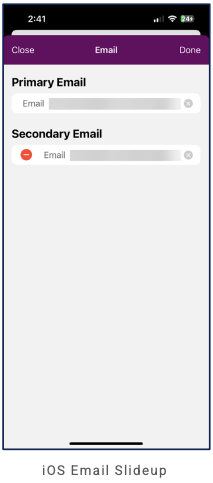
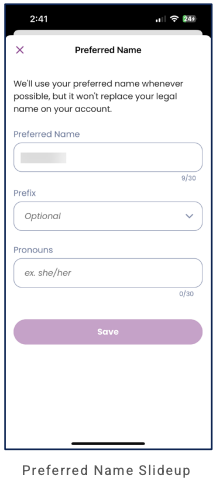
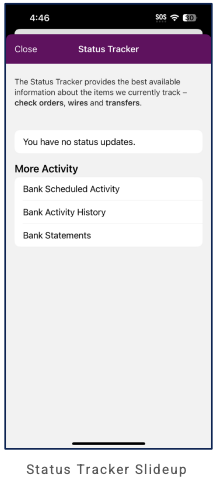
Customize Snapshot: Rearrange order of Badges, Bank Accounts (Checking, Savings), Investments; Hide Badges toggle. Customize Account View (per account, from More Tasks): choose default tab—Activity, Buckets, or Boosters. Status Tracker (Snapshot chip): slide-up for tracked items (check orders, wires, transfers); "More Activity" links to Bank Scheduled Activity, Bank Activity History, Bank Statements. Profile: referral, Personal Info. Preferred Name slide-up: name, prefix, pronouns. Email (Primary/Secondary) management.
Screenshots
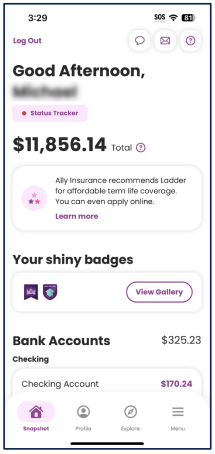
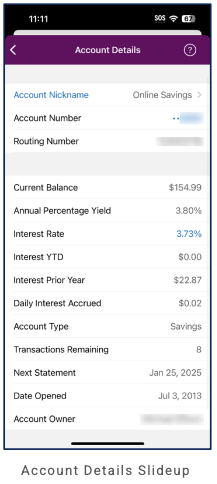
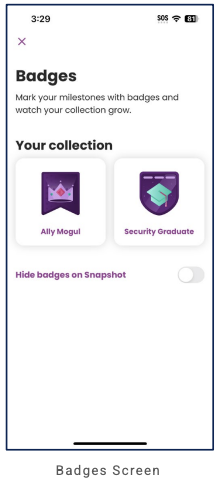
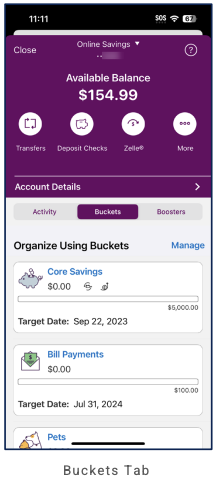
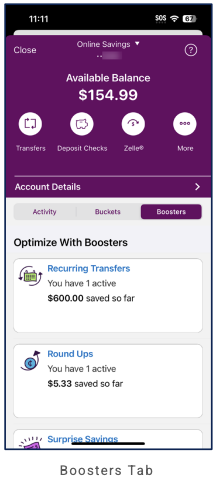
Ally Invest (Investing standalone)
Primary navigation
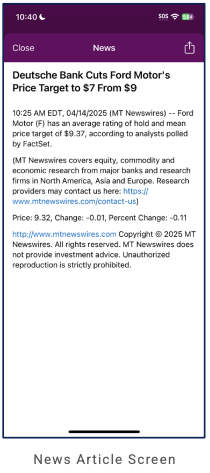
5 tabs, bottom nav: Overview, Holdings, Trade, Research, More. Purple header with back/close; screen titles (e.g. Analyst Ratings, News).
Home / dashboard
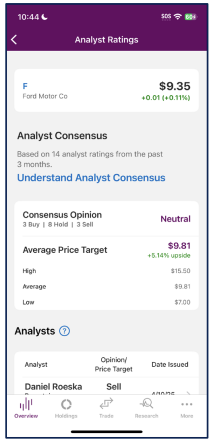
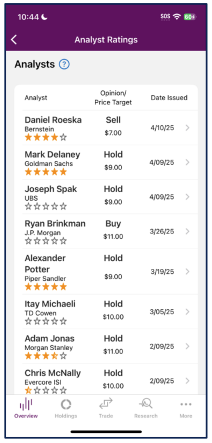
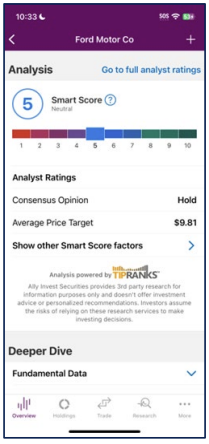
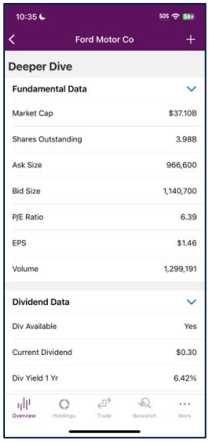
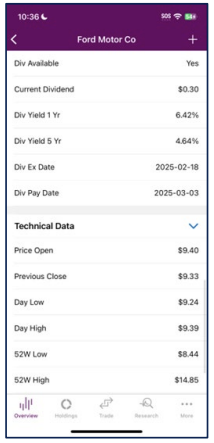
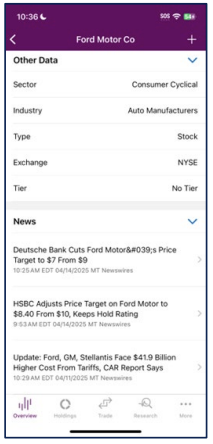
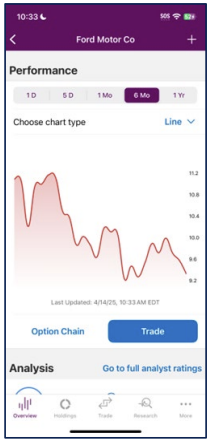
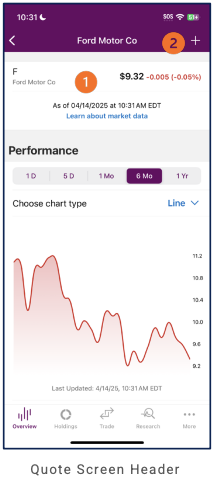
Overview tab default. Quote/stock screen: header (back, company name, +). Analysis section: Smart Score (1–10 scale, e.g. 5 Neutral), "Go to full analyst ratings," Consensus Opinion, Average Price Target, "Show other Smart Score factors"; TIPRANKS disclaimer. Deeper Dive (expandable): Fundamental Data, Dividend Data, Technical Data, Other Data (Sector, Industry, Type, Exchange, Tier), News (article list, tappable). Quote screen: ticker, price, change, timestamp; Performance (time range 1 D–1 Yr, chart type, line chart; Option Chain + Trade). Analyst Ratings: ticker/price, consensus, analysts list (name, firm, stars, opinion/price target, date). News Article: modal (Close, share; full article).
LOB placement
Invest only. Quote screen: Analysis (Smart Score, analyst summary, link to full Analyst Ratings) and Deeper Dive (Fundamental, Dividend, Technical; expandable). Research: Analyst Ratings (per-stock), News (article modal). No banking.
Depth of hierarchy
Quote → Analysis (Smart Score, summary); "Go to full analyst ratings" → Analyst Ratings. Deeper Dive: expand/collapse Fundamental, Dividend, Technical. News: modal (Close to dismiss).
Cross-LOB patterns
Research content (analyst data, news) tied to stock/symbol.
Personalization
TBD from more screens.
Screenshots
American Express (Card + banking)
Primary navigation
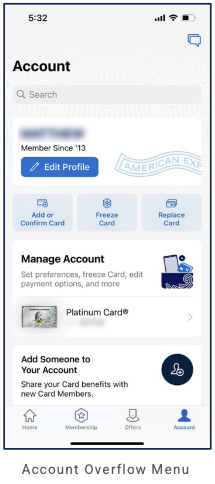
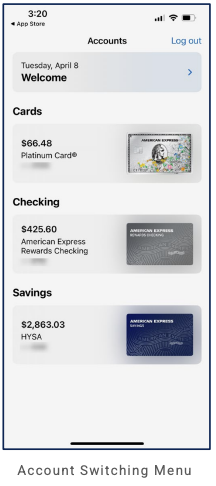
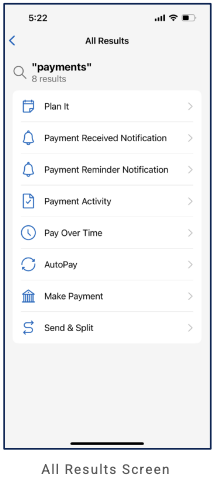
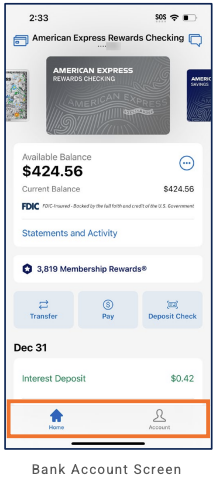
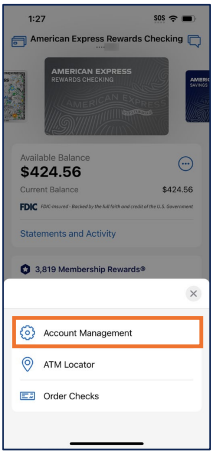
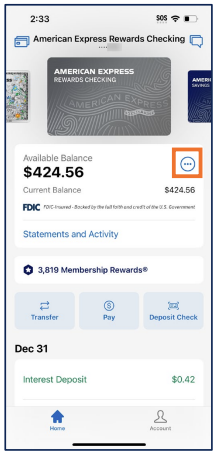
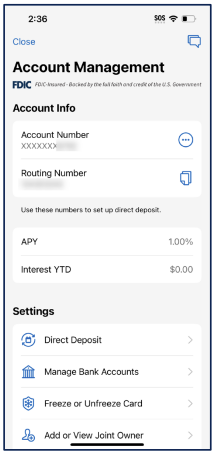
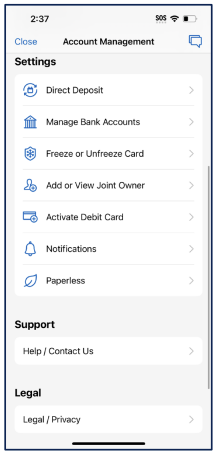
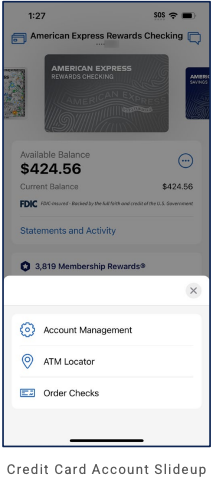
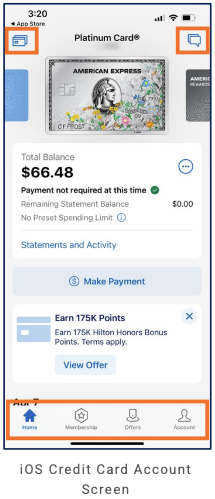
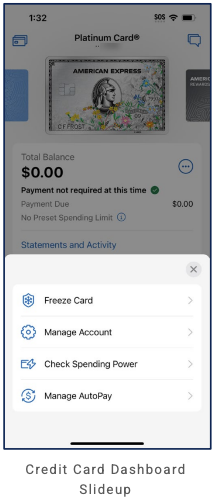
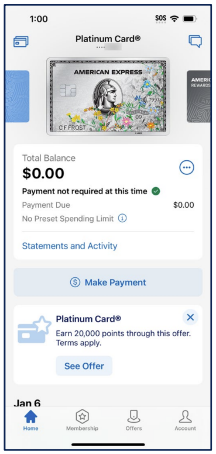
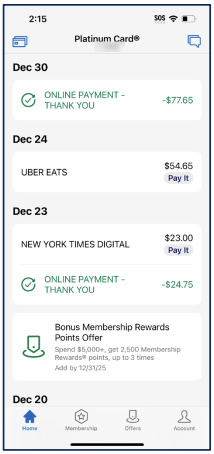
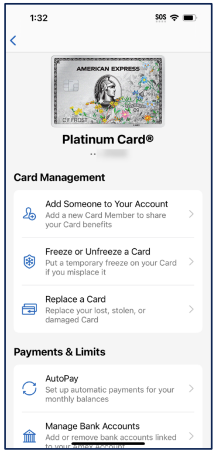
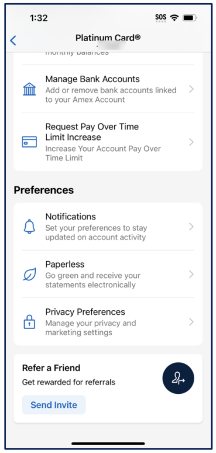
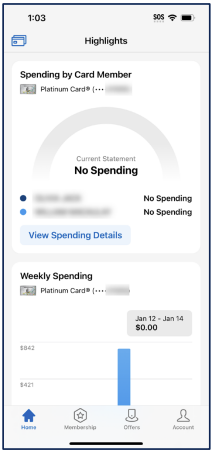
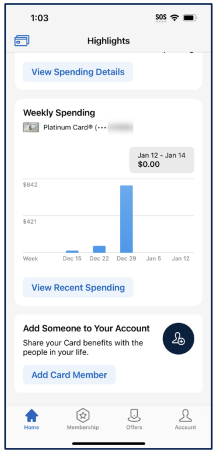
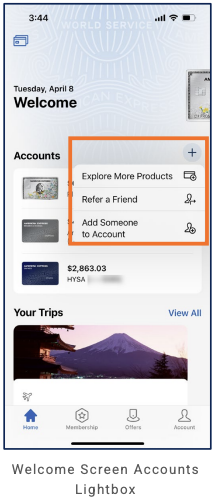
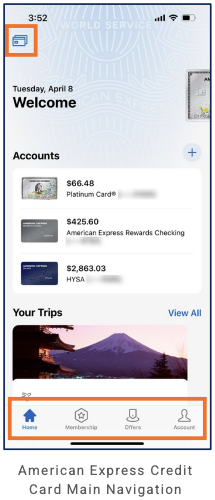
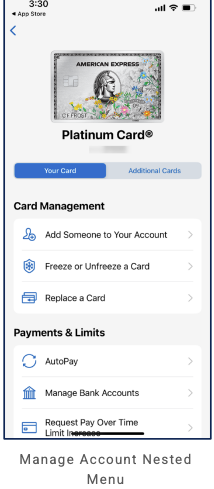
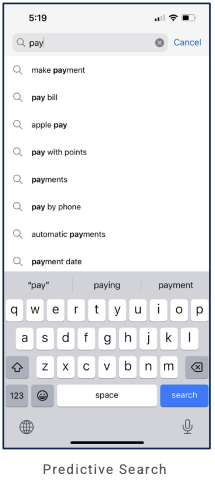
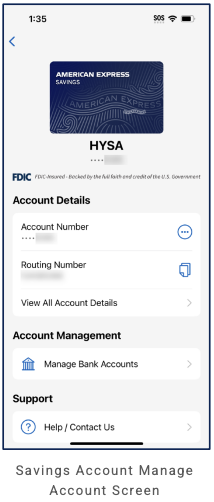
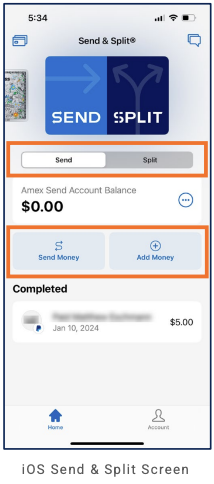
4 tabs, bottom nav: Home, Membership, Offers, Account. Account tab holds profile (Edit Profile), search bar, quick actions (Add or Confirm Card, Freeze Card, Replace Card), Manage Account (preferences, payment options, per-card entry), and Add Someone to Your Account.
Home / dashboard
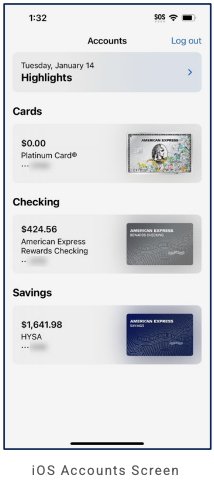
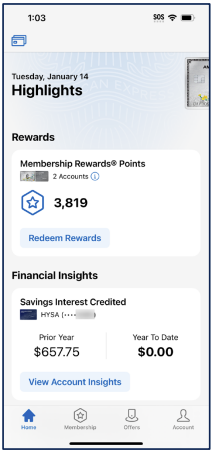
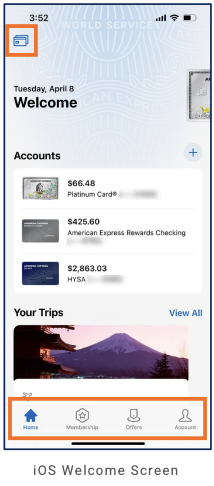
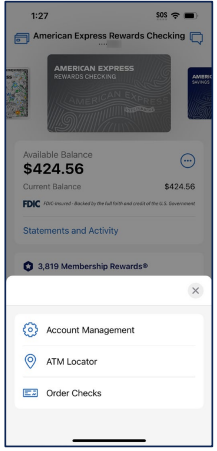
Accounts as hub: Highlights (date, chevron) or Welcome banner; then Cards, Checking, Savings with balance and card thumbnail per row; tap to switch or drill. Single "Accounts" title with Log out. Card-first visual hierarchy; product cards use distinct card imagery for quick recognition.
LOB placement
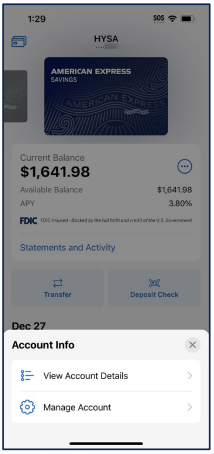
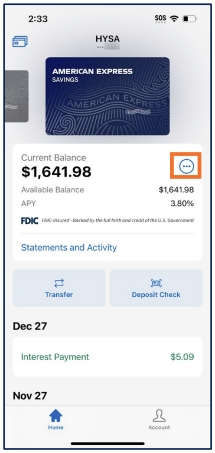
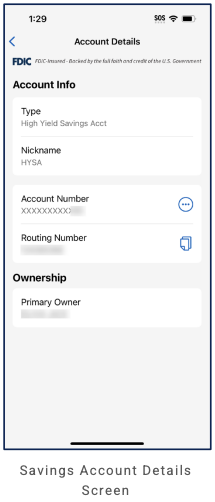
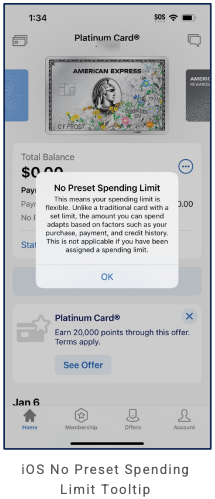
Cards: Primary; Account tab quick actions (Add/Confirm, Freeze, Replace); Manage Account → per-card (e.g. Platinum Card®) with preferences, payment options. Checking: American Express Rewards Checking in Accounts list. Savings: HYSA in Accounts list. Account tab: profile (Member Since, Edit Profile), search, Manage Account (card settings), Add Someone to Your Account (Card Members). No dedicated Invest tab; card and deposit products only.
Depth of hierarchy
Accounts screen: one tap to product row (Cards / Checking / Savings). Account tab: Edit Profile, card actions, Manage Account (one tap to card detail), Add Member. Log out from Accounts header.
Cross-LOB patterns
Single app aggregates Cards, Checking, Savings in one Accounts view; same bottom nav (Home, Membership, Offers, Account) across. Highlights/Welcome as proactive, date-driven surface.
Personalization
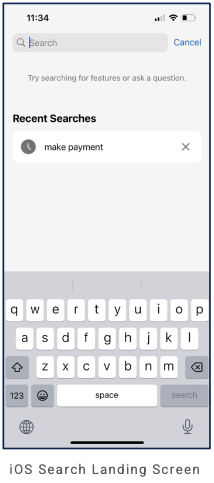
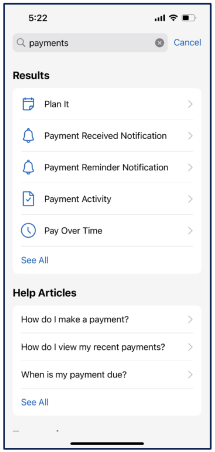
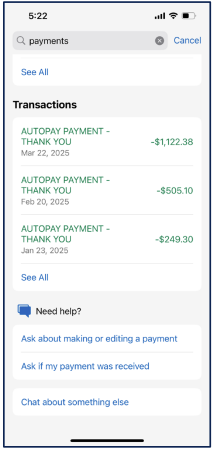
Search in Account tab; Highlights/Welcome date-driven. Customize order or visibility TBD from more screens.
Screenshots
Ameriprise (Full-service / wealth)
Primary navigation
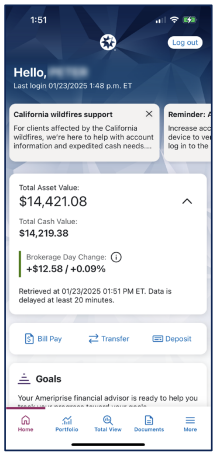
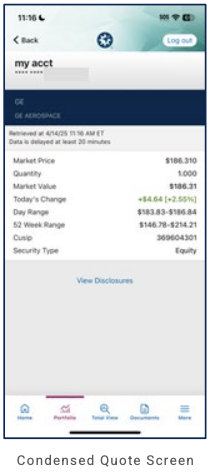
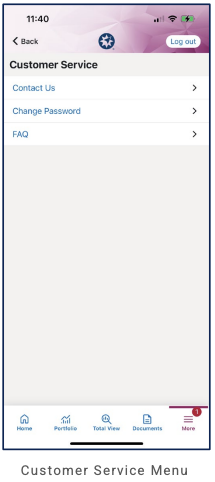
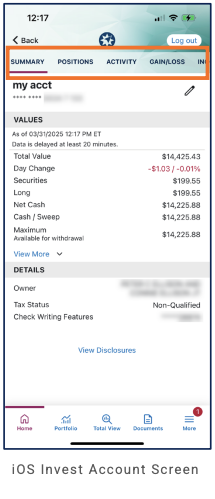
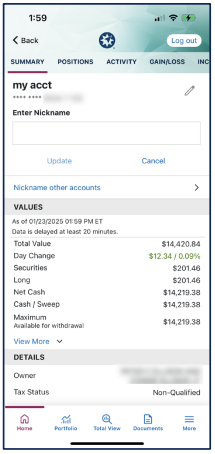
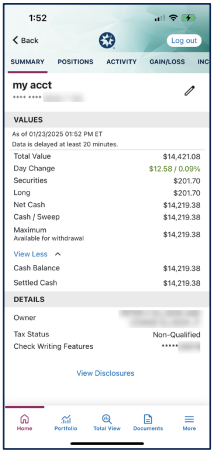
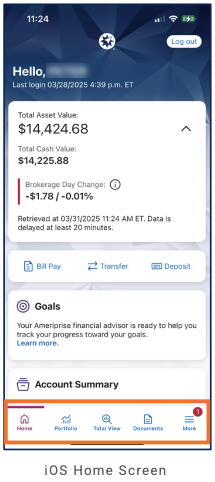
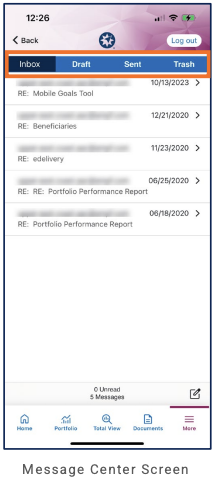
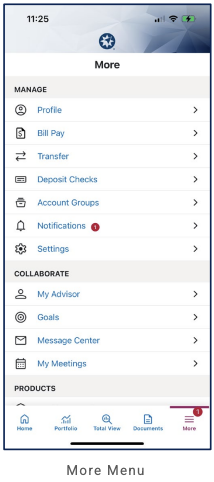
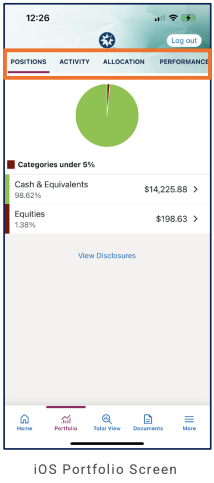
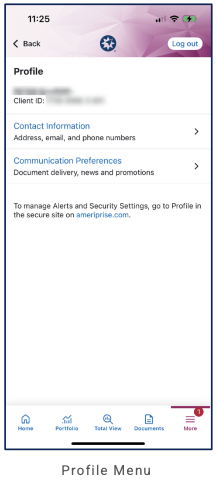
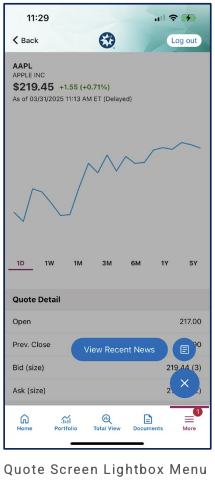
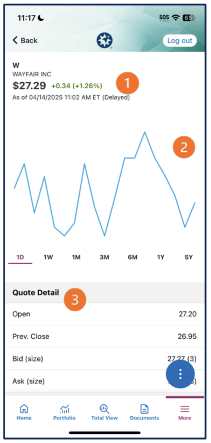
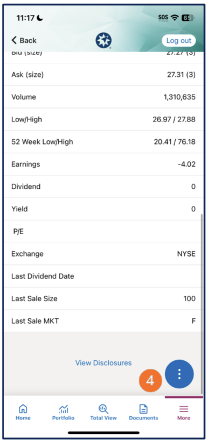
5 tabs, bottom nav: Home, Portfolio, Total View, Documents, More. Dark blue header with Ameriprise logo and Log out.
Home / dashboard
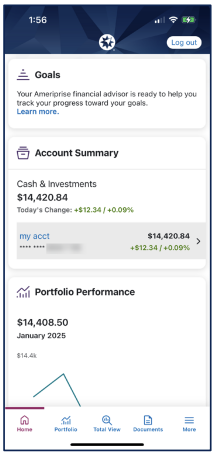
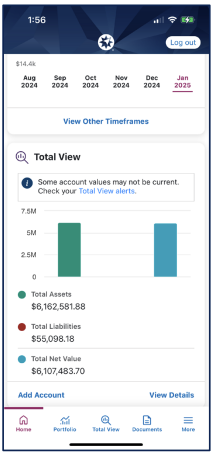
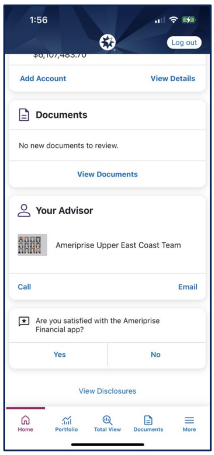
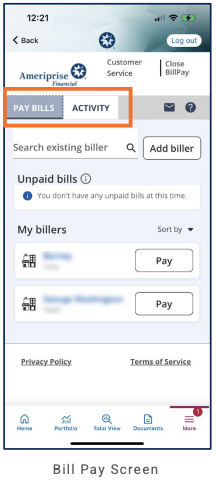
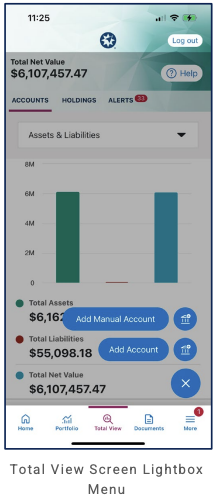
Home (scrollable): greeting and last login; alert banners; financial summary (Total Asset Value, Total Cash Value, Brokerage Day Change with timestamp); quick actions Bill Pay, Transfer, Deposit; Goals (advisor help, Learn more); Account Summary (Cash & Investments total, account row with chevron); Portfolio Performance (value, mini line chart); Total View (month selector, bar chart Total Assets / Liabilities / Net Value, Add Account, View Details); Documents (View Documents); Your Advisor (team, Call/Email); satisfaction survey; View Disclosures.
LOB placement
Investing: Home summary and Portfolio tab; Total View for aggregated assets, liabilities, net value. Banking/transactions: Bill Pay, Transfer, Deposit on Home. Goals/planning: Goals card and Your Advisor (planning, advisor contact). Documents: dedicated tab. More: overflow. Full depth TBD from more screens.
Depth of hierarchy
TBD from more screens.
Cross-LOB patterns
Total View aggregates Total Assets, Total Liabilities, Total Net Value (bar chart, month selector); Goals and Your Advisor link planning/advice to Home.
Personalization
TBD from more screens.
Screenshots
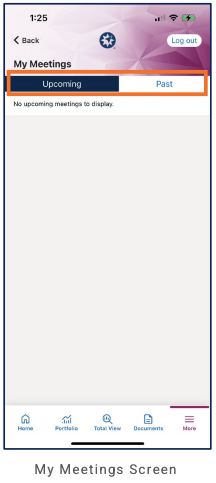
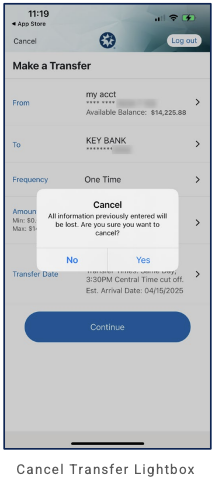
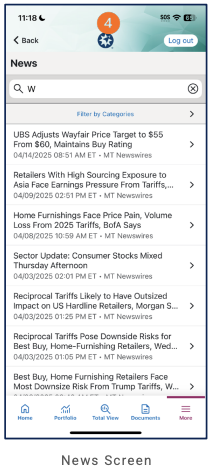
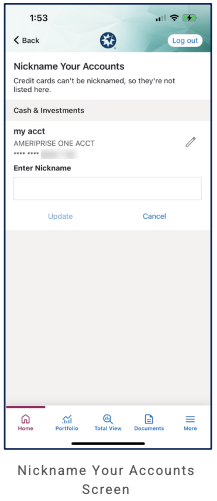
Bank of America (Bank + investing)
Primary navigation
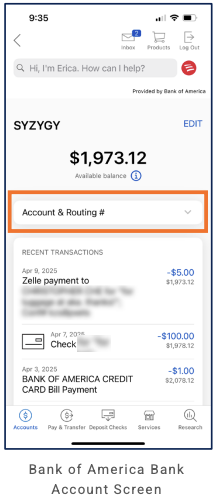
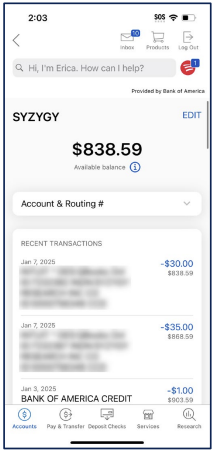
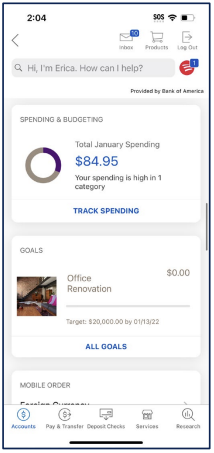
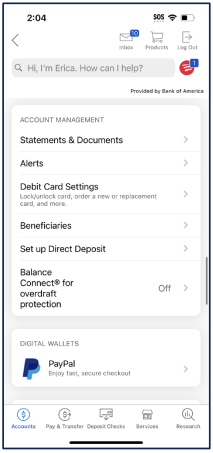
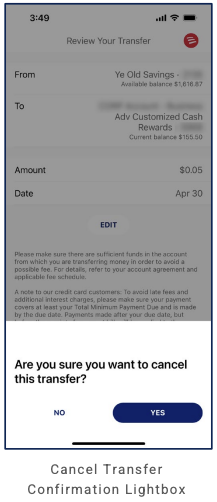
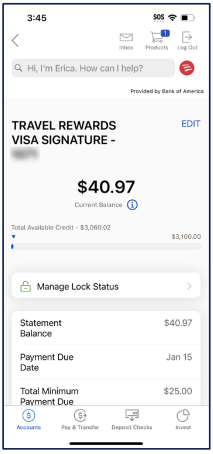
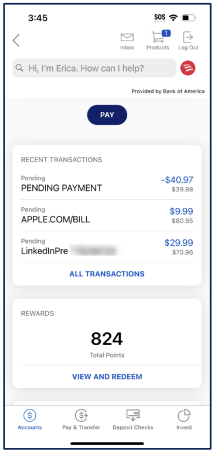
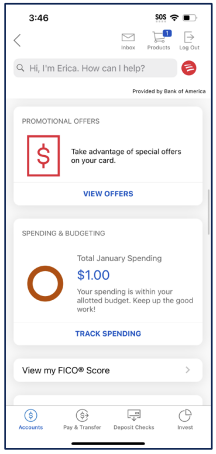
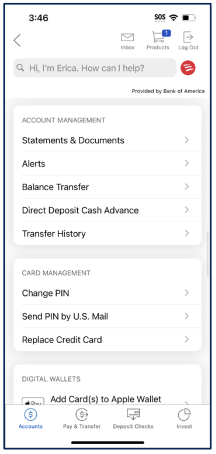
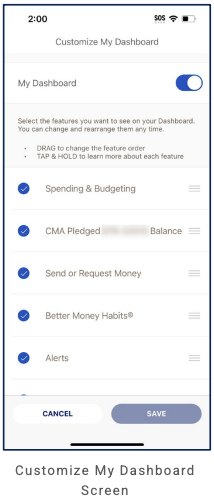
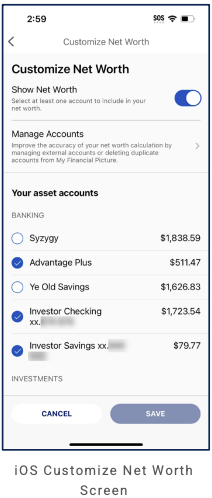
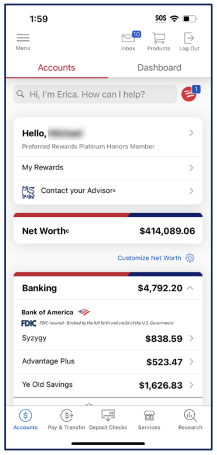
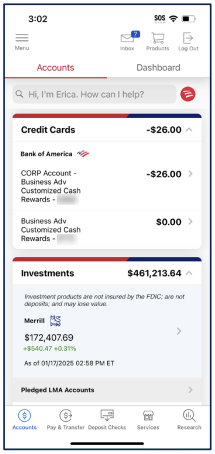
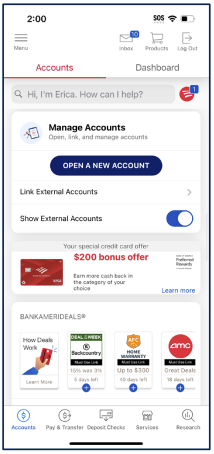
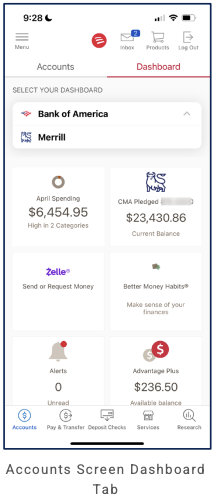
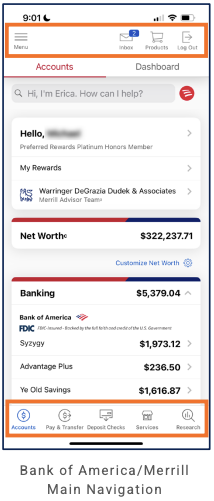
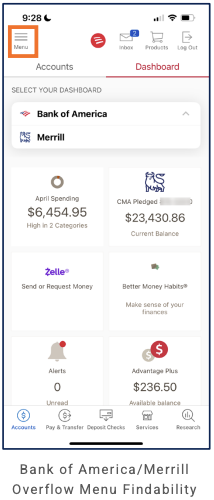
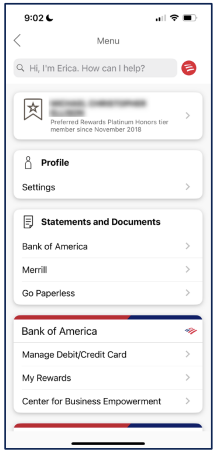
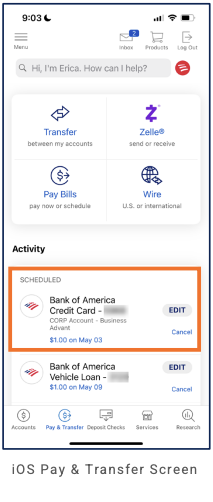
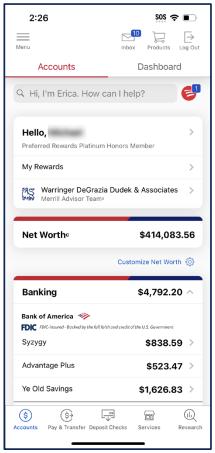
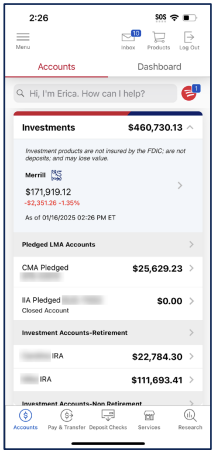
5 tabs, bottom nav: Accounts, Pay & Transfer, Deposit Checks, Services, Research. Header: back, Erica assistant ("Hi, I'm Erica. How can I help?"), Inbox (badge), Products, Log Out. "Provided by Bank of America" sub-header.
Home / dashboard
Accounts tab: account detail with nickname (EDIT), current balance, Available balance, expandable Account & Routing #, Recent Transactions list (date, description, amount, balance). Erica as search/assistant entry point.
LOB placement
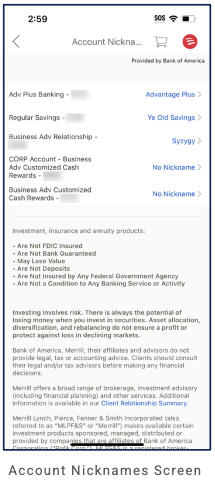
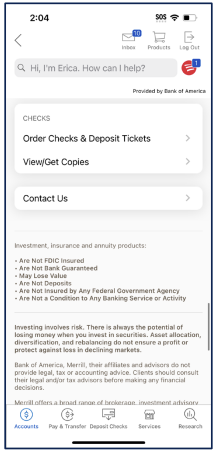
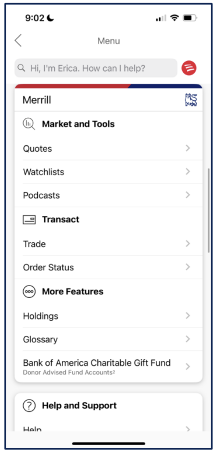
Banking: Accounts tab (account list/detail, balance, transactions); Pay & Transfer, Deposit Checks as primary tabs. Account Nicknames screen lists accounts (banking + card) with nickname or "No Nickname"; investment/Merrill disclaimers. Services, Research tabs. Full LOB depth TBD from more screens.
Depth of hierarchy
Account detail: 1–2 taps from Accounts. Nicknames via Account Nicknames screen or EDIT on account view.
Cross-LOB patterns
"Provided by Bank of America"; Merrill/BofA disclaimers on nicknames and investment content.
Personalization
Account nicknames per account (list screen); EDIT for account name on account view.
Screenshots
Betterment (Robo-advisor + cash)
Partial audit. This entry is based on 8 screenshots. Home dashboard, hamburger menu, checking account, cross-account Activity, Settings, and transfer/recurring flows are visible. What follows is a record of what is visible.
Primary navigation
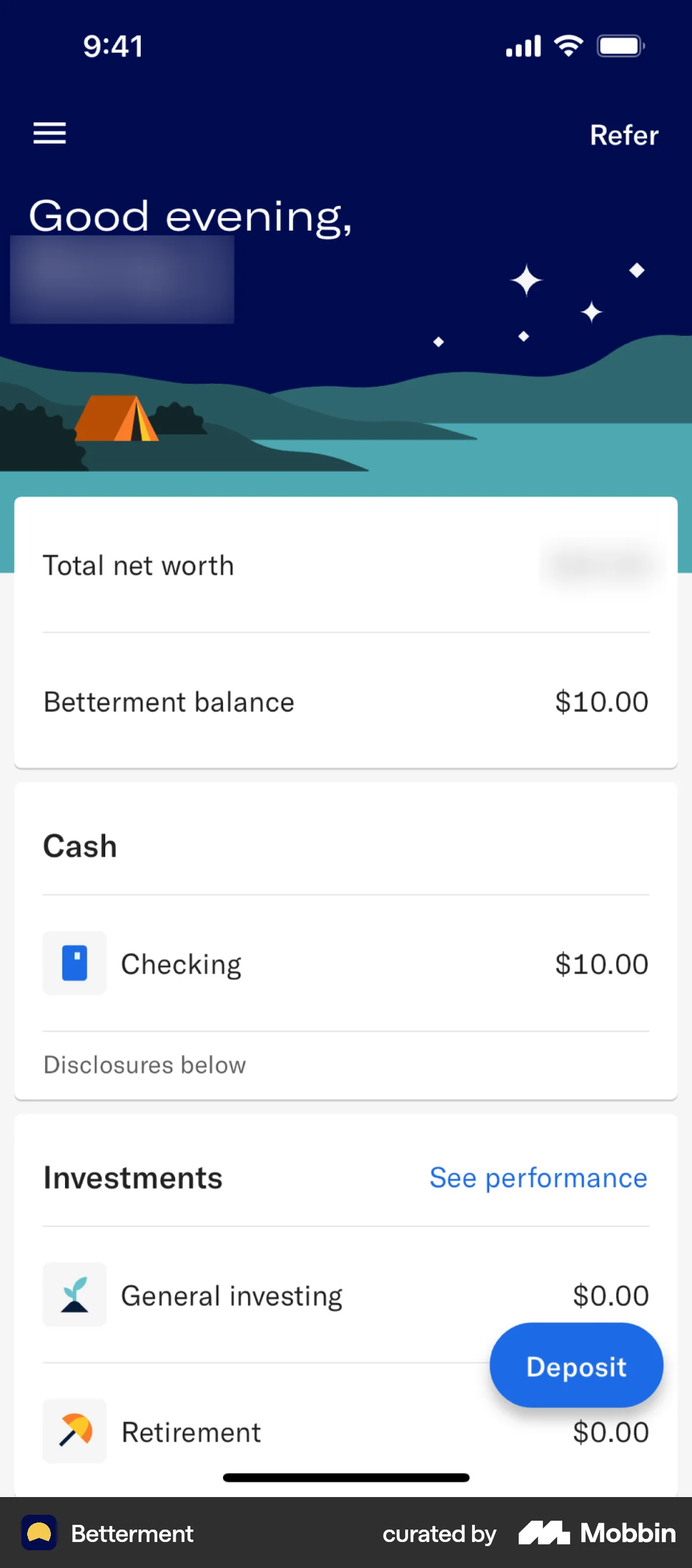
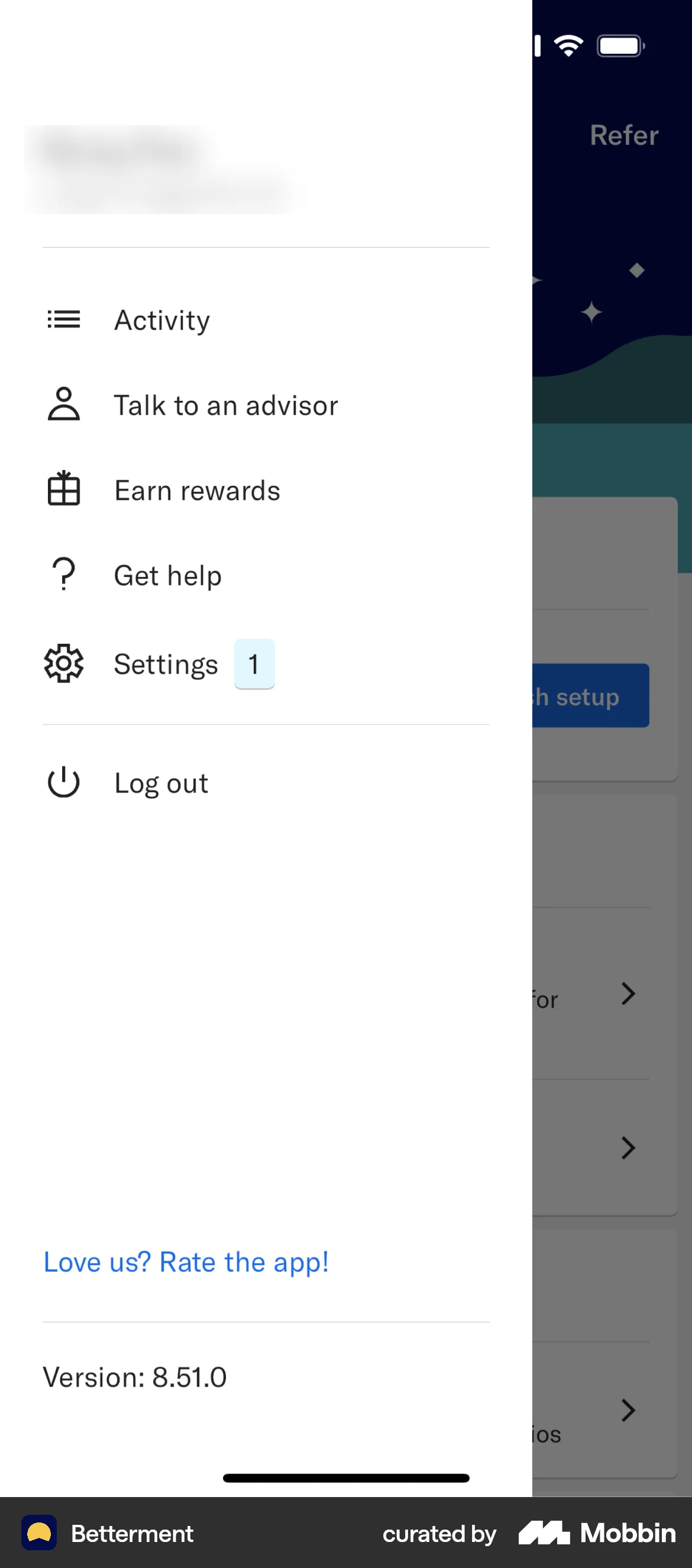
No bottom tab bar in captured screens. Home as default landing. Hamburger menu (top left) opens slide-out drawer; Refer (top right). Sub-screens: back arrow, contextual title (Activity, Checking, Settings). Deposit FAB on home.
Home / dashboard
Home (scrollable): illustrated header (night sky/campsite); time-of-day greeting ("Good evening, [name]"); Total net worth + Betterment balance card; Cash section (Checking row with card icon, balance, chevron; "Disclosures below"); Investments section (General investing sprout icon, Retirement umbrella icon; "See performance" link). Deposit FAB (bottom right).
LOB placement
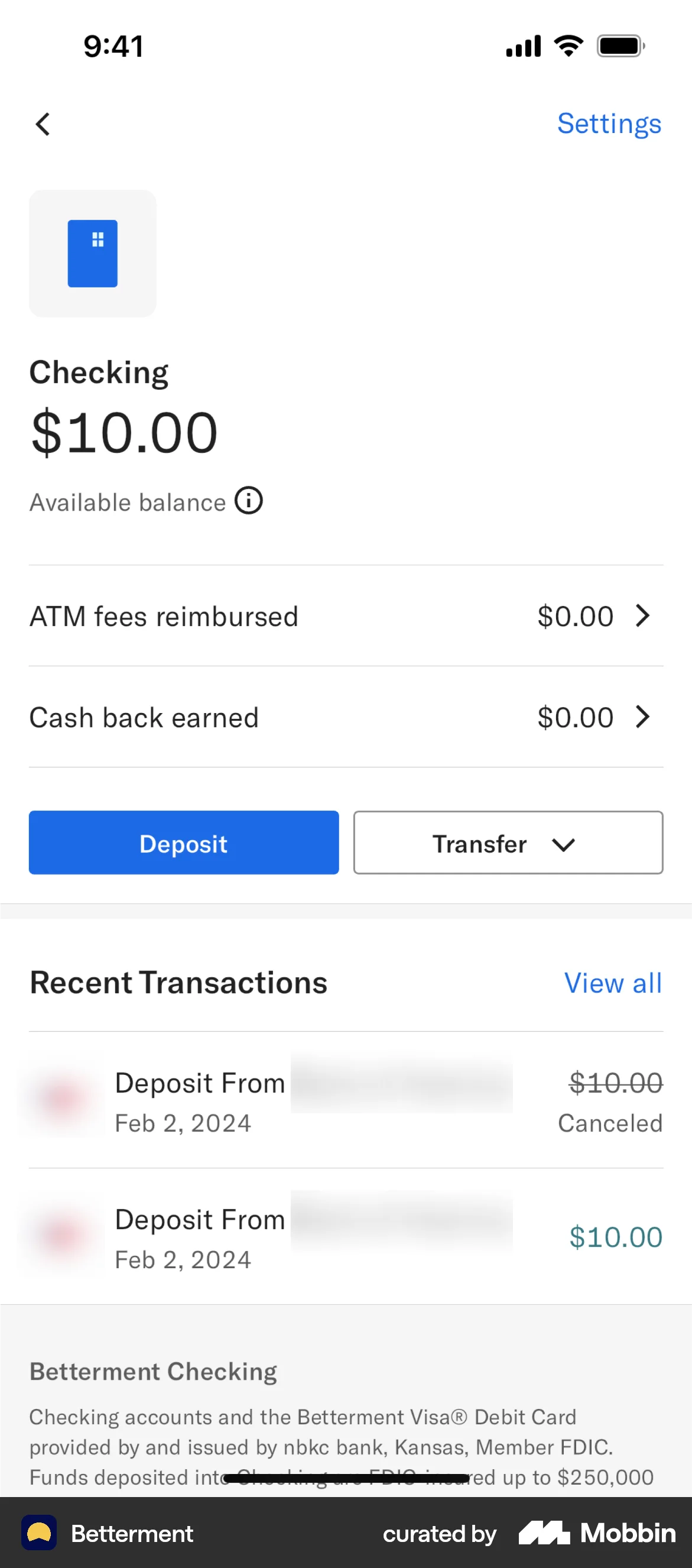
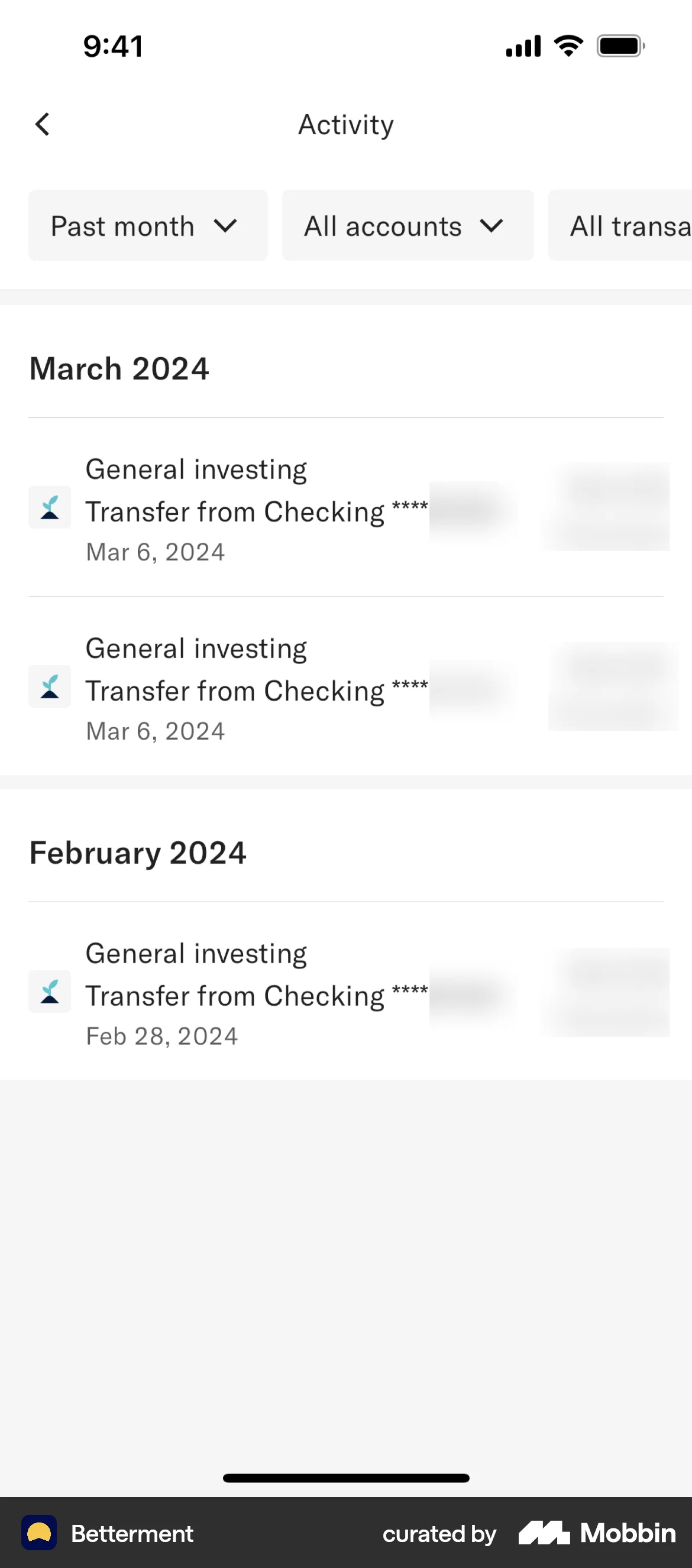
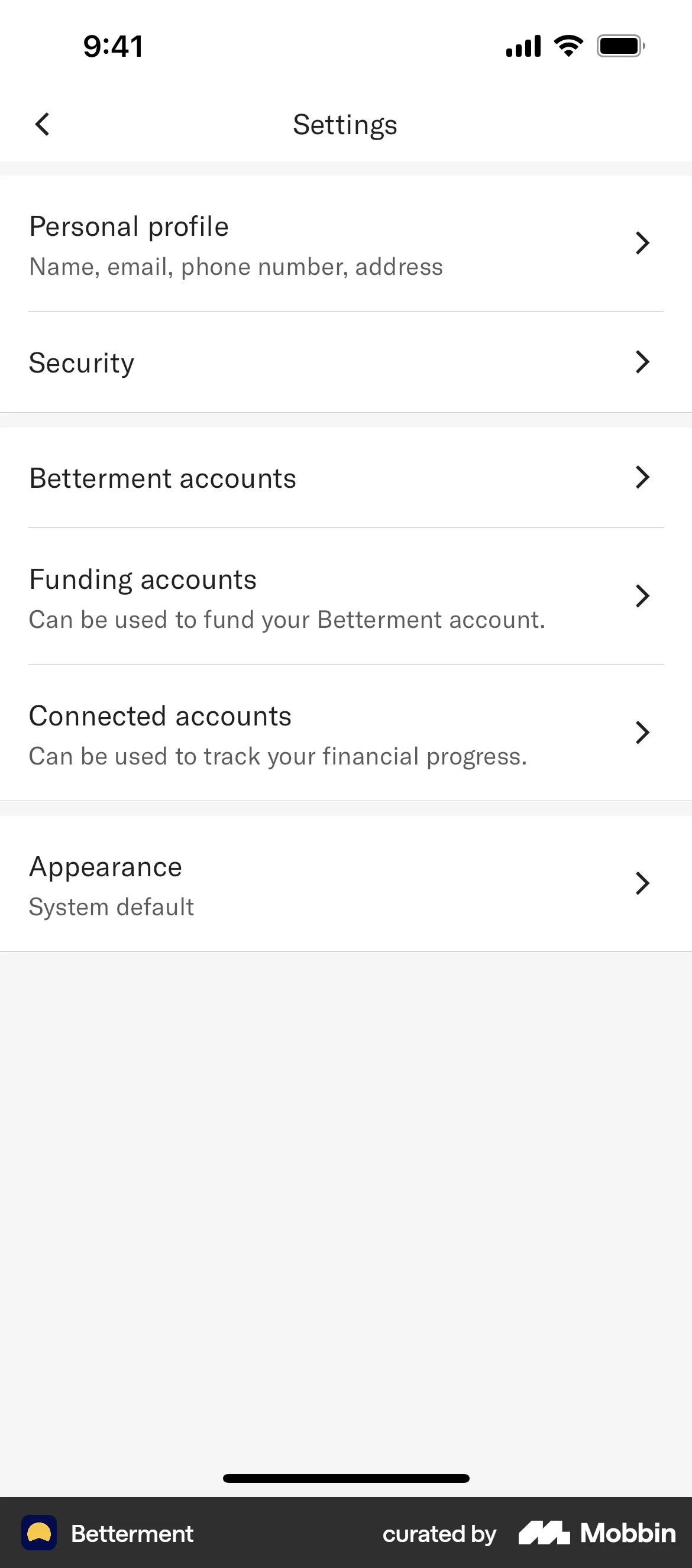
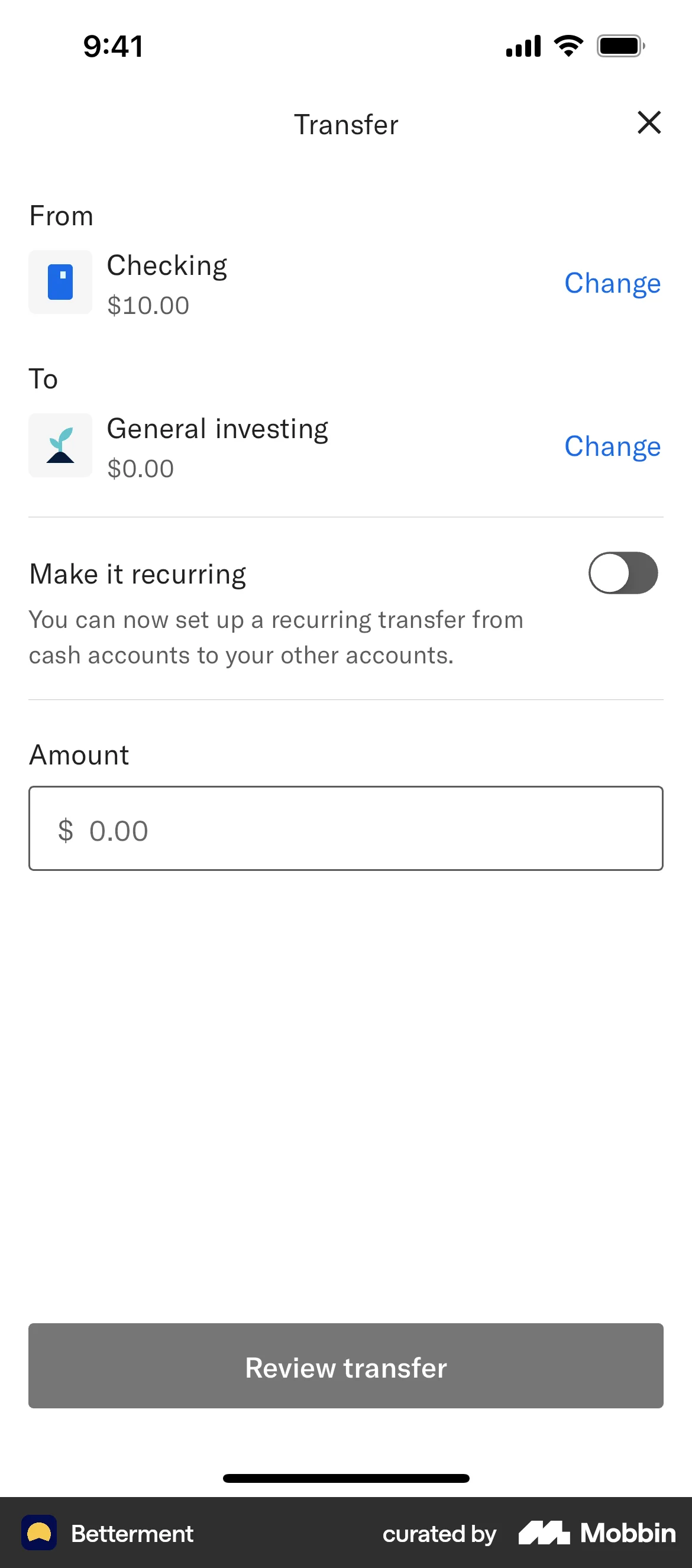
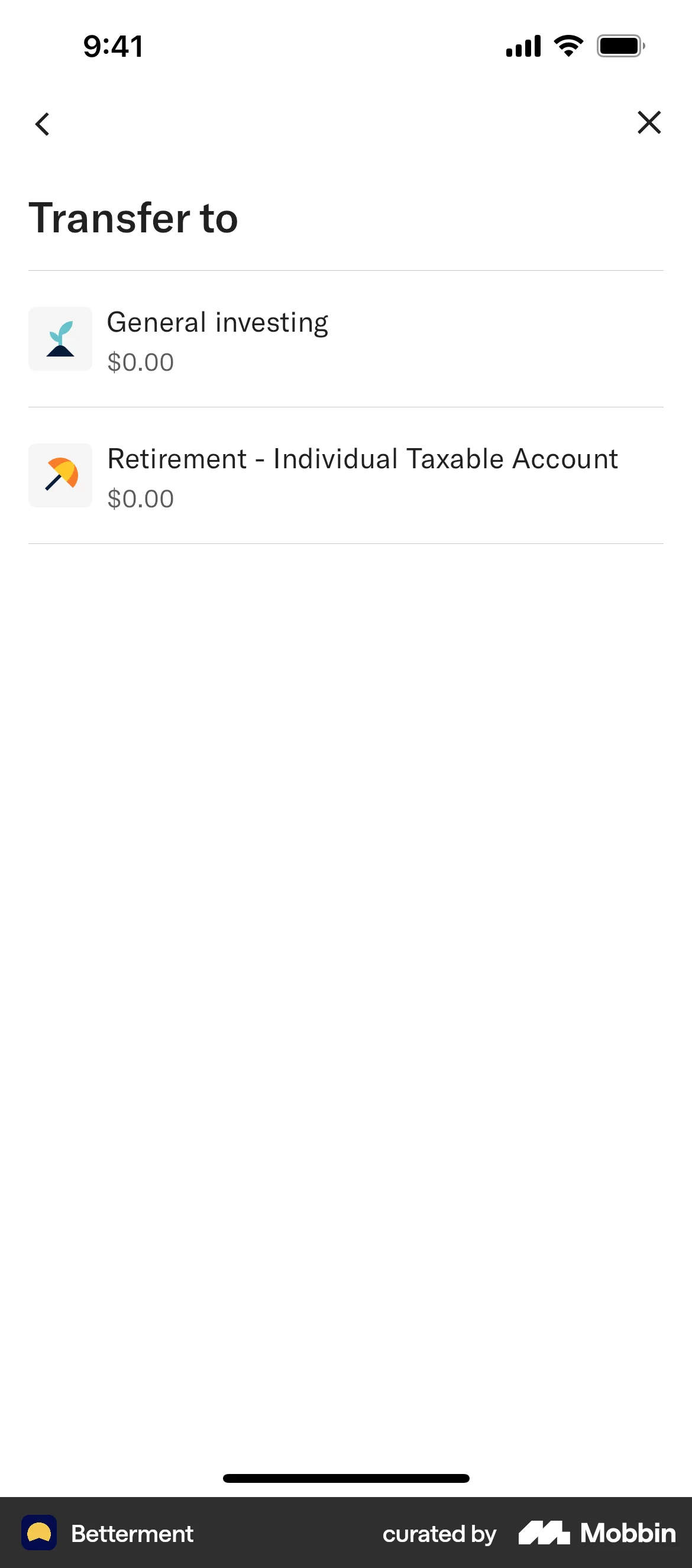
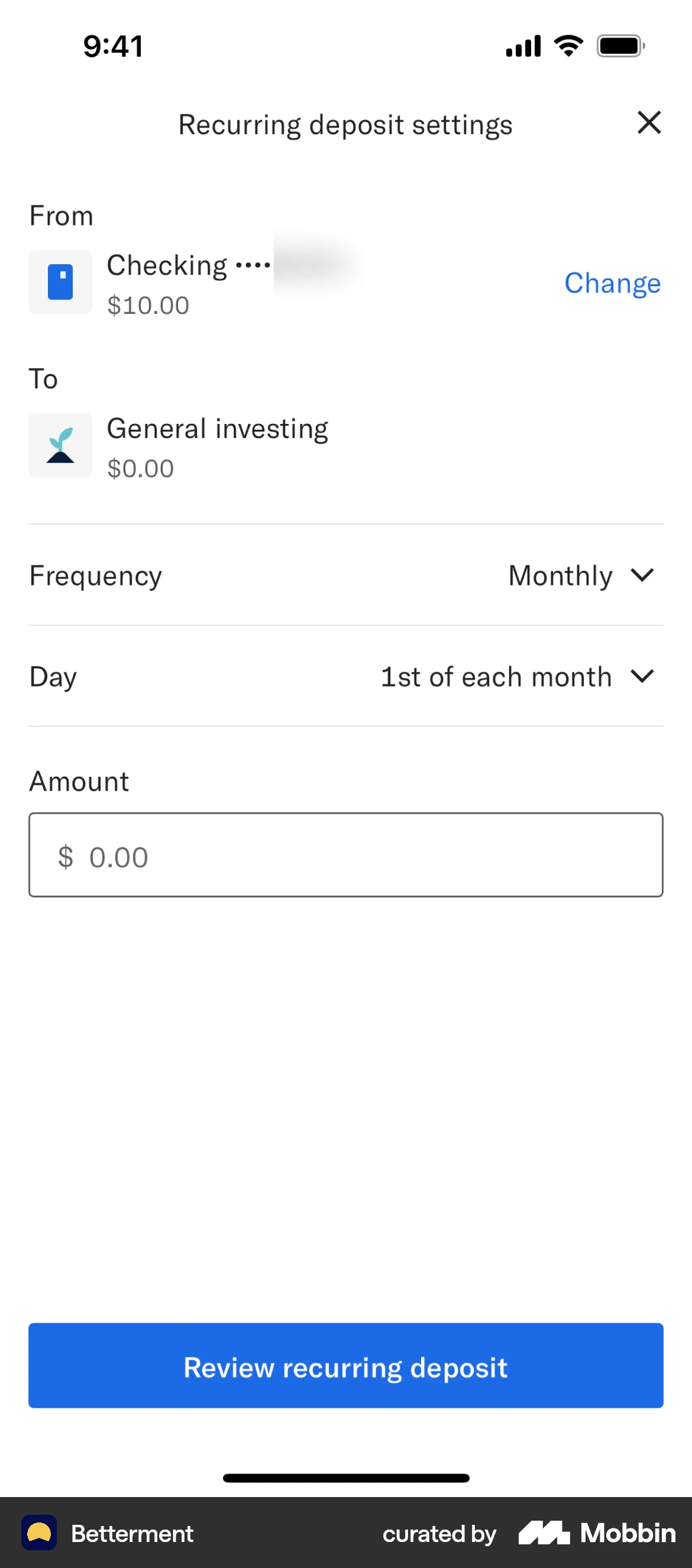
Cash: Checking drill-down (balance, Available balance + info icon, ATM fees reimbursed, Cash back earned chevrons, Deposit + Transfer buttons, Recent Transactions + View all, nbkc bank/FDIC footer). Investing: Goal-based accounts on home (General investing, Retirement). Activity: Menu → Activity; filters (Timeframe: Past month, Account: All accounts, Transaction type); transactions grouped by month. Transfers: Modal Transfer (From Checking / To goal account, amount, "Make it recurring" toggle); Transfer to picker (General investing, Retirement); Recurring deposit settings (From/To, Frequency Monthly, Day 1st, Amount, Review). Settings: Menu → Settings (badge); Personal profile, Security, Betterment accounts, Funding accounts, Connected accounts, Appearance. Advisory/rewards: Talk to an advisor, Earn rewards in menu. Help: Get help. Log out in menu. Full LOB depth TBD from more screens.
Depth of hierarchy
Home → Checking = 1 tap. Home → Activity = hamburger → Activity (2 taps). Checking → Settings (1 tap). Deposit FAB from home; Deposit + Transfer on checking. Transfer: Change From/To; recurring toggle → Recurring deposit settings.
Cross-LOB patterns
Single home aggregates net worth, cash, and investments. Activity is cross-account (filter by account). Transfer flows connect cash → investing goals. Menu is cross-LOB hub. Partner-bank disclosures on checking (nbkc, FDIC).
Personalization
Time-of-day greeting and themed home illustration. Settings notification badge ("1"). Appearance (System default). Connected accounts for tracking financial progress.
Screenshots
Capital One (Card + banking)
Primary navigation
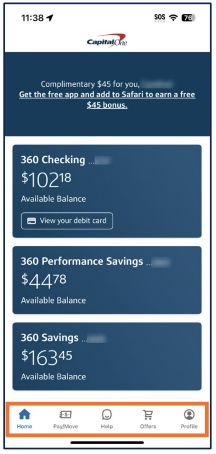
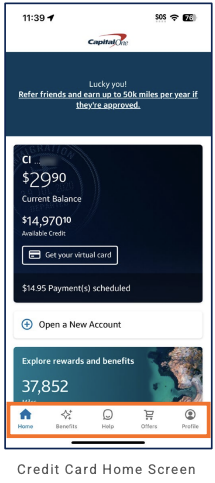
5 tabs, bottom nav: Home, Benefits, Help, Offers, Profile. Centered Capital One logo in header.
Home / dashboard
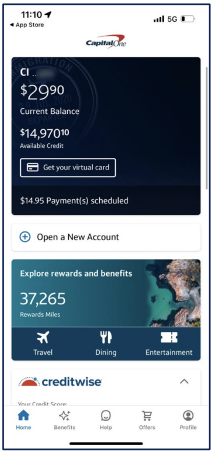
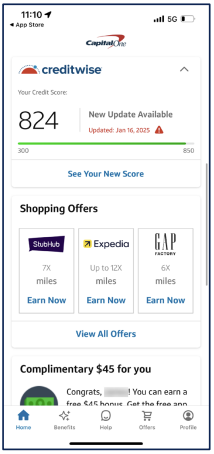
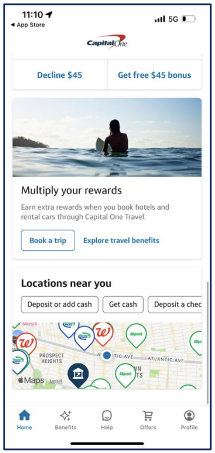
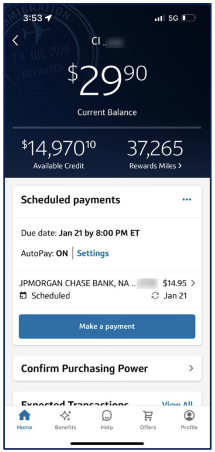
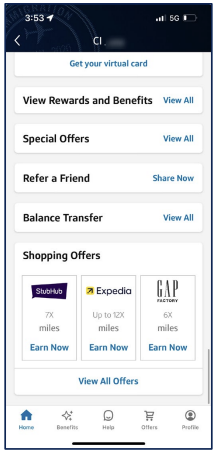
Home (scrollable): card-based blocks—(1) Account summary (dark blue) current balance, available credit, "Get your virtual card," scheduled payments; (2) Open a New Account (white CTA); (3) Rewards (teal) Rewards Miles, Explore rewards and benefits, Travel/Dining/Entertainment; (4) CreditWise Your Credit Score (score, update, range bar, See Your New Score); (5) Shopping Offers merchant cards (e.g. StubHub, Expedia, GAP FACTORY) with miles and Earn Now; (6) Complimentary offer ($45 bonus); (7) Promo banner (Decline $45 / Get free $45 bonus); (8) Multiply your rewards Capital One Travel (Book a trip, Explore travel benefits); (9) Locations near you map, Deposit or add cash, Get cash, Deposit a check. Key figures and CTAs prominent.
LOB placement
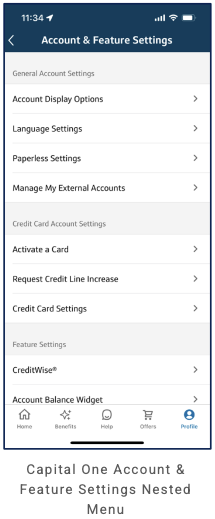
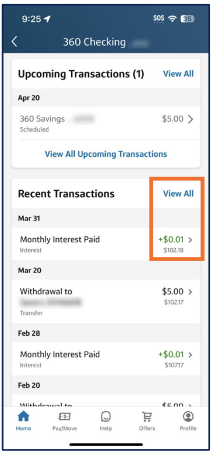
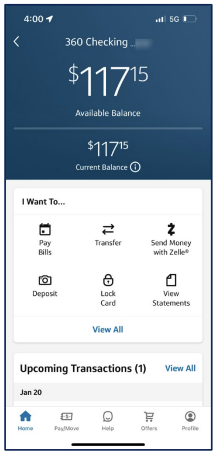
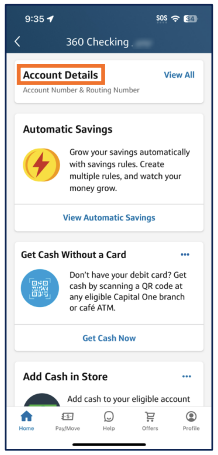
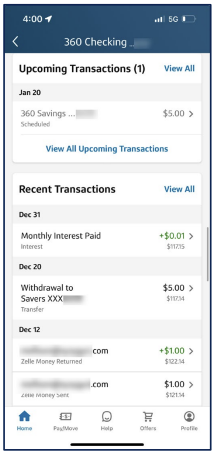
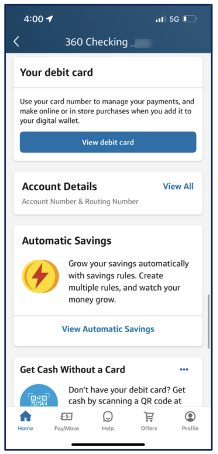
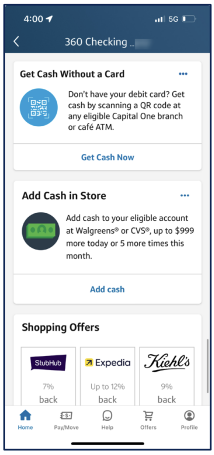
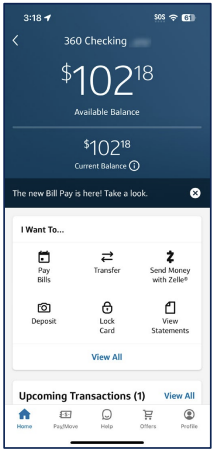
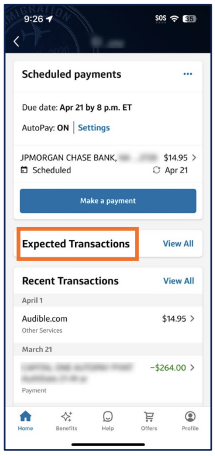
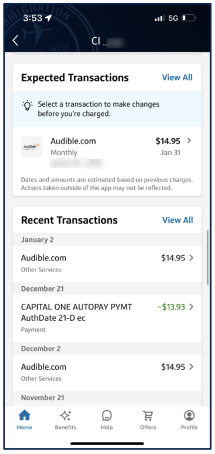
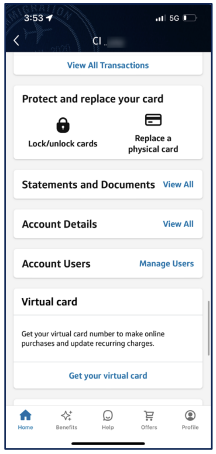
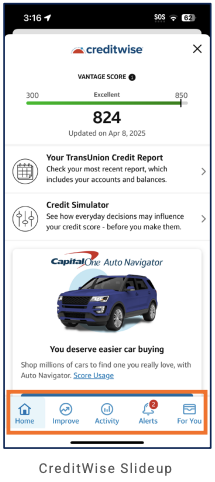
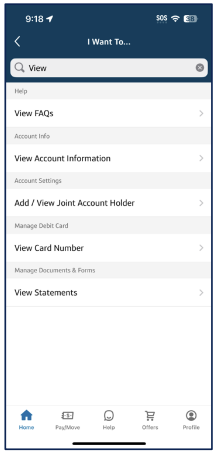
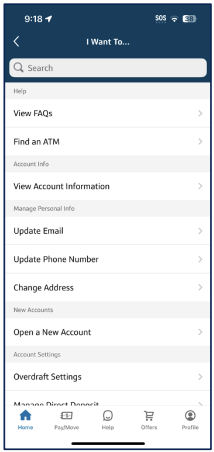
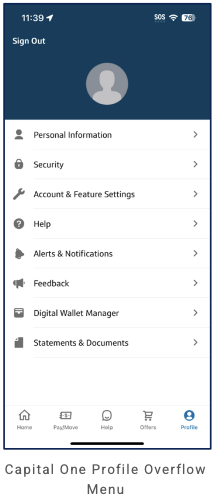
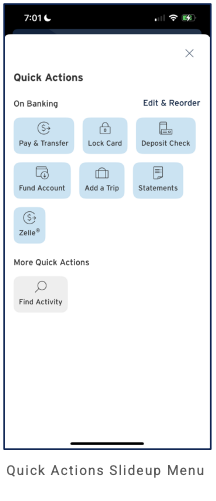
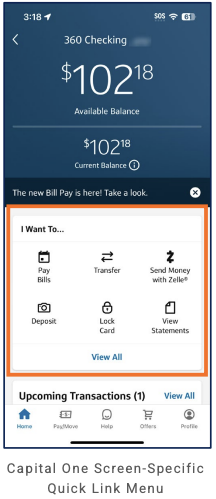
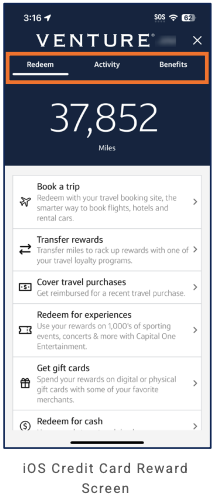
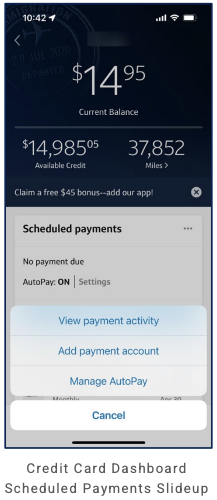
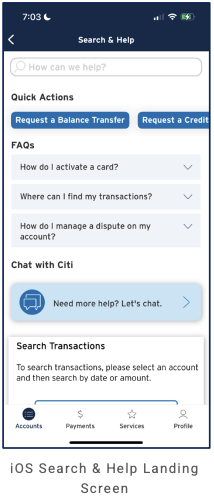
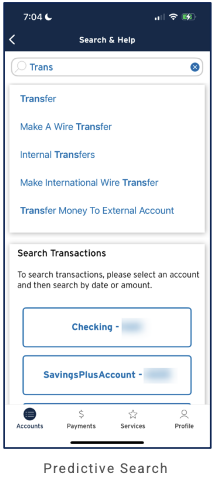
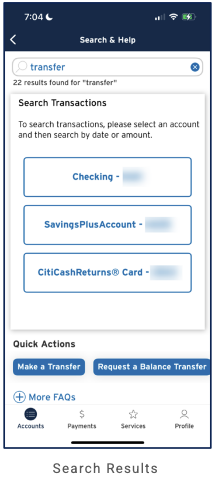
Card/credit: Primary on Home (balance, available credit, virtual card, rewards miles). Credit card account view: Current Balance, Available Credit, Rewards Miles; Scheduled payments (Due date, AutoPay Settings), Make a payment, Confirm Purchasing Power; Expected and Recent Transactions (View All; make changes before charged). Credit card services: Protect and replace your card (Lock/unlock, Replace physical card); Statements and Documents, Account Details, Account Users; Virtual card. Credit card features: View Rewards and Benefits, Special Offers, Refer a Friend, Balance Transfer, Shopping Offers. Credit Card Home: referral (50k miles), balance/credit, Get your virtual card, Open a New Account, Explore rewards and benefits. CreditWise (slide-up): Vantage Score (300–850), TransUnion Credit Report, Credit Simulator; Auto Navigator promo; CreditWise nav (Home, Improve, Activity, Alerts, For You). I Want To… (task/search menu): Search with categorized results (Help, Account Info, Manage Personal Info, New Accounts, Account Settings, Manage Debit Card, Manage Documents & Forms). Profile overflow: Sign Out, avatar; Personal Information, Security, Account & Feature Settings, Help, Alerts & Notifications, Feedback, Digital Wallet Manager, Statements & Documents. Quick Actions (slide-up): On Banking (Edit & Reorder)—Pay & Transfer, Lock Card, Deposit Check, Fund Account, Add a Trip, Statements, Zelle®; More Quick Actions—Find Activity. Rewards/redeem (e.g. Venture): Redeem / Activity / Benefits tabs; miles balance; Book a trip, Transfer rewards, Cover travel purchases, Redeem for experiences, Get gift cards, Redeem for cash. Scheduled payments (lightbox): No payment due, AutoPay Settings; View payment activity, Add payment account, Manage AutoPay. Search & Help: Landing (search, Quick Actions, FAQs, Chat, Search Transactions); predictive search; results (e.g. 22 results for "transfer", Quick Actions, More FAQs); suggested (Trending Searches, Quick Actions, FAQs, Chat). CreditWise: Home card (credit score, update CTA). Rewards/Offers: Home content plus Benefits and Offers tabs. Locations: Home card (map, deposit/get cash, deposit check). Open a New Account on Home. Banking: Account list home (360 Checking, 360 Performance Savings, 360 Savings with Available Balance, View your debit card); 360 Checking account view with Available/Current balance, I Want To… (Pay Bills, Transfer, Zelle®, Deposit, Lock Card, View Statements), Upcoming and Recent Transactions (View All); feature cards (Account Details, Your debit card, Automatic Savings, Get Cash Without a Card, Add Cash in Store); in-context Shopping Offers (merchant % back carousel) on 360 Checking. Account & Feature Settings (Profile): General, Credit Card, Feature. Credit and rewards first.
Depth of hierarchy
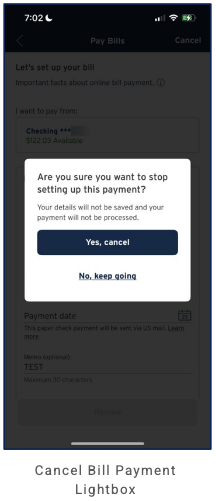
Balance/credit at a glance; CreditWise one tap (See Your New Score); Offers and rewards from Home. Pay Bills: exit confirmation modal (Are you sure you want to stop setting up this payment? Yes, cancel / No, keep going). Full depth TBD from more screens.
Cross-LOB patterns
Home aggregates credit balance, rewards miles, and credit score; promo and location content in one scroll. Benefits and Offers as separate tabs.
Personalization
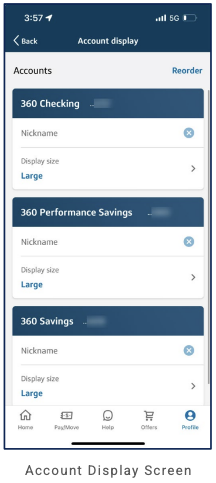
Account display (Reorder accounts; per-account Nickname and Display size e.g. Large—360 Checking, 360 Performance Savings, 360 Savings). Account & Feature Settings under Profile: General (Account Display Options, Language, Paperless, Manage External Accounts), Credit Card (Activate, Credit Line, Settings), Feature (CreditWise®, Account Balance Widget).
Screenshots
Charles Schwab (Full-service / wealth)
Primary navigation
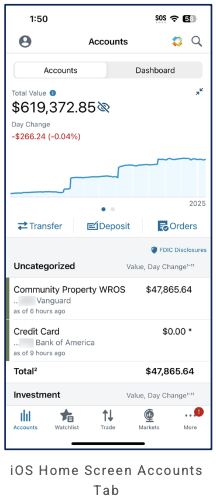
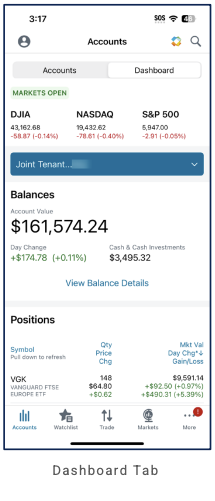
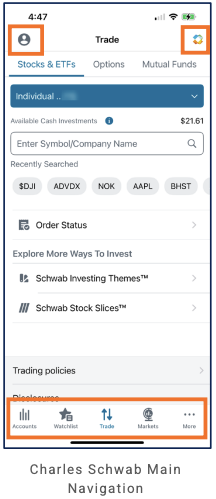
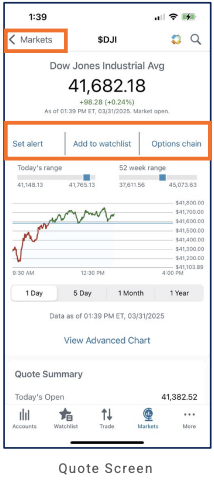
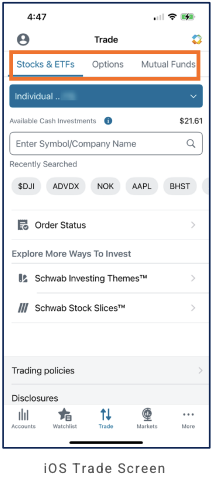
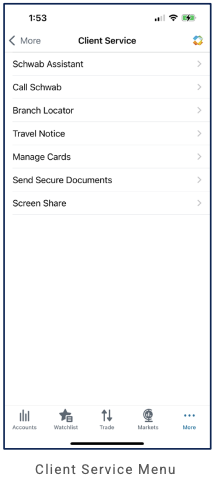
5 tabs, bottom nav: Accounts, Watchlist, Trade, Markets, More. Header: profile, title, icons (e.g. search).
Home / dashboard
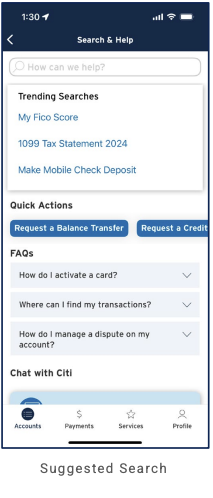
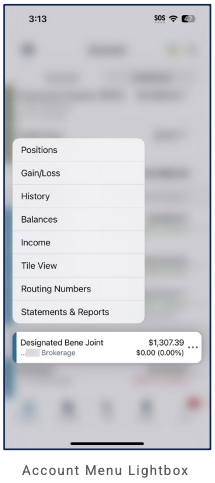
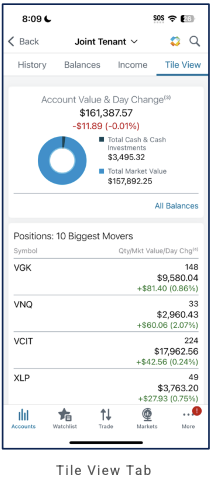
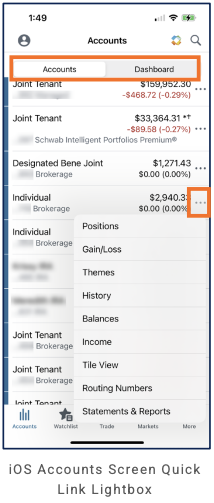
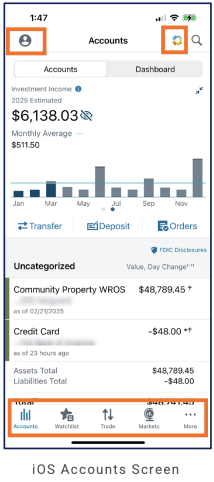
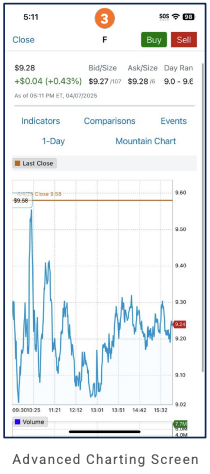
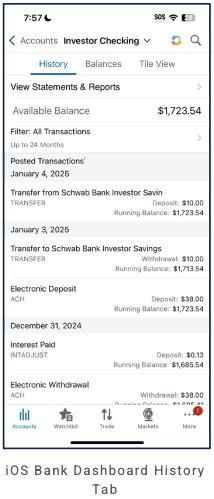
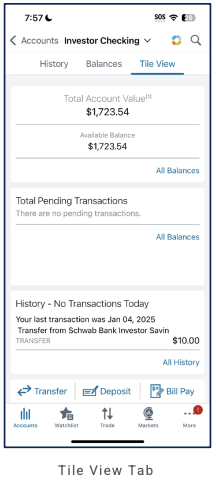
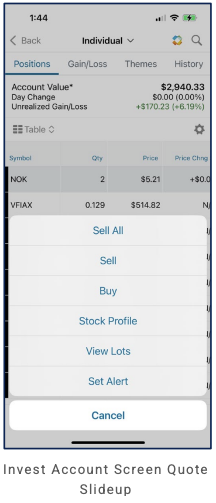
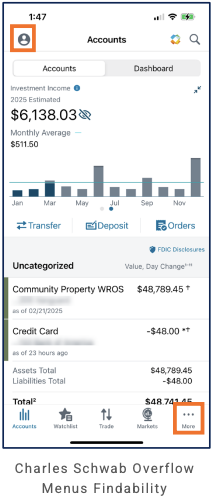
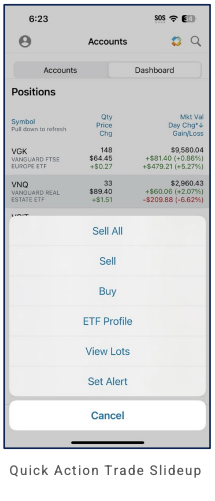
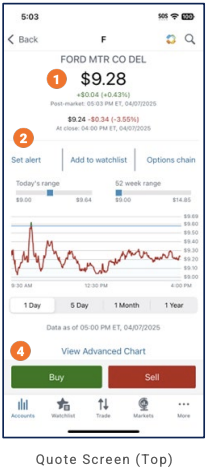
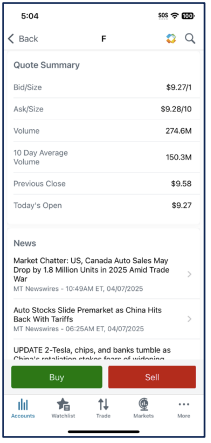
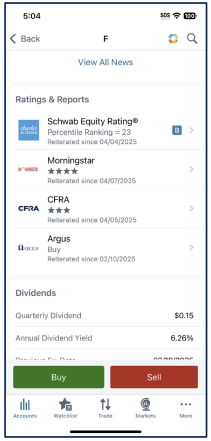
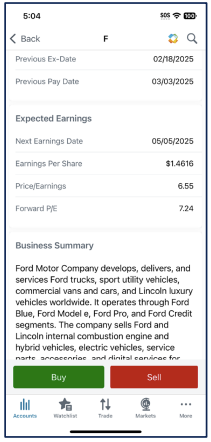
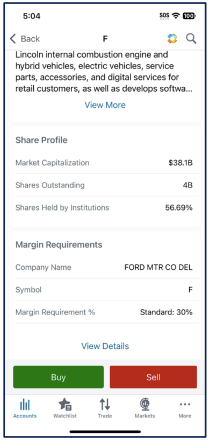
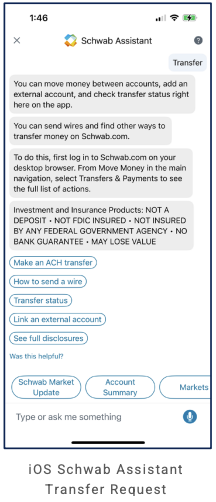
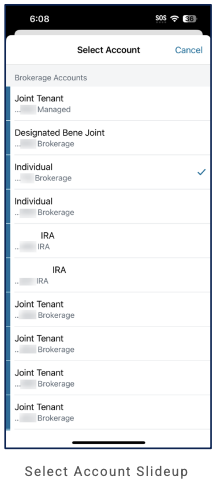
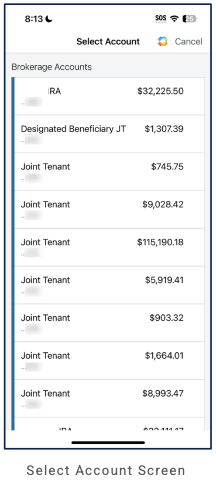
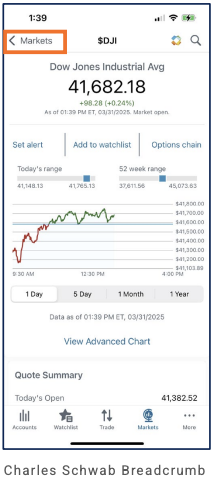
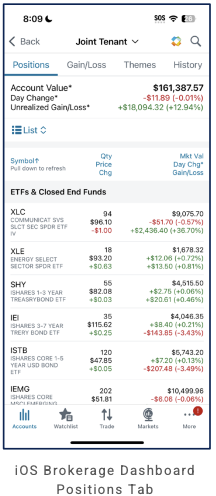
Accounts tab: segmented control Accounts | Dashboard. Account list (e.g. Joint Tenant, Designated Bene Joint, Individual) with balance, day change ($ and %); ellipsis opens Quick Link lightbox (Positions, Gain/Loss, Themes, History, Balances, Income, Tile View, Routing Numbers, Statements & Reports). Account menu lightbox: same options; account summary card (name, type, balance, day change). Tile View (per account): account selector, tabs History / Balances / Income / Tile View; Account Value & Day Change, donut (Cash & Cash Investments, Market Value); Positions: 10 Biggest Movers (Symbol, Qty, Mkt Value/Day Chg). Accounts (alternate view): Investment Income (2025 Estimated, Monthly Average, bar chart Jan–Nov); Quick Actions (Transfer, Deposit, Orders); account list (Uncategorized, Assets/Liabilities Total). Advanced Charting (quote): ticker, price, Bid/Ask, Day Range; Buy/Sell; Indicators, Comparisons, Events; 1-Day, Mountain Chart; Volume. Banking (Investor Checking): History / Balances / Tile View tabs; History: View Statements & Reports, Available Balance, Filter (All Transactions, Up to 24 Months), Posted Transactions (date, description, type, amount, running balance); Tile View: Total Account Value, Pending Transactions, History teaser; Quick Actions (Transfer, Deposit, Bill Pay).
LOB placement
Investing: Accounts list (brokerage-type); per-account Quick Link / Account menu (Positions, Gain/Loss, Themes, History, Balances, Income, Tile View, Routing Numbers, Statements & Reports); Tile View with allocation and positions; Advanced Charting (quote, chart, Buy/Sell). Banking: Investor Checking with History/Balances/Tile View; transaction history, Tile View (value, pending, history teaser); Quick Actions Transfer, Deposit, Bill Pay. Full LOB depth TBD from more screens.
Depth of hierarchy
Account list → ellipsis → Quick Link lightbox; account → Tile View (tabs). Full depth TBD from more screens.
Cross-LOB patterns
TBD from more screens.
Personalization
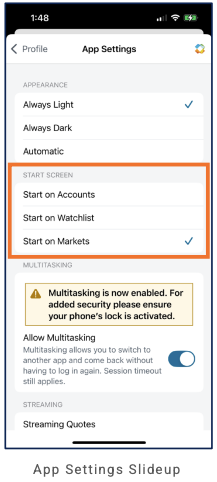
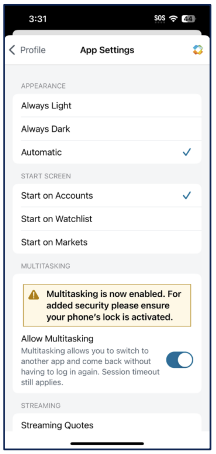
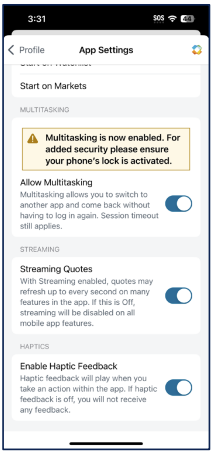
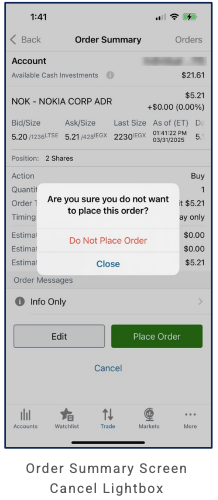
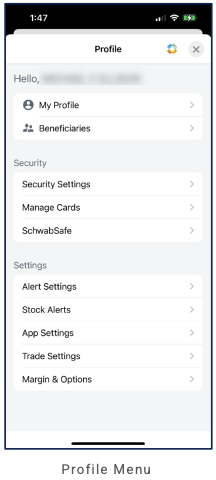
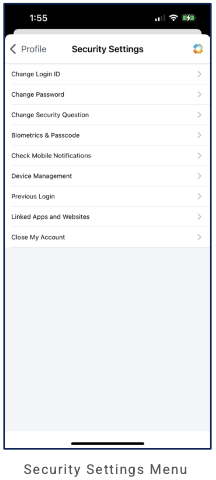
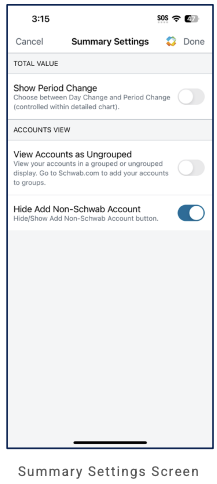
App Settings (slide-up from Profile): APPEARANCE (Always Light, Always Dark, Automatic); START SCREEN (Start on Accounts, Watchlist, or Markets); MULTITASKING (Allow Multitasking toggle, session timeout note); STREAMING (Streaming Quotes toggle, description); HAPTICS (Enable Haptic Feedback toggle).
Screenshots
Chase (J.P. Morgan) (Bank + investing)
Primary navigation
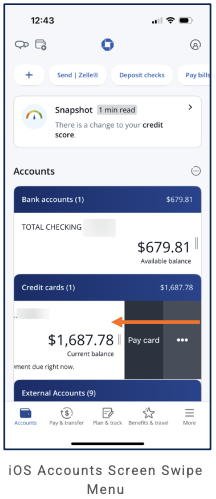
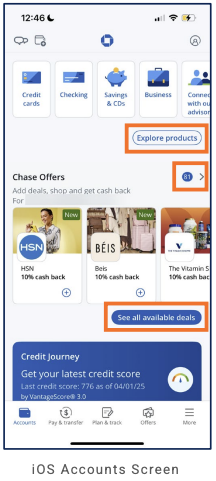
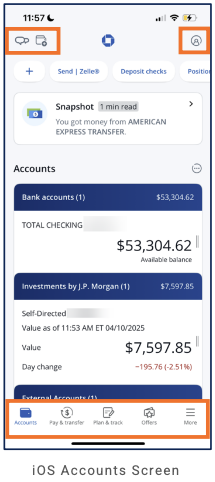
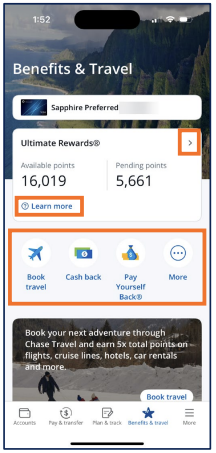
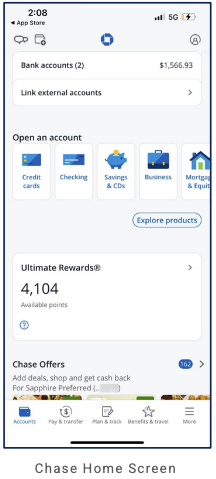
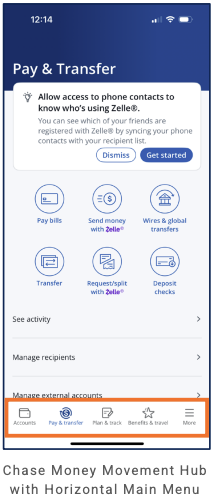
5 tabs, bottom nav: Accounts, Pay & transfer, Plan & track, Offers (or Benefits & travel), More. Header: chat, document, Chase logo, profile.
Home / dashboard
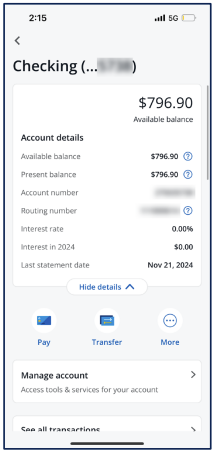
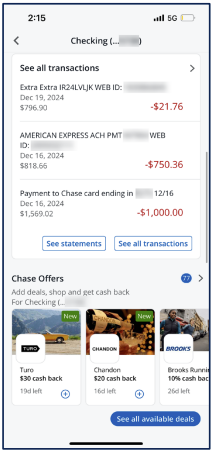
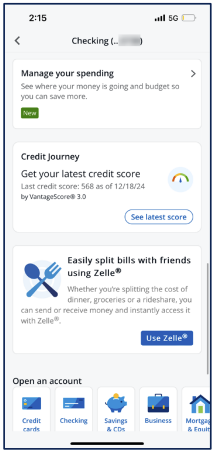
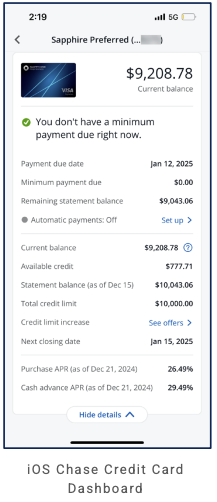
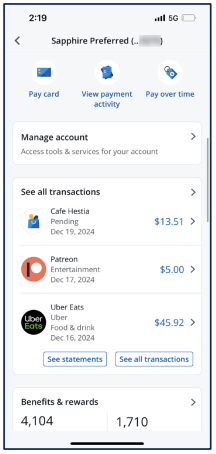
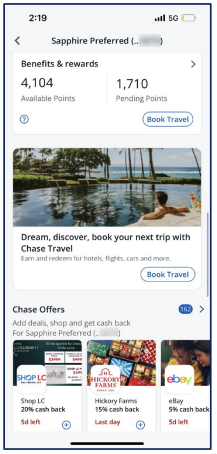
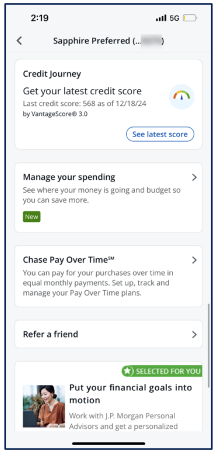
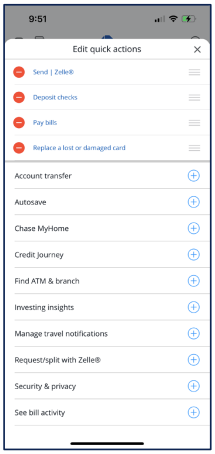
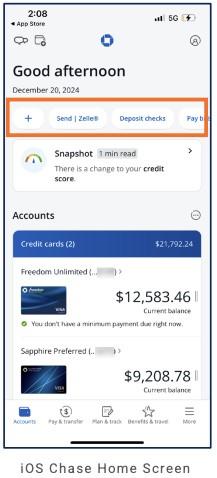
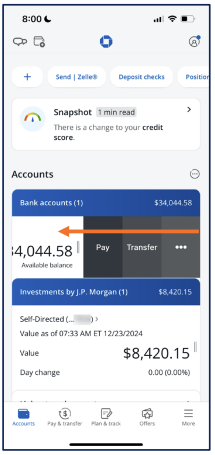
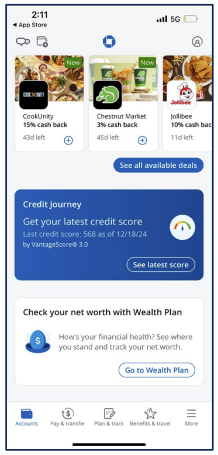
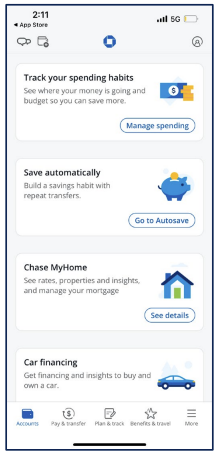
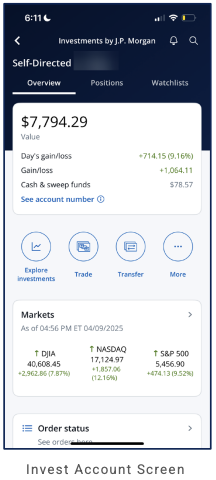
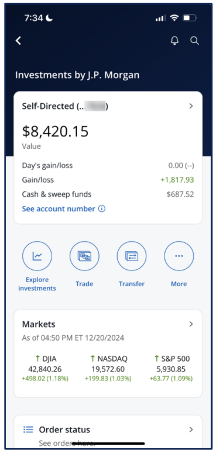
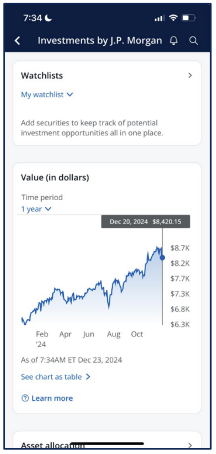
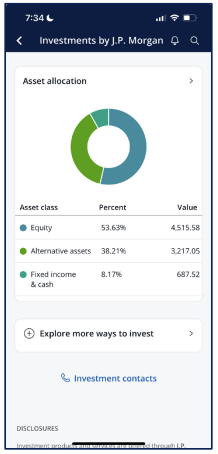
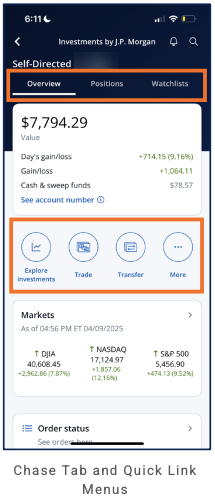
Accounts tab: + button; quick actions Send | Zelle®, Deposit checks, Pay bills; product categories (Credit cards, Checking, Savings & CDs, Business, Connect with advisor); Explore products; Chase Offers (badge count, carousel, See all deals); Credit Journey (credit score, VantageScore, gauge); Snapshot card (alerts e.g. credit score change, money received); Accounts section: Bank accounts, Credit cards (swipe reveals Pay card, More), Investments by J.P. Morgan (Self-Directed, value, day change), External Accounts.
LOB placement
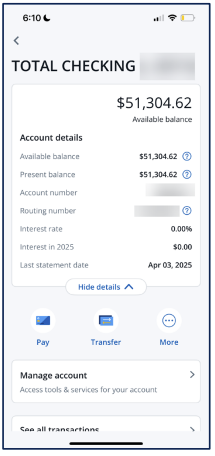
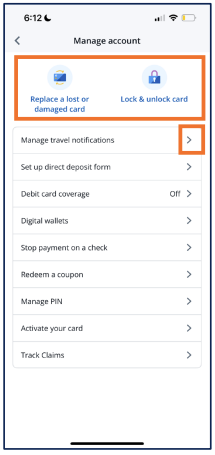
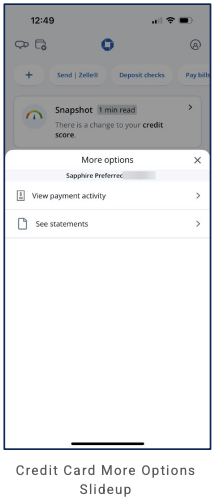
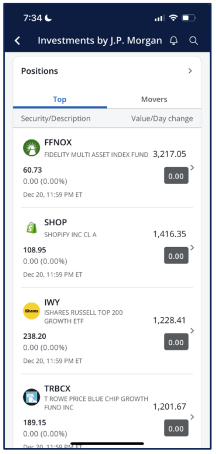
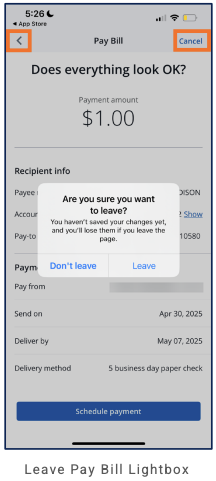
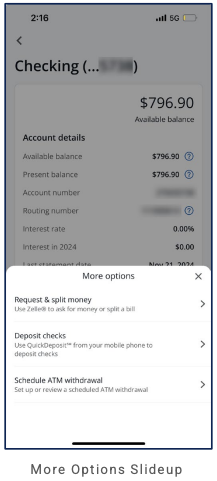
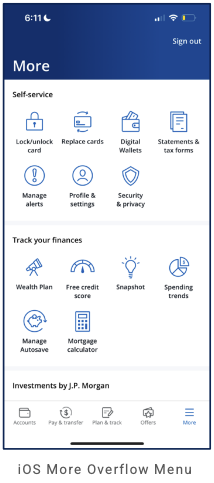
Banking: Accounts list (Bank accounts, Credit cards); Pay & transfer tab (hub: Pay bills, Zelle® send/request, Wires, Transfer, Deposit checks; See activity, Manage recipients, Manage external accounts; Zelle® contacts prompt). Investing: Investments by J.P. Morgan in Accounts (Self-Directed, value, day change); within invest: Positions (Top/Movers), Watchlists, Value chart (time period, table view), Asset allocation (donut + table), Explore/contacts. Offers: dedicated tab; Chase Offers on home (carousel, See all). More: Self-service (Lock/unlock card, Replace cards, Digital Wallets, Statements, Alerts, Profile, Security), Track your finances (Wealth Plan, Credit score, Snapshot, Spending trends, Autosave, Mortgage calculator); Sign out. External: External Accounts in Accounts. Credit Journey (score) on home. Checking: More options slide-up (Zelle® request/split, Deposit checks, Schedule ATM). Pay Bill: leave confirmation (unsaved changes).
Depth of hierarchy
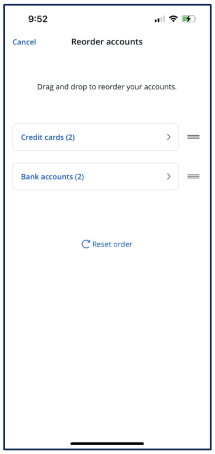
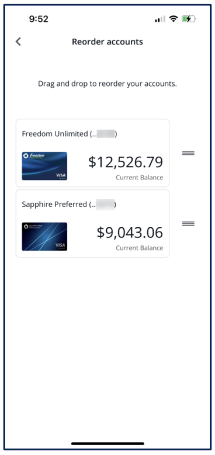
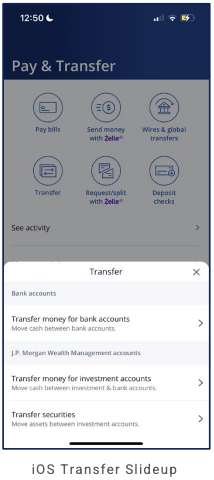
Accounts → account row: 1 tap. Credit card: swipe left reveals Pay card, More. Pay & Transfer tab: hub (grid + activity/recipients/external); Transfer slide-up (bank accounts, investment transfer, transfer securities). Pay Bill leave confirmation. Checking More options slide-up. Reorder accounts: categories then within-category. More: Self-service + Track your finances; Sign out.
Cross-LOB patterns
Single Accounts view aggregates Bank accounts, Credit cards, Investments by J.P. Morgan, External Accounts. Snapshot surfaces alerts (credit score, transfers).
Personalization
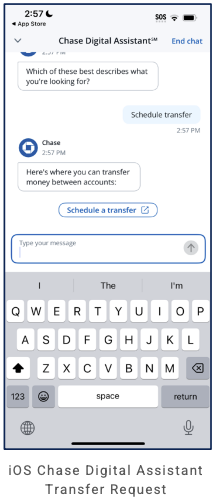
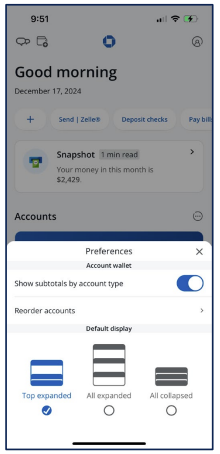
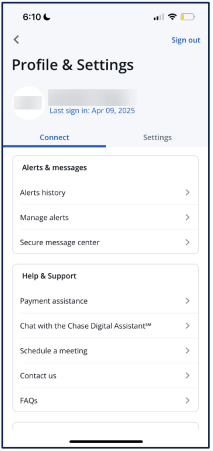
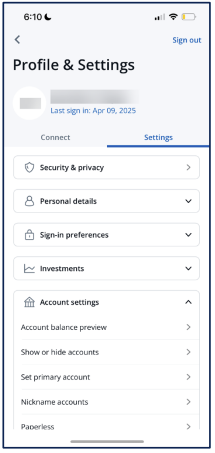
Account wallet preferences (from Accounts ellipsis): Show subtotals by account type, Reorder accounts, Default display (Top expanded / All expanded / All collapsed). Profile & Settings (More → Profile & settings): Connect tab (Alerts history, Manage alerts, Secure message center; Payment assistance, Chase Digital Assistant™, Schedule meeting, Contact us, FAQs); Settings tab (Security & privacy, Personal details, Sign-in preferences, Investments; Account settings: balance preview, Show/hide accounts, Set primary account, Nickname accounts, Paperless).
Screenshots
Citi (Bank + investing)
Primary navigation
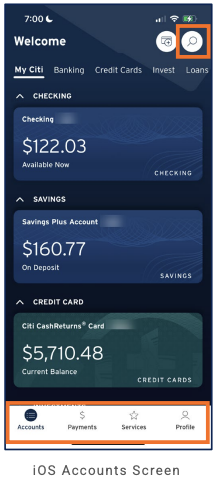
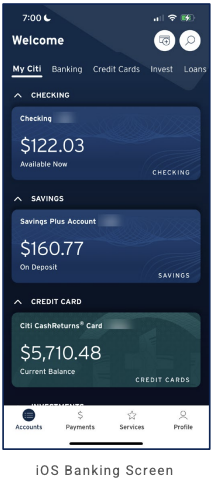
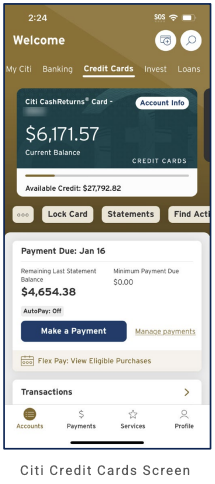
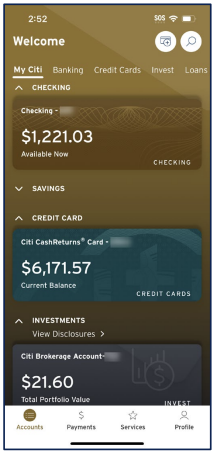
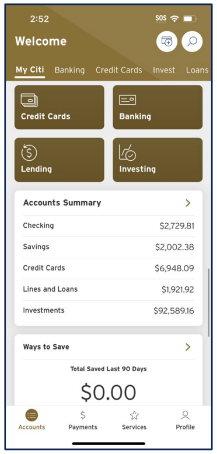
4 tabs, bottom nav: Accounts, Payments, Services, Profile. Header: Welcome; + and search icons. Horizontal tabs below header: My Citi, Banking, Credit Cards, Invest, Loans.
Home / dashboard
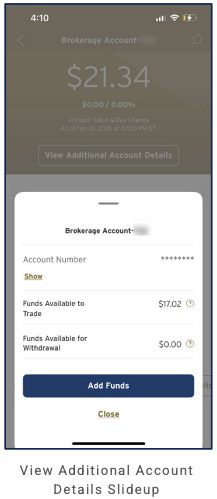
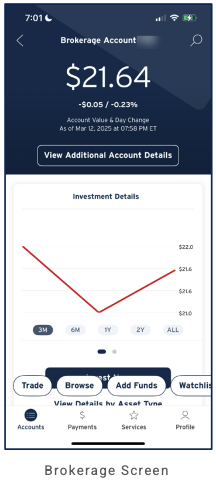
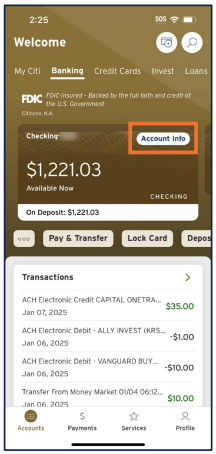
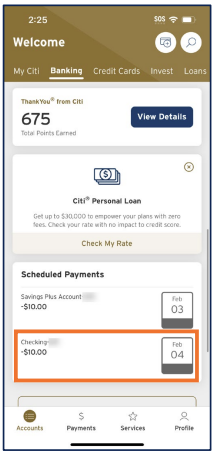
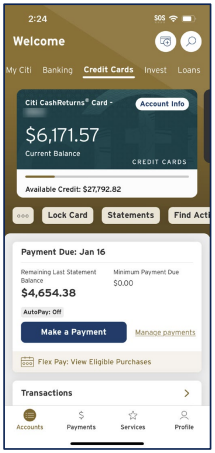
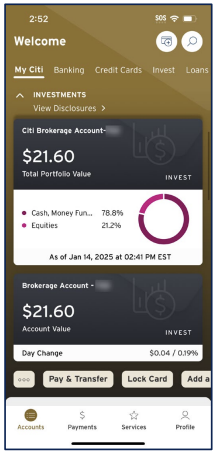
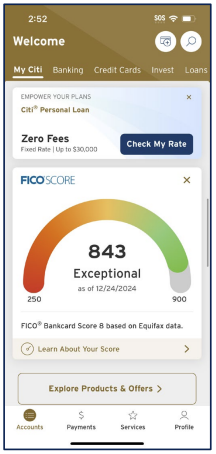
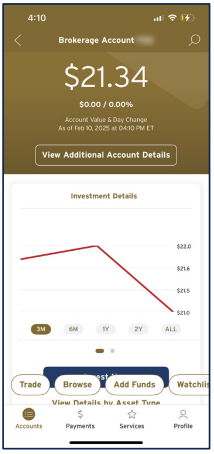
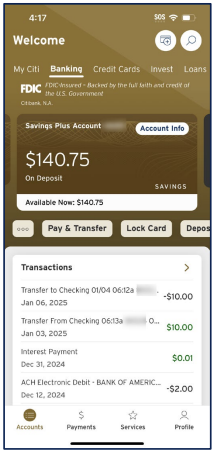
Accounts tab (My Citi): collapsible sections CHECKING, SAVINGS, CREDIT CARD, INVESTMENTS (Brokerage, View Disclosures; expanded: asset allocation donut, Day Change); each section has dark card with account name, balance, status; category label on card. My Citi also surfaces: Personal Loan offer, FICO® Score, Explore Products & Offers; variant with 4 quick access cards (Credit Cards, Banking, Lending, Investing), Accounts Summary (balances by type), Ways to Save. Banking tab: Checking dashboard (balance card, Account Info, quick actions Pay & Transfer, Lock Card, Deposit; Transactions list); ThankYou® rewards; Citi® Personal Loan offer (Check My Rate); Scheduled Payments (Savings Plus, Checking). Brokerage: back, title, search; Account Value & day change; View Additional Account Details (slide-up: Account number Show, Funds available to trade/withdrawal, Add Funds, Close); Investment Details (line graph, 3M/6M/1Y/2Y/ALL); quick actions Trade, Browse, Add Funds, Watchlist.
LOB placement
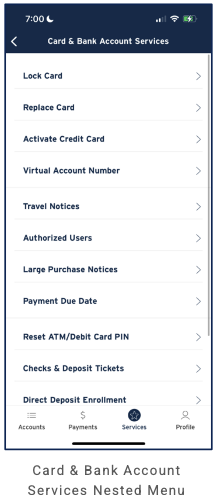
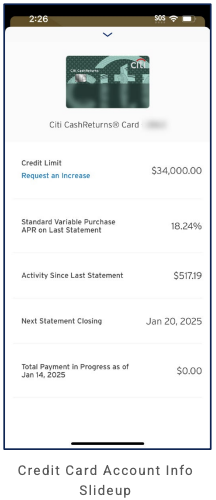
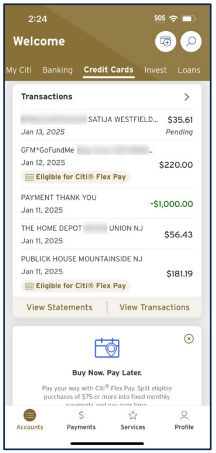
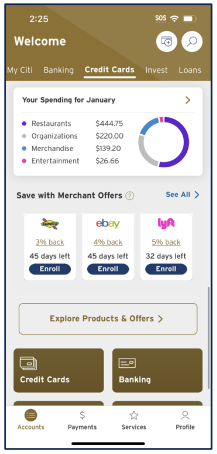
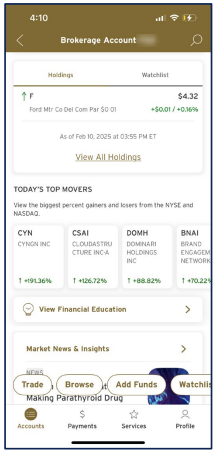
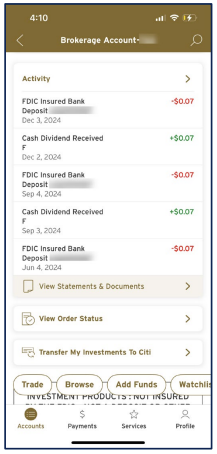
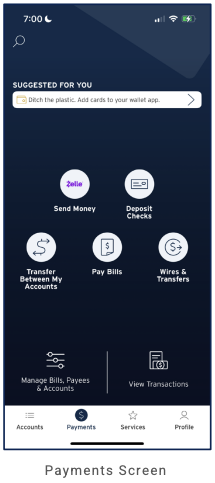
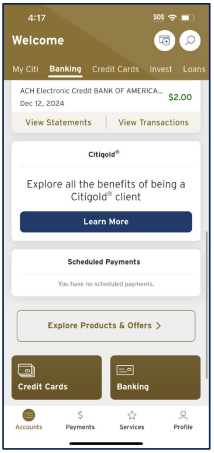
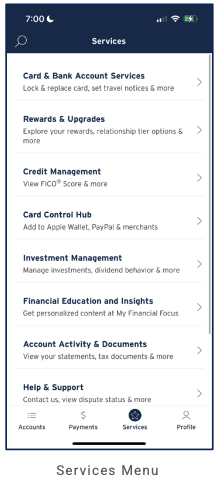
Banking: Accounts view with Checking, Savings; Banking tab (checking dashboard, rewards, loan offer, Scheduled Payments; Savings Plus Account with Account Info slide-up, Pay & Transfer, Lock Card, Deposit, Transactions; variant: recent transaction, Citigold® promo, Scheduled Payments, Explore Products & Offers); horizontal category tabs. Credit cards: Credit card in same Accounts view (card UI); Credit Cards tab: dashboard (balance, Available Credit, Account Info slide-up: Credit Limit/Request Increase, APR, Activity, Statement closing, Payment in progress; Lock Card, Statements, Find Activity; Payment Due, Make a Payment, Manage payments, Flex Pay); transactions (Flex Pay eligibility, View Statements/View Transactions); Citi Flex Pay promo (Buy Now. Pay Later.); Your Spending for January (donut chart); Save with Merchant Offers (See All, Enroll); Explore Products & Offers. Services: Services tab with full menu (search): Card & Bank Account Services, Rewards & Upgrades, Credit Management, Card Control Hub, Investment Management, Financial Education and Insights, Account Activity & Documents, Help & Support (each with subtitle, chevron); Card & Bank Account Services nested list as before. Invest: Brokerage (value, Additional Account Details slide-up, Investment Details chart; Holdings/Watchlist, View All Holdings, Today's Top Movers; Financial Education, Market News & Insights; Activity; View Statements & Documents, View Order Status, Transfer My Investments To Citi; Trade, Browse, Add Funds, Watchlist). Payments: dedicated tab (hub: Send Money/Zelle, Deposit Checks, Transfer, Pay Bills, Wires & Transfers; Manage Bills Payees & Accounts, View Transactions; Suggested for you).
Depth of hierarchy
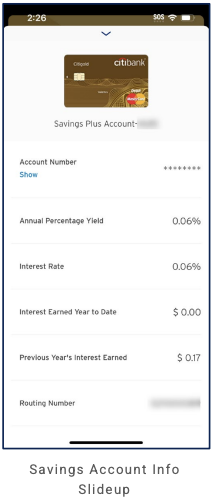
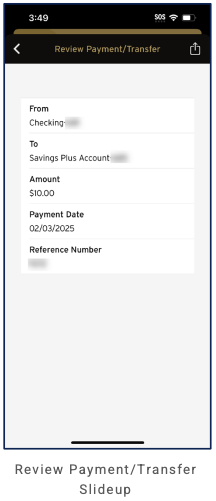
Accounts → category tabs; collapsible account cards. Payments tab: hub (Send Money/Zelle, Deposit Checks, Transfer, Pay Bills, Wires & Transfers; Manage Bills Payees & Accounts, View Transactions). Review Payment/Transfer slide-up (From/To/Amount/Date/Reference). Quick Actions slide-up (Edit & Reorder). Services tab: full menu. Checking: Account Info, quick actions, Transactions. Savings: Account Info slide-up (APY, interest, routing); Pay & Transfer, Lock Card, Deposit; Transactions. Credit card: Account Info slide-up; Lock Card, Statements, Find Activity; Make a Payment, Flex Pay. Services → Card & Bank Account Services nested menu. Brokerage: View Additional Account Details slide-up; quick actions.
Cross-LOB patterns
Single Accounts view aggregates Checking, Savings, Credit card; horizontal tabs filter by LOB. Banking tab surfaces ThankYou® rewards, loan offers, and Scheduled Payments.
Personalization
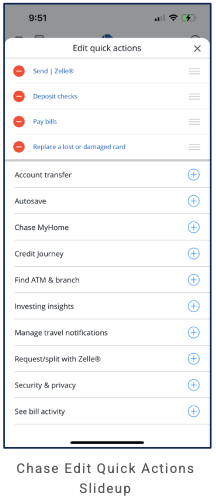
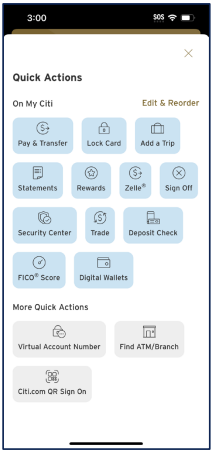
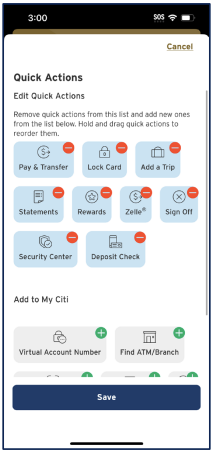
Quick Actions (slide-up): On My Citi (Edit & Reorder)—Pay & Transfer, Lock Card, Add a Trip, Statements, Rewards, Zelle®, Sign Off, Security Center, Trade, Deposit Check, FICO® Score, Digital Wallets; More Quick Actions (Virtual Account Number, Find ATM/Branch, Citi.com QR Sign On). Edit Quick Actions: remove or add, drag to reorder, Save/Cancel.
Screenshots
Citi Self Invest (Investing standalone)
Primary navigation
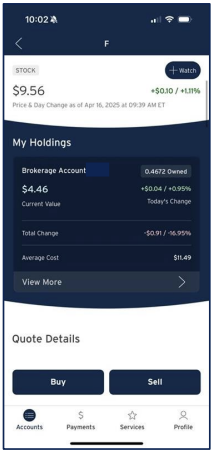
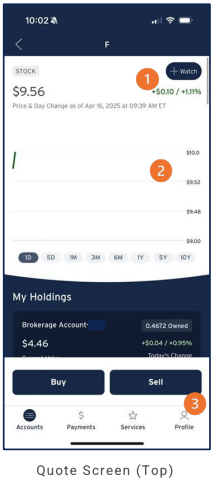
4 tabs, bottom nav: Accounts, Payments, Services, Profile. Header: back, ticker symbol (e.g. F), + Watch.
Home / dashboard
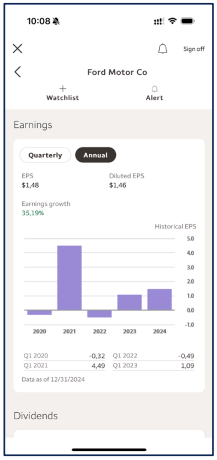
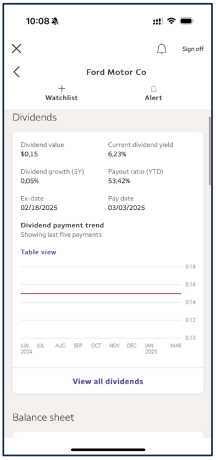
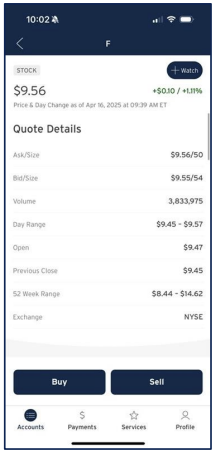
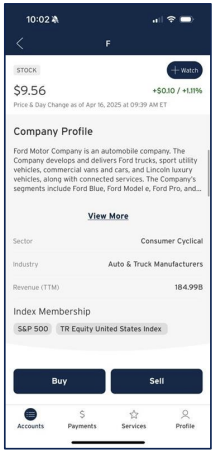
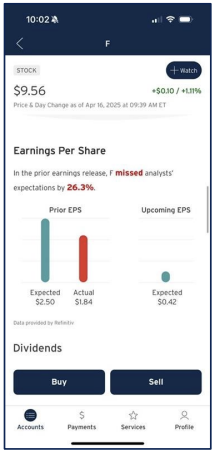
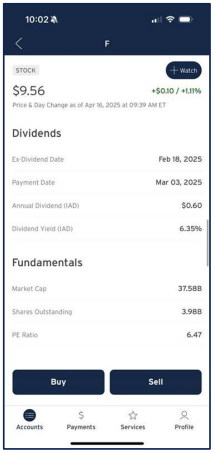
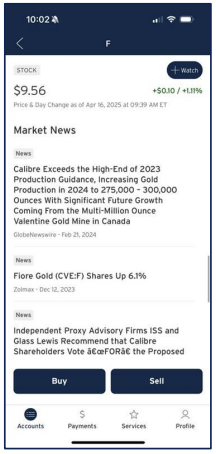
Quote screen: STOCK label, + Watch; current price, day change, timestamp; price chart (1D–10Y); My Holdings (Brokerage Account, qty owned, Current Value, Today's Change, Total Change, Average Cost, View More); Quote Details (Ask/Bid, Volume, Day Range, Open, Previous Close, 52W Range, Exchange); Company Profile (description, View More; Sector, Industry, Revenue TTM); Index Membership (e.g. S&P 500); Earnings Per Share (prior Expected vs Actual, upcoming Expected; Refinitiv); Dividends (Ex-Dividend Date, Payment Date, Annual Dividend IAD, Dividend Yield); Fundamentals (Market Cap, Shares Outstanding, PE Ratio); Market News (article list); Buy, Sell.
LOB placement
Invest only: Quote screen with price, chart, My Holdings, Quote Details, Company Profile, Index Membership, EPS, Dividends, Fundamentals, Market News; Buy/Sell. Same 4-tab bottom nav as main Citi app.
Depth of hierarchy
Quote → price, chart, My Holdings, Quote Details, Company Profile, EPS, Dividends, Fundamentals, Market News; Buy/Sell.
Cross-LOB patterns
Quote and holdings tied to symbol.
Personalization
TBD from more screens.
Screenshots
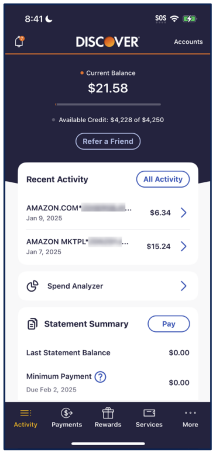
Discover (Card + banking)
Primary navigation
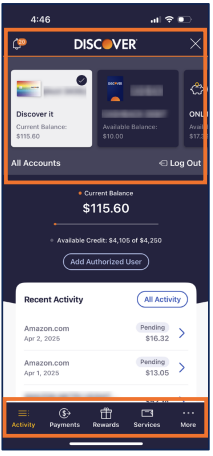
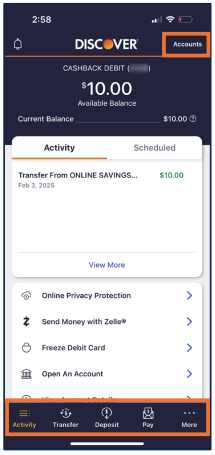
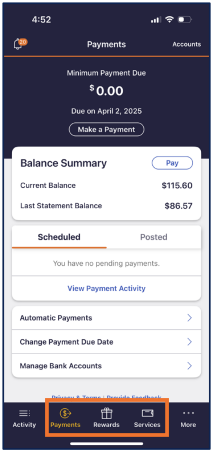
5 tabs, bottom nav—credit context: Activity, Payments, Rewards, Services, More; banking (debit) context: Activity, Transfer, Deposit, Pay, More. Header: bell (notifications), DISCOVER logo (orange O), context-dependent (X or Accounts button).
Home / dashboard
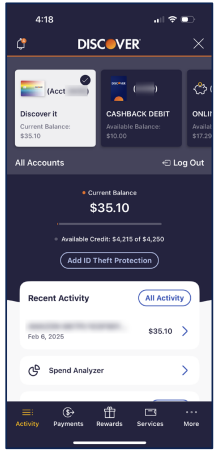
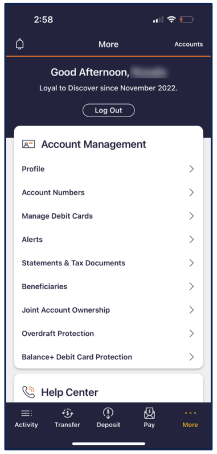
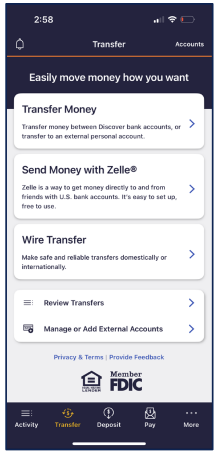
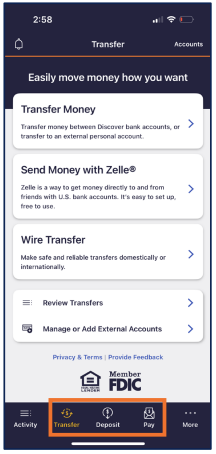
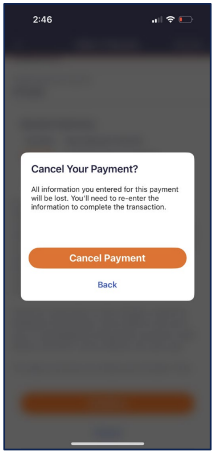
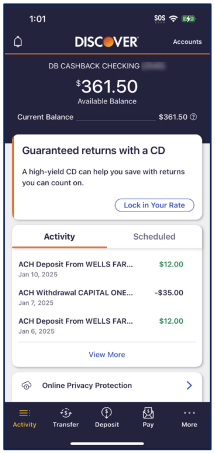
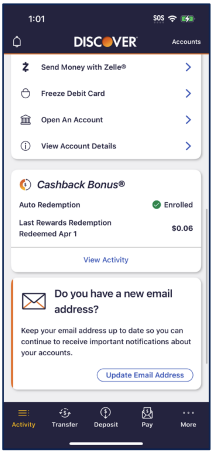
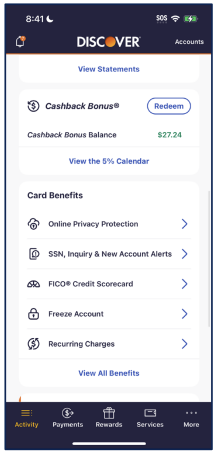
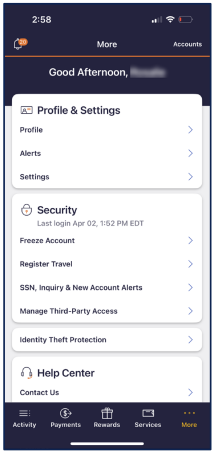
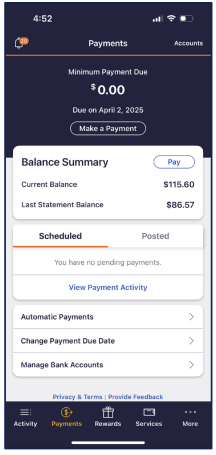
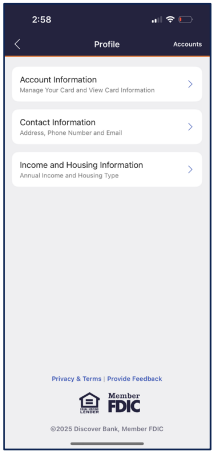
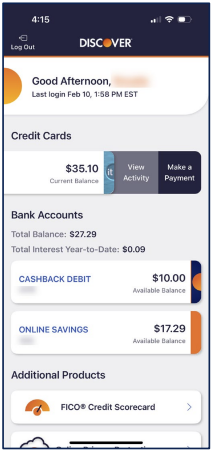
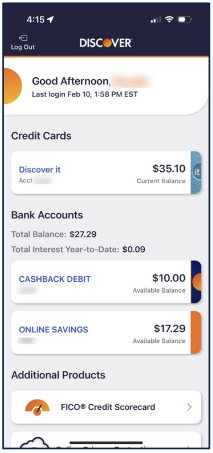
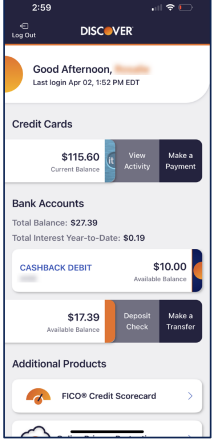
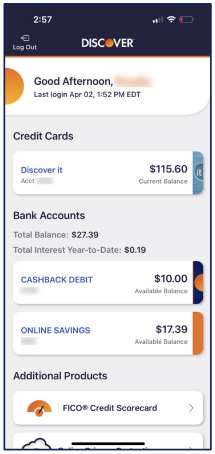
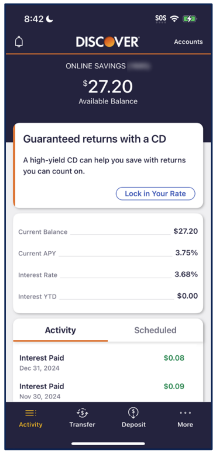
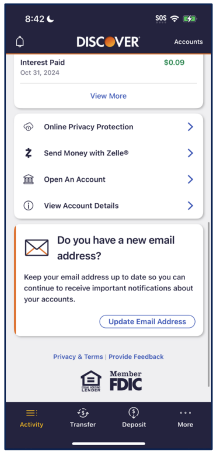
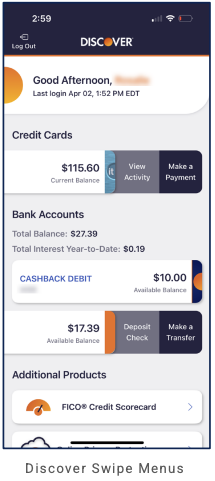
Account carousel at top (horizontal): Discover it (credit), CASHBACK DEBIT, ONLINE SAVINGS; selected card has checkmark; "All Accounts" and "Log Out" below. Unified home (alternate): Log Out in header; greeting "Good Afternoon," Last login; Credit Cards (swipe: View Activity, Make a Payment); Bank Accounts (Total Balance, Total Interest YTD; CASHBACK DEBIT, ONLINE SAVINGS; swipe: Deposit Check, Make a Transfer); Additional Products (FICO® Credit Scorecard). Selected-account dashboard: Credit: Current Balance, Available Credit (of limit); CTA (e.g. Add ID Theft Protection, Add Authorized User, Refer a Friend); Recent Activity (All Activity, transactions), Spend Analyzer, Statement Summary (Pay, Last Statement, Min Payment due). Credit card also: View Statements; Cashback Bonus® (Redeem, 5% Calendar); Card Benefits (Privacy, Alerts, FICO®, Freeze, Recurring, View All). Payments (credit): Minimum Payment Due, Make a Payment; Balance Summary; Scheduled | Posted; Automatic Payments, Change Payment Due Date, Manage Bank Accounts. More (credit): Profile & Settings, Security (Freeze, Register Travel, Alerts, Third-Party Access), Identity Theft Protection, Help Center. Profile (nested): Account Information, Contact Information, Income and Housing Information. Debit: Current/Available Balance; Activity | Scheduled tabs; recent activity (View More); services list (Online Privacy Protection, Zelle®, Freeze, Open An Account, View Account Details). More (banking): greeting "Good Afternoon," "Loyal to Discover since [date]"; Log Out; Account Management (Profile, Account Numbers, Manage Debit Cards, Alerts, Statements & Tax Documents, Beneficiaries, Joint Account Ownership, Overdraft Protection, Balance+ Debit Card Protection); Help Center. Transfer hub: "Easily move money how you want"—Transfer Money (Discover or external), Zelle®, Wire Transfer, Review Transfers, Manage or Add External Accounts. Checking dashboard (DB Cashback Checking): Available/Current Balance; CD cross-sell "Guaranteed returns with a CD" (Lock in Your Rate); Activity | Scheduled; recent transactions (View More); Online Privacy Protection. Activity hub (checking): Zelle®, Freeze Debit Card, Open An Account, View Account Details; Cashback Bonus® (Auto Redemption, View Activity); "Do you have a new email address?" (Update Email Address). Payment flow: Cancel payment confirmation modal ("Cancel Your Payment?"; Cancel Payment / Back).
LOB placement
Credit: Activity tab = dashboard; Payments, Rewards, Services, More. Banking: Carousel; debit/checking dashboard (balance, CD promo, Activity | Scheduled, transactions); Online Savings dashboard (balance, CD promo, APY, Interest YTD; Activity | Scheduled, Interest Paid); Activity hub (services, Cashback Bonus®, email prompt); Transfer tab = hub; More = Account Management, Help Center, Log Out. Cross-LOB via carousel and CD promo.
Depth of hierarchy
All Accounts; All Activity; Spend Analyzer; per-account CTAs. More → Account Management, Help Center. Transfer tab → hub. Payment exit: confirmation modal (Cancel Your Payment?; Cancel Payment / Back). Checking: CD cross-sell; Activity hub (Zelle®, Freeze, Open An Account, View Account Details; Cashback Bonus®; Update Email).
Cross-LOB patterns
Account carousel surfaces credit, debit, savings; Transfer hub and External Accounts; CD cross-sell on checking; "Open An Account" for other products.
Personalization
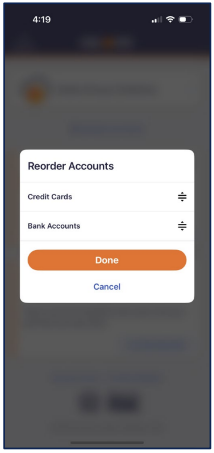
Greeting ("Good Afternoon"); "Loyal to Discover since [date]"; Cashback Bonus® enrollment and last redemption; email update prompt; Reorder Accounts modal (Credit Cards, Bank Accounts; Done, Cancel); Log Out prominent in More.
Screenshots
E*Trade (Investing + planning)
Primary navigation
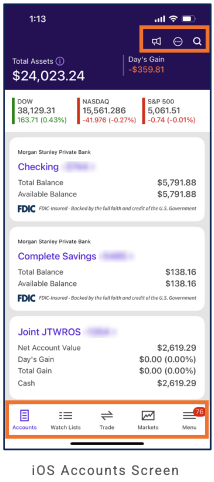
5 tabs, bottom nav: Accounts (hub), Watch Lists, Trade, Markets, Menu. Accounts is the default view with Total Assets and combined banking + brokerage. Menu carries a notification badge (e.g. 98). Top bar: notifications (bell), visibility toggle (eye), search.
Home / dashboard
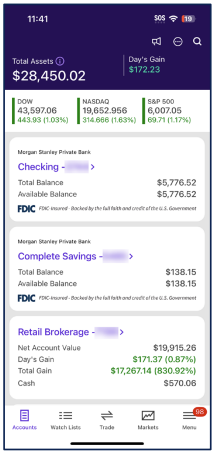
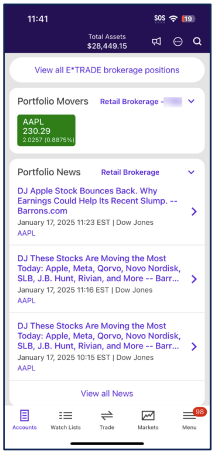
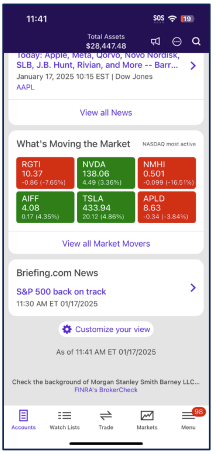
Accounts tab (dark purple header): Total Assets and Day's Gain (green) prominent; market indices strip (DOW, NASDAQ, S&P 500) with values and % change. Scrollable content: (1) Account cards—Morgan Stanley Private Bank Checking and Complete Savings (FDIC messaging, Total/Available Balance), then Retail Brokerage (Net Account Value, Day's Gain, Total Gain, Cash). (2) Alternate dashboard content: View all E*TRADE brokerage positions CTA; Portfolio Movers (account filter, e.g. AAPL card with price and % change); Portfolio News (filter by account, headlines with timestamp/source/ticker, "View all News"). (3) What's Moving the Market (e.g. NASDAQ most active) with stock grid (red/green performance); Briefing.com News; Customize your view (gear); data timestamp and FINRA BrokerCheck link. Post–Morgan Stanley acquisition: banking (Private Bank) and E*TRADE brokerage unified on one Accounts screen.
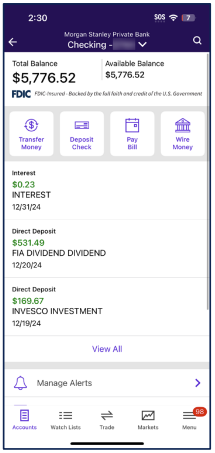
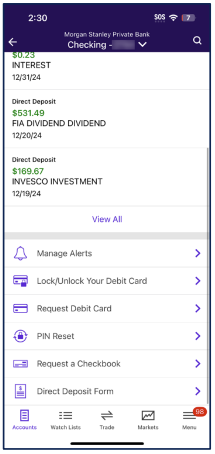
Checking (drill from account card): back + account selector (Checking with chevron), search. Total/Available Balance, FDIC. Quick actions: Transfer Money, Deposit Check, Pay Bill, Wire Money. Recent transactions (e.g. Interest, Direct Deposit) with "View All"; Manage Alerts; Lock/Unlock Debit Card, Request Debit Card, PIN Reset, Request a Checkbook, Direct Deposit Form. Same 5-tab bottom nav.
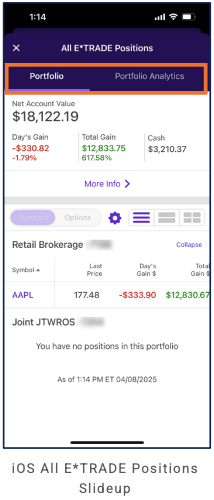
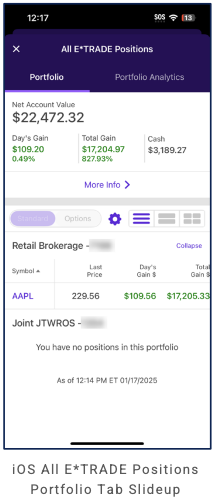
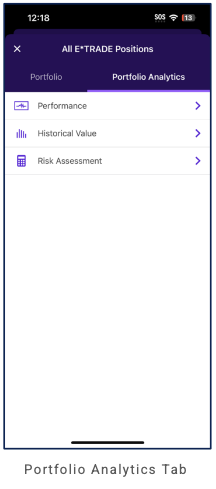
All E*TRADE Positions slide-up: close X, title; segmented Portfolio | Portfolio Analytics. Portfolio tab: Net Account Value, Day's Gain, Total Gain, Cash; "More Info"; Standard/Options and layout toggles; positions by account (e.g. Retail Brokerage table: Symbol, Last Price, Day's Gain $, Total Gain $; Joint JTWROS "no positions"). Portfolio Analytics tab: Performance, Historical Value, Risk Assessment (each with chevron to drill down).
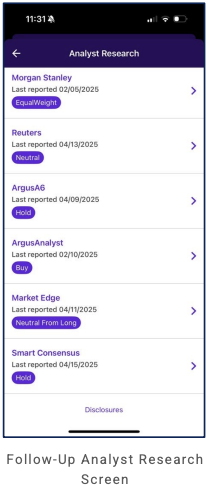
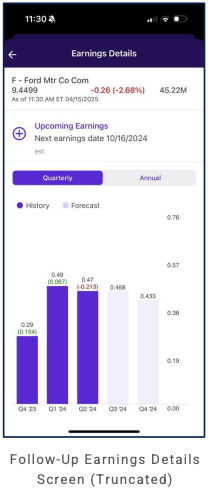
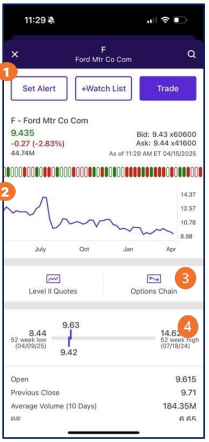
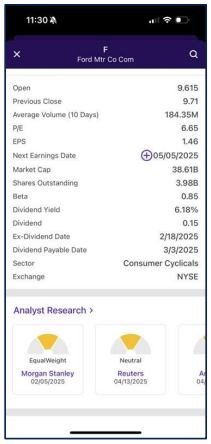
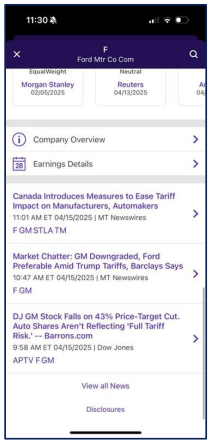
Quote (e.g. F – Ford): X and search in header; ticker and company name. Actions: Set Alert, +Watch List, Trade. Price, change, volume, Bid/Ask, timestamp; sentiment/volume band; multi-month price chart. Level II Quotes, Options Chain buttons; 52-week range slider (low/high, current); Open, Previous Close, Average Volume, P/E. Scrollable quote content also includes full key stats (EPS, Next Earnings with +, Market Cap, Shares Outstanding, Beta, Dividend Yield/Dates, Sector, Exchange) and Analyst Research (horizontal cards: firm, rating, date; "Analyst Research >" link). Links to Company Overview and Earnings Details; News feed (headlines, timestamp/source, tickers), View all News, Disclosures.
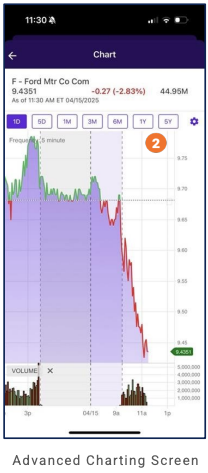
Chart (e.g. from quote): back, "Chart" title. Stock name, price, change, volume, timestamp. Time range tabs (1D, 5D, 1M, 3M, 6M, 1Y, 5Y), frequency (e.g. 5 min), gear for settings. Main price chart (green/red + volume). No bottom nav on this deep-detail screen.
LOB placement
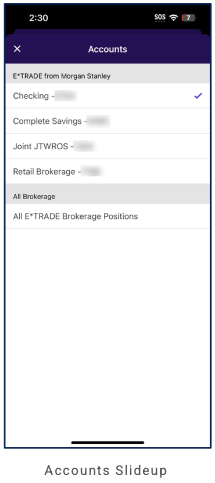
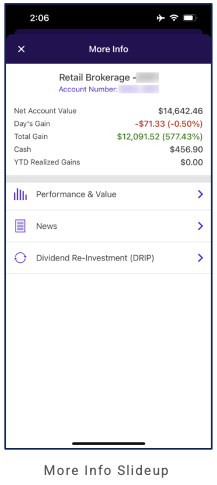
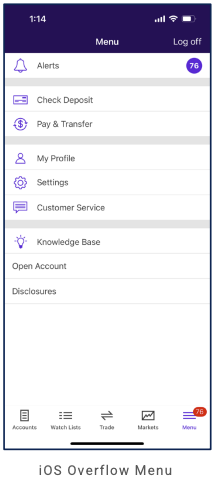
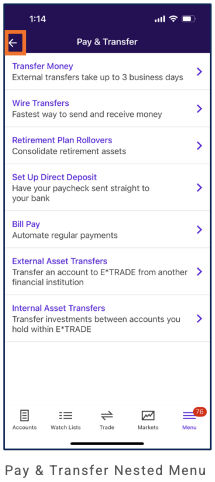
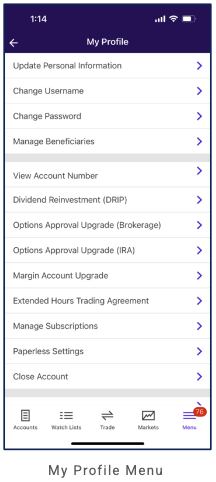
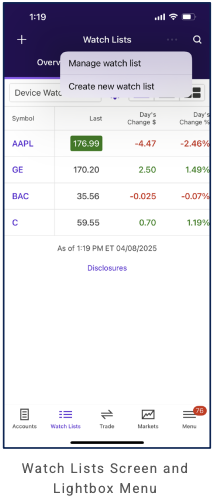
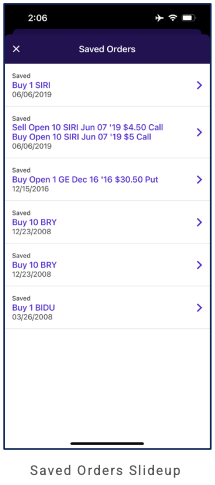
Banking: Accounts tab—Checking and Complete Savings cards with balances and FDIC; tap for details. Investing: Accounts (brokerage card, portfolio movers, news), Watch Lists (table: Symbol, Last, Day's Change $/%; + add, kebab menu for Manage watch list / Create new watch list; Overview/Device Watchlist), Trade, Markets tabs; Menu for more. Saved Orders (e.g. from portfolio "Saved Orders (6)" link): slide-up list of saved orders (Buy/Sell, qty, ticker, option details if applicable, date saved); tap row for details. Tapping an account or the header account selector opens an Accounts slide-up to switch between Checking, Complete Savings, Joint JTWROS, Retail Brokerage, or All E*TRADE Brokerage Positions. Menu (overflow): Alerts (badge), Check Deposit, Pay & Transfer, My Profile, Settings, Customer Service, Knowledge Base, Open Account, Disclosures; Log off. Pay & Transfer submenu: Transfer Money, Wire Transfers, Retirement Plan Rollovers, Set Up Direct Deposit, Bill Pay, External Asset Transfers, Internal Asset Transfers. My Profile: Update Personal Information, Change Username/Password, Manage Beneficiaries; View Account Number, DRIP, Options Approval Upgrade (Brokerage/IRA), Margin Upgrade, Extended Hours Trading; Manage Subscriptions, Paperless Settings, Close Account. More Info slide-up (from portfolio/account): account summary (NAV, Day's Gain, Total Gain, Cash, YTD Realized Gains) plus links to Performance & Value, News, Dividend Re-Investment (DRIP).
Depth of hierarchy
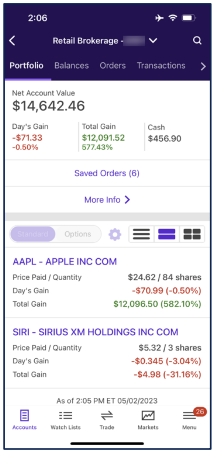
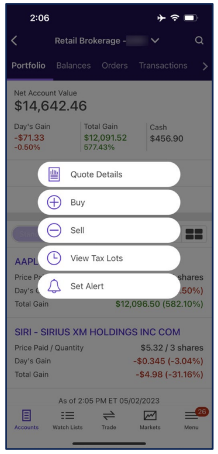
Total Assets and account list on first tap (Accounts). Account cards tappable for details; account switcher via slide-up; All E*TRADE Positions slide-up for aggregated portfolio/analytics. Retail Brokerage drill-down: back from Accounts to a brokerage context with secondary tabs Portfolio | Balances | Orders | Transactions (and more). Portfolio shows Net Account Value, Day's Gain, Total Gain, Cash; Standard/Options display toggle; Saved Orders, More Info; list/grid layout. From a holding, an action menu offers Quote Details, Buy, Sell, View Tax Lots, Set Alert. Chart (e.g. symbol F): dedicated full-screen view with time range and volume; bottom nav is hidden on this deep screen to maximize chart space. Research/symbol deep screens (back only, no bottom nav): Analyst Research (list of analysts with Last reported date and rating pill—EqualWeight, Neutral, Hold, Buy; Disclosures link); Company Overview (industry, website link, business description and segments); Earnings Details (price/change, Upcoming Earnings, Quarterly/Annual toggle, History vs Forecast bar chart). Checking dashboard: quick actions and card/account management (alerts, lock card, PIN reset, checkbook, direct deposit). Portfolio Movers/News and Market Movers have "View all" and filters. Customize your view for personalization.
Cross-LOB patterns
Single hub (Accounts) surfaces both banking (Private Bank) and brokerage (Retail Brokerage) with shared Total Assets and Day's Gain. Market indices and news/movers support investing context. Notification badge on Menu drives engagement.
Personalization
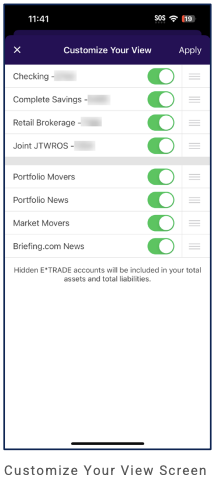
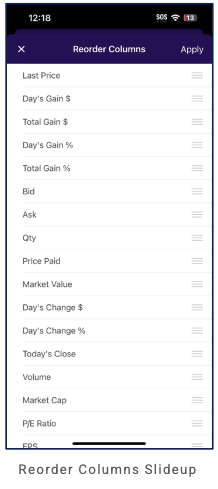
Customize Your View slide-up (from gear on dashboard): X and Apply in header; list of items each with a toggle (show/hide) and reorder handle. Accounts: Checking, Complete Savings, Retail Brokerage, Joint JTWROS; content modules: Portfolio Movers, Portfolio News, Market Movers, Briefing.com News. Note: hidden accounts still included in total assets/liabilities. Reorder Columns slide-up (e.g. from portfolio/positions): X and Apply; list of column names (Last Price, Day's Gain $/%, Total Gain $/%, Bid, Ask, Qty, Price Paid, Market Value, etc.) with drag handles to reorder. Account filter dropdowns on Portfolio Movers and Portfolio News. Visibility toggle (eye) in header for sensitive data.
Screenshots

Edward Jones (Full-service / wealth)
Primary navigation
5 tabs, bottom nav: Snapshot, Accounts, Goals, Banking, More. Quote screen reached via back "< More".
Home / dashboard
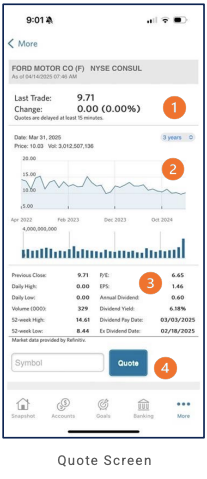
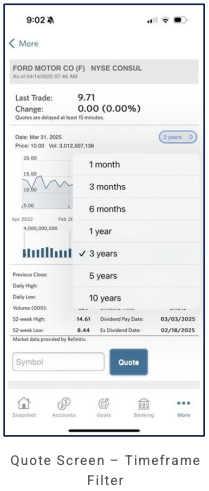
Quote screen (e.g. F – Ford Motor Co): back "< More"; company name FORD MOTOR CO (F), exchange NYSE, "As of" timestamp; Last Trade, Change; "Quotes are delayed at least 15 minutes"; chart area with timeframe pill (1 month, 3 months, 6 months, 1 year, 3 years, 5 years, 10 years); price line chart + volume bar chart; Key Data (Previous Close, Daily High/Low, Volume, 52-week High/Low, P/E, EPS, Annual Dividend, Dividend Yield, Dividend Pay Date, Ex Dividend Date); "Market data provided by Refinitiv"; Symbol input + Quote button.
LOB placement
Investing: Quote (from More) with chart (timeframe selector), Key Data, Symbol/Quote. Goals, Banking as tabs. Snapshot, Accounts. Full LOB depth TBD from more screens.
Depth of hierarchy
Quote → timeframe overlay; Symbol + Quote for new symbol. More → Quote.
Cross-LOB patterns
Quote tied to symbol; Goals and Banking as primary tabs.
Personalization
TBD from more screens.
Screenshots
Fidelity (Full-service / wealth)
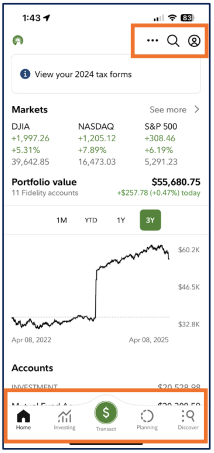
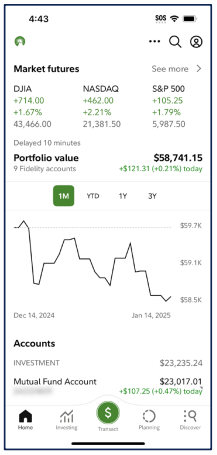
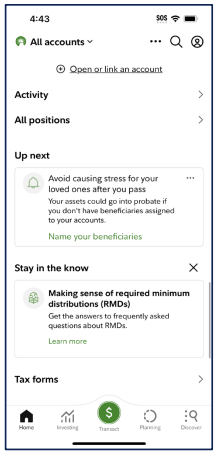
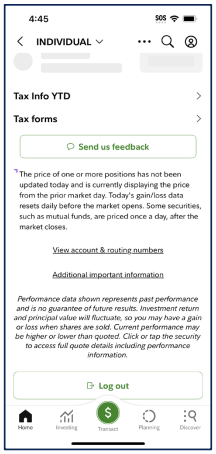
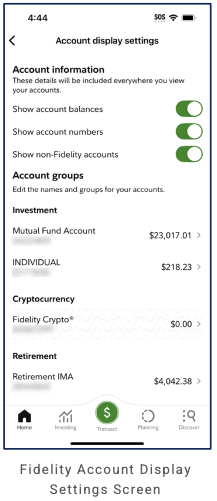
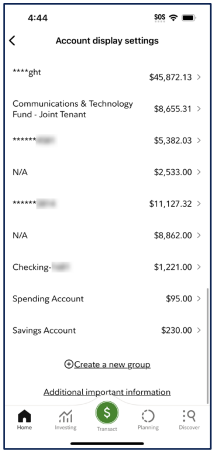
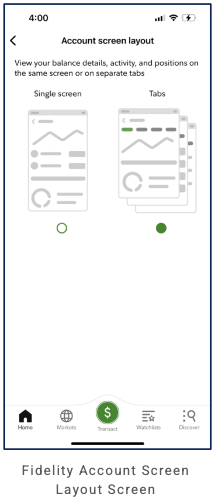
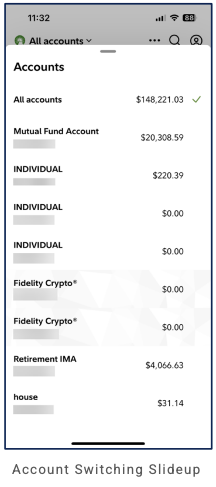
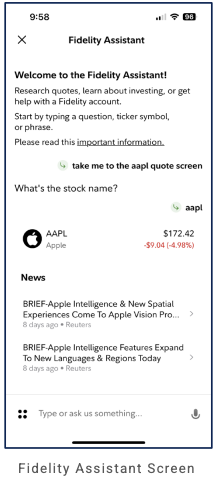
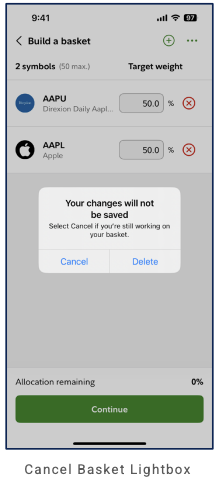
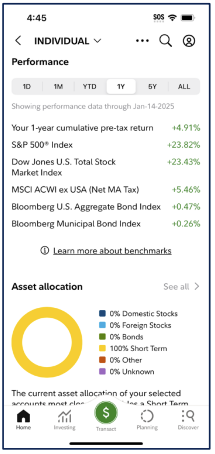
Fidelity audit complete (51 of 51 screens). This entry is based on 51 of 51 screenshots. Primary navigation: 5-tab bottom nav—Home, Investing, Transact (prominent green $ in circle), Planning, Discover. Header: Fidelity logo (left), ellipsis, Search, Profile (right). Home variants: (1) Banner "View your 2024 tax forms"; Markets (See more)—DJIA, NASDAQ, S&P 500; Portfolio value (total, "X Fidelity accounts", +today); chart 1M | YTD | 1Y | 3Y; Accounts (INVESTMENT, Mutual Fund). (2) Market futures (See more), Delayed 10 min; Portfolio value, 9 accounts; chart 1M; Accounts. (3) All accounts dropdown; Open or link an account; Activity; All positions; Up next (beneficiaries—Name your beneficiaries); Stay in the know (RMDs—Learn more); Tax forms. (4) INDIVIDUAL account context: Tax Info YTD, Tax forms; Send us feedback; market data disclosure; View account & routing numbers, Additional important information; performance disclaimer; Log out. Account display settings (back): Account information—toggles Show account balances, Show account numbers, Show non-Fidelity accounts; Account groups (Investment, Cryptocurrency Fidelity Crypto®, Retirement); Create a new group; Additional important information. Account screen layout (back): Single screen vs Tabs (balance details, activity, positions); Tabs selected; nav variant Home, Markets, Transact, Watchlists, Discover. Account switching slide-up (from "All accounts" in header): Accounts (handle)—All accounts (selected, checkmark), Mutual Fund Account, INDIVIDUAL (×3), Fidelity Crypto® (×2), Retirement IMA, house; each with balance; tap to switch. Fidelity Assistant (X close): "Welcome to the Fidelity Assistant!"—Research quotes, learn about investing, get help; type/ask; sample "take me to aapl quote" → AAPL quote + News; important information link. Build a basket: symbols (50 max), Target weight; Cancel basket lightbox when exiting: "Your changes will not be saved", Cancel | Delete. Transact is the primary CTA. LOB depth TBD from more screens (10 of 51).
Primary navigation
5-tab bottom navigation: Home, Investing, Transact (prominent green dollar sign in circle—primary action), Planning, Discover. Header: Fidelity logo (left), ellipsis (more), Search, Profile (right).
Home / dashboard
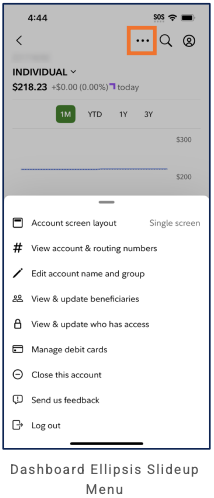
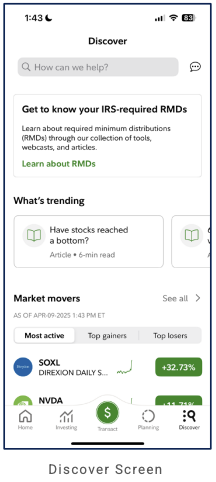
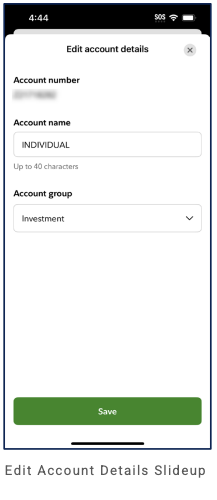
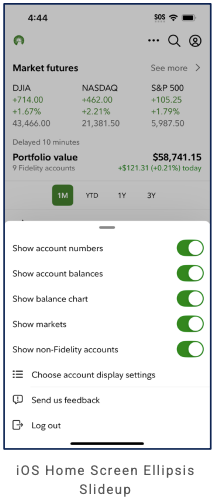
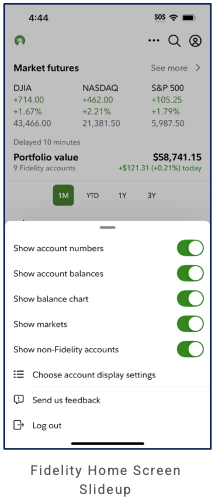
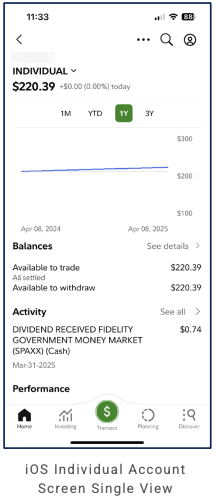
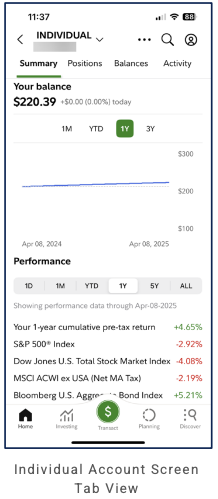
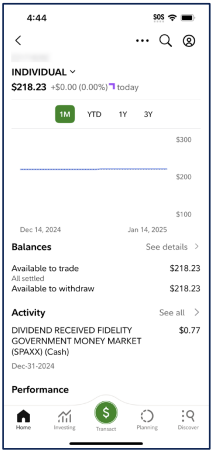
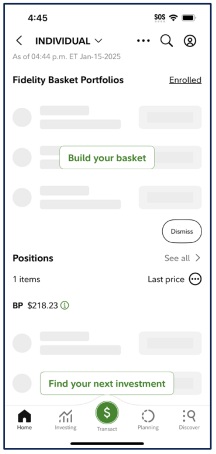
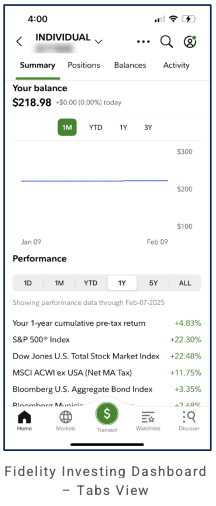
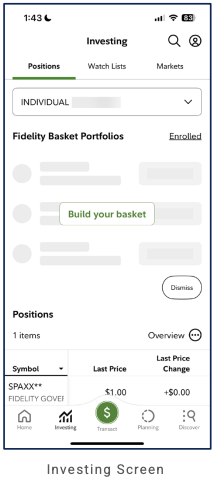
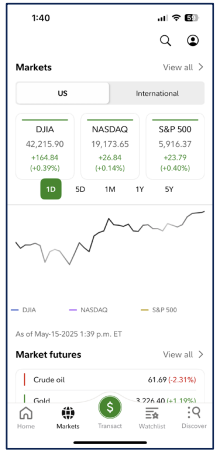
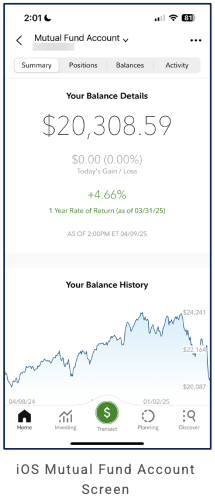
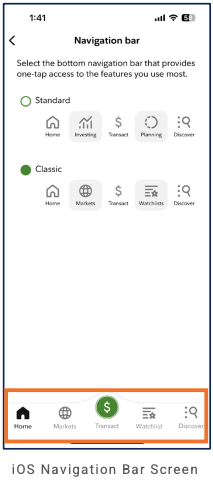
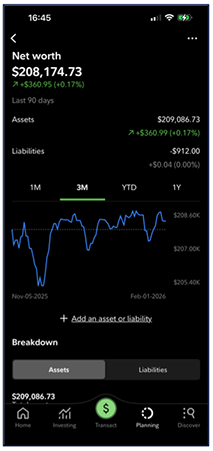
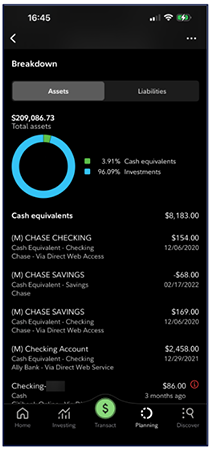
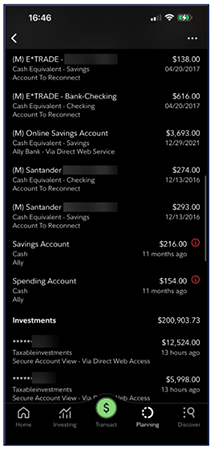
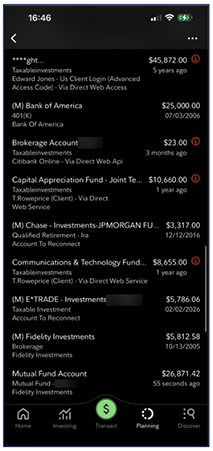
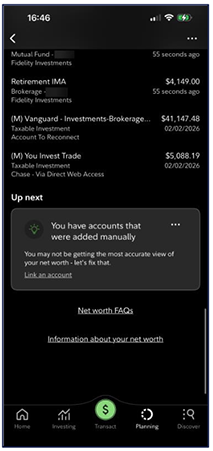
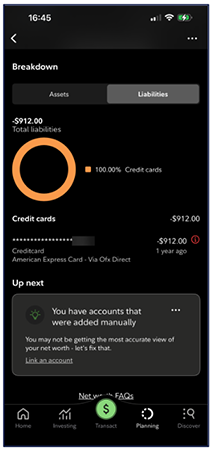
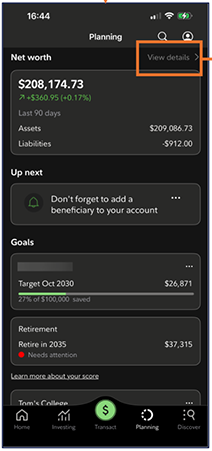
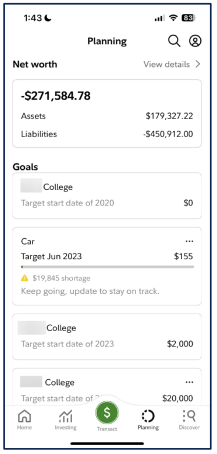
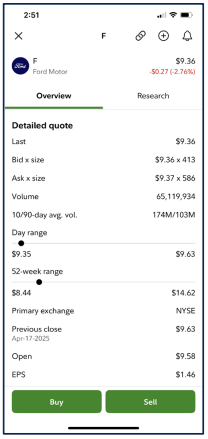
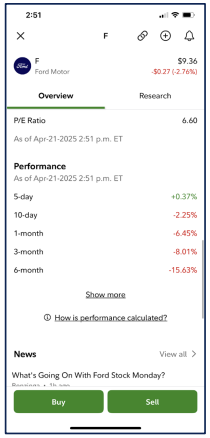
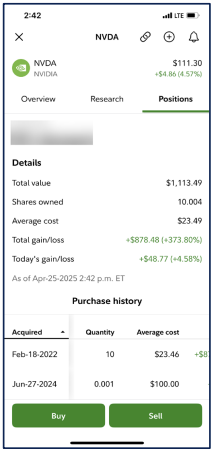
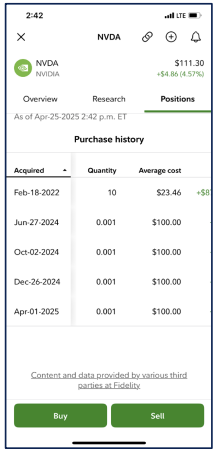
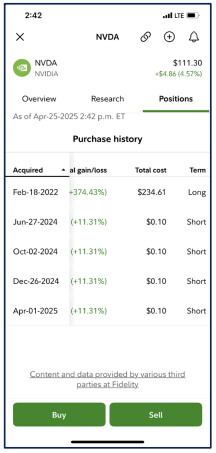
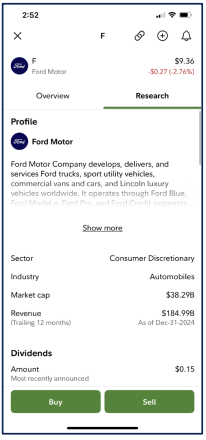
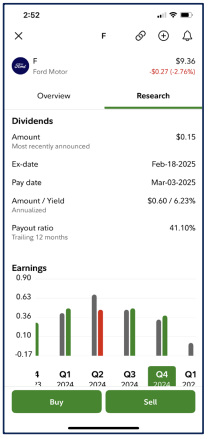
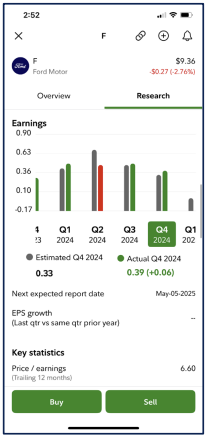
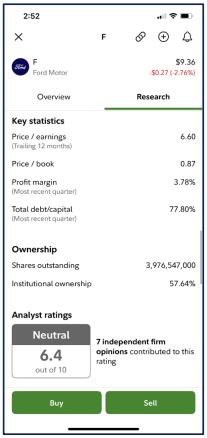
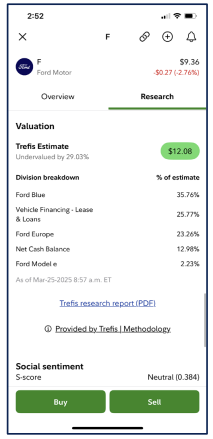
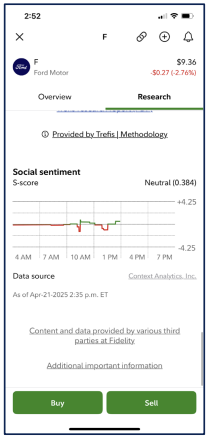
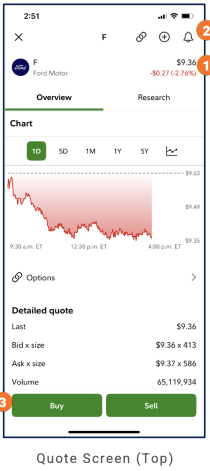
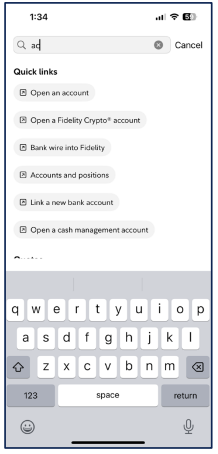
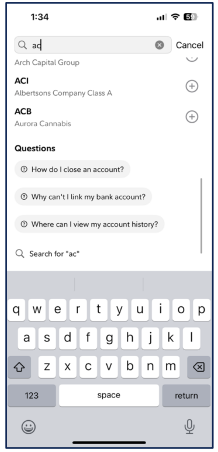
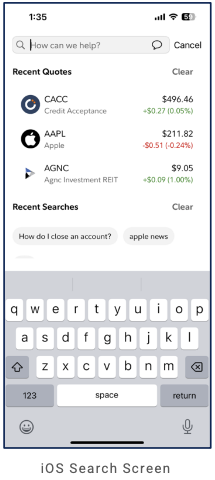
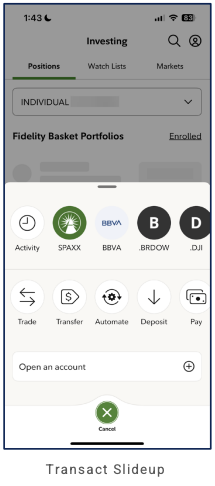
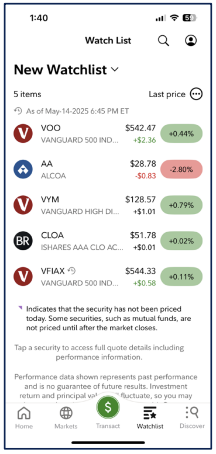
Home tab has multiple variants. (1) Banner "View your 2024 tax forms"; Markets (See more >)—DJIA, NASDAQ, S&P 500 with change, %, and value (green for positive); Portfolio value (e.g. $55,680.75, "11 Fidelity accounts", +$257.78 +0.47% today); line chart with filters 1M | YTD | 1Y | 3Y; Accounts (INVESTMENT total, Mutual Fund Account). (2) Market futures (See more), "Delayed 10 minutes"; same portfolio value pattern (e.g. $58,741.15, 9 accounts, +$121.31 today); chart with 1M selected; Accounts list. (3) All accounts dropdown in header; Open or link an account; Activity; All positions; Up next card (beneficiaries—"Avoid causing stress for your loved ones… Name your beneficiaries"); Stay in the know card (RMDs—"Making sense of required minimum distributions" Learn more); Tax forms. (4) INDIVIDUAL account context (back): Tax Info YTD, Tax forms (chevrons); Send us feedback; market data disclosure; View account & routing numbers, Additional important information; performance disclaimer; Log out. Account display settings (back): Account information ("These details will be included everywhere...")—toggles Show account balances, Show account numbers, Show non-Fidelity accounts; Account groups ("Edit the names and groups...")—Investment (Mutual Fund Account, INDIVIDUAL), Cryptocurrency (Fidelity Crypto®), Retirement (Retirement IMA); account list with balance, chevron; Create a new group (+); Additional important information. Account screen layout (back): "View your balance details, activity, and positions on the same screen or on separate tabs"—Single screen (wireframe) vs Tabs (selected); nav variant Home, Markets, Transact, Watchlists, Discover. Account switching slide-up (from "All accounts"): Accounts list with All accounts (selected), Mutual Fund, INDIVIDUAL, Fidelity Crypto®, Retirement IMA, etc. Fidelity Assistant (X): Research quotes, learn investing, get help; type/ask; quote + News. Build a basket: symbols, target weight; Cancel basket lightbox (Your changes will not be saved, Cancel | Delete). Dashboard ellipsis (from account view): slide-up—Account screen layout, View account & routing numbers, Edit account name and group, beneficiaries, who has access, Manage debit cards, Close this account, Send us feedback, Log out. Discover tab: "How can we help?" search, chat; RMDs card; What's trending (carousel); Market movers (Most active / Top gainers / Top losers; See all). Edit account details slide-up: Account number (masked), Account name (up to 40 chars), Account group (dropdown); Save. Home ellipsis (from Home header): slide-up with toggles Show account numbers, Show account balances, Show balance chart, Show markets, Show non-Fidelity accounts; Choose account display settings, Send us feedback, Log out. Individual account (drill from Accounts): single view—balance, chart 1M|YTD|1Y|3Y, Balances (See details), Activity (See all), Performance; or tabbed Summary | Positions | Balances | Activity with balance, graph, Performance vs S&P 500, Dow Jones, MSCI ACWI ex USA, Bloomberg Agg. Investing account dashboard (scroll): balance/chart, Balances, Activity, Performance; Performance vs benchmarks (Learn more about benchmarks); Asset allocation (donut, See all); Fidelity Basket Portfolios (Enrolled, Build your basket); Positions (See all >, Find your next investment). Investing dashboard Summary tab (nav variant Home, Markets, Transact, Watchlists, Discover): Your balance, graph, Performance vs indices. Investing tab (Positions | Watch Lists | Markets): account selector, Basket Portfolios, Positions table (Symbol, Last Price). Markets tab: US | International; index cards (DJIA, NASDAQ, S&P 500); chart 1D–5Y; Market futures (View all). Mutual Fund Account (per-account): Summary | Positions | Balances | Activity; Your Balance Details (balance, Today's Gain/Loss, 1 Year Rate of Return); Your Balance History (line graph). Navigation bar option (Settings): Standard (Home, Investing, Transact, Planning, Discover) vs Classic (Home, Markets, Transact, Watchlists, Discover); live preview. Net worth (dark theme): total, Assets/Liabilities summary; 1M | 3M | YTD | 1Y trend graph; "Add an asset or liability"; Breakdown (Assets | Liabilities). Breakdown Assets: donut (Investments, Cash equivalents); Cash equivalents list. Linked accounts: external (E*TRADE, Ally, Santander) with "Account To Reconnect"; Savings/Spending; Investments. Investments list: Edward Jones, BofA 401(K), Chase, E*TRADE, Fidelity, etc. Up next card: "Link an account"; Net worth FAQs. Breakdown Liabilities: donut (Credit cards); Up next (Link an account). Planning tab (dark/light): Net worth card (View details); Up next (e.g. add beneficiary); Goals (target, progress, "Needs attention"). Quote screen (e.g. F, NVDA): Overview | Research | Positions when held; Overview: Chart (1D | 5D | 1M | 1Y | 5Y + chart type; intraday line chart); Detailed quote (Last, Bid x size, Ask x size, Volume); Options link; P/E Ratio; Performance (5-day–6M); News; Positions (Details, Purchase history); Research tab: Profile (company description, Show more), Key Financials (Sector, Industry, Market cap, Revenue TTM), Dividends (Amount, Ex-date, Pay date, Yield, Payout ratio), Earnings (quarterly bar chart Estimated vs Actual; Next report; Key statistics P/E); Key statistics (Price/book, Profit margin, Total debt/capital), Ownership (Shares outstanding, Institutional ownership), Analyst ratings (e.g. Neutral 6.4/10); Valuation (Trefis Estimate, Undervalued %); Division breakdown (% of estimate); Trefis research report (PDF), Methodology; Social sentiment (S-score, line graph, Data source Context Analytics); Buy | Sell. Search (header): predictive as-you-type—Quick links (Open an account, Fidelity Crypto®, Bank wire, Accounts and positions, Link bank account, Open cash management account); securities/symbols with + add; Questions (e.g. How do I close an account?, link bank account?, account history?); "Search for [query]"; Cancel, clear. Search hub (no query): placeholder "How can we help?", speech/chat icon; Recent Quotes (Clear; list: logo, ticker, company, price, day change); Recent Searches (Clear; chips). Transact tab → slide-up: handle; quick access row (Activity, recent symbols e.g. SPAXX, BBVA, .BRDOW, .DJI); Trade, Transfer, Automate, Deposit, Pay; "Open an account" CTA; Cancel (X). Watch List (Investing tab): watchlist selector (e.g. New Watchlist), item count, Last price column, ellipsis; list (logo, ticker, name, price, day change); disclosure (clock = not priced today); tap for quote; performance disclaimer; 5-tab nav (Watchlist active).
LOB placement
Investing surfaces on Home: Markets (indices/futures), Portfolio value (aggregate across Fidelity accounts), Accounts (investment list). Transact is the primary CTA (green, centered). Planning, Discover as tabs. Activity, All positions, Tax forms as tappable links. Up next and Stay in the know cards surface next-best actions (beneficiaries) and education (RMDs). Per-account view (e.g. Individual): Tax Info YTD, Tax forms, feedback, disclaimers, account & routing numbers, Log out. Account display settings: Account information toggles (Show account balances, Show account numbers, Show non-Fidelity accounts); Account groups by type (Investment, Cryptocurrency, Retirement); Create a new group. Account screen layout: Single screen vs Tabs (balance/activity/positions). Account switching slide-up from "All accounts" (Accounts list, tap to switch). Fidelity Assistant: conversational research/quotes/help; type or ask; can navigate to quote + News. Build a basket: symbols with target weight; Cancel basket confirmation when exiting. Dashboard ellipsis (from account dashboard): slide-up with Account screen layout, View account & routing numbers, Edit account name and group, beneficiaries, who has access, Manage debit cards, Close account, feedback, Log out. Discover tab: search "How can we help?", chat; RMDs education; What's trending (carousel); Market movers (Most active / Top gainers / Top losers, See all). Edit account details: Account name, Account group (dropdown); Save. Nav variant: Markets, Watchlists (vs Investing, Planning). Full LOB depth TBD from more screens (51 of 51).
Depth of hierarchy
Home → Markets (See more); Portfolio value; Accounts (tap). All accounts dropdown (header). Open or link an account; Activity; All positions. Up next card → Name your beneficiaries; Stay in the know → Learn more. Tax forms. Account context (INDIVIDUAL) → Tax Info YTD, Tax forms; Send us feedback; View account & routing numbers; Additional important information; Log out. Account display settings → Account information (toggles), Account groups (Investment/Cryptocurrency/Retirement), Create a new group. Account screen layout → Single screen vs Tabs (balance, activity, positions). "All accounts" (header) → Account switching slide-up (Accounts list, tap to switch). Fidelity Assistant (X) → type/ask, quote + News. Build a basket → symbols, target weight; exit → Cancel basket lightbox. Account dashboard ellipsis → slide-up (Account screen layout, routing numbers, Edit account name and group, beneficiaries, who has access, debit cards, Close account, feedback, Log out). Edit account details → Account name, Account group; Save. Discover tab → search, RMDs card, What's trending, Market movers. More depth TBD from additional screens (51 of 51).
Cross-LOB patterns
Portfolio value aggregates multiple Fidelity accounts ("11 Fidelity accounts" / "9 Fidelity accounts"). All accounts selector in header. Per-account view (Individual) combines tax info, account/routing details, feedback, and disclaimers. Dashboard ellipsis exposes account-level actions (layout, routing numbers, edit name/group, beneficiaries, access, debit cards, close, feedback, Log out); Edit account details for name and group. Discover tab aggregates education (RMDs), trending articles, Market movers.
Personalization
Known from public sources: two nav modes (Standard: positions/net worth; Classic: markets/watchlist); customizable Home; optional Trader+ (Portfolio, Watchlist, Markets). Settings > Layout > Navigation bar. Account display settings: Show account balances/numbers/non-Fidelity accounts; Account groups; Create a new group. Account screen layout: Single screen vs Tabs (balance details, activity, positions). Account switching: slide-up from "All accounts" (Accounts list). Fidelity Assistant: conversational (research quotes, learn investing, get help); type/ask; can go to quote + News. Build a basket: symbols, target weight; Cancel basket lightbox on exit. Dashboard ellipsis: account-level slide-up (layout, routing numbers, edit name/group, beneficiaries, access, debit cards, close, feedback, Log out). Edit account details: Account name (up to 40 chars), Account group (dropdown). Discover tab: education (RMDs), What's trending, Market movers. Home ellipsis (from Home header): toggles for account numbers, balances, chart, markets, non-Fidelity accounts; Choose account display settings, feedback, Log out. Individual account: single view (balance, chart, Balances, Activity, Performance) or tabs Summary | Positions | Balances | Activity (Performance vs indices). Investing account dashboard: balance/chart, Balances, Activity, Performance; Performance vs benchmarks; Asset allocation (donut, See all); Fidelity Basket Portfolios (Build your basket); Positions (See all, Find your next investment). Investing dashboard Summary: Your balance, Performance vs indices; nav variant Home, Markets, Transact, Watchlists, Discover. Investing tab: Positions | Watch Lists | Markets; Basket Portfolios; Positions table. Markets tab: US | International; DJIA, NASDAQ, S&P 500; chart; Market futures. Mutual Fund Account: Summary (Balance Details, Balance History). Navigation bar option: Standard vs Classic; live preview. Net worth: summary, trend graph, Breakdown (Assets | Liabilities); Breakdown Assets donut + Cash equivalents list; linked accounts (external, reconnect, Investments); investments list; Up next card (Link an account); Breakdown Liabilities (donut, Credit cards). Planning tab: Net worth card, Up next, Goals. Quote: Overview | Research | Positions when held; Overview: Chart (1D–5Y), Detailed quote, Options; Detailed quote; P/E; Performance; News; Positions (Details, Purchase history); Research tab: Profile, Key Financials, Dividends, Earnings chart, Key statistics (Price/book, Profit margin, Total debt/capital), Ownership, Analyst ratings, Valuation (Trefis), Division breakdown, Social sentiment (S-score, graph); Buy | Sell. Search: predictive Quick links, securities (+), Questions, "Search for." Search hub: Recent Quotes, Recent Searches. Transact slide-up: Trade, Transfer, Automate, Deposit, Pay; Open an account. Watch List: selector, items, Last price, list. Fidelity audit complete (51 of 51). Nav variant: Home, Markets, Transact, Watchlists, Discover. TBD from more screens (51 of 51).
Screenshots

Fifth Third (Bank)
Primary navigation
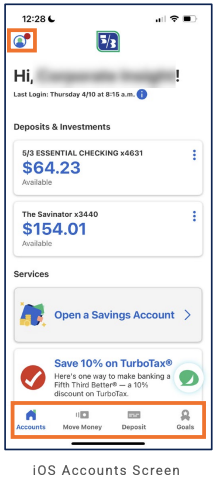
4 tabs, bottom nav: Accounts (home hub), Move Money, Deposit, Goals. Blue bar with white icons; Accounts is house icon. No dedicated Invest or Menu tab—banking and goals focused.
Home / dashboard
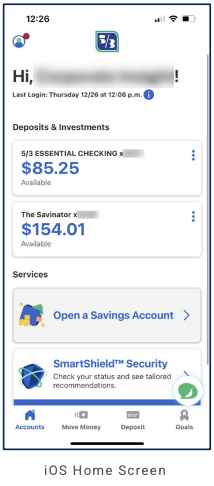
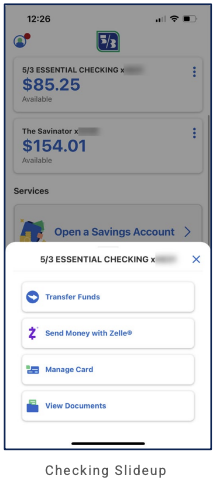
Accounts tab: profile icon (top left, notification badge), centered 5/3 logo; greeting "Hi," [name] and Last Login with info icon. Deposits & Investments section: account cards (e.g. 5/3 Essential Checking, The Savinator) with balance, "Available," and kebab menu per card. Services section: cards such as "Open a Savings Account," "SmartShield™ Security" (status and recommendations), and promos (e.g. Save 10% on TurboTax®); each with icon and chevron or action. Green floating action button (FAB) with chat/speech bubble for support. Home and Accounts screen share this structure.
LOB placement
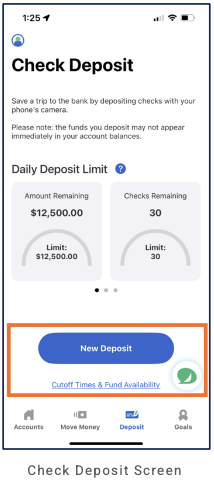
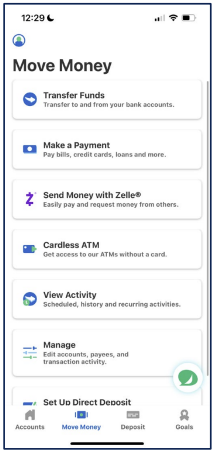
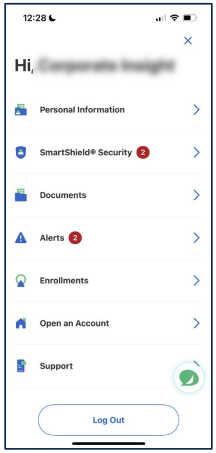
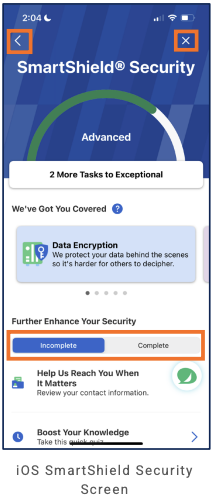
Banking: Accounts tab surfaces Deposits & Investments (checking, savings); Move Money tab: Transfer Funds, Make a Payment, Send Money with Zelle®, Cardless ATM, View Activity, Manage (accounts, payees, activity), Set Up Direct Deposit—each with icon and subtitle. Deposit tab: Deposit tab: Check Deposit screen—instructions, disclaimer; Daily Deposit Limit (Amount Remaining, Checks Remaining with progress); "New Deposit" CTA; Cutoff Times & Fund Availability link. Goals: Fourth tab for goal-based saving or tracking. Support: In-context via "Ask Us" chatbot (slide-up). Overflow menu (e.g. from profile icon in header): X close; "Hi," [name]; Personal Information, SmartShield® Security (badge), Documents, Alerts (badge), Enrollments, Open an Account, Support; Log Out. SmartShield® Security: back and X; current level (e.g. Advanced) with progress arc; "2 More Tasks to Exceptional"; "We've Got You Covered" (scrollable cards, e.g. Data Encryption); "Further Enhance Your Security" with Incomplete/Complete toggle and task list (e.g. contact info, Boost Your Knowledge quiz). No dedicated Menu tab—profile opens this overflow. No brokerage in these screens; bank-centric.
Depth of hierarchy
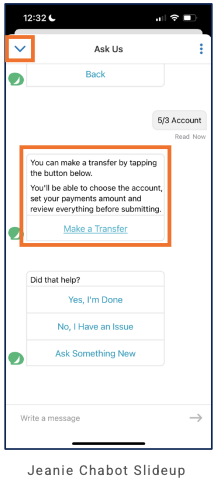
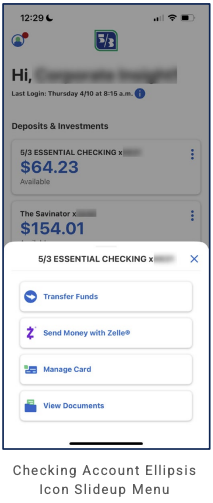
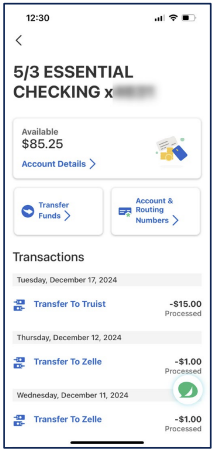
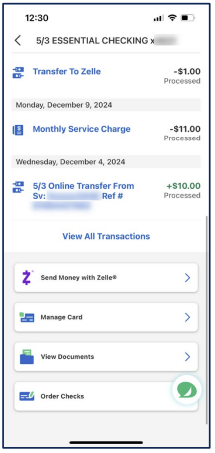
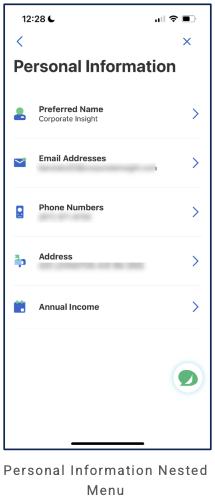
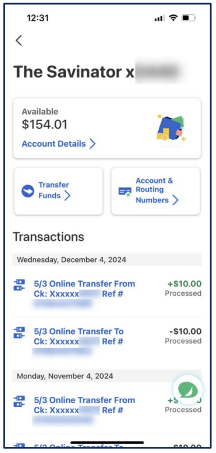
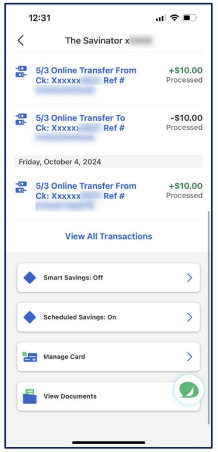
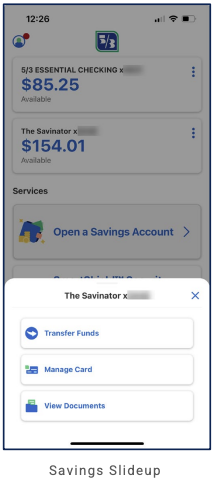
Account list and services on first tap (Accounts). Kebab on account card opens slide-up: account name, X close; Transfer Funds, Send Money with Zelle®, Manage Card, View Documents. Tap account card → Checking dashboard: back, account name; Available balance, Account Details link; quick actions Transfer Funds, Account & Routing Numbers; Transactions list (date, description, amount, status); "View All Transactions"; action row/cards: Send Money with Zelle®, Manage Card, View Documents, Order Checks. Savings account dashboard (e.g. The Savinator): same pattern—balance, Account Details, Transfer Funds, Account & Routing Numbers, Transactions; View All Transactions; Smart Savings (Off/On), Scheduled Savings (On), Manage Card, View Documents. Kebab on savings card opens slide-up: Transfer Funds, Manage Card, View Documents (no Zelle). Personal Information (from overflow): back and X; Preferred Name, Email Addresses, Phone Numbers, Address, Annual Income (each tappable to edit). Move Money and Deposit tabs for flows. Goals tab for goal management. Chat FAB opens "Ask Us" slide-up (conversational bot, e.g. "Make a Transfer" CTA, "Did that help?" with Yes / No / Ask Something New, message input).
Cross-LOB patterns
Single hub (Accounts) for all deposit accounts; Services mix product (savings) and security/promo. Goals elevated to primary tab. Chat bridges support and in-app actions (e.g. transfer).
Personalization
Greeting and last login on home. Profile icon with notification badge opens overflow (Personal Information, SmartShield, Documents, Alerts, Enrollments, Open an Account, Support; Log Out). Personal Information: Preferred Name, Email, Phone, Address, Annual Income. Service cards and promos can be tailored. Chatbot "Ask Us" for contextual help and actions.
Screenshots
J.P. Morgan Chase Self-Directed Investing (Investing standalone)
Primary navigation
Header: back, title (company + ticker, e.g. "Ford Motor Co (F)"); star (watchlist), bell (alerts). No bottom nav visible in quote/detail flow; primary nav TBD from more screens.
Home / dashboard
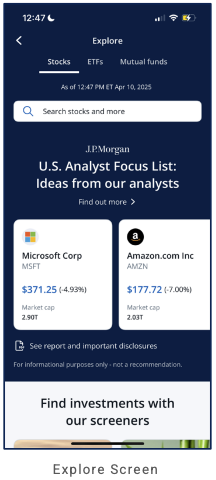
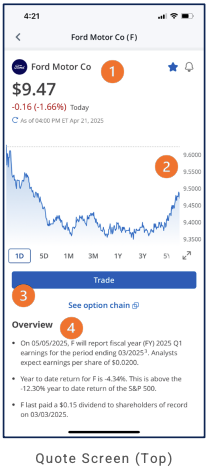
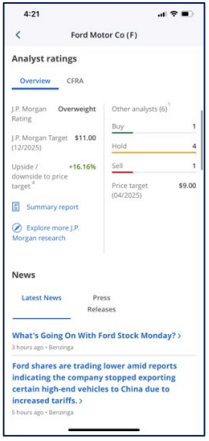
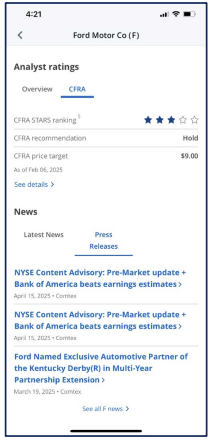
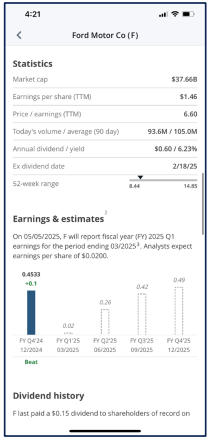
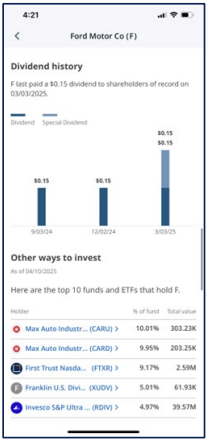
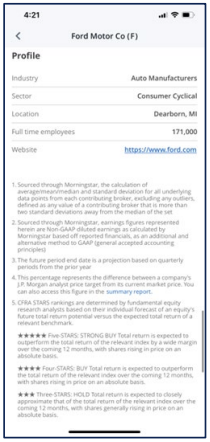
Quote screen (top): company name + logo; price, change, timestamp; price chart (1D–5Y); Trade; See option chain; Overview (earnings, YTD vs S&P 500, dividend). Analyst ratings: Overview | CFRA (J.P. Morgan + other analysts, CFRA STARS). News: Latest News | Press Releases. Statistics: Market cap, EPS (TTM), P/E (TTM), Today's volume / avg (90 day), Annual dividend / yield, Ex dividend date, 52-week range (slider). Earnings & estimates: text; bar chart (reported vs estimates, e.g. Beat). Dividend history: text; tabs Dividend | Special Dividend; bar chart by date. Other ways to invest: top 10 funds and ETFs that hold F (Holder, % of fund, Total value; row tap). Profile: Industry, Sector, Location, Full time employees, Website. Disclosures: Morningstar sourcing, Non-GAAP earnings, Future projections, J.P. Morgan Analyst Price Target, CFRA STARS definitions.
LOB placement
Invest only: Quote with price, chart, Trade, option chain, Overview; Analyst ratings; News; Statistics; Earnings & estimates; Dividend history; Other ways to invest (funds/ETFs); Profile; Disclosures. Primary nav TBD from more screens.
Depth of hierarchy
Quote → chart timeframes; Analyst ratings; News; Statistics; Earnings & estimates; Dividend history; Other ways to invest; Profile; Disclosures. Trade, See option chain.
Cross-LOB patterns
Quote and sections tied to symbol. Investing-only app.
Personalization
Watchlist (star), alerts (bell). TBD from more screens.
Screenshots
Merrill Edge (Investing / BofA)
Primary navigation
Header: back, ticker/context (e.g. F), Log Out right. No bottom nav visible in quote/options flow (depth drill-down). Primary nav TBD from more screens.
Home / dashboard
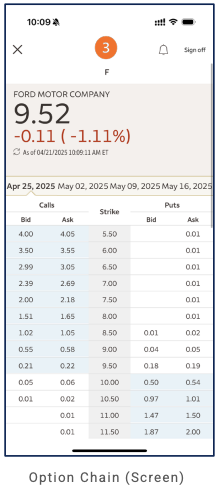
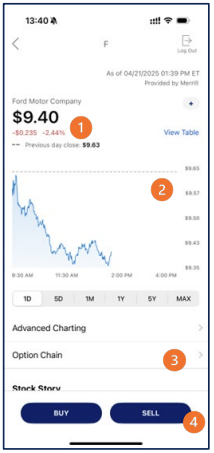
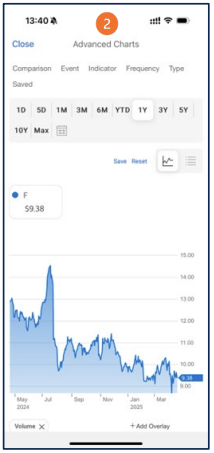
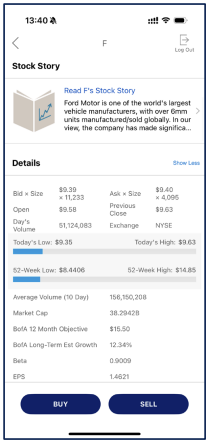
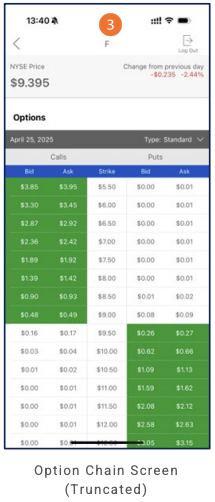
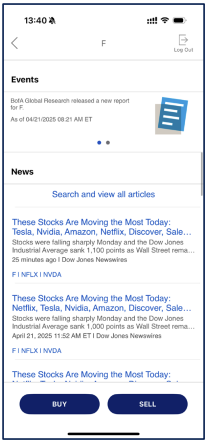
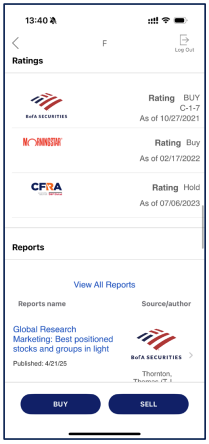
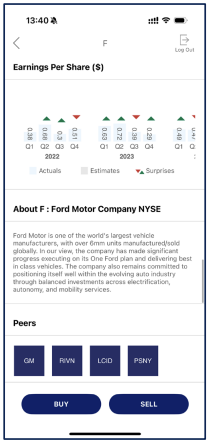
Quote screen (e.g. F – Ford Motor Co.): "As of [date] ET", "Provided by Merrill"; company name, + (watchlist); price, day change (red if negative), Previous day close; View Table link; intraday line chart (9:30 AM–4:00 PM); time range 1D, 5D, 1M, 1Y, 5Y, MAX; rows Advanced Charting, Option Chain, Stock Story (chevrons); BUY, SELL buttons bottom. Advanced Charts (from quote): Close, title "Advanced Charts"; config tabs Comparison, Event, Indicator, Frequency, Type; "Saved"; time range 1D, 5D, 1M, 3M, 6M, YTD, 1Y, 3Y, 5Y, 10Y, Max + calendar; Save, Reset; chart type (line vs bars); security box (ticker, price); line chart with Volume overlay, "+ Add Overlay". Stock Story / Details (from quote): Stock Story (icon, "Read F's Stock Story", company snippet, chevron); Details (Show Less): Bid x Size, Ask x Size, Open, Previous Close, Day's Volume, Exchange; Today's Range (Low/High, bar); 52-Week Range (Low/High, bar); Average Volume, Market Cap, BofA 12 Month Objective, BofA Long-Term Est Growth, Beta, EPS; BUY, SELL. Options chain (from quote): back, Log Out; NYSE Price, Change (red); "Options" title; expiration (e.g. April 25, 2025), Type: Standard (dropdown); Calls | Puts table (Bid, Ask, Strike columns); ITM highlighting (green); scrollable. Quote (Events & News): Events (BofA Global Research report carousel); News ("Search and view all articles", list: headline, snippet, source, related tickers); BUY, SELL. Quote (Ratings & Reports): Ratings (BofA SECURITIES BUY, MORNINGSTAR Buy, CFRA Hold); Reports (View All Reports; table, BofA research row); BUY, SELL. Quote (EPS, About, Peers): Earnings Per Share ($) (Actuals vs Estimates chart, Surprises triangles); About (company); Peers (GM, RIVN, LCID, PSNY); BUY, SELL.
LOB placement
Investing only: Quote (price, chart, View Table, Advanced Charting, Option Chain, Stock Story; BUY/SELL). Quote scroll/sections: Events (BofA reports carousel), News (article list, related tickers); Ratings (BofA, Morningstar, CFRA); Reports (table, View All Reports); Earnings Per Share (Actuals vs Estimates, Surprises); About; Peers (ticker buttons). Advanced Charts; Stock Story/Details; Options chain. Merrill Edge audit complete (7 screens).
Depth of hierarchy
Quote → Advanced Charting; Quote → Option Chain; Quote → Stock Story/Details; Quote scroll → Events, News, Ratings, Reports, EPS, About, Peers. No bottom nav in captured flows.
Cross-LOB patterns
Quote-centric: chart, Advanced Charting, Option Chain, Stock Story, Details; BofA research (Events, Ratings, Reports, 12 Mo Objective, Long-Term Est Growth); third-party ratings (Morningstar, CFRA); News with related tickers; EPS chart; Peers.
Personalization
TBD from more screens.
Screenshots
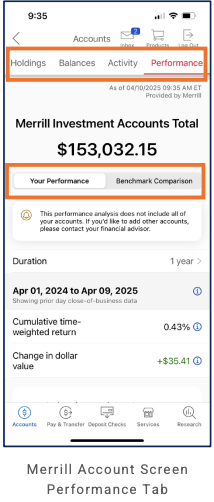
Merrill Lynch (Full-service / wealth – advised)
Primary navigation
5 tabs, bottom nav: Accounts, Pay & Transfer, Deposit Checks, Services, Research. Header: back, "Accounts", Inbox (badge e.g. 10), Products, Log Out.
Home / dashboard
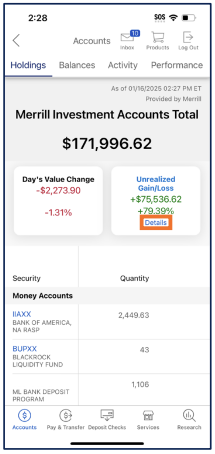
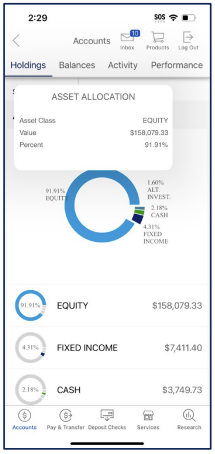
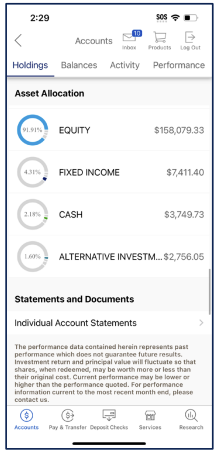
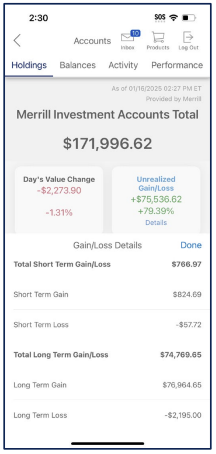
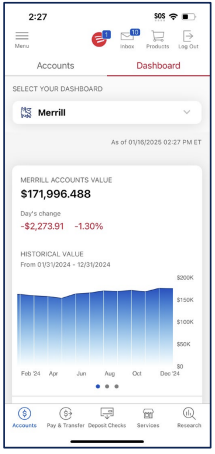
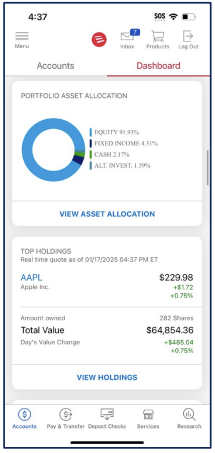
Accounts tab (Holdings view): sub-tabs Holdings, Balances, Activity, Performance. "As of [date] ET", "Provided by Merrill". Merrill Investment Accounts Total (e.g. $171,996.62); two cards: Day's Value Change (amount, %; red if negative), Unrealized Gain/Loss (amount, %; green; Details button). Holdings list: "Money Accounts" (Security, Quantity). Asset Allocation: card (Asset Class EQUITY, Value, Percent) or donut (Equity, Alt. Invest., Cash, Fixed Income) and list with circular progress and values. Statements and Documents: "Individual Account Statements" (chevron). Disclaimer (past performance). Gain/Loss Details (from Unrealized Details): Total Short/Long Term Gain/Loss breakdown; Done.
LOB placement
Investing (advised): Accounts tab = primary (Holdings, Balances, Activity, Performance). Merrill Investment Accounts Total, Day's Value Change, Unrealized Gain/Loss (Details → Gain/Loss breakdown). Holdings (Money Accounts list); Asset Allocation (donut + list). Statements and Documents. Pay & Transfer, Deposit Checks, Services, Research as tabs.
Depth of hierarchy
Accounts → Holdings / Balances / Activity / Performance. Unrealized Gain/Loss → Details → Gain/Loss Details (Short/Long Term), Done. Statements and Documents → Individual Account Statements.
Cross-LOB patterns
"Provided by Merrill"; single Accounts total aggregates advised investment accounts.
Personalization
TBD from more screens.
Screenshots
Mercury (Business banking)
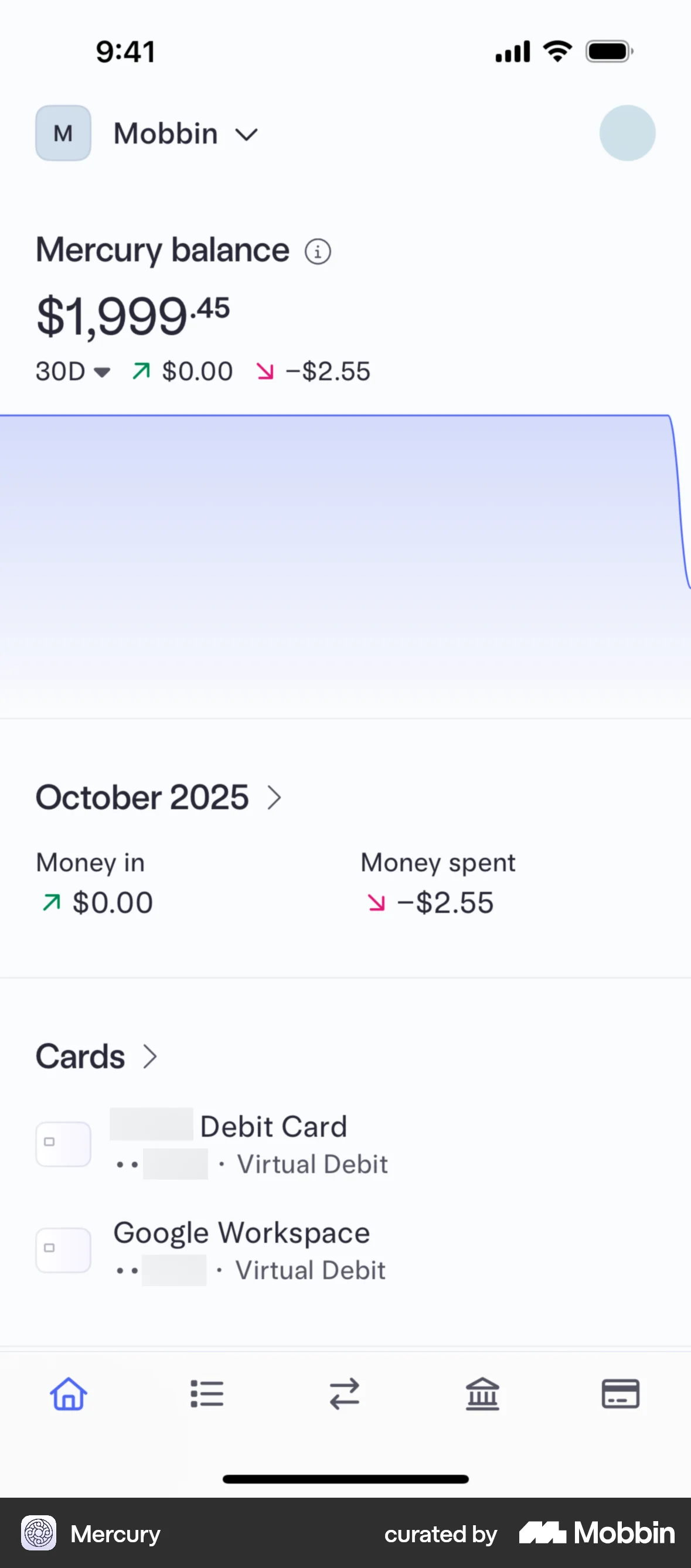
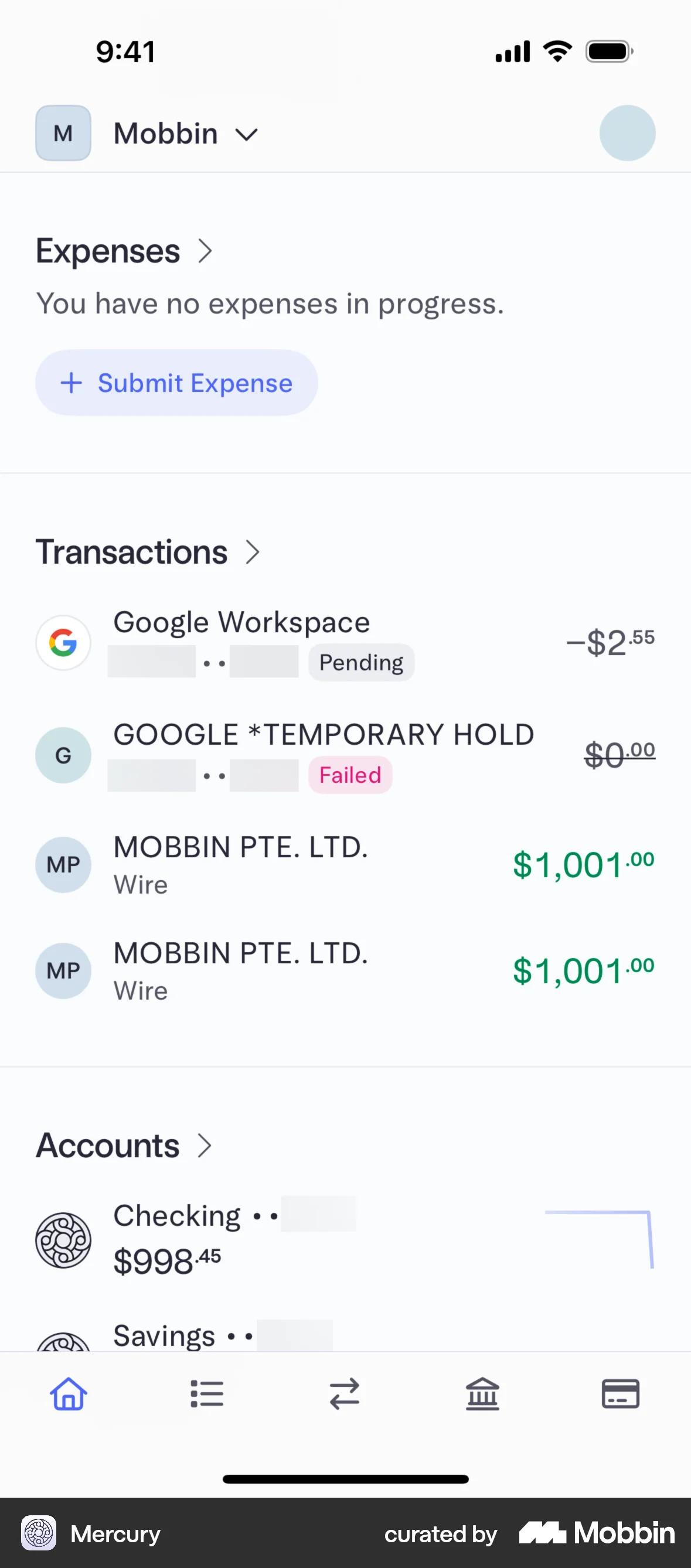
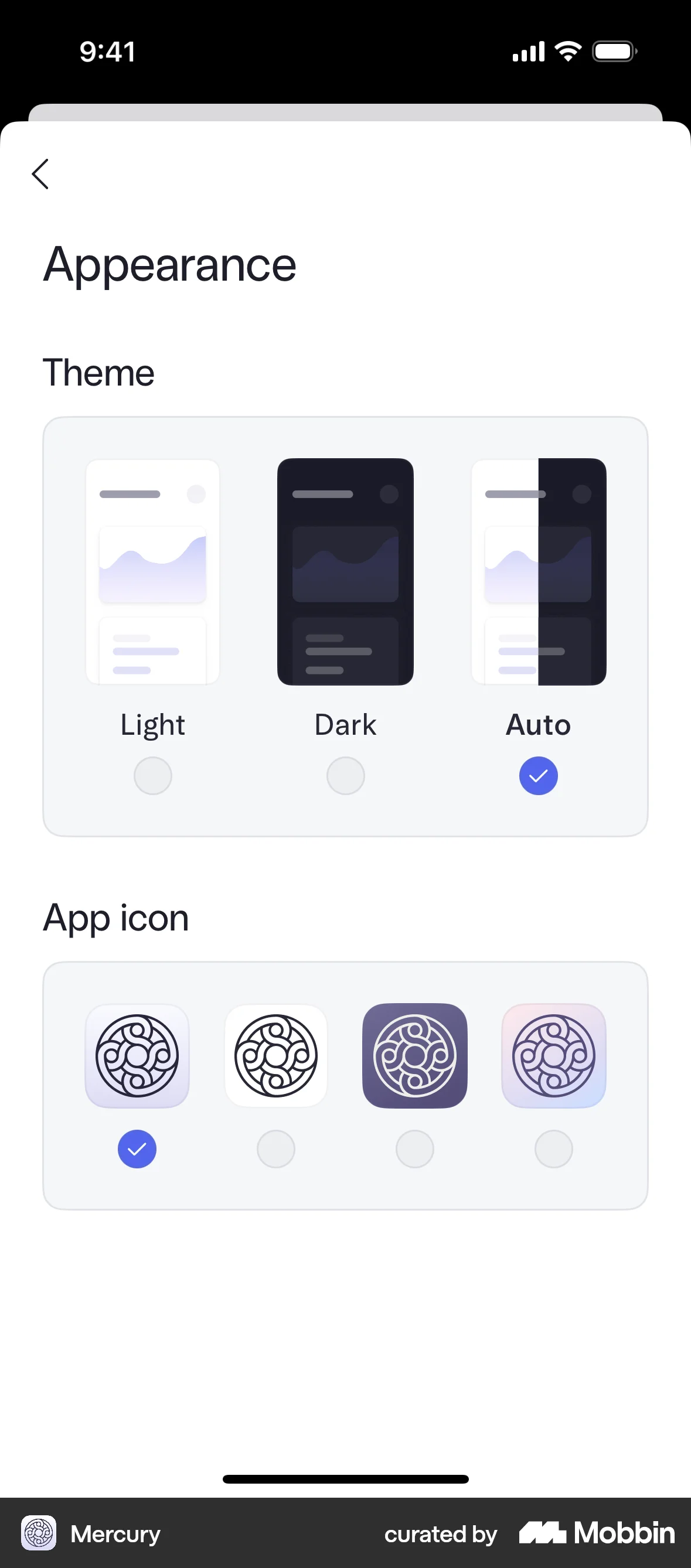
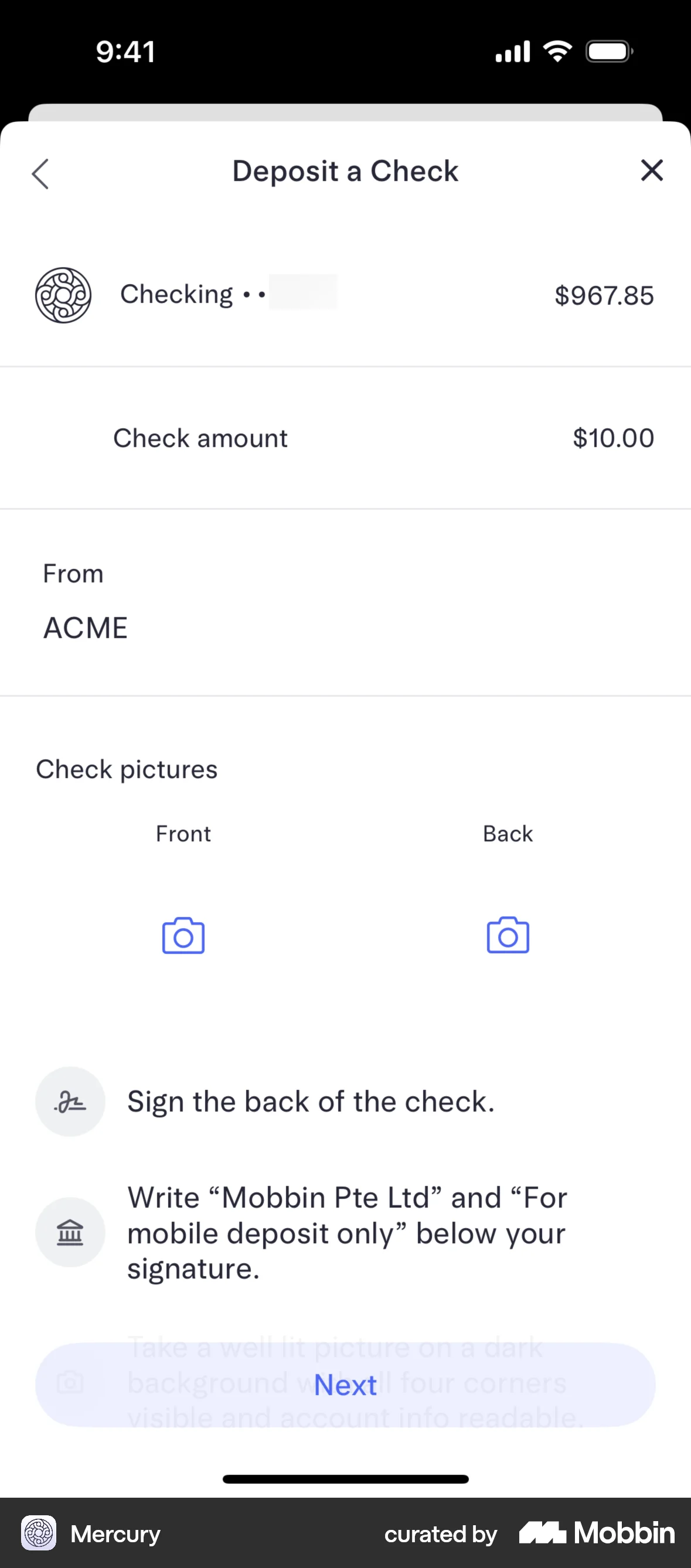
Mercury audit complete (18 screens). This entry is based on 18 screenshots. Home dashboard, 5-tab navigation, transactions with filters, money movement, virtual debit cards, transfers, deposit check, documents, settings, and appearance are visible.
Primary navigation
5 tabs, bottom nav: Home (house), Transactions (list), Transfer (arrows), Banking (bank icon), Cards (card). Header: workspace/account selector (logo + name + chevron) top left; profile avatar top right. Sub-screens use back/X, modals, and bottom sheets.
Home / dashboard
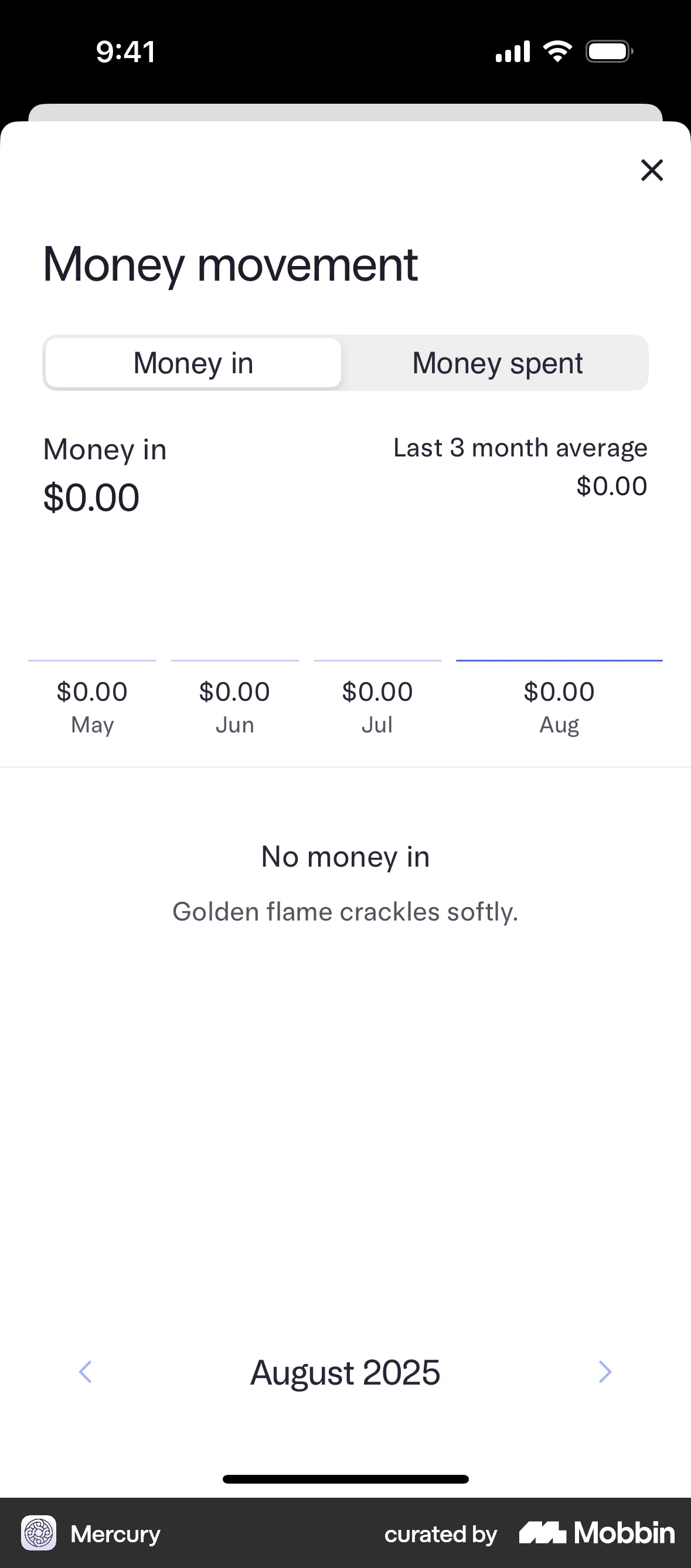
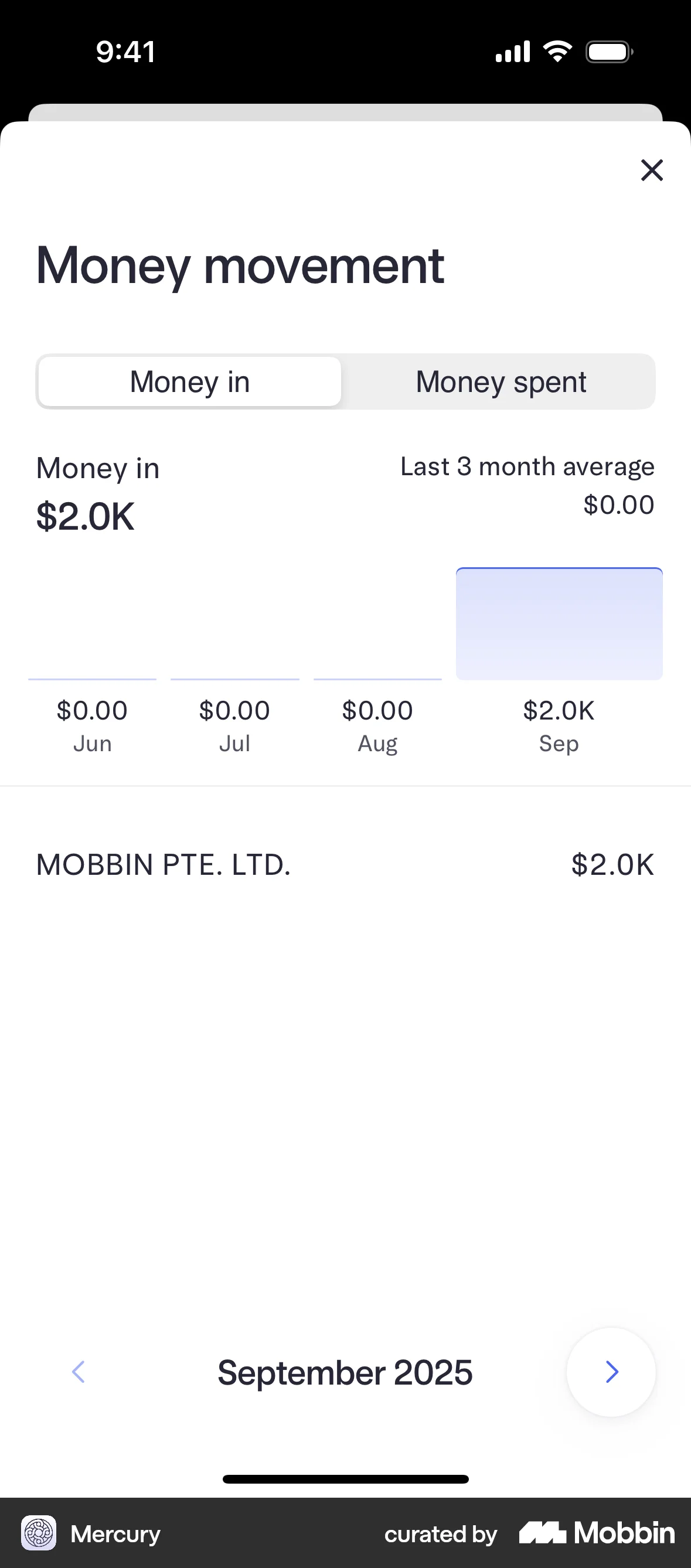
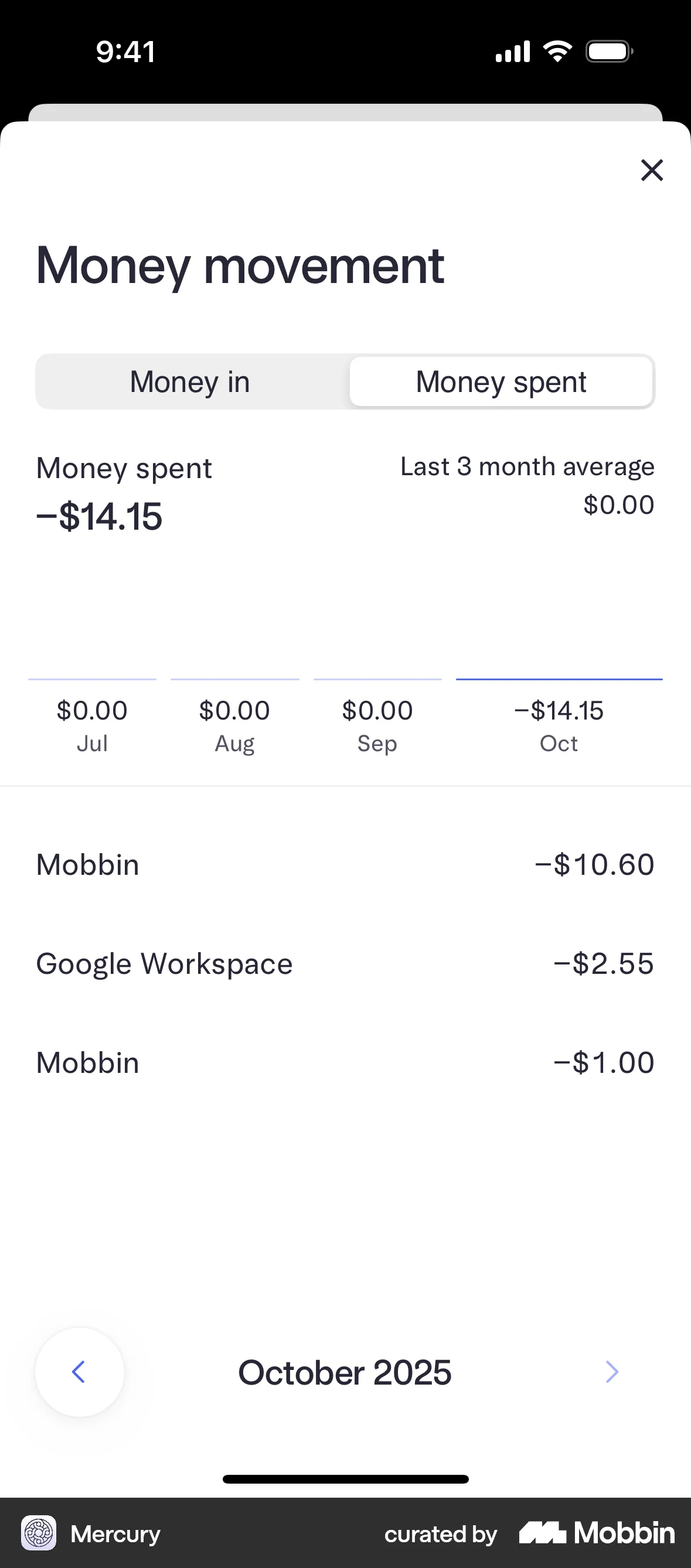
Home (scrollable): Mercury balance with info icon; 30D timeframe dropdown; trend indicators (money in / money spent); gradient chart area. Monthly summary (e.g. October 2025: Money in, Money spent) with chevron → Money movement modal. Cards section (virtual debit cards). Expenses ("You have no expenses in progress", + Submit Expense). Transactions teaser (Pending/Failed badges, wire in green). Accounts (Checking, Savings with sparkline).
LOB placement
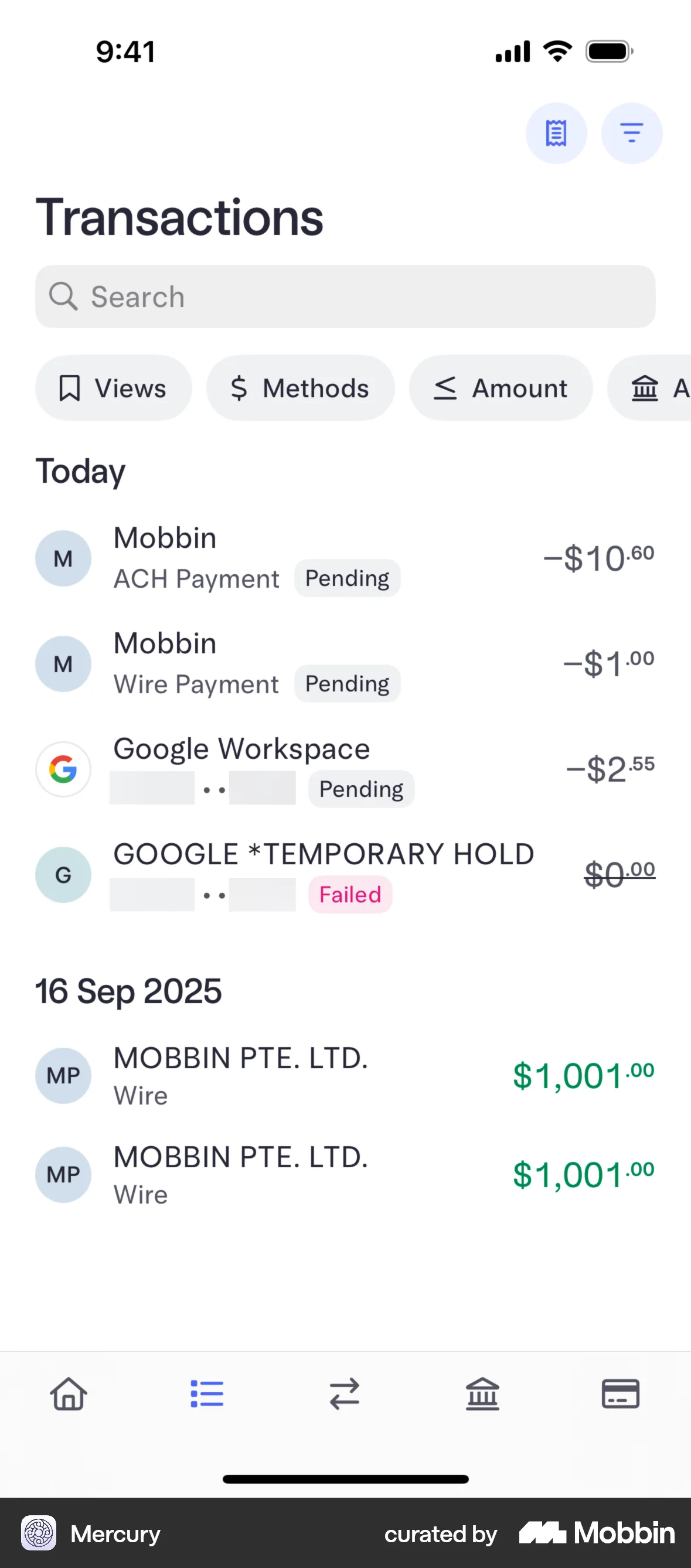
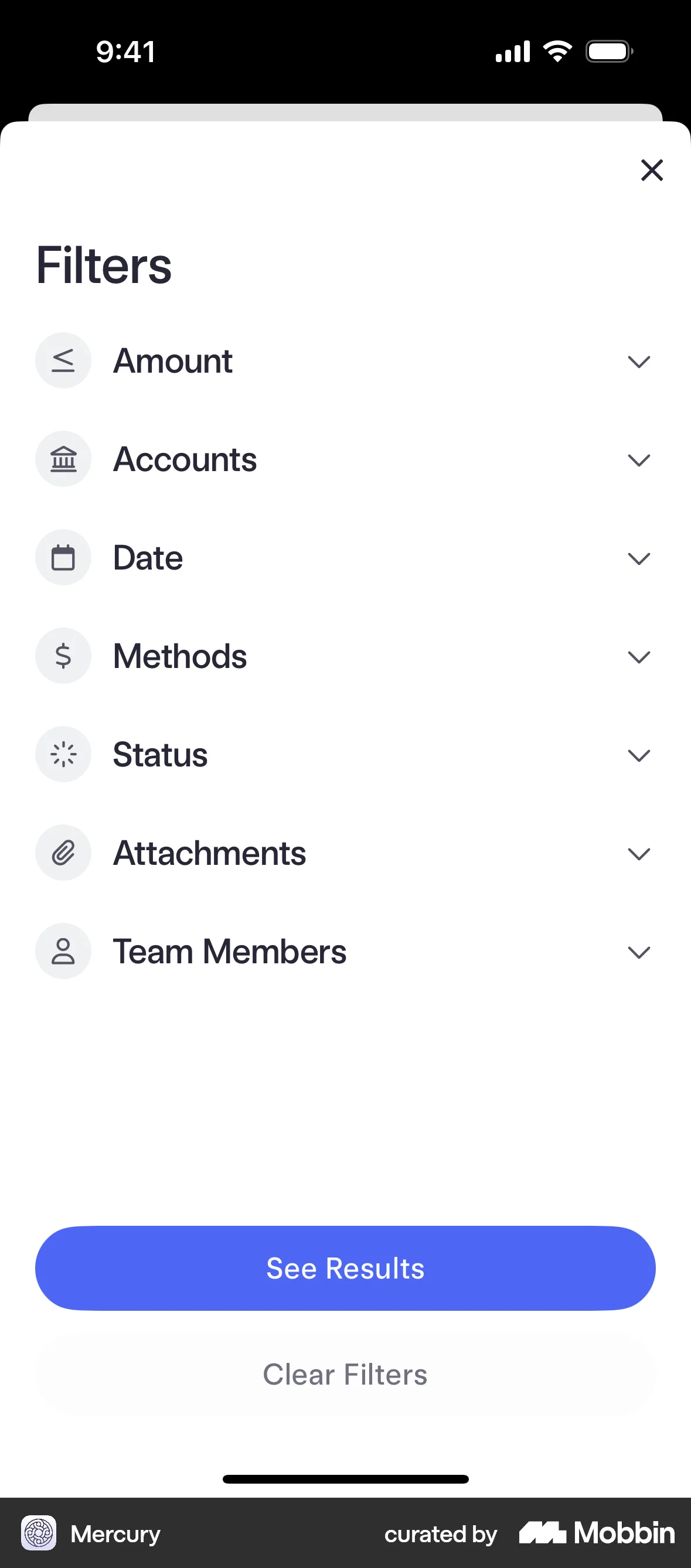
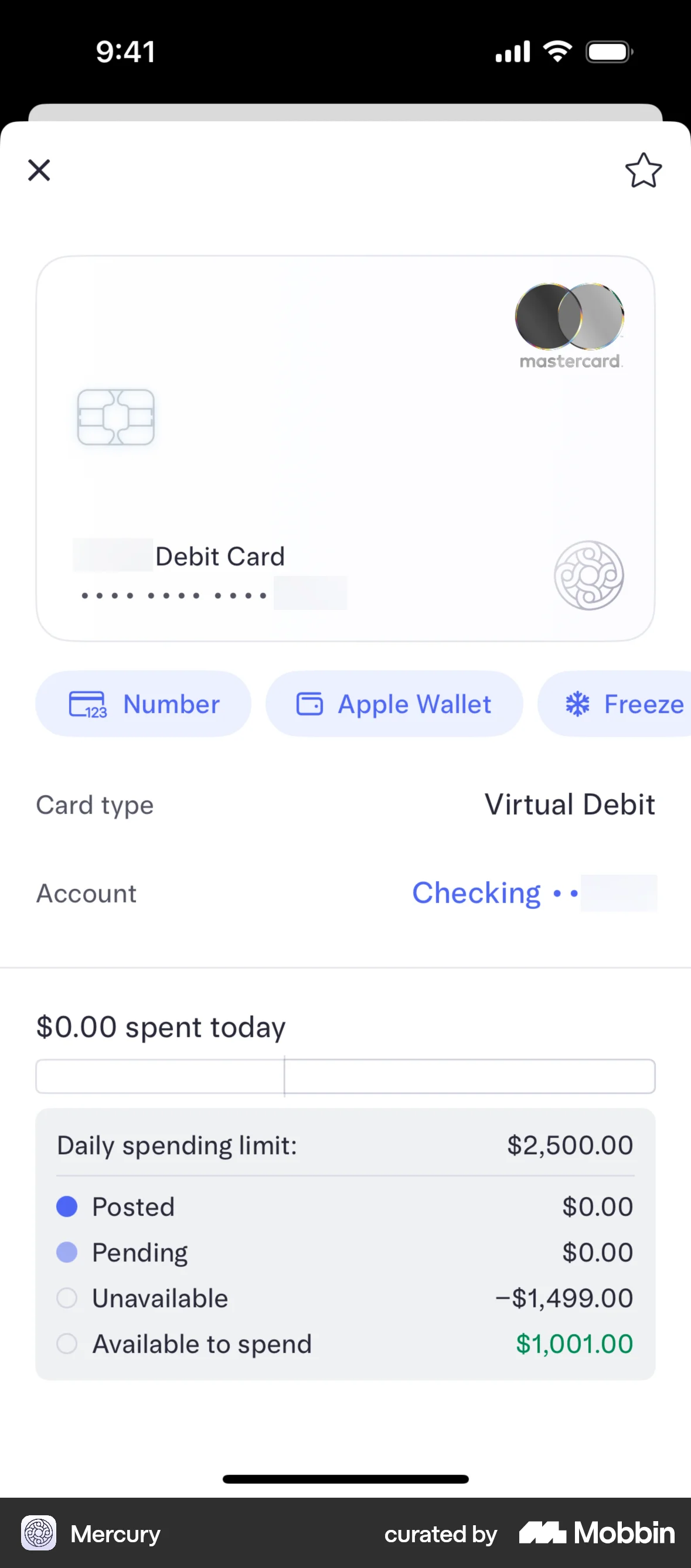
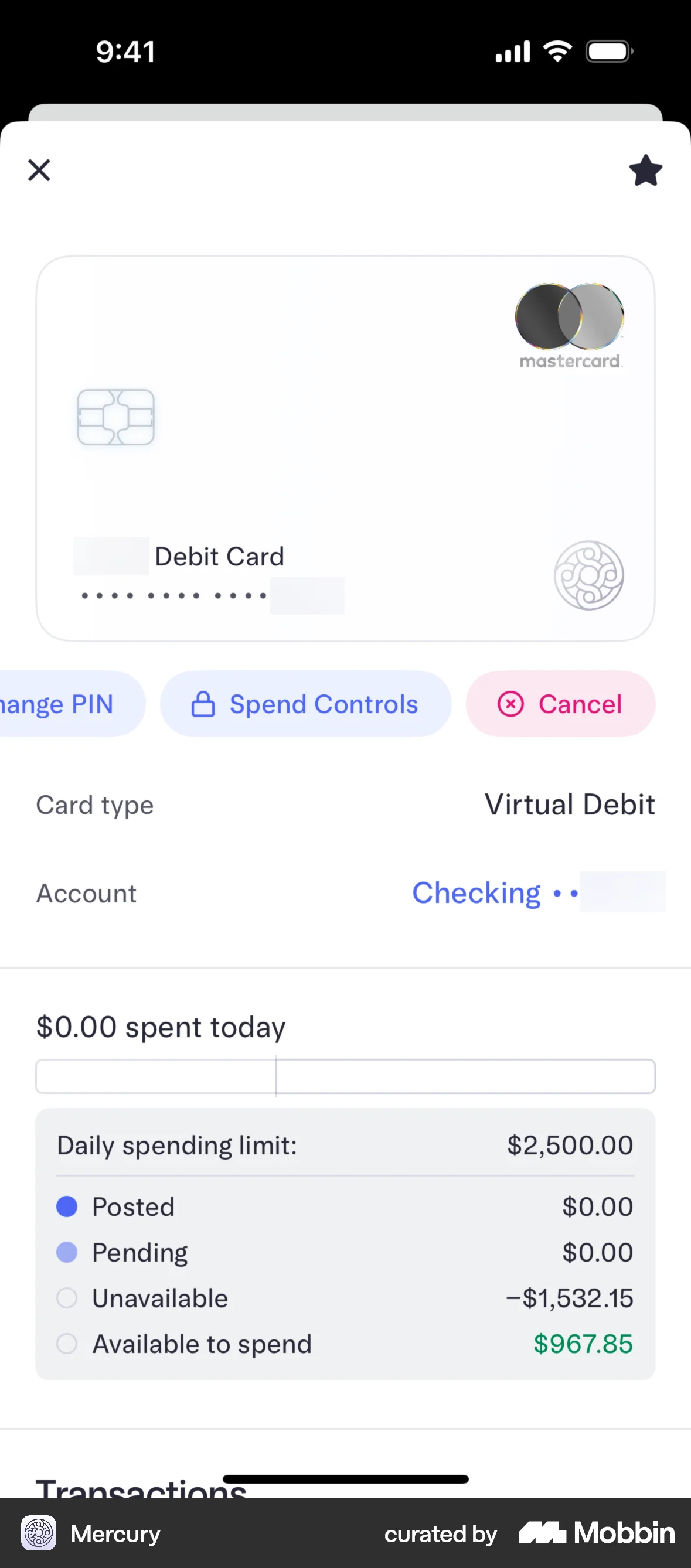
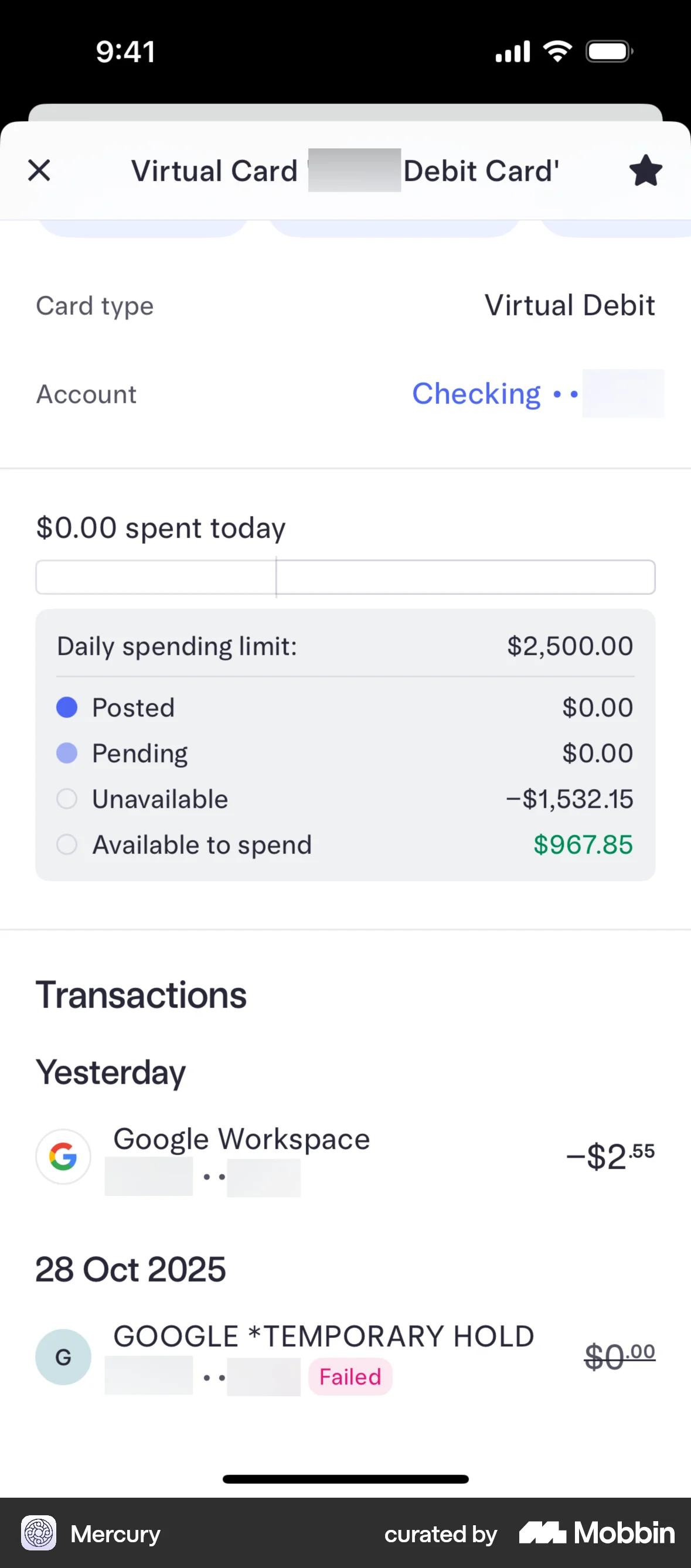
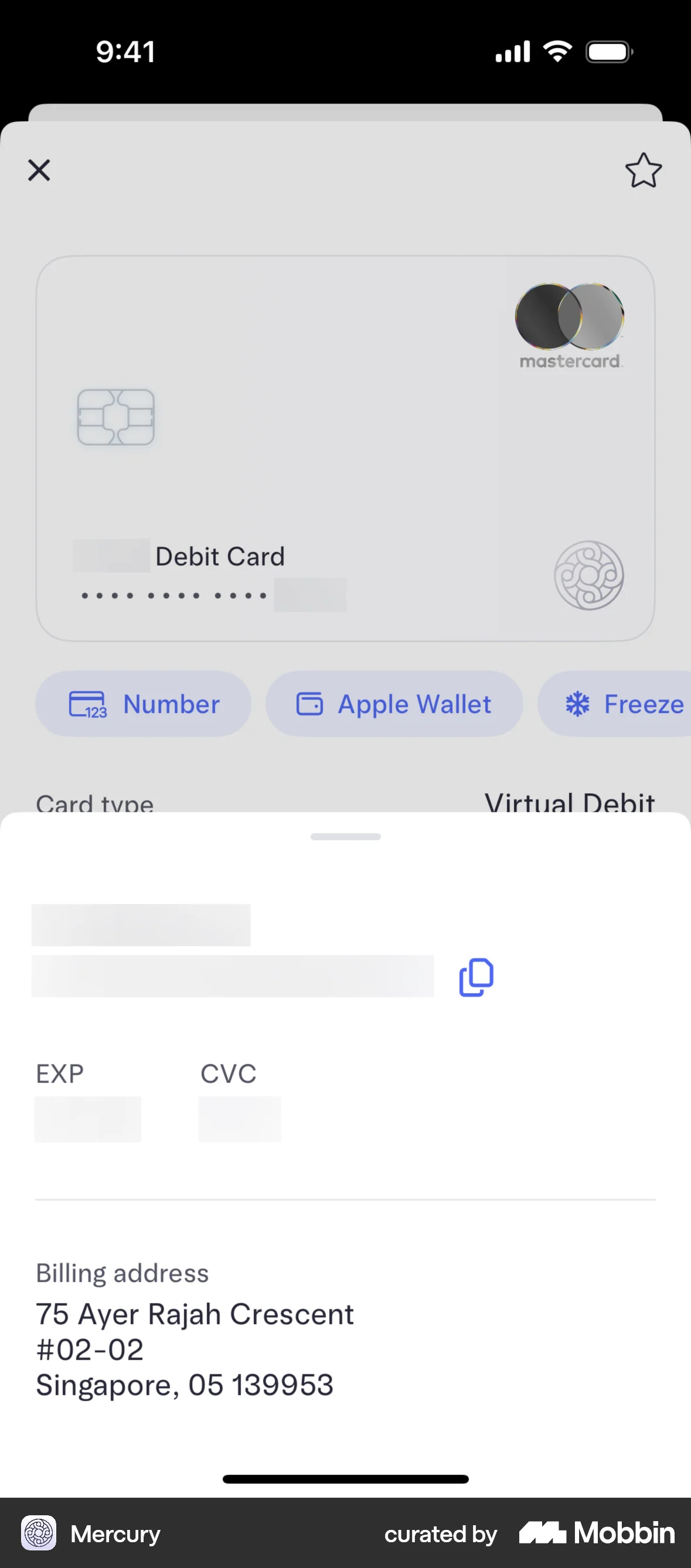
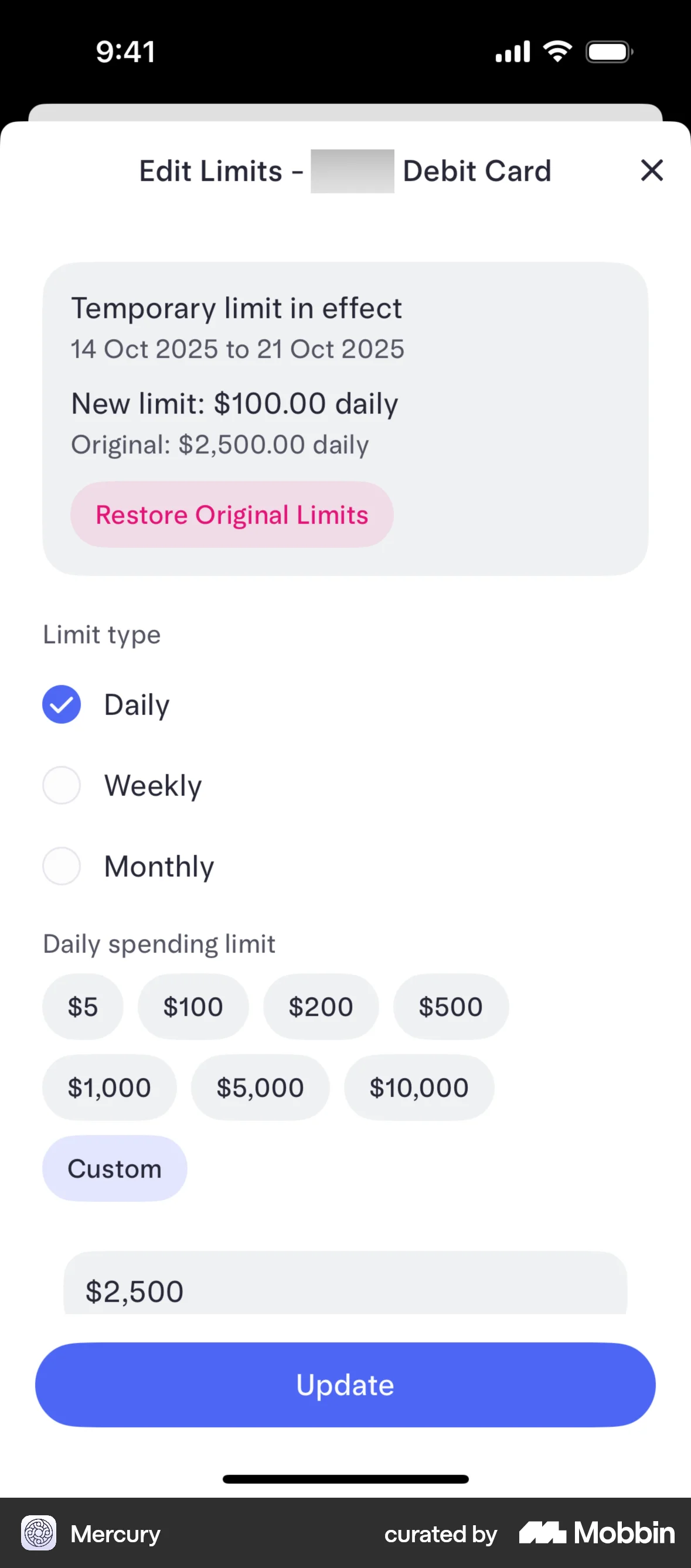
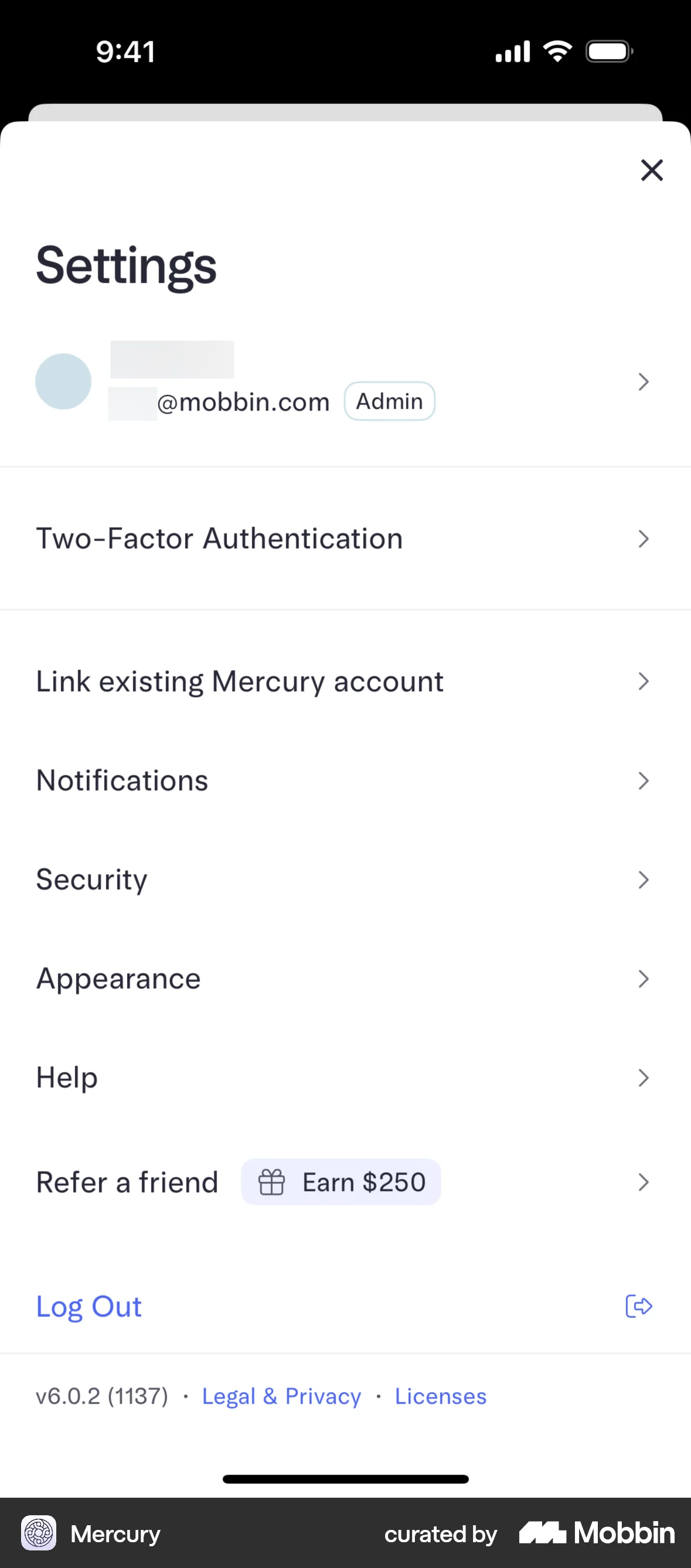
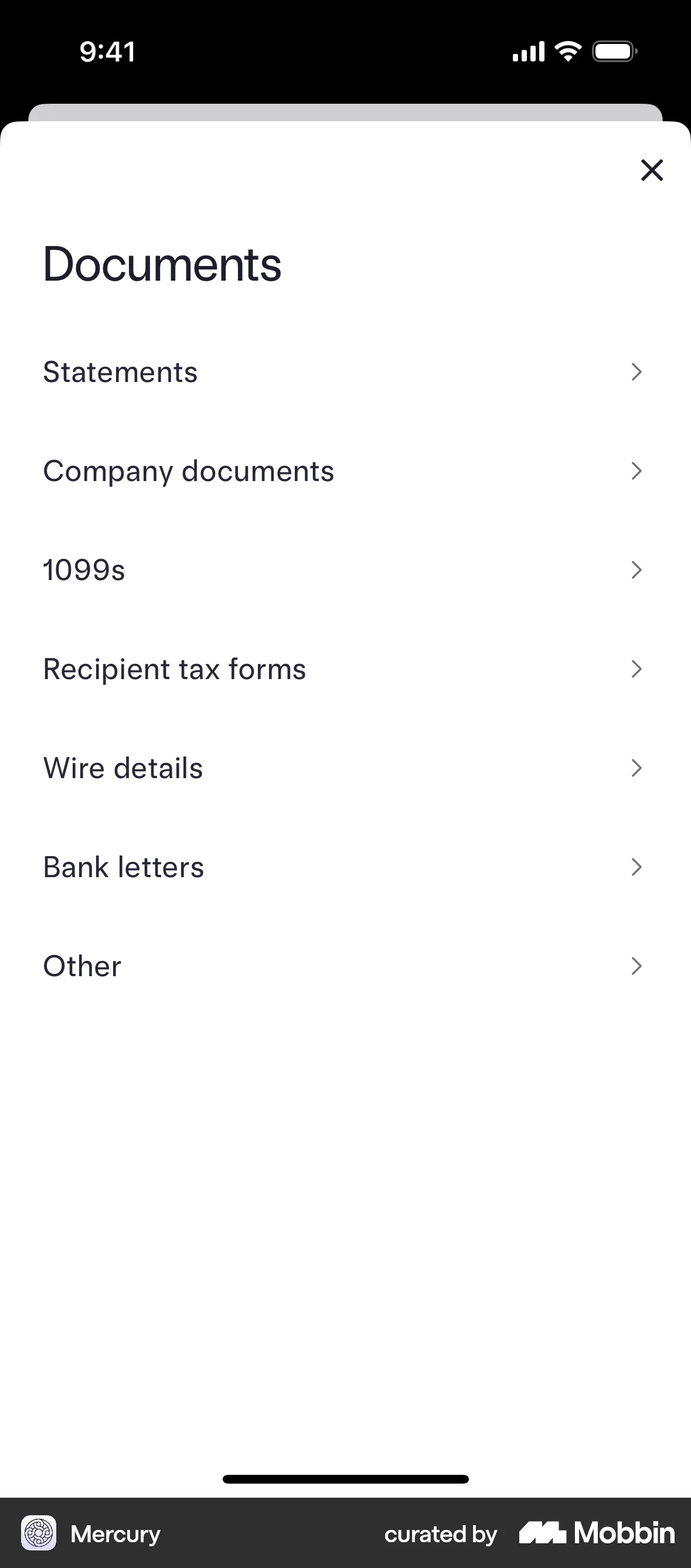
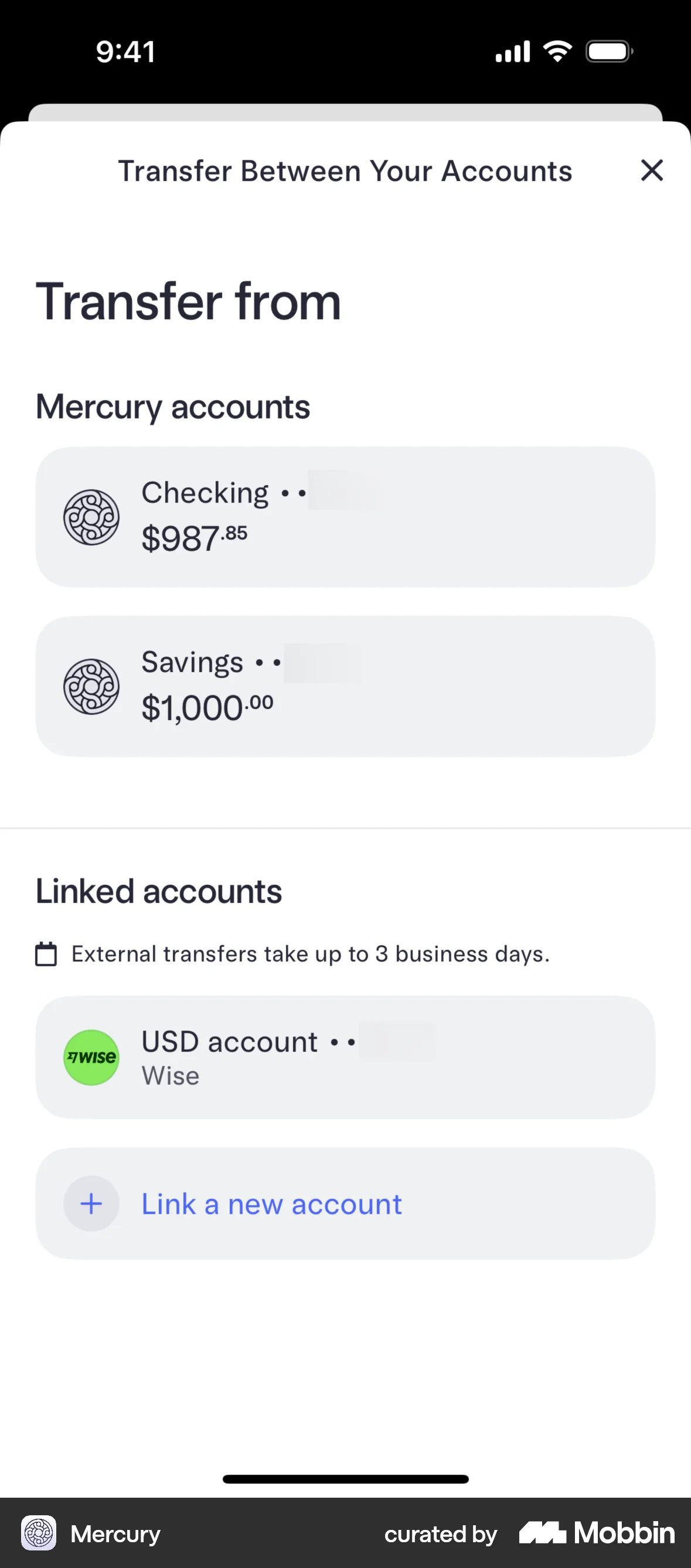
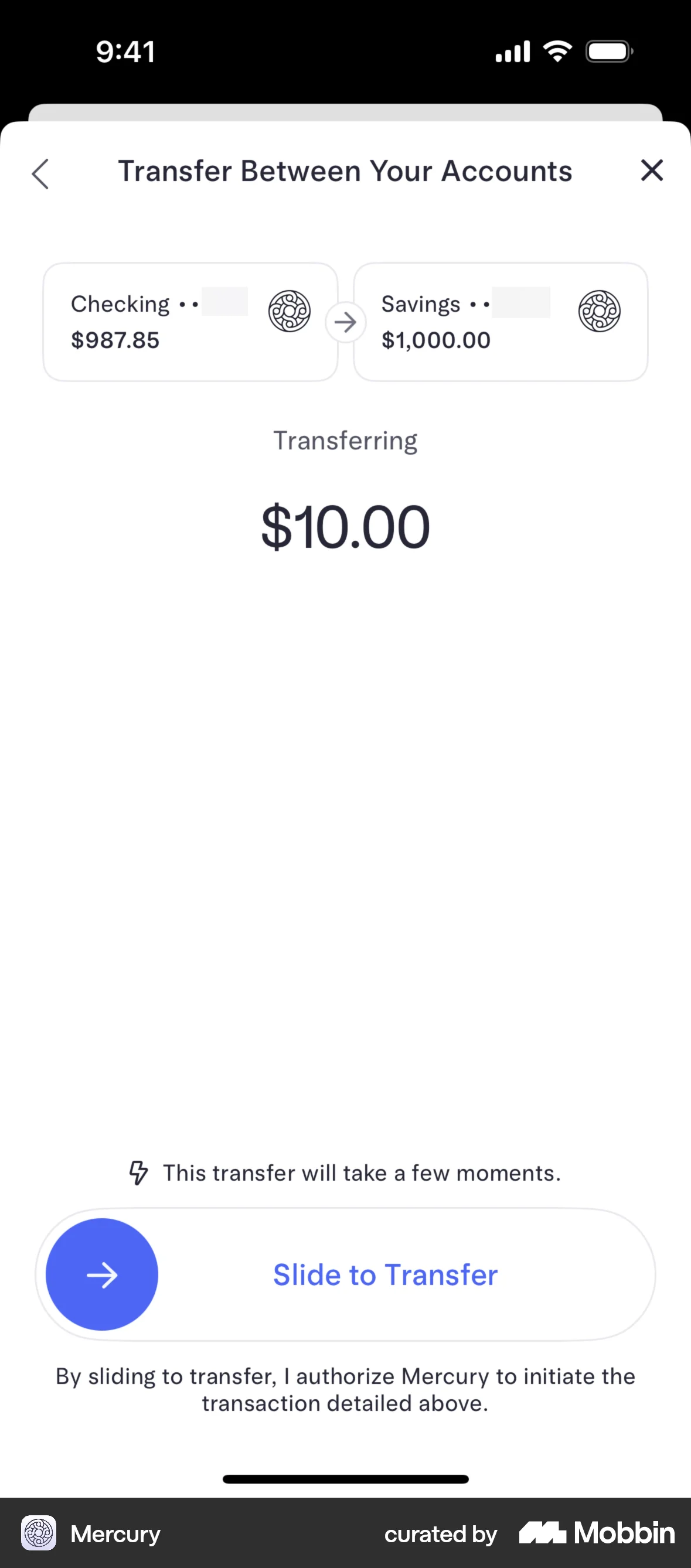
Banking: Accounts on home (Checking, Savings); Transfer Between Your Accounts (Mercury Checking/Savings; Linked accounts e.g. Wise, Link a new account; external transfers up to 3 business days); Slide to Transfer confirmation. Deposit a Check (account, amount, From, Front/Back photos, endorsement, Next). Documents modal (Statements, Company documents, 1099s, Recipient tax forms, Wire details, Bank letters, Other). Transactions: dedicated tab; search; filter chips; grouped by date; Filters modal (Amount, Accounts, Date, Methods, Status, Attachments, Team Members). Money movement: modal; Money in | Money spent toggle; bar chart; month pager. Cards: virtual debit (Number, Apple Wallet, Freeze; Spend Controls, Cancel); spending limits; Edit Limits (temporary limit, Daily/Weekly/Monthly, chips, Update); card details slide-up. Settings: profile modal (Admin badge, 2FA, Appearance, Refer $250); Appearance (Theme, App icon). Expenses: Submit Expense on home. Banking tab depth TBD from more screens.
Depth of hierarchy
Home → Money movement = monthly summary chevron (1 tap). Transactions tab = 1 tap. Transactions → Filters = filter icon. Transfer tab → Transfer from → Slide to Transfer. Cards → card detail → Edit Limits. Settings via profile avatar.
Cross-LOB patterns
Home aggregates balance, monthly cash flow, cards, expenses teaser, transactions teaser, and accounts. Transactions is cross-account with business filters (Team Members). Transfer connects internal and linked external accounts. Cards tied to Checking.
Personalization
Workspace/account switcher. Theme (Light/Dark/Auto) and App icon selection. Temporary card spending limits with restore. Refer a friend ($250) in Settings.
Design styling
Minimalist fintech aesthetic: white backgrounds, generous whitespace, light gray rounded cards. Blue accent for primary actions and active nav; green for incoming amounts; pink for failed states. Thin line icons; superscript cents on amounts. Modal/bottom-sheet patterns for filters, settings, money movement, and card details. Slide to Transfer for deliberate confirmation. Sparklines in account rows.
Screenshots
Monzo (Digital banking / neobank)
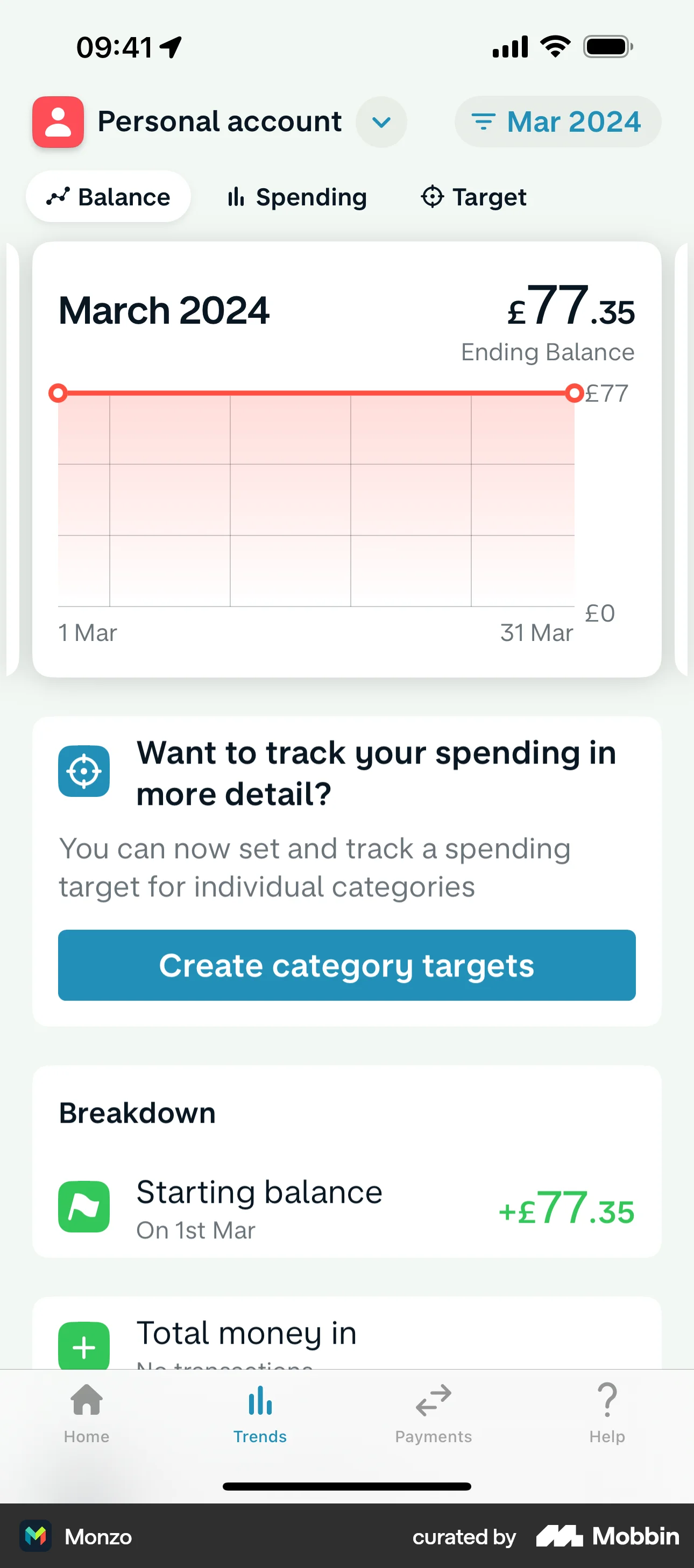
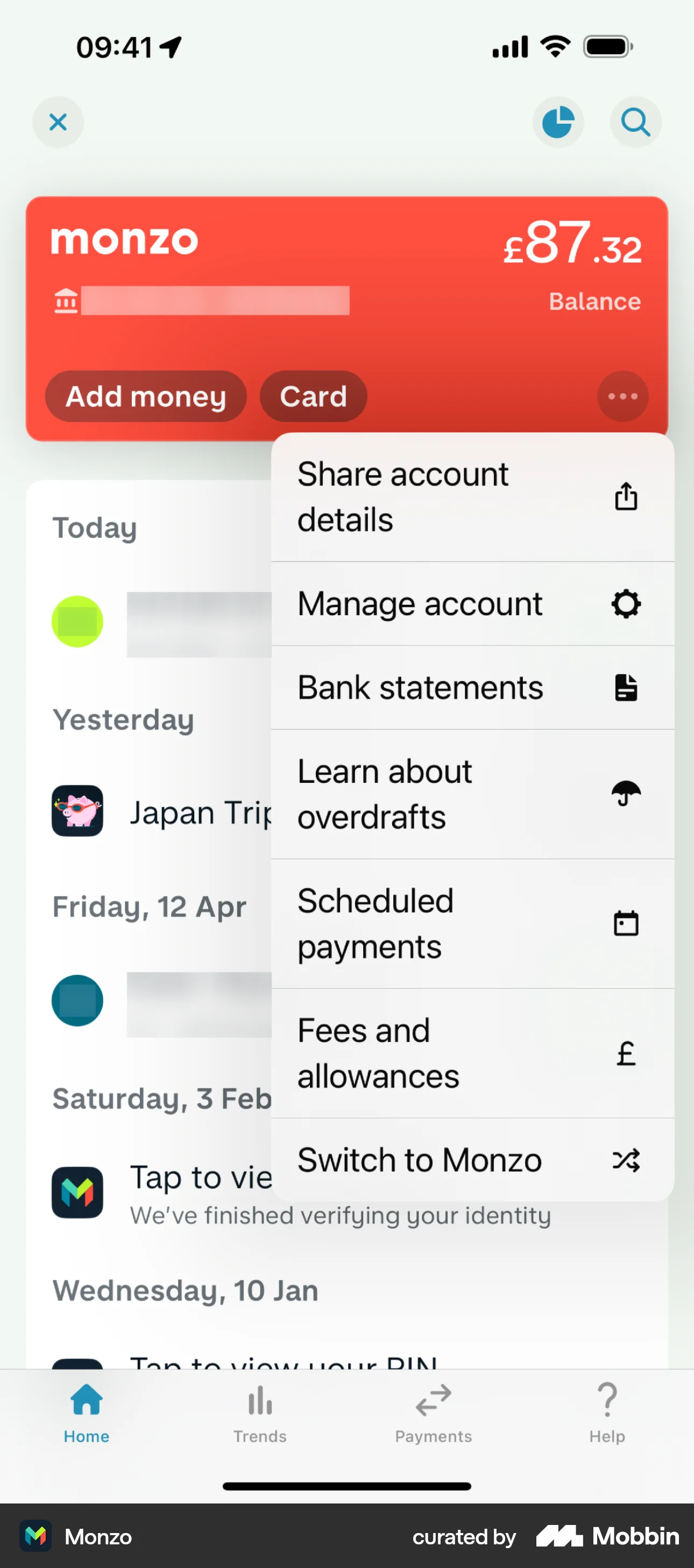
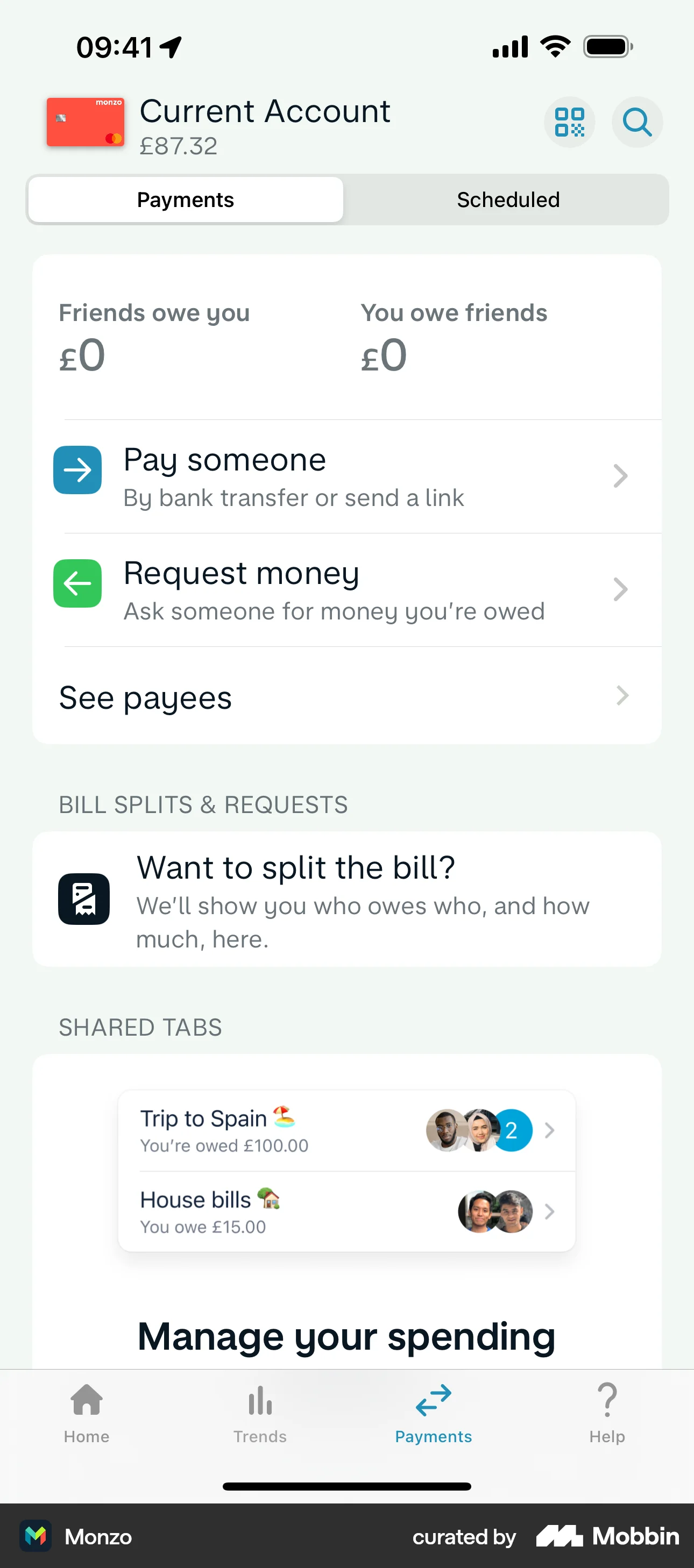
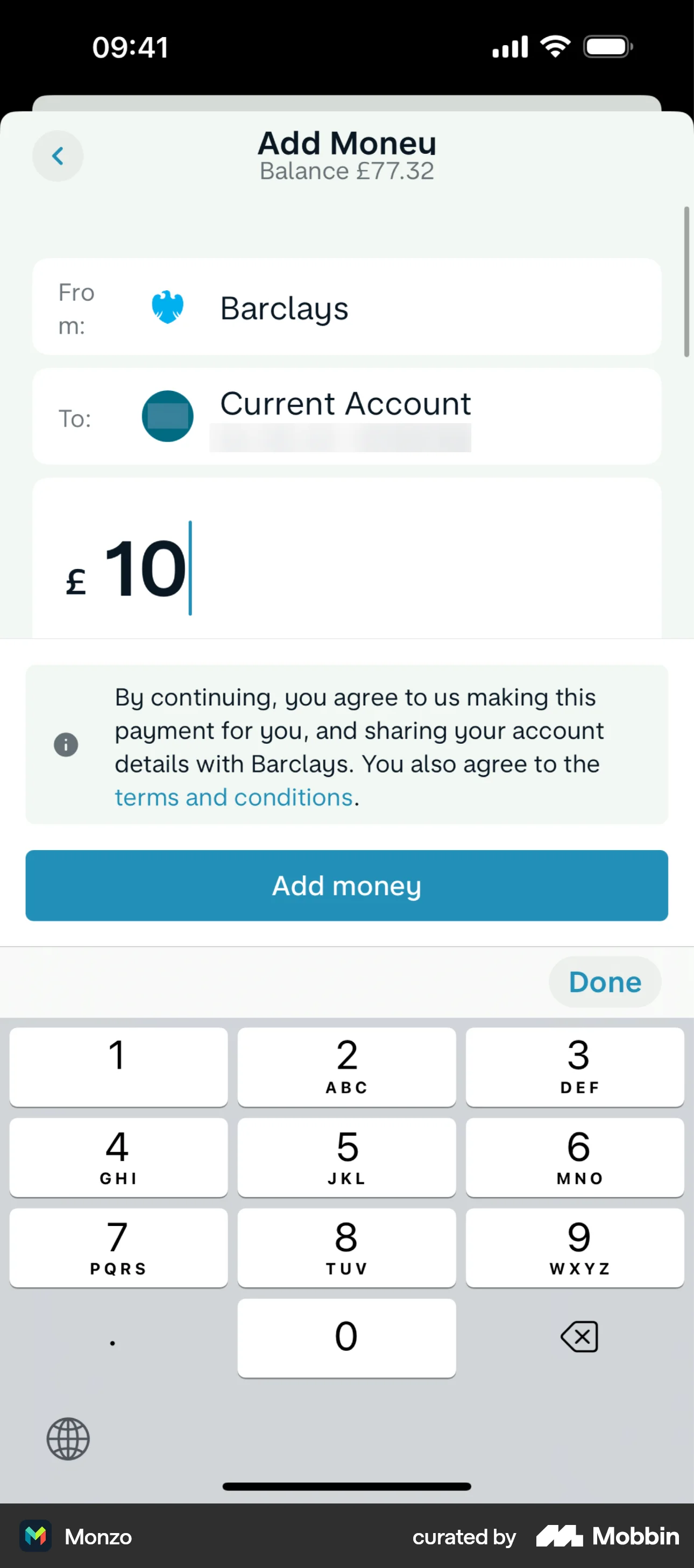
Monzo audit complete (15 screens). This entry is based on 15 screenshots. Home dashboard, Trends analytics, Payments (P2P and social), card management, overdraft, limits, account management, help, statements, and onboarding are visible.
Primary navigation
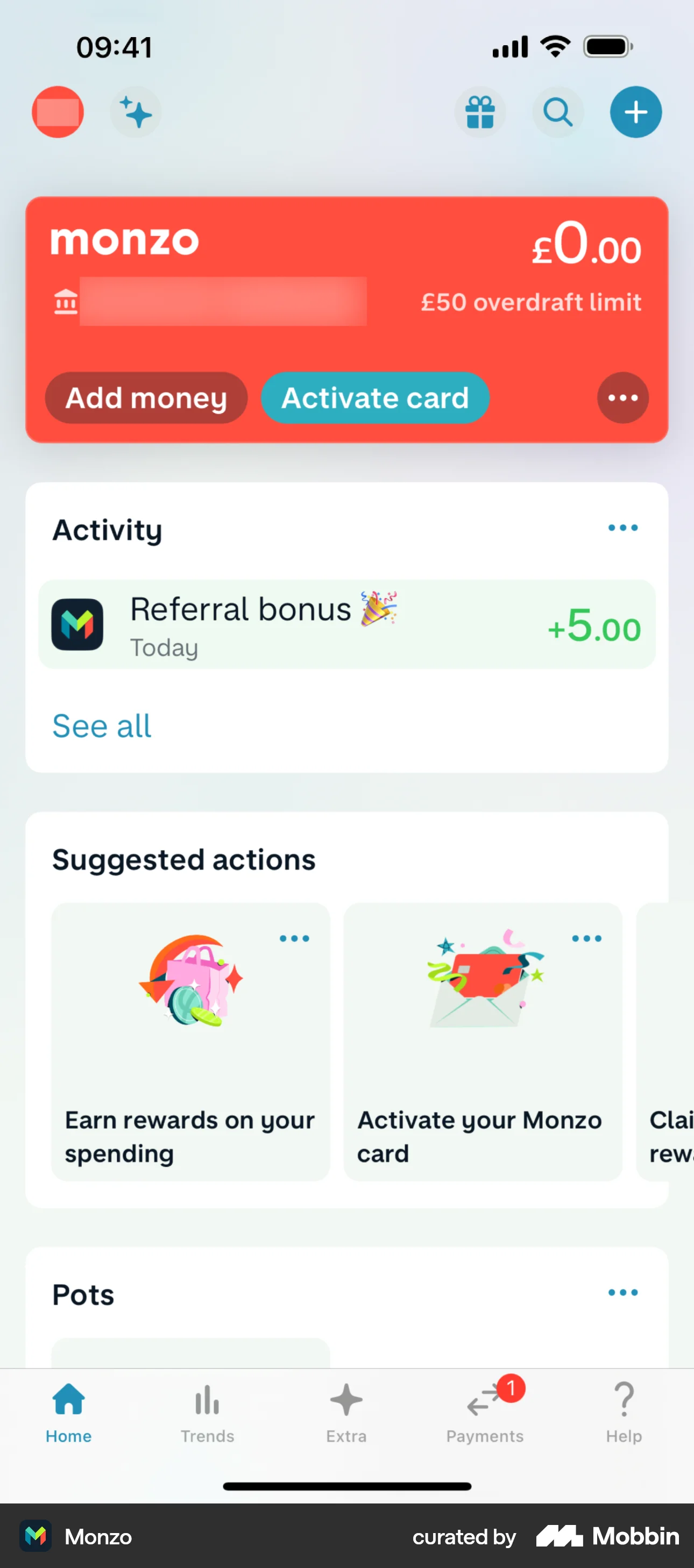
4 tabs, bottom nav: Home (house), Trends (bar chart), Payments (arrows; notification badge in some captures), Help (question mark). Header on Home: profile avatar, Upgrade pill, gift (referrals), search, + (add). Coral account card is the primary hero on Home. Sub-screens: back/X, modals, overflow menus.
Home / dashboard
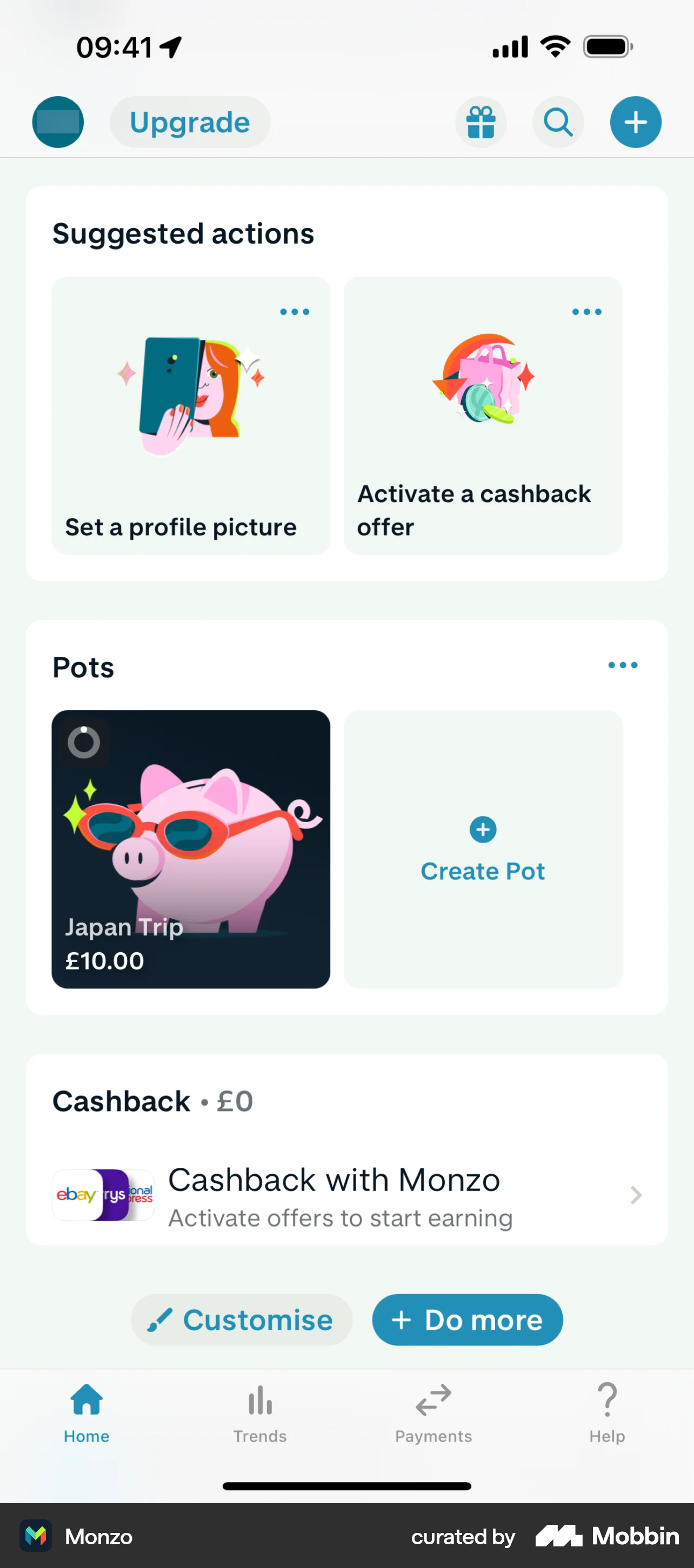
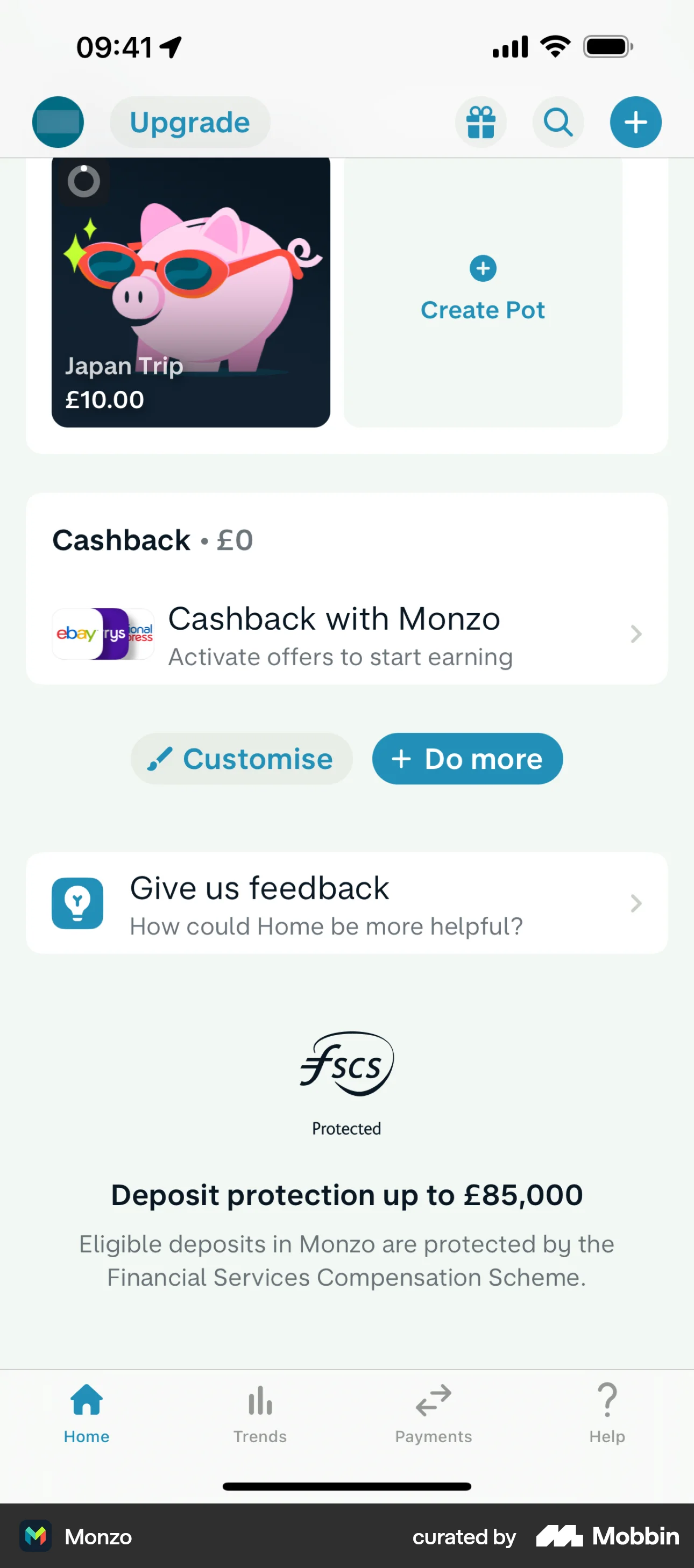
Home (scrollable, card-based): coral account card (monzo logo, balance, overdraft limit, sort code/account, Add money + Activate card/Card + overflow …); Activity card (recent transactions, See all); Suggested actions horizontal carousel; Pots (goal savings e.g. Japan Trip, Create Pot); Cashback (partner offers); Customise + Do more buttons; FSCS protection footer. Account overflow: Share account details, Manage account, Bank statements, Learn about overdrafts, Scheduled payments, Fees and allowances, Switch to Monzo.
LOB placement
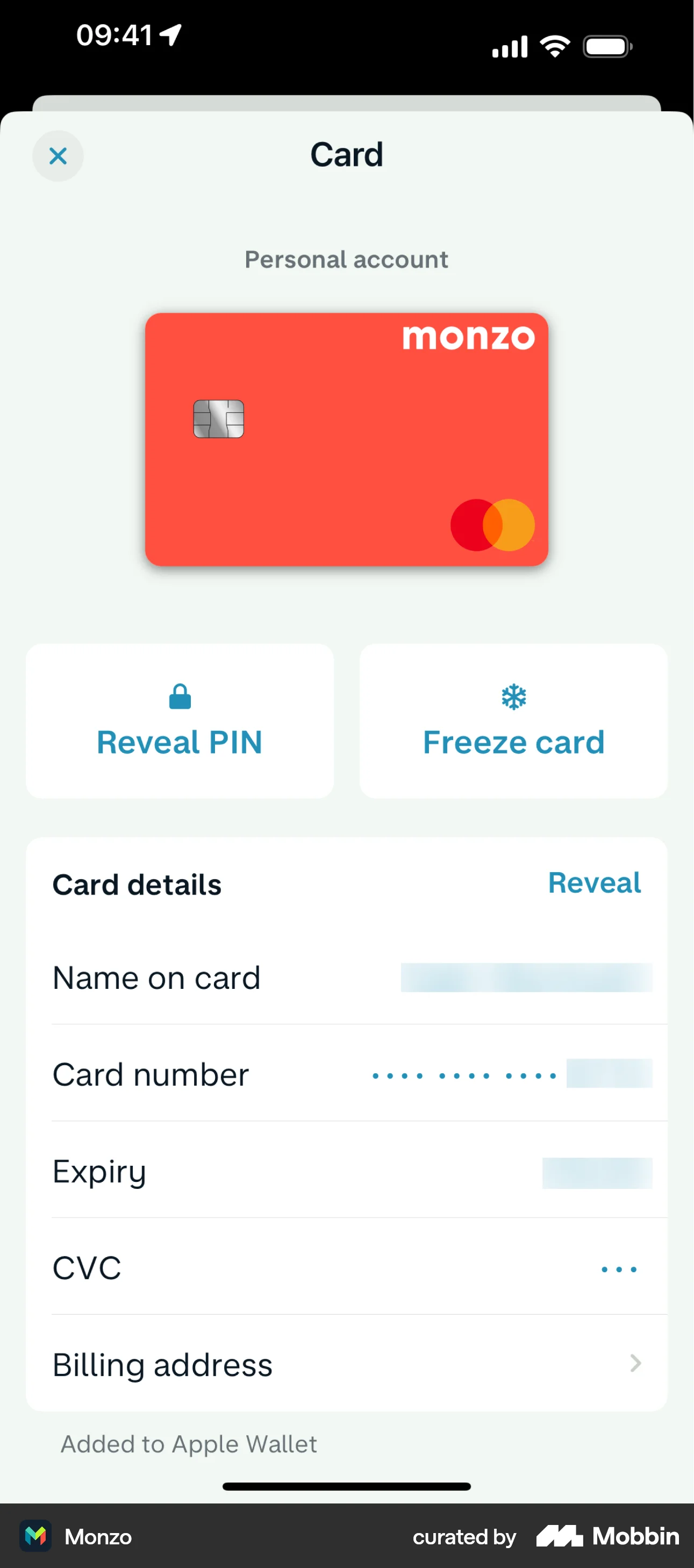
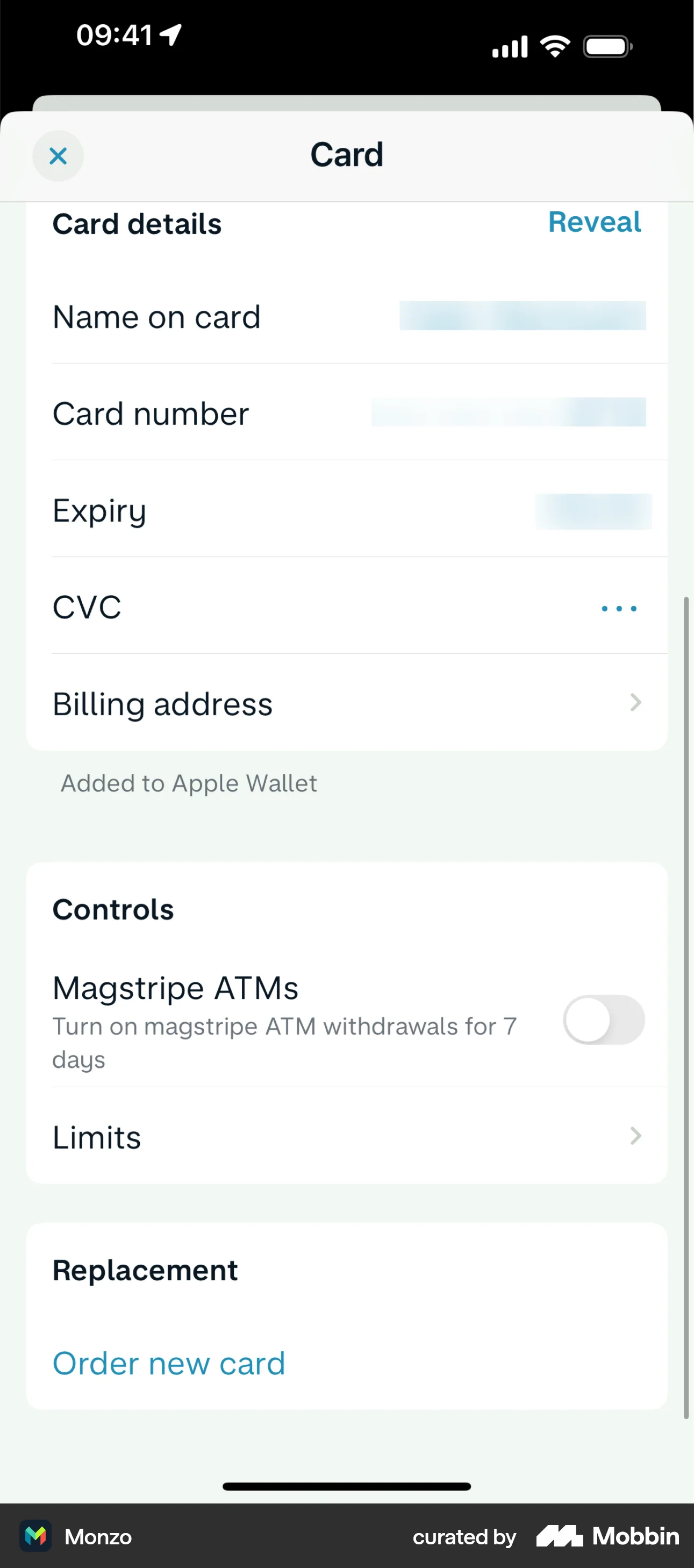
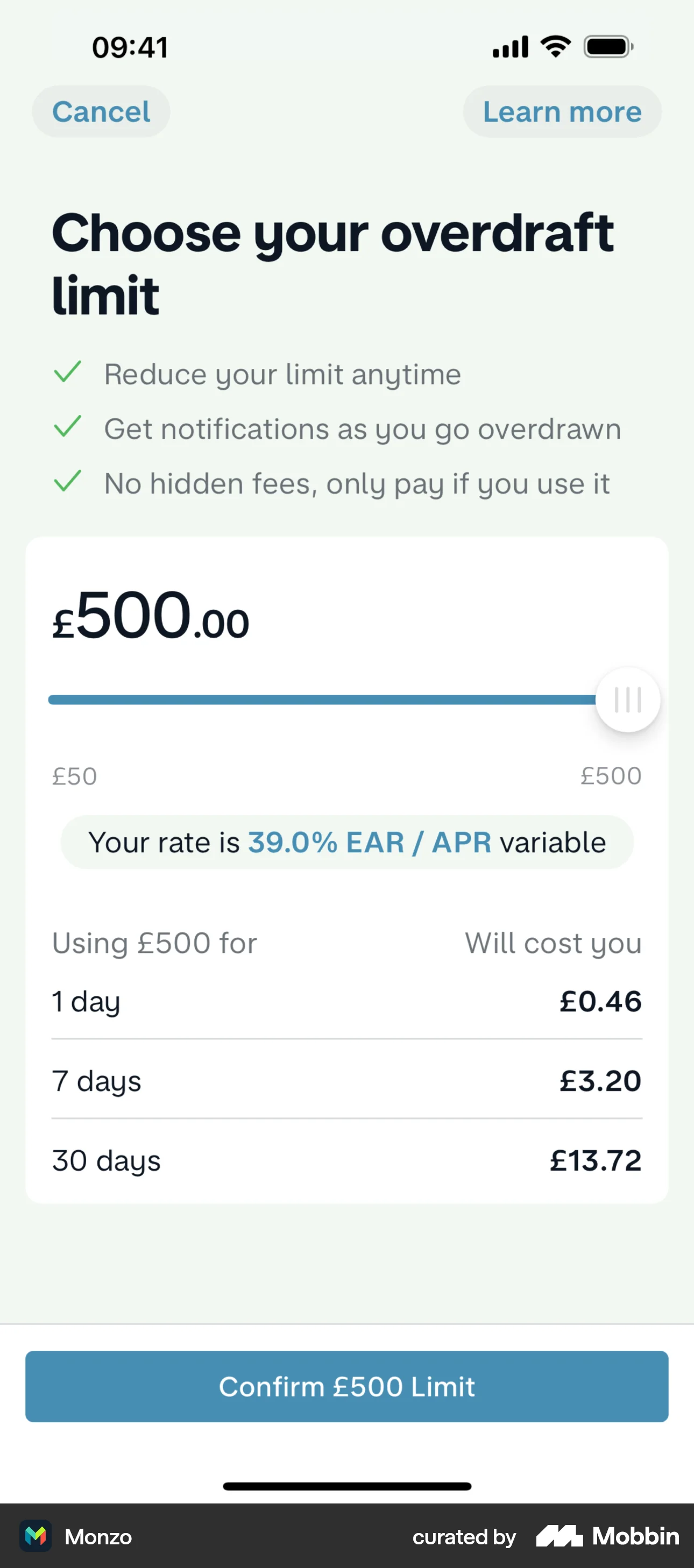
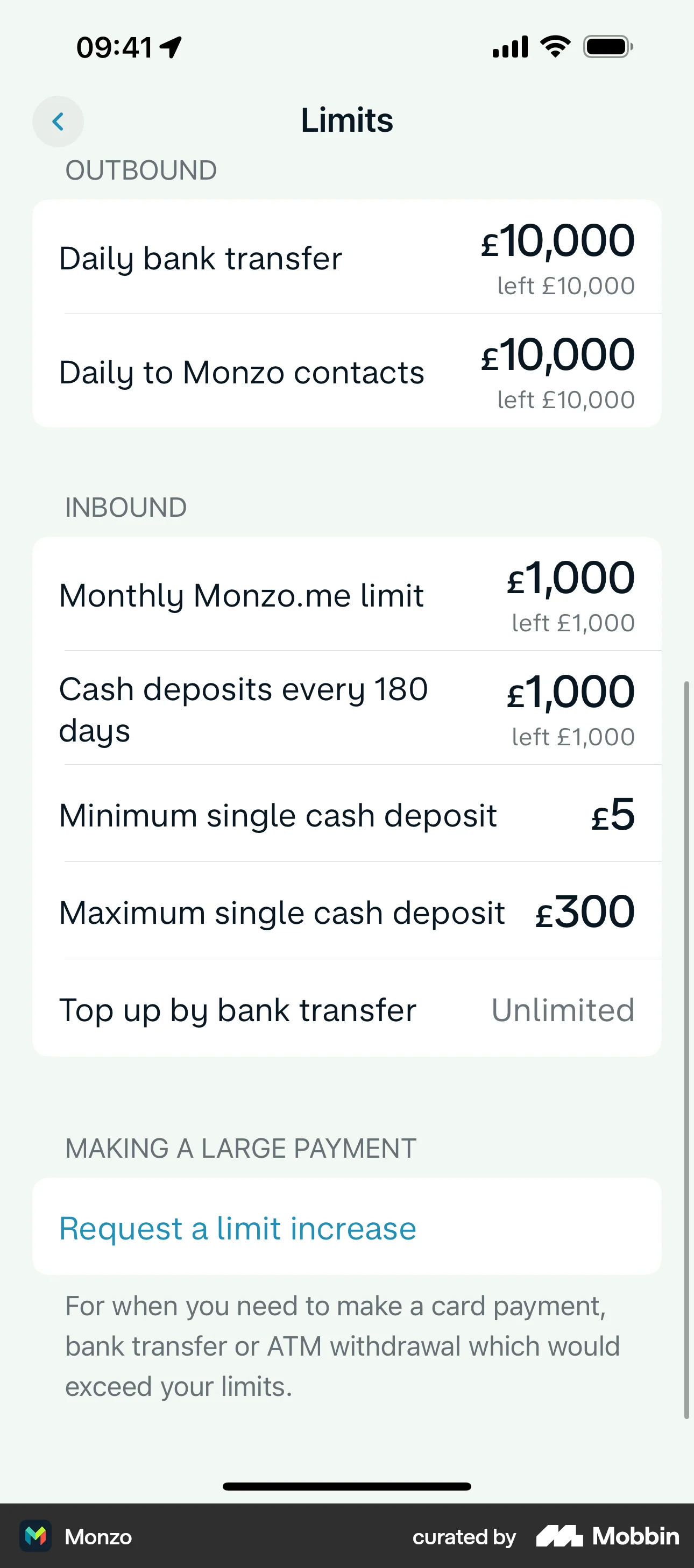
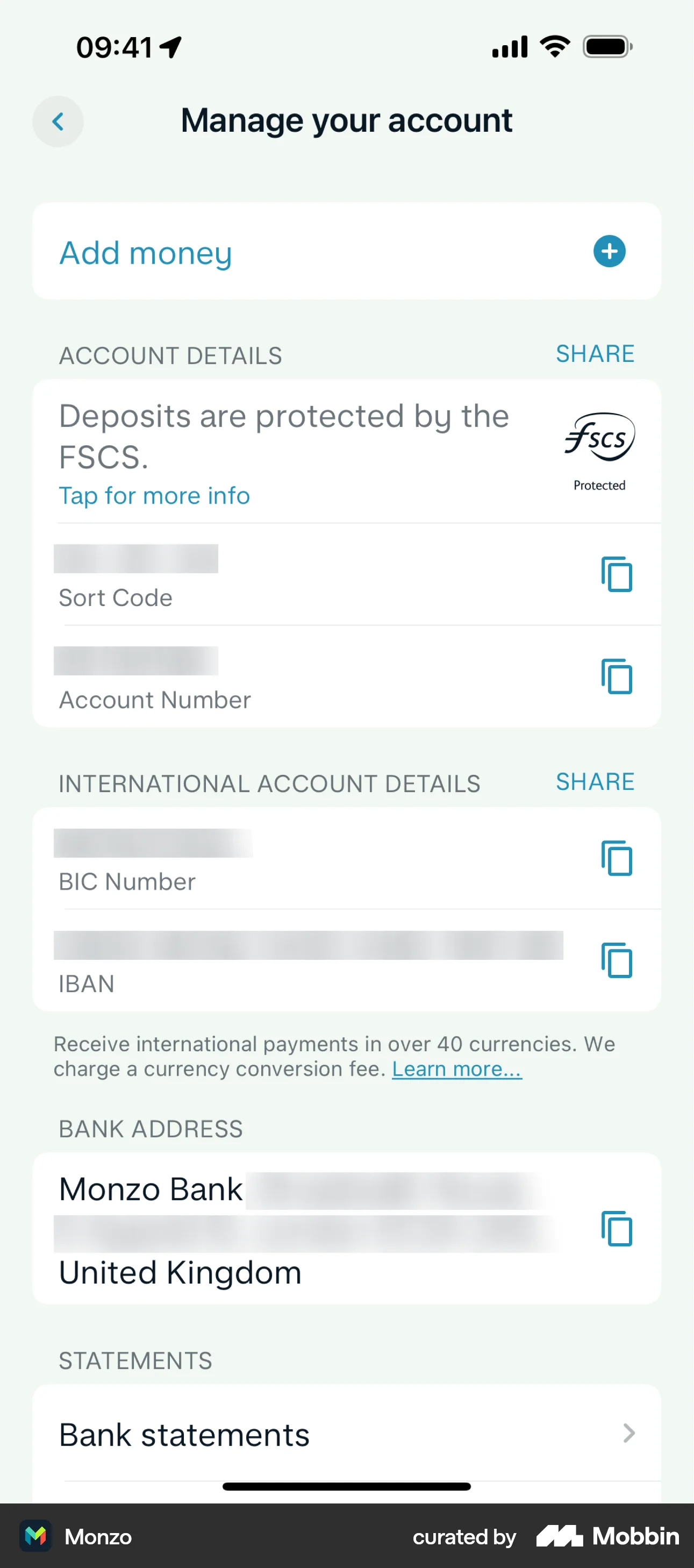
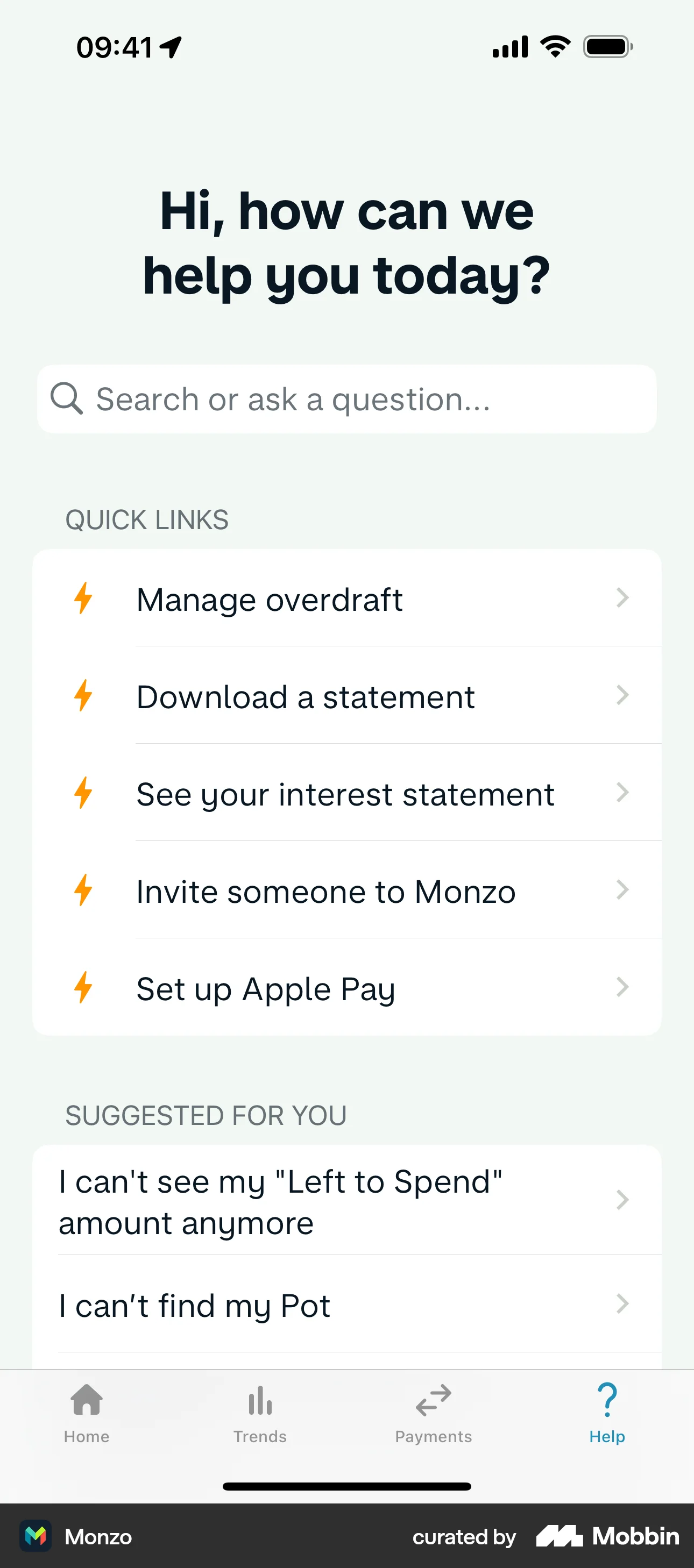
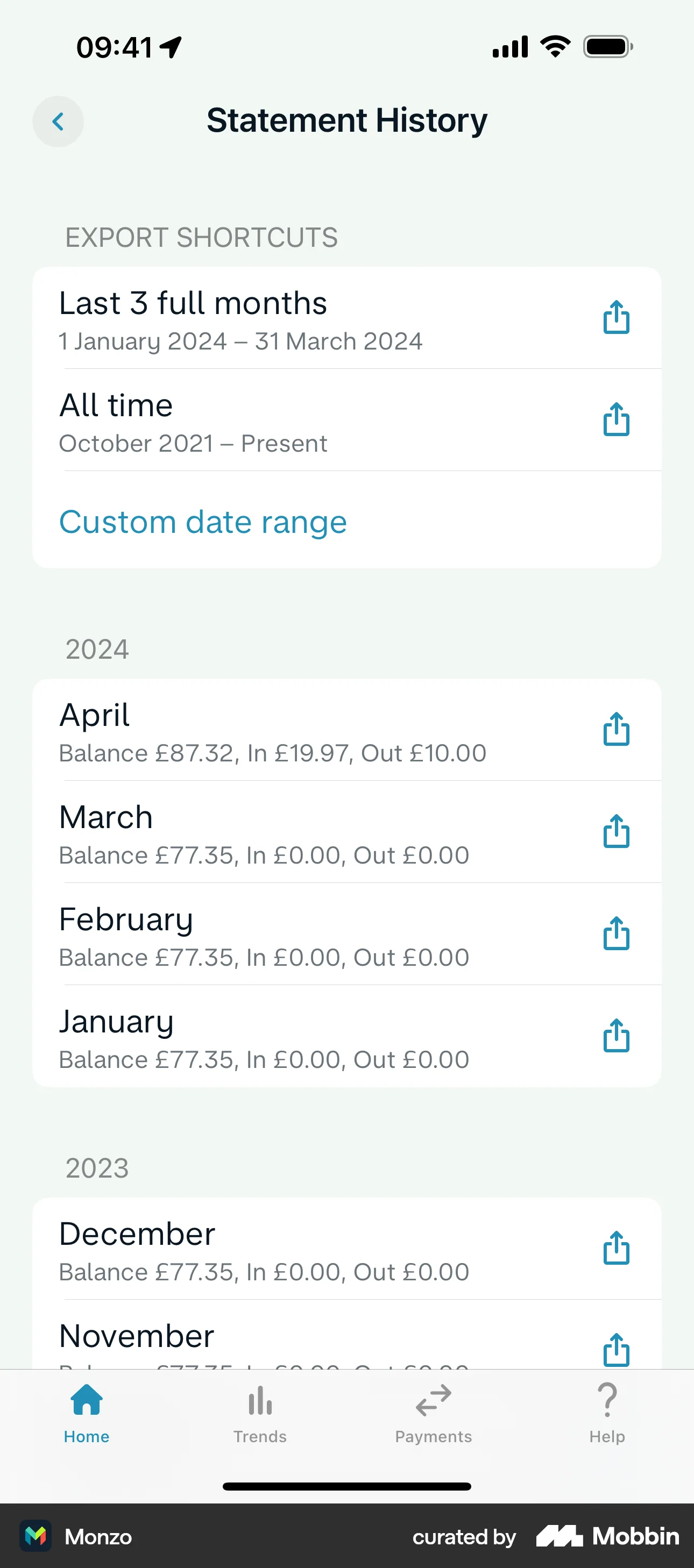
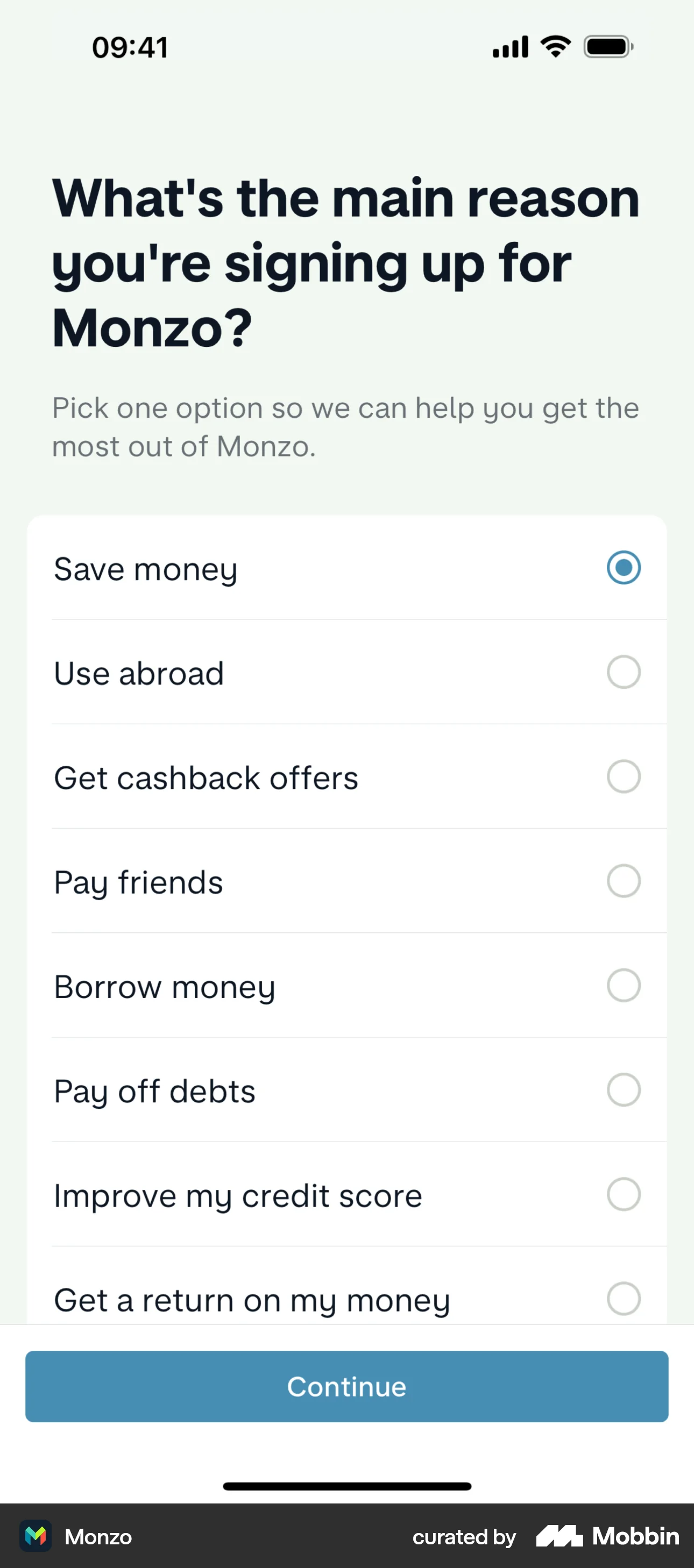
Banking: Manage your account (Add money; Sort Code, Account Number, SHARE/copy; International BIC/IBAN; Bank address; Bank statements); Add money from linked external bank. Trends tab: Personal account selector, date filter; Balance | Spending | Target tabs; ending balance chart; Breakdown; Create category targets CTA. Payments tab: Payments | Scheduled; Friends owe you / You owe; Pay someone, Request money, See payees; Bill splits & requests; Shared Tabs (social groups with avatars). Card: Reveal PIN, Freeze card; Card details (Reveal, billing address, Apple Wallet); Controls (Magstripe ATMs, Limits); Order new card. Overdraft: Choose limit slider, EAR/APR, cost table, Confirm. Limits: Outbound/Inbound; Request limit increase. Help: search, Quick Links, Suggested For You. Statements: Export shortcuts; monthly by year. Onboarding: Reason for signing up survey. Extra tab referenced in one capture; full depth TBD.
Depth of hierarchy
Home → overflow … = account actions (1 tap). Home → Trends/Payments/Help = bottom tab (1 tap). Card from account card. Manage account → Bank statements → Statement History. Payments → Pay someone / Request money. Limits from Card → Controls → Limits.
Cross-LOB patterns
Home aggregates balance, activity, pots, cashback, and suggested actions. Trends is dedicated analytics. Payments is social P2P hub (splits, shared tabs). Card and overdraft extend from account context. UK regulatory (FSCS) on home and manage account.
Personalization
Suggested actions carousel; Customise home layout; Pots for goal savings; category spending targets in Trends. Onboarding personalizes by signup reason. Upgrade pill for tier upsell.
Design styling
Signature hot coral account card on light mint/off-white background. Teal for primary actions and active nav. Playful vector illustrations in Pots and Suggested actions. Card-based layout with rounded corners and subtle shadows. Green for positive amounts; status pills where applicable. UK-focused copy (£, FSCS, sort code).
Screenshots
Morgan Stanley Wealth Management (Full-service / wealth)
Primary navigation
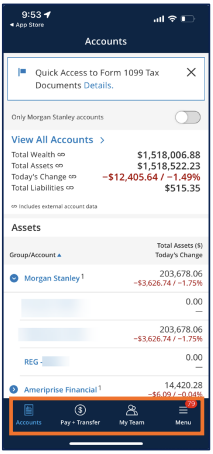
4 tabs, bottom nav: Accounts, Pay + Transfer, My Team, Menu (badge e.g. 79). Header: back, screen title (e.g. Accounts, Account Groups, Account Display, Alerts).
Home / dashboard
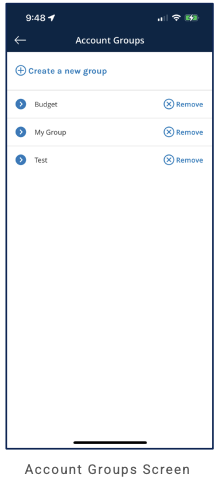
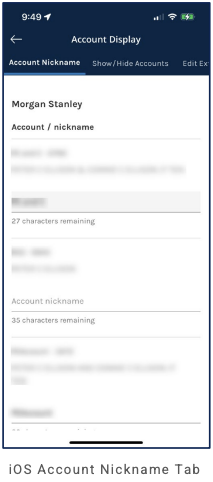
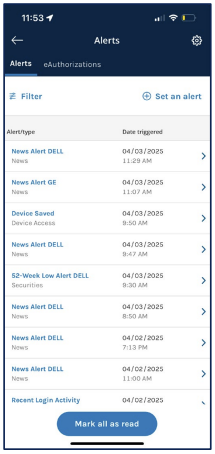
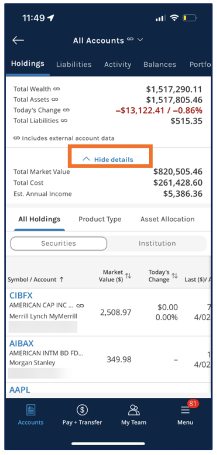
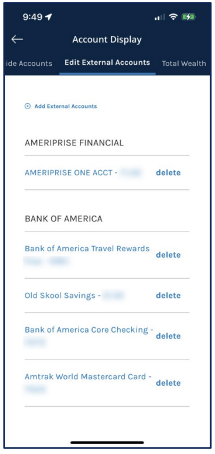
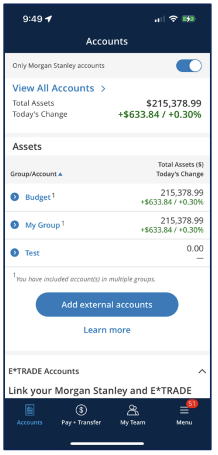
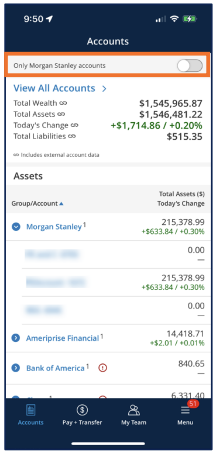
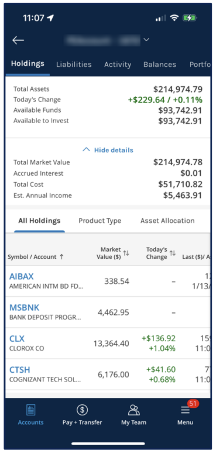
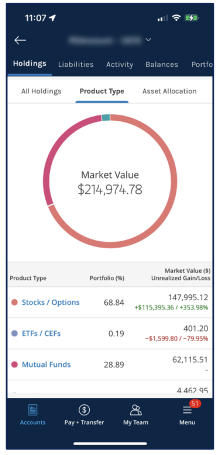
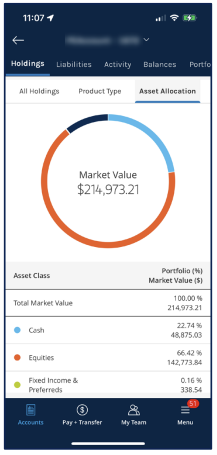
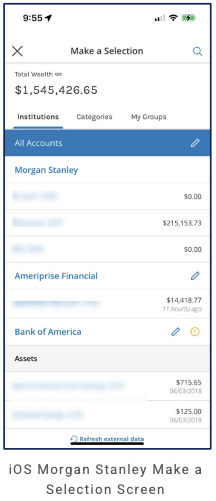
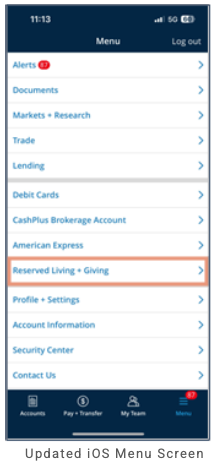
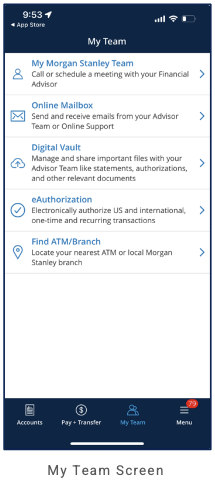
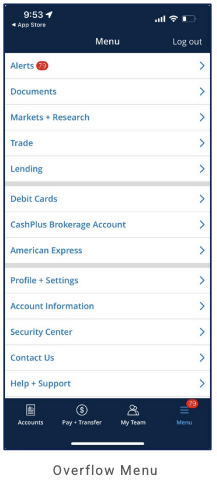
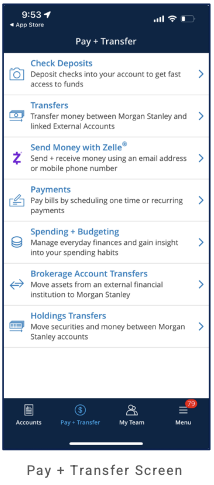
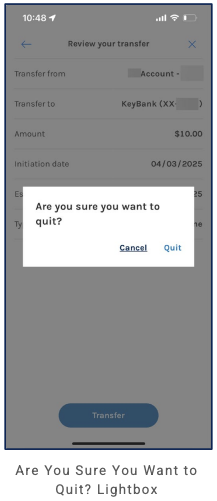
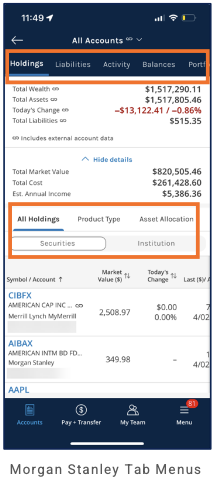
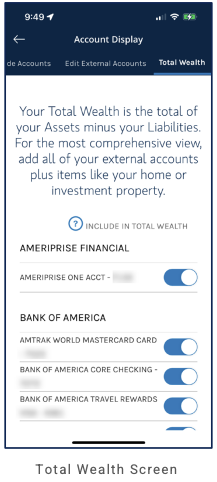
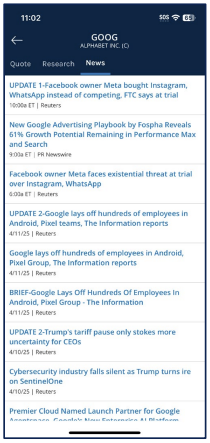
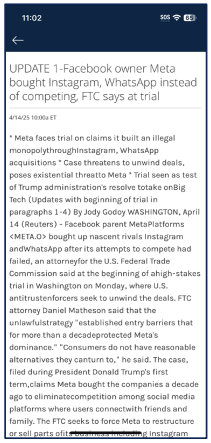
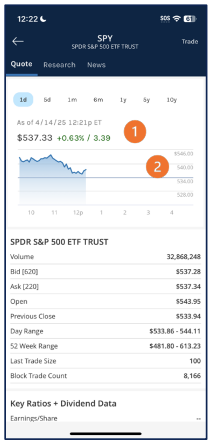
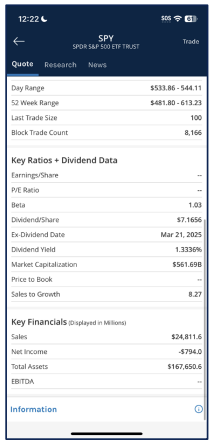
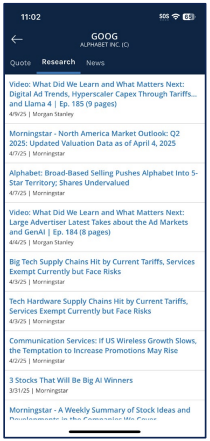
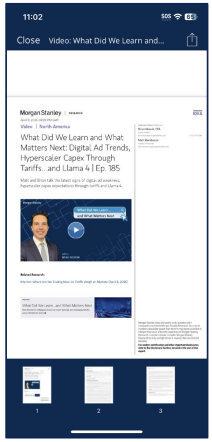
Accounts: 1099 banner; Only Morgan Stanley accounts toggle; View All Accounts; Total Wealth/Assets/Change/Liabilities; Assets list (collapsible by institution or by group). Toggle ON: groups (Budget, My Group, Test), Add external accounts, E*TRADE section. Toggle OFF: Total Wealth/Assets (∞), Assets by institution (Morgan Stanley, Ameriprise, Bank of America). View All Accounts → All Accounts: tabs Holdings | Liabilities | Activity | Balances | Portfolio; Holdings: details, sub-tabs Securities | Institution, Product Type, Asset Allocation; securities table. Per-account Holdings (from account/group row): account selector; same tabs; Total Assets, Today's Change, Available Funds, Available to Invest; Hide details; sub-tabs All Holdings (securities table) | Product Type (donut + table) | Asset Allocation (donut + table). Account Groups: Create a new group; list of groups (e.g. Budget, My Group, Test) with chevron and Remove. Make a Selection (account/group picker): Total Wealth (∞); tabs Institutions | Categories | My Groups; All Accounts; list by institution; Refresh external data. Menu (overflow): Alerts (badge), Documents, Markets + Research, Trade, Lending; Debit Cards, CashPlus, American Express; Profile + Settings, Account Information, Security Center, Contact Us, Help + Support; Log out. Pay + Transfer tab: Check Deposits, Transfers (MS ↔ external), Send Money with Zelle®, Payments (bills), Spending + Budgeting (Dashboard | Categories | Rules; Categories: Expenses | Income | Transfers; Expense Groups, + Add custom expense group, Expand all), Brokerage Account Transfers, Holdings Transfers. Reserved Living + Giving (from Menu): embedded browser; Welcome to Reserved registration (Email, Password, consent). Account Display Show/Hide Accounts tab: toggle visibility (primary/eDelivery cannot be hidden); update. Review transfer leave confirmation: “Are you sure you want to quit?” lightbox (Cancel, Quit). My Team tab: My Morgan Stanley Team (Call/schedule with FA), Online Mailbox, Digital Vault (share files with Advisor), eAuthorization, Find ATM/Branch. Account Display: tabs Account Nickname | Show/Hide Accounts | Edit External Accounts; nickname inputs with character limit; Edit External Accounts: Add External Accounts, list by institution with delete. Alerts: tabs Alerts | eAuthorizations; Filter, Set an alert; list (Alert/type, Date triggered); Mark all as read. Quote screen (from elsewhere): back, ticker, Trade; tabs Quote | Research | News; Quote tab (1d–10y, price, chart, Key Ratios + Dividend Data, Key Financials); Research (list → detail with embedded video, Related Research); News (feed → article).
LOB placement
Wealth/investing: Accounts (Total Wealth/Assets/Liabilities, toggle, Assets by group; external e.g. Ameriprise); Account Groups (create, list, Remove); Account Display (Nickname, Show/Hide, Edit Exclusions); Alerts (Filter, Set alert, list, Mark all as read). Quote with Quote | Research | News.
Depth of hierarchy
Accounts → View All Accounts; Account Groups → group row or Create; Account Display → tabs; Alerts → Filter/Set alert/list. Quote → Quote/Research/News; Research list → detail.
Cross-LOB patterns
Total Wealth/Assets aggregate MS + external; "Only Morgan Stanley accounts" filter. Account Groups; Account Nickname; Show/Hide Accounts; Alerts + eAuthorizations.
Personalization
TBD from more screens.
Screenshots
PNC (Bank)
Primary navigation
Bottom tab bar: HELP, TRANSFER, BILL PAY, CARDS, and fifth tab (e.g. More). Accounts screen: hamburger (global nav), centered ACCOUNTS, 1 To Do (expandable slidedown), search. Slide-out (hamburger): user greeting (Good Afternoon, [name]), View Profile & Settings, SIGN OUT; ACCOUNTS, CARDS & PAZE™, TRANSFER, BILL PAY, DEPOSIT, SEND MONEY WITH ZELLE® (icon each); bottom utility HELP, REWARDS (badge e.g. 9+), ATM ACCESS, CONTROL HUB. Header: back where applicable (e.g. Control Hub).
Home / dashboard
Accounts (main surface): card-based layout—PERSONAL ACCOUNT (balance, Available Balance, Scheduled Out; quick tools Calendar, Money Bar, Low Cash Mode, Spending, Budgets; Fewer Tools ^ to collapse); JOINT ACCOUNT, STANDARD SAVINGS, S IS FOR SAVINGS, CREDIT CARD (scrollable). When accounts are hidden: message "Other accounts are available but are hidden based on your Account Preferences" (link); shortcut rows Send Money with Zelle®, My Offers & Products, FICO SCORE (icon, chevron); card-specific Offers for [card] with VIEW YOUR OFFERS (NEW). To Do slidedown: "1 To Do" expandable card with caret (^); items e.g. Unscheduled Bills (biller, due date, amount, PAY button). Accounts Help modal (context-sensitive, e.g. over Recent Transactions); PNC Control Hub (overflow) as before.
LOB placement
Banking: Accounts (checking, joint, savings, credit card cards); Transfer tab (TRANSFER FROM dropdown; Send Domestic Wire, Send International Transfer; segmented PNC ACCOUNTS | EXTERNAL | WIRE AND INTL.; account list; SEE ALL; Manage Transfers—Add/View External Accounts; bottom nav on Transfer: HELP, ACCOUNTS, ZELLE®, ADD ACCOUNT). Bill Pay, Cards as bottom tabs; Help (context-sensitive modal). Account expanded (Virtual Wallet/Spend): balance, Available Balance; Account Details (Ledger, Pending, Interest, Last Deposit/Statement; HIDE DETAILS); Account and Routing Numbers (link); RECENT TRANSACTIONS (date groups, ellipsis per transaction, SEE ALL); TOOLS FOR SPEND ACCOUNT (Calendar, Money Bar, Low Cash Mode, Spending); Account Actions (Online Statements, Documents and more). Control Hub (settings/overflow): Sign-in & Biometrics, Digital Card Management, Apps with Access, Alerts & Notifications. Profile & Settings (overflow): hamburger, "PROFILE & SETTINGS"; "Last sign in" timestamp; Personal Information, PNC Control Hub, Overdraft Solutions, Low Cash Mode; APP & DEVICE SETTINGS (Face ID, App Language); DOCUMENTS (Online Statements, Online Documents, Other Documents); ACCOUNT PREFERENCES (Alerts & Notifications, Display or Hide Accounts, Nicknames); Privacy Preferences link. Credit card and Zelle/Offers/FICO on Accounts. Full LOB depth TBD from more screens.
Depth of hierarchy
Accounts → account card → expanded view (balance, Account Details collapsible HIDE DETAILS, Account and Routing Numbers link, Recent Transactions with ellipsis per row, TOOLS FOR SPEND ACCOUNT, Account Actions). Transfer tab → TRANSFER FROM dropdown; Domestic/International Wire cards; PNC ACCOUNTS | EXTERNAL | WIRE AND INTL.; account list; Manage Transfers. Display or Hide Accounts (settings): per-account expand; Display Everywhere, Hide from Accounts Page, Hide More. Account Preferences link when accounts hidden. Profile & Settings → Personal Information, PNC Control Hub, Overdraft Solutions, Low Cash Mode; APP & DEVICE SETTINGS (Face ID, App Language); DOCUMENTS; ACCOUNT PREFERENCES (Alerts, Display or Hide Accounts, Nicknames); Privacy Preferences. Nicknames screen: per-account official label + nickname field + pencil edit; SAVE to confirm. Help tab → Accounts Help modal; Control Hub → overflow.
Cross-LOB patterns
Hidden-accounts message links to Account Preferences (Display or Hide Accounts). Zelle, Offers, FICO on same Accounts surface.
Personalization
Display or Hide Accounts (back, "DISPLAY OR HIDE ACCOUNTS"): "Select an account to change the Display or Hide options"; list expandable per account—Display Everywhere (selected), Hide from Accounts Page, Hide More; Personal Account note that Virtual Wallet (Spend, Reserve, Growth, associated Credit Card) shares display settings. When some accounts hidden, Account Preferences link on Accounts surface. Fewer Tools toggle on Personal Account to collapse tool row (Calendar, Money Bar, Low Cash Mode, Spending, Budgets). Nicknames (back, "NICKNAMES"): per-account official label (e.g. Virtual Wallet, Performance Checking, Standard Savings, credit card, Auto Loan) with nickname input field and pencil edit icon; SAVE button to confirm. Profile & Settings hub: Personal Information, PNC Control Hub, Overdraft Solutions, Low Cash Mode; APP & DEVICE SETTINGS (Face ID, App Language); DOCUMENTS (Online Statements, Online Documents, Other Documents); ACCOUNT PREFERENCES (Alerts & Notifications, Display or Hide Accounts, Nicknames); Privacy Preferences link.
Screenshots
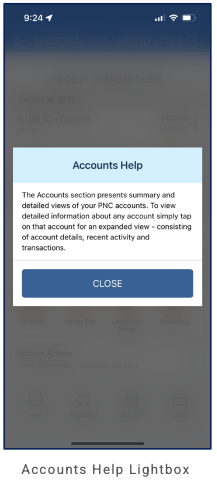
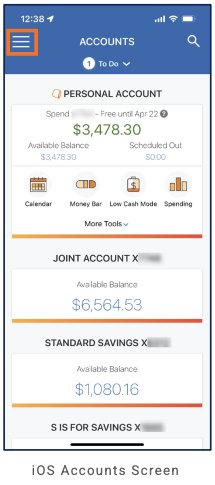
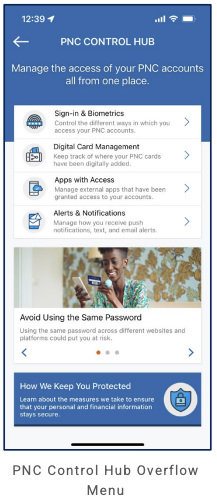
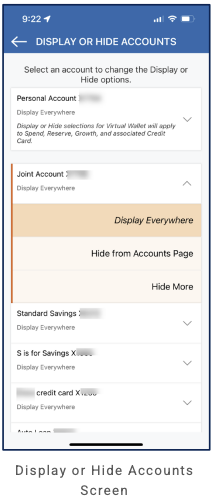
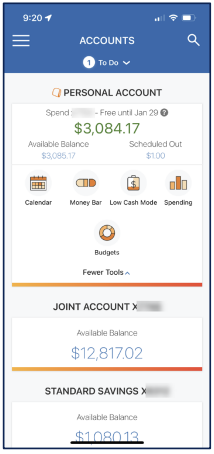
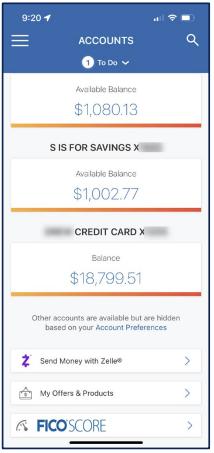
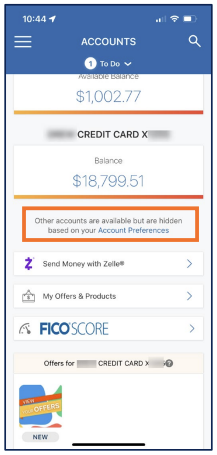
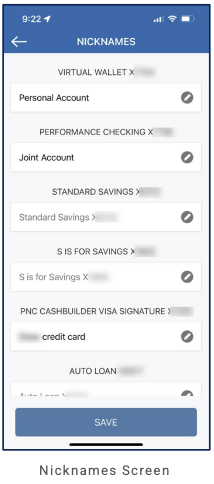
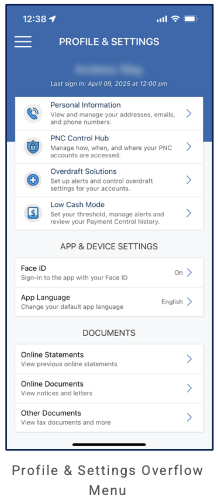
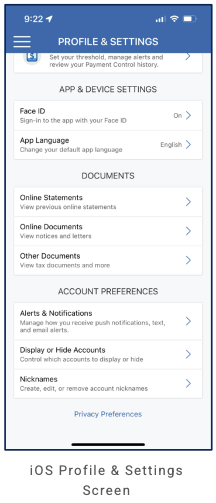
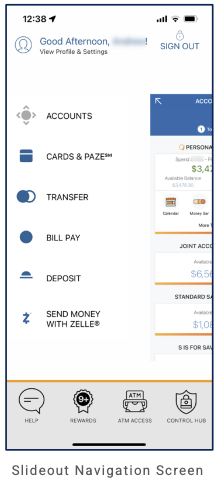
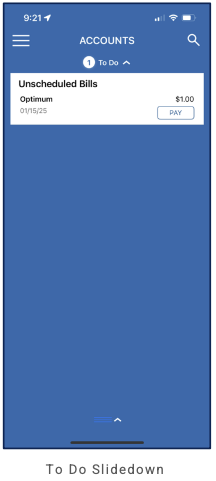
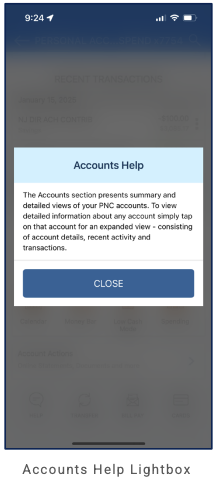
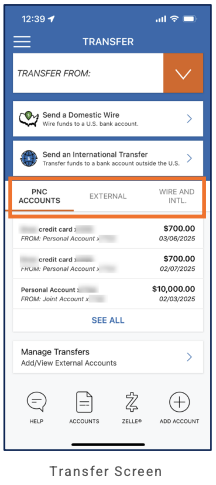
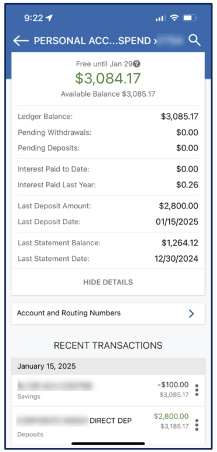
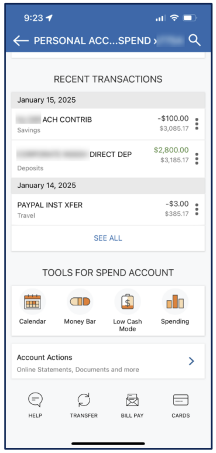
Public (Investing / neobroker)
Public audit complete (33 screens). This entry is based on 33 screenshots. Portfolio hub, Markets discovery, quote/trade flows, Investment Plans, yield products, account menu, history, funding, and card management are visible.
Primary navigation
5 tabs, bottom nav: Portfolio (chart icon), Markets (globe), Trade (arrows), Inbox (badge), Feed (stack). Header: hamburger (account menu) top left; lime-green sparkle button and search top right. Sub-screens: back/X, modals, full-screen trade flows.
Home / dashboard
Portfolio (default): total balance + Rewards; sub-tabs Return | Allocation | Income | Account value; performance chart (1D–All); Buying power + Deposit; Account setup card stack (badge). Scroll: Equities holdings; Yield accounts (Bond, High-Yield Cash, Treasury); Plans and Watchlist. Empty state prompts user to start investing.
LOB placement
Investing: Portfolio hub with holdings and allocation. Markets: Top movers, earnings, options chain, bond yields; Premium upsell. Trade: Market buy flow with optional tip and no-PFOF messaging; quote screen with chart, Alpha insights, news, Trade bar. Investment Plans: recommendation, build-your-own, marketplace plans, fund/recurring flows. Cash/yield: Bond, High-Yield Cash, Treasury on Portfolio; Bond Account promo in account menu. Account: Deposit/Withdraw, balances, settings, History, Transfer accounts, Rewards, Help. History with filters. Funding (bank link vs wire). Custom alerts. Card management. Trade/Inbox/Feed tab depth TBD.
Depth of hierarchy
Portfolio → Markets/Trade/Inbox/Feed = bottom tab. Portfolio → quote via search or holding. Hamburger → Account / History. Buy: amount → Review order → Place order. Plans: marketplace → plan detail → Fund.
Cross-LOB patterns
Portfolio aggregates investing, yield products, plans, and watchlist. Markets is discovery layer. Investment Plans are multi-asset recurring bundles. Premium/Alpha cross-sell on Markets and quote.
Personalization
Account setup notifications; Investment Plans by goal; Watchlist; optional trade tipping. Public Premium upsell throughout.
Design styling
Clean white UI with bold black typography. Vibrant blue primary actions; lime-green accent for AI/premium sparkle button. Green/red for performance. Card-based sections with rounded corners. Playful 3D illustrations on plan onboarding. Persistent Buying power + Trade bar on quote screens.
Screenshots
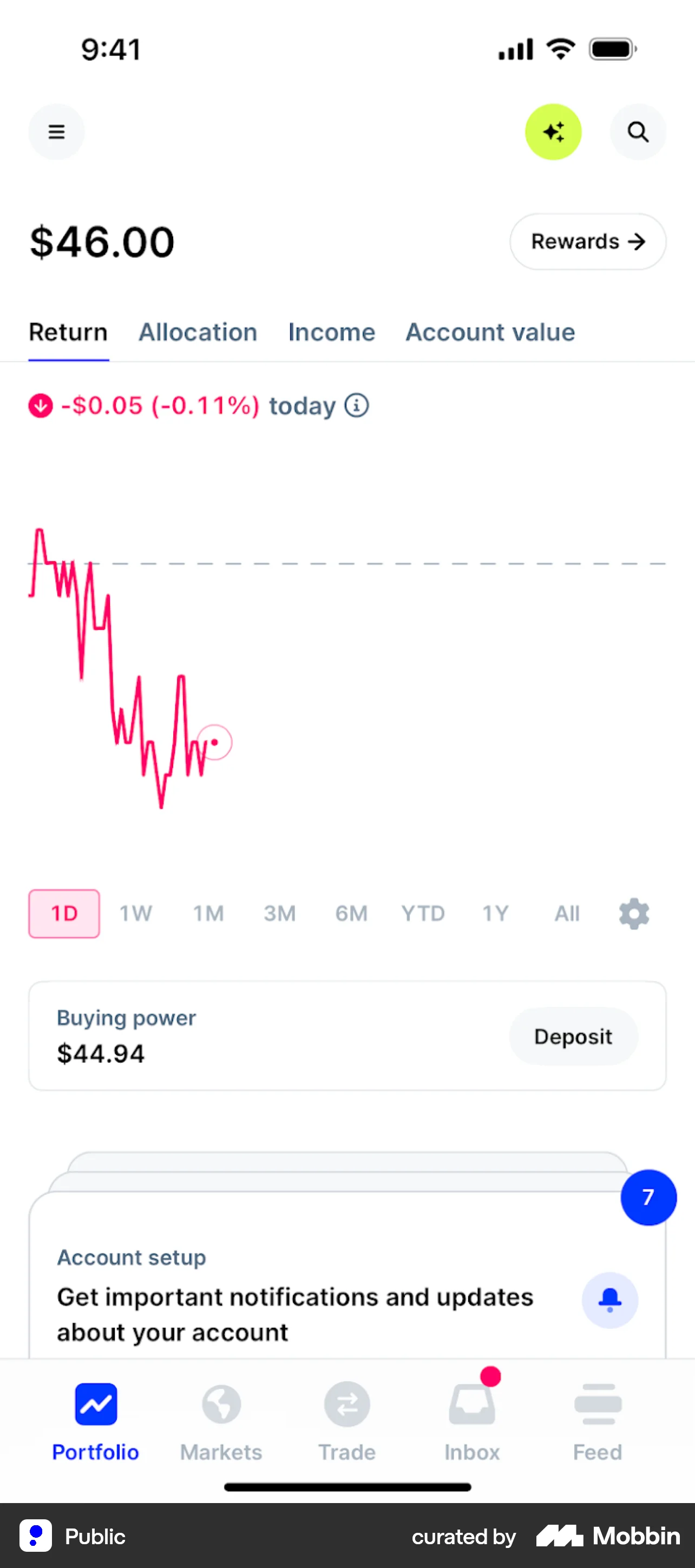
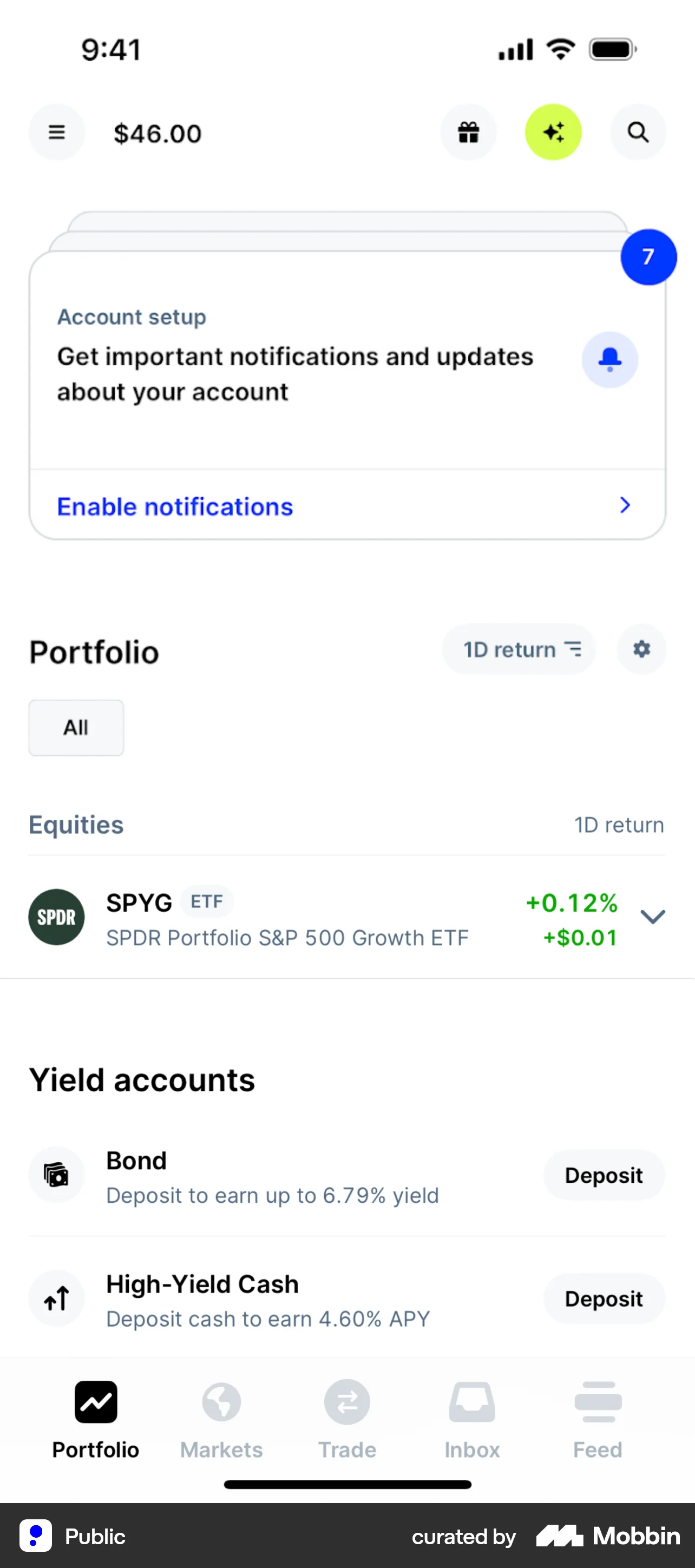
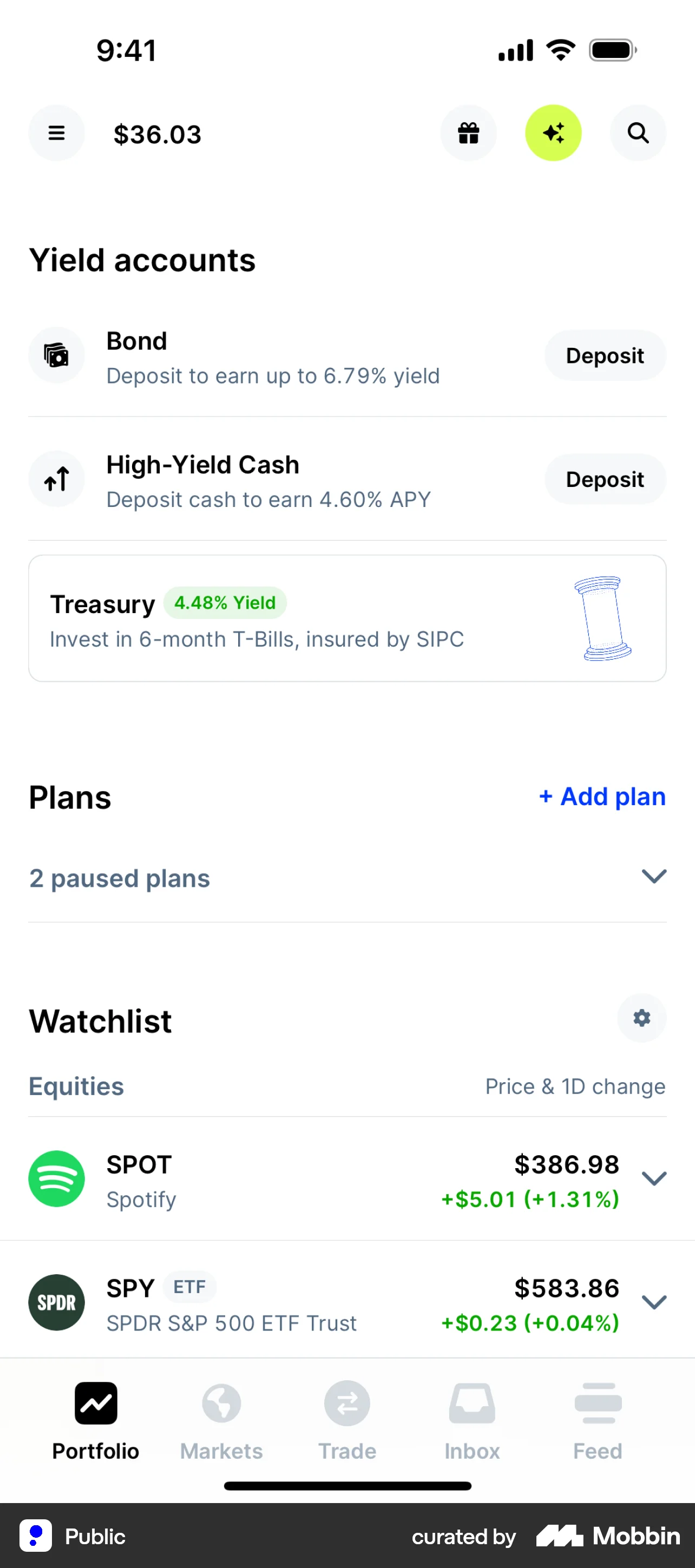
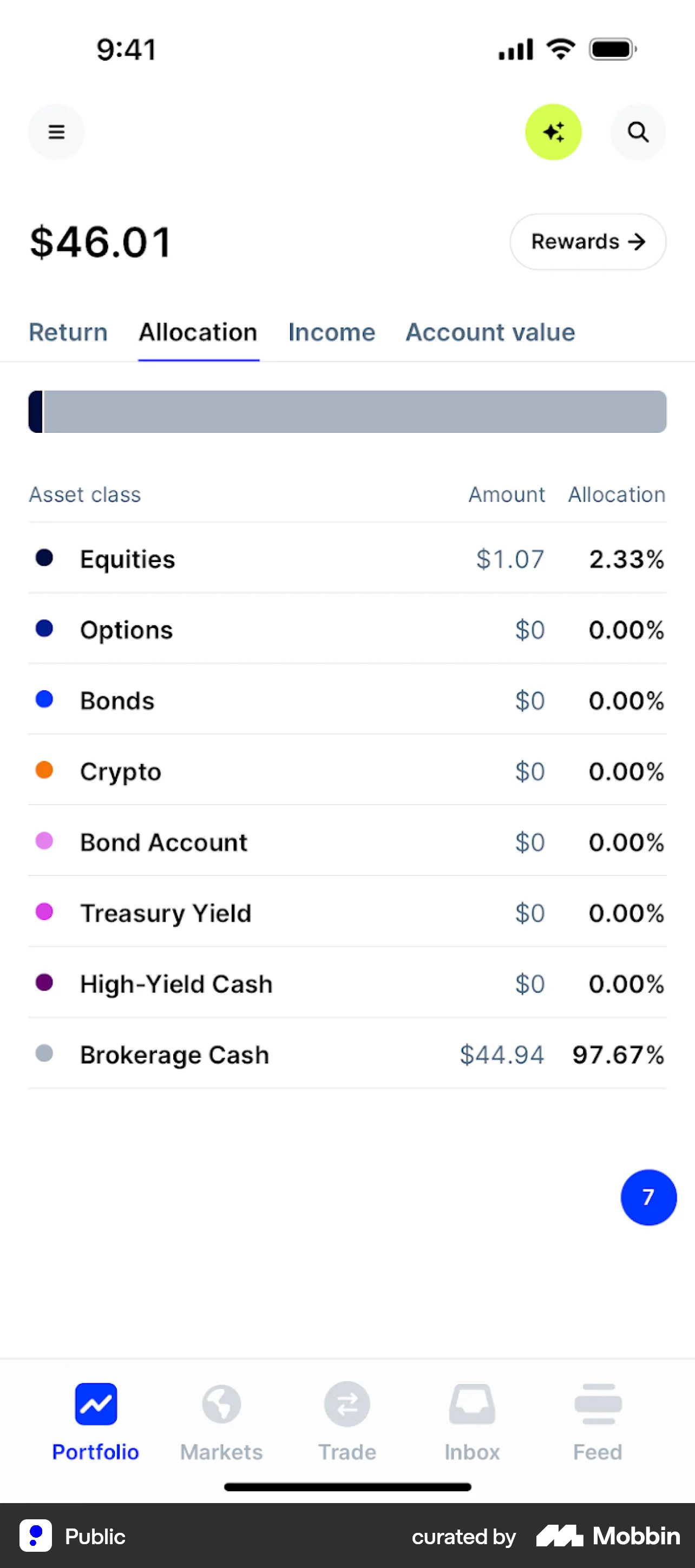
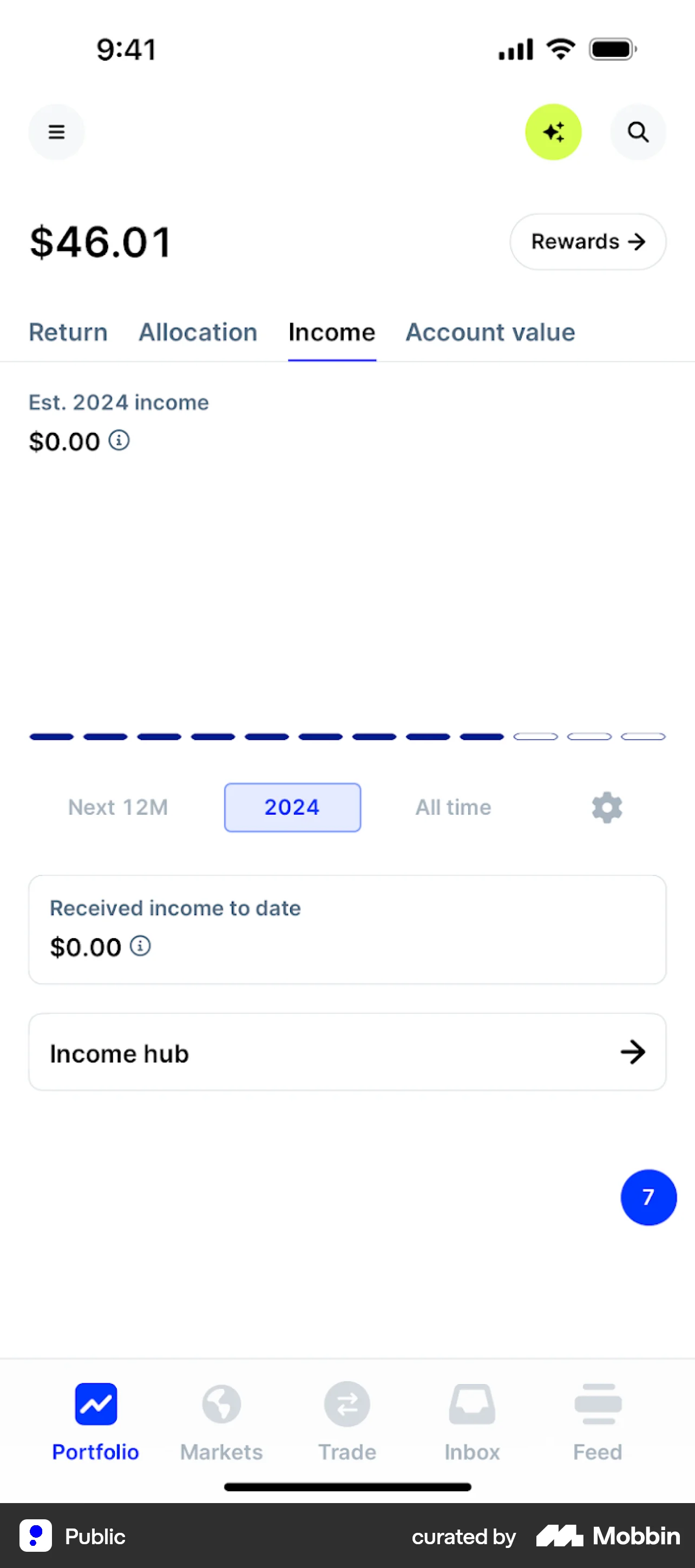
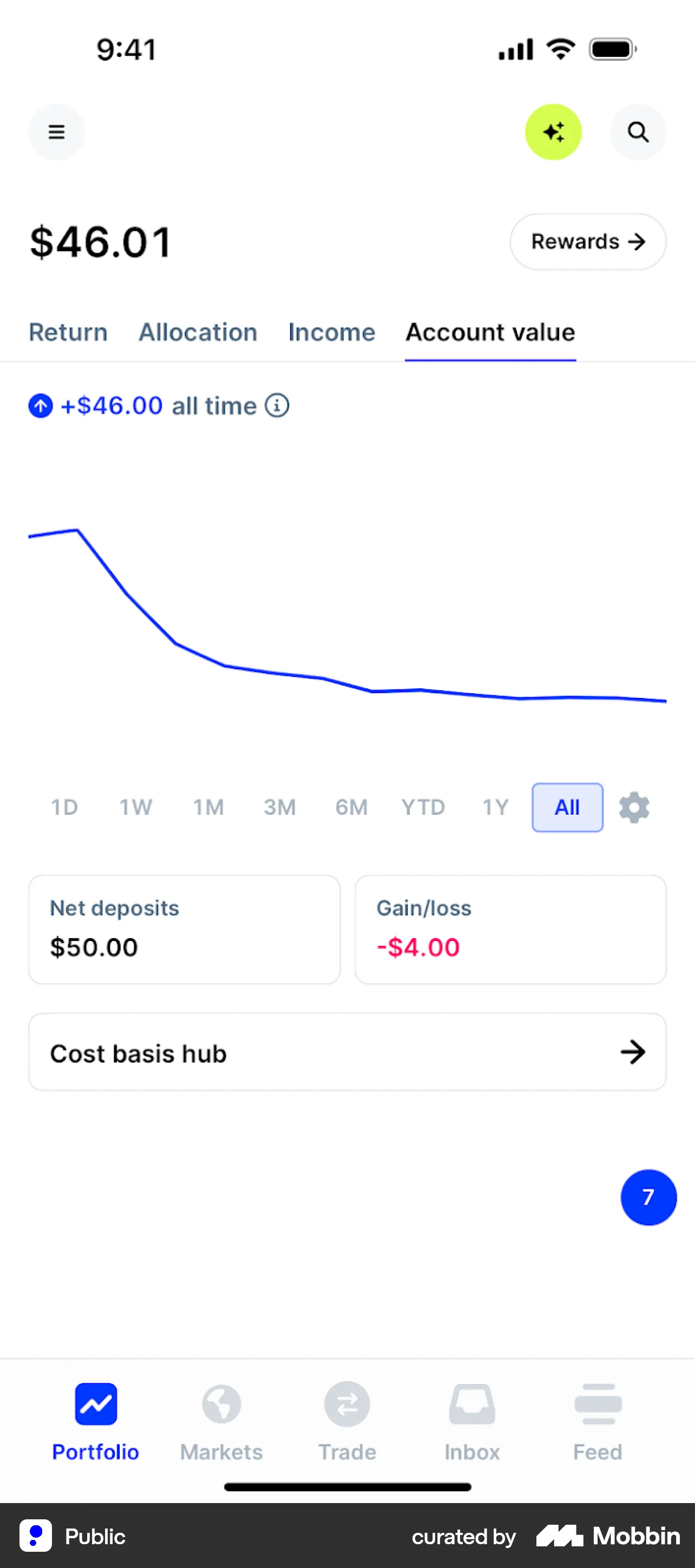
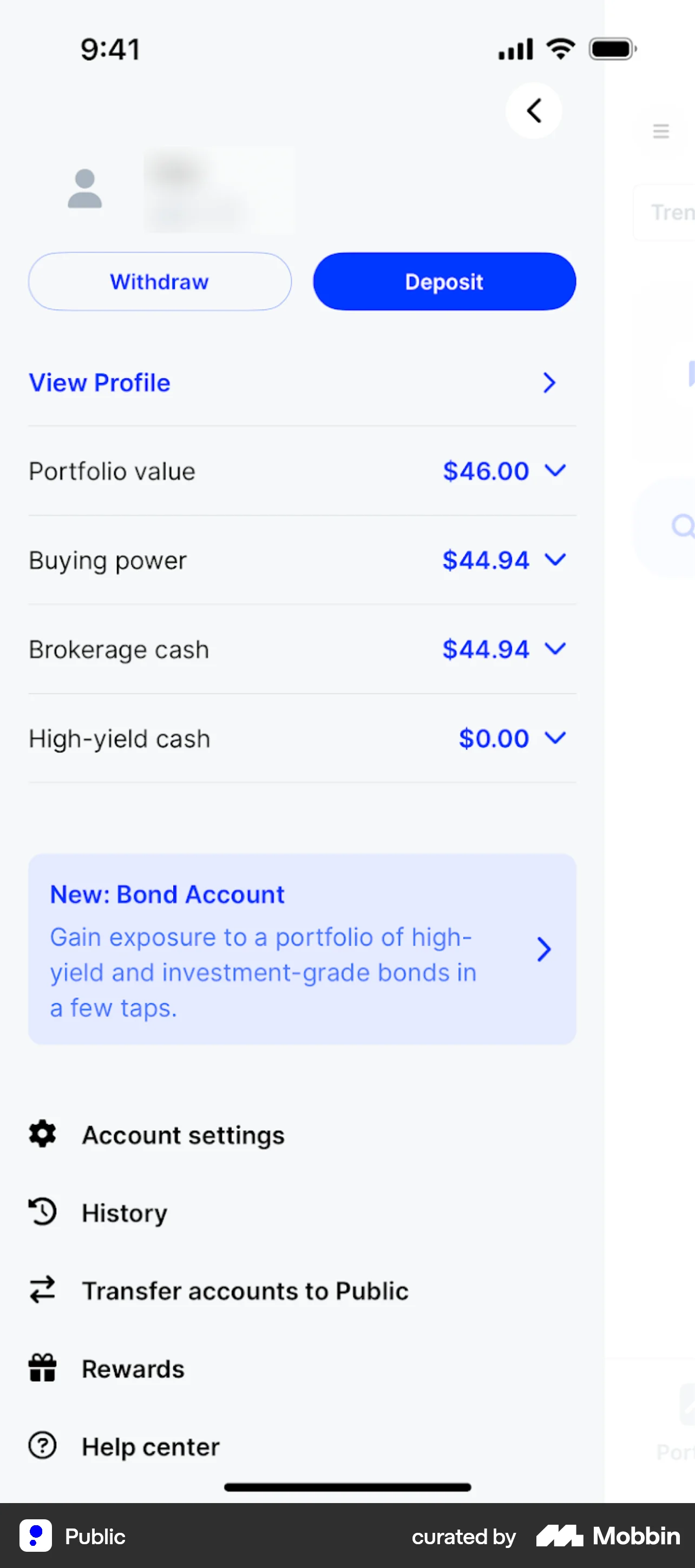
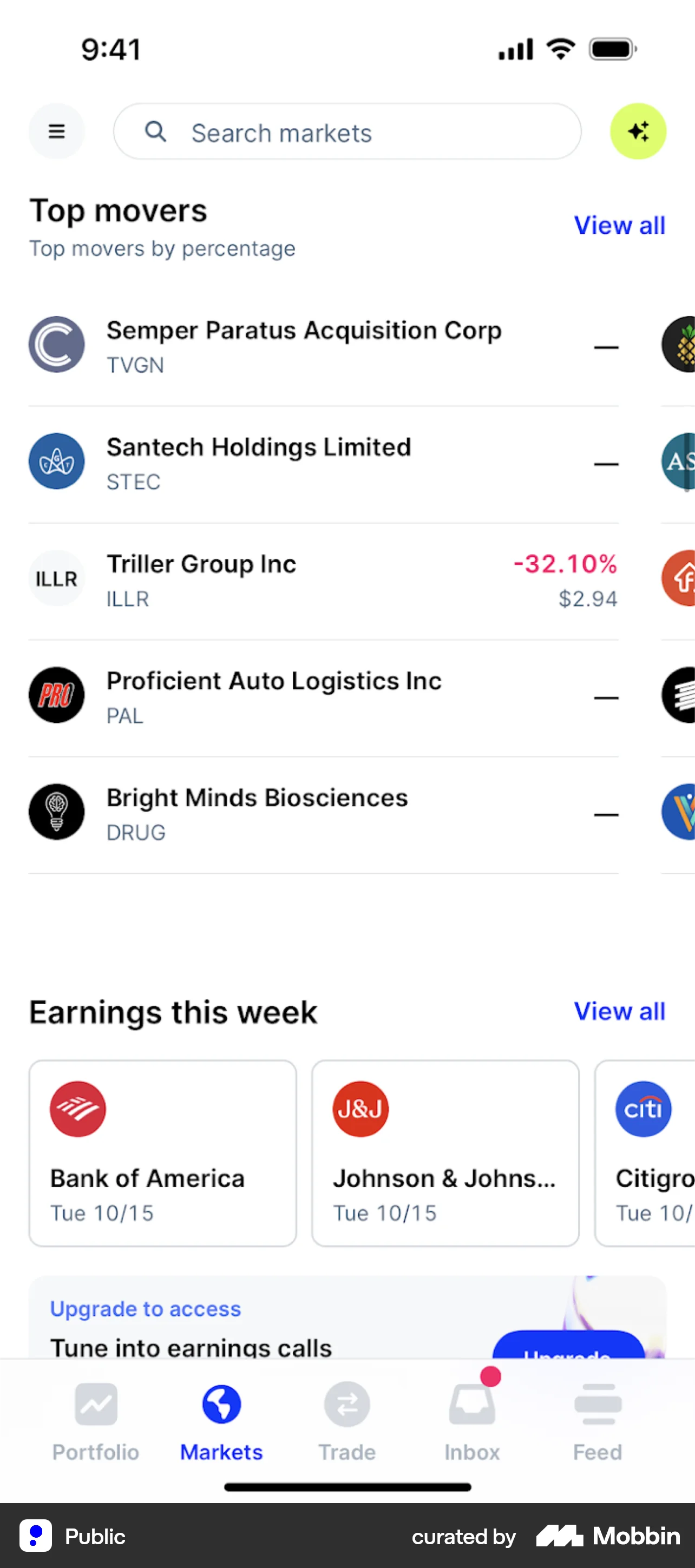
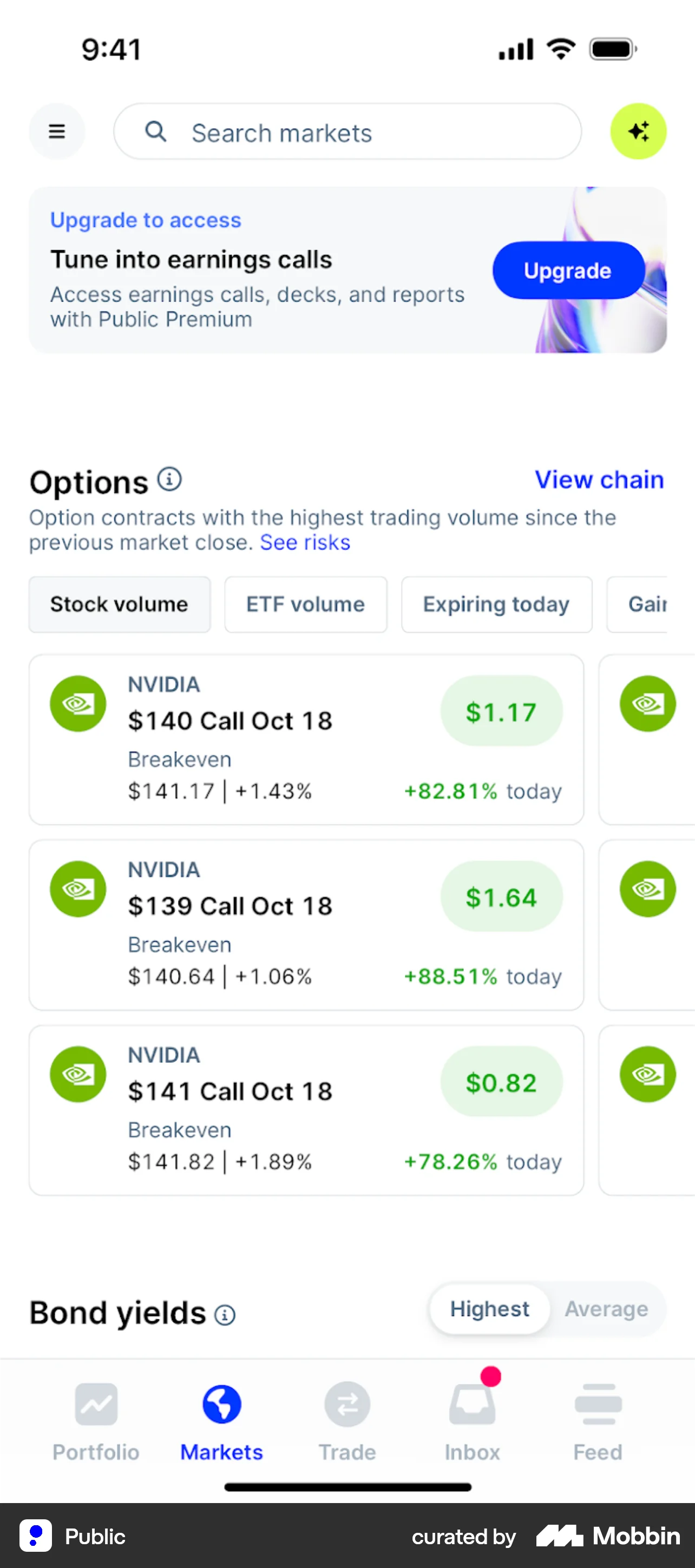
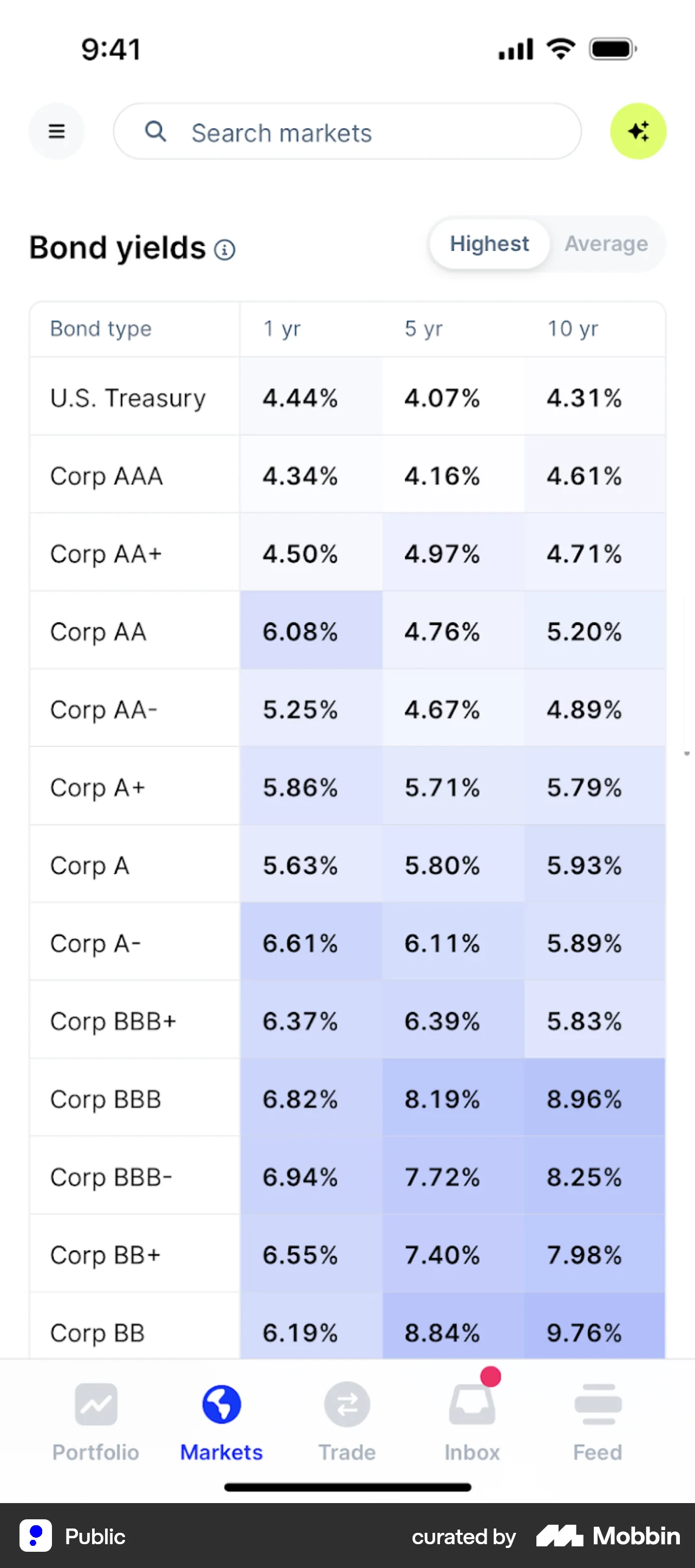
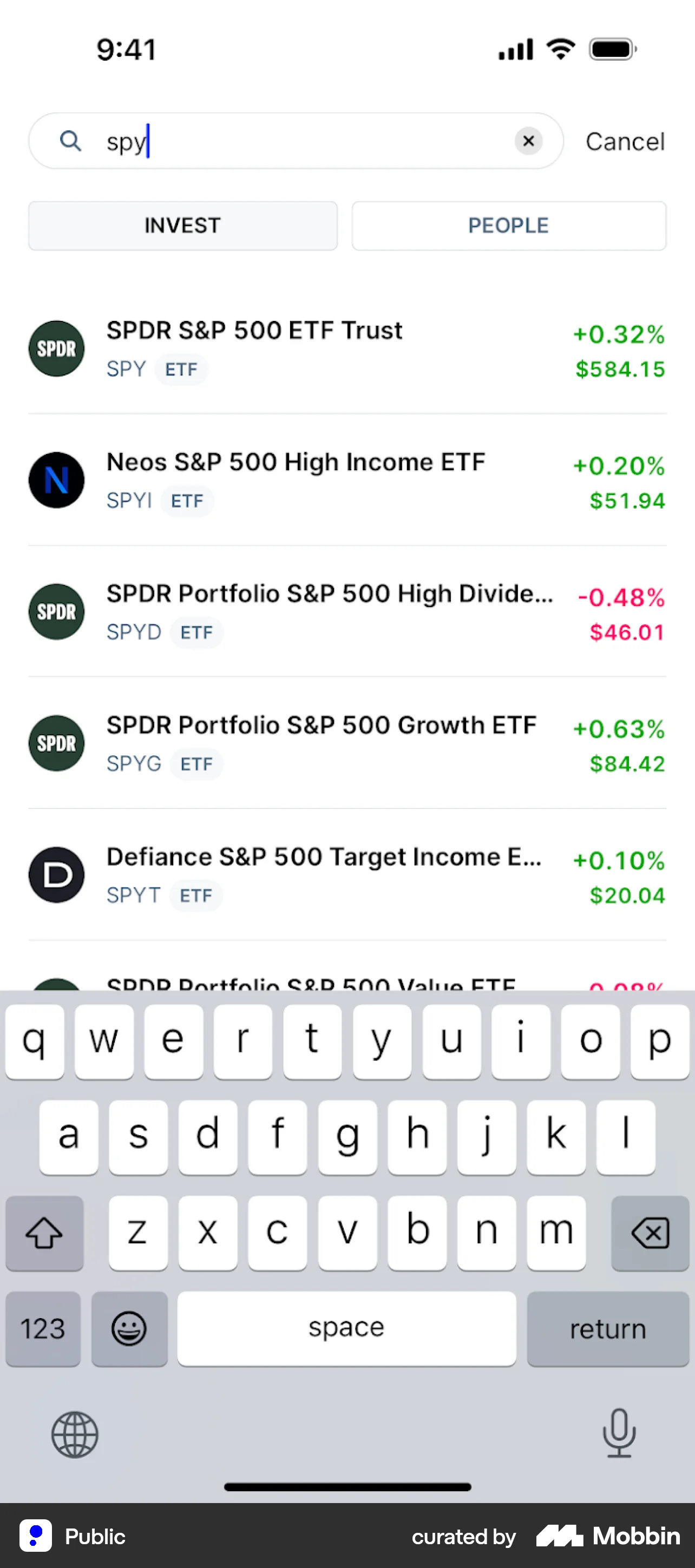
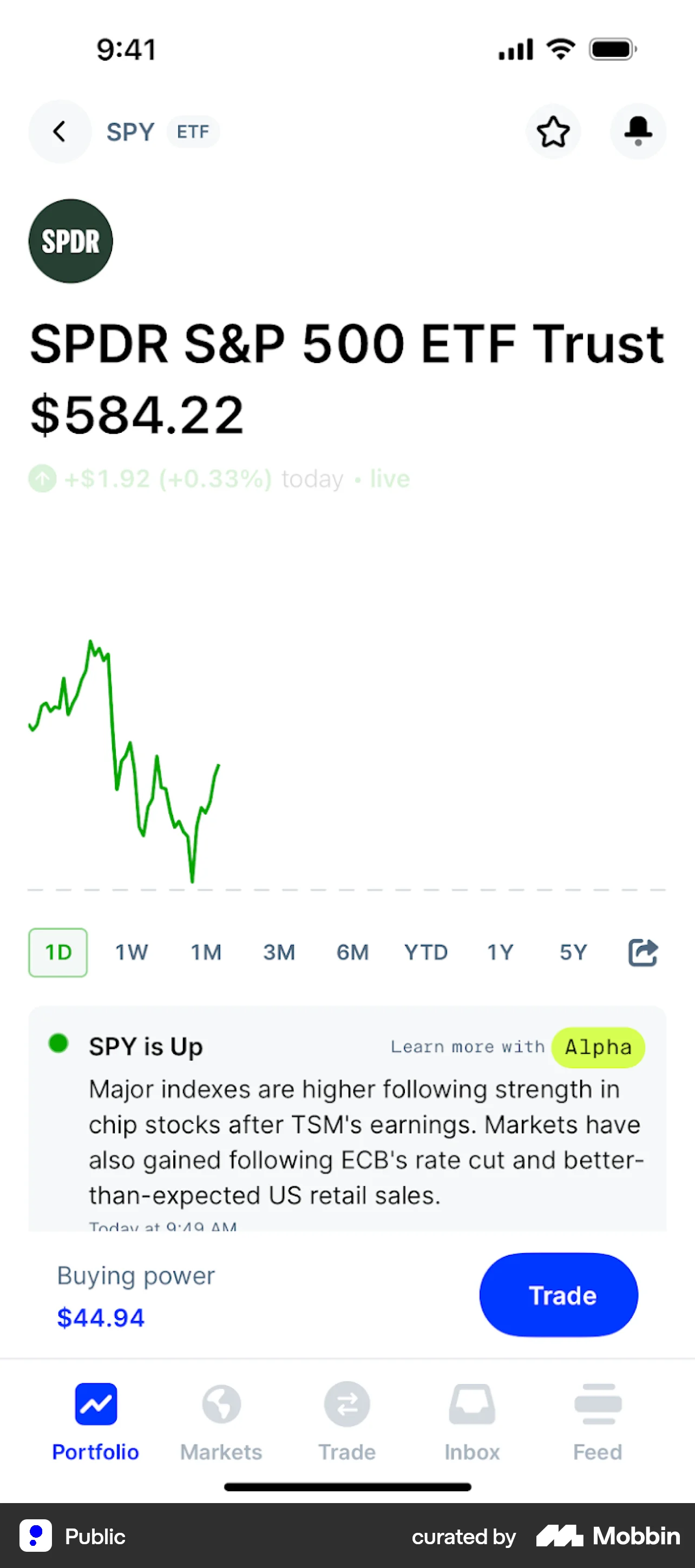
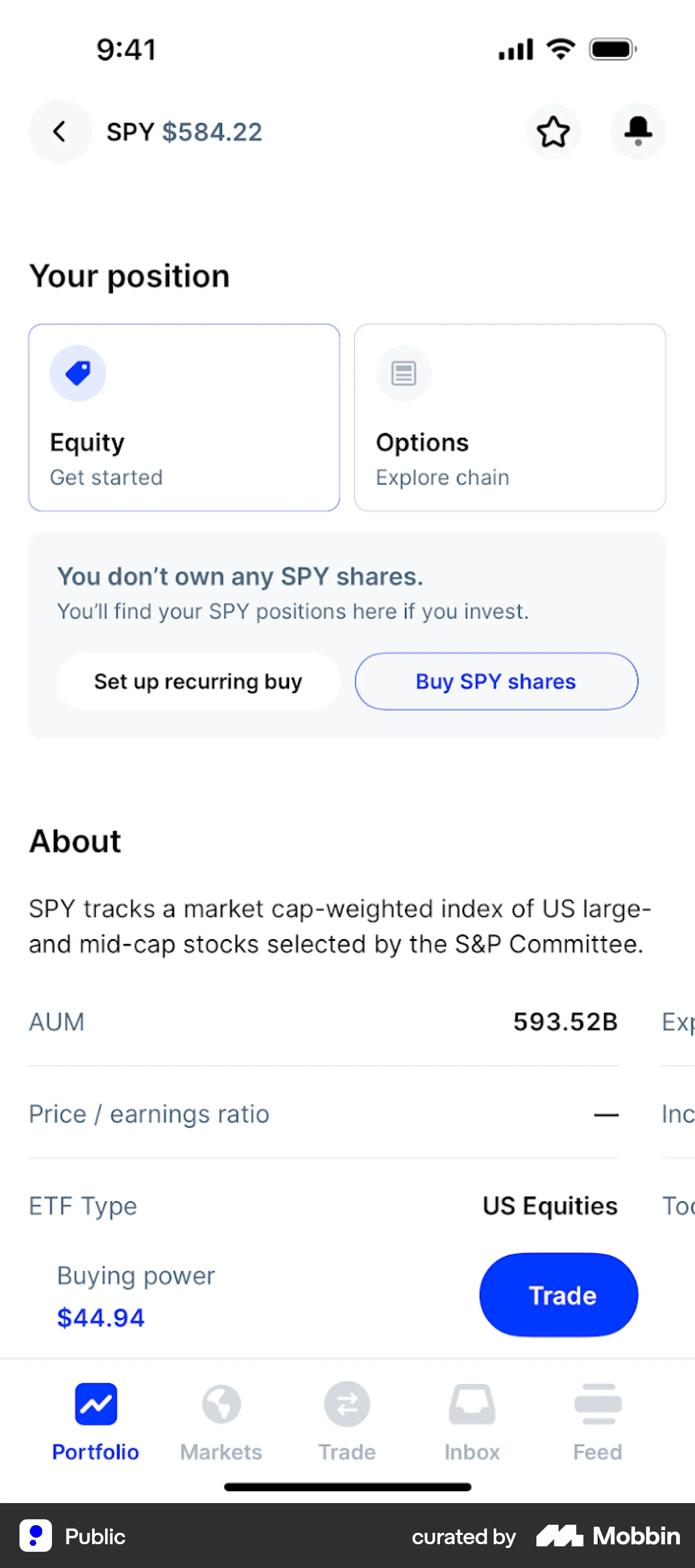
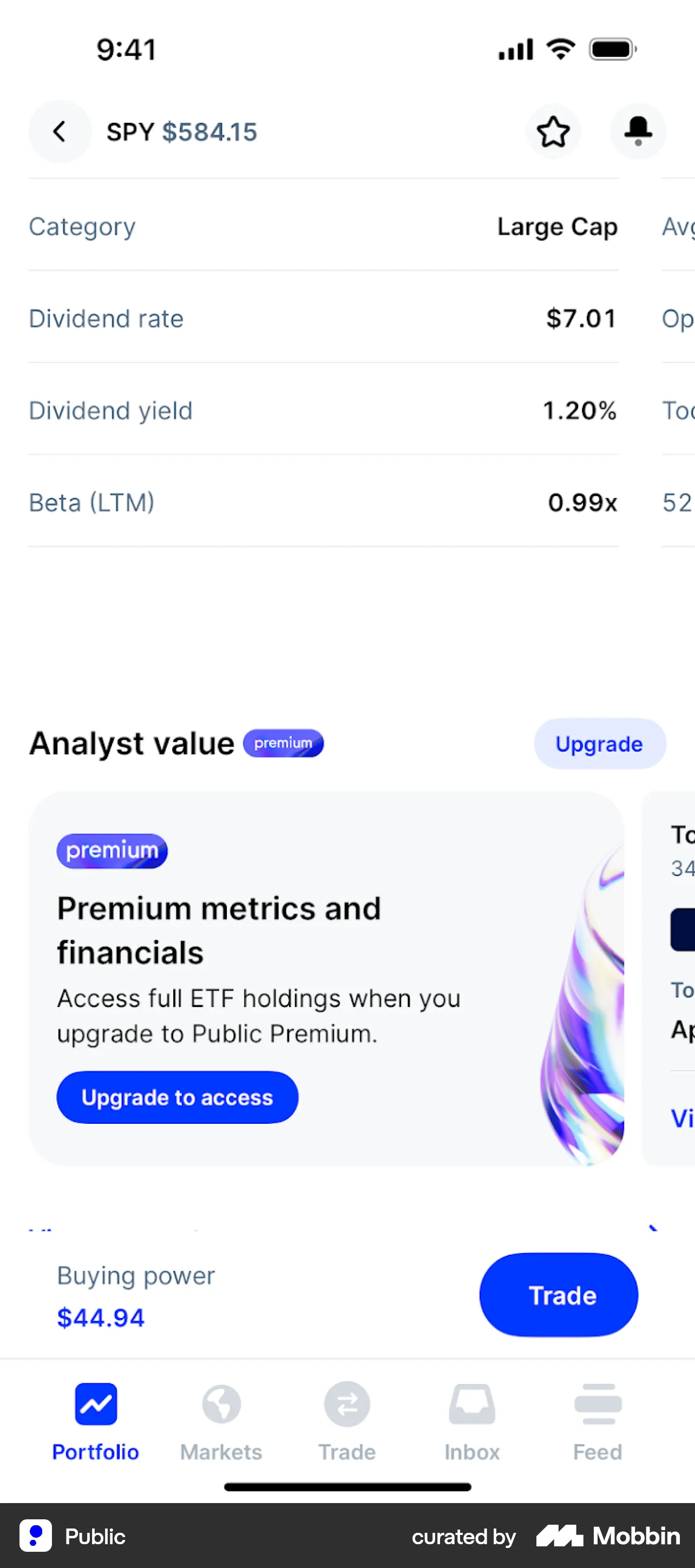
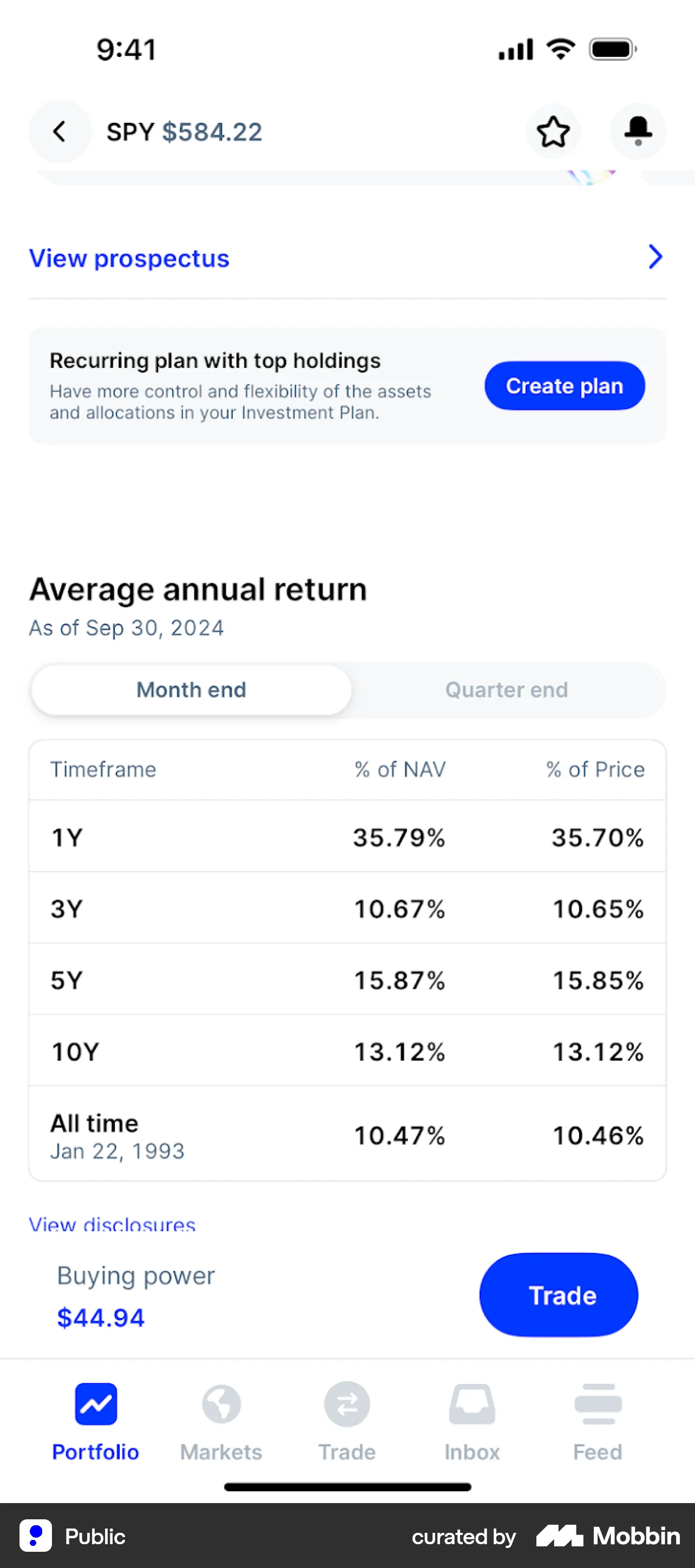
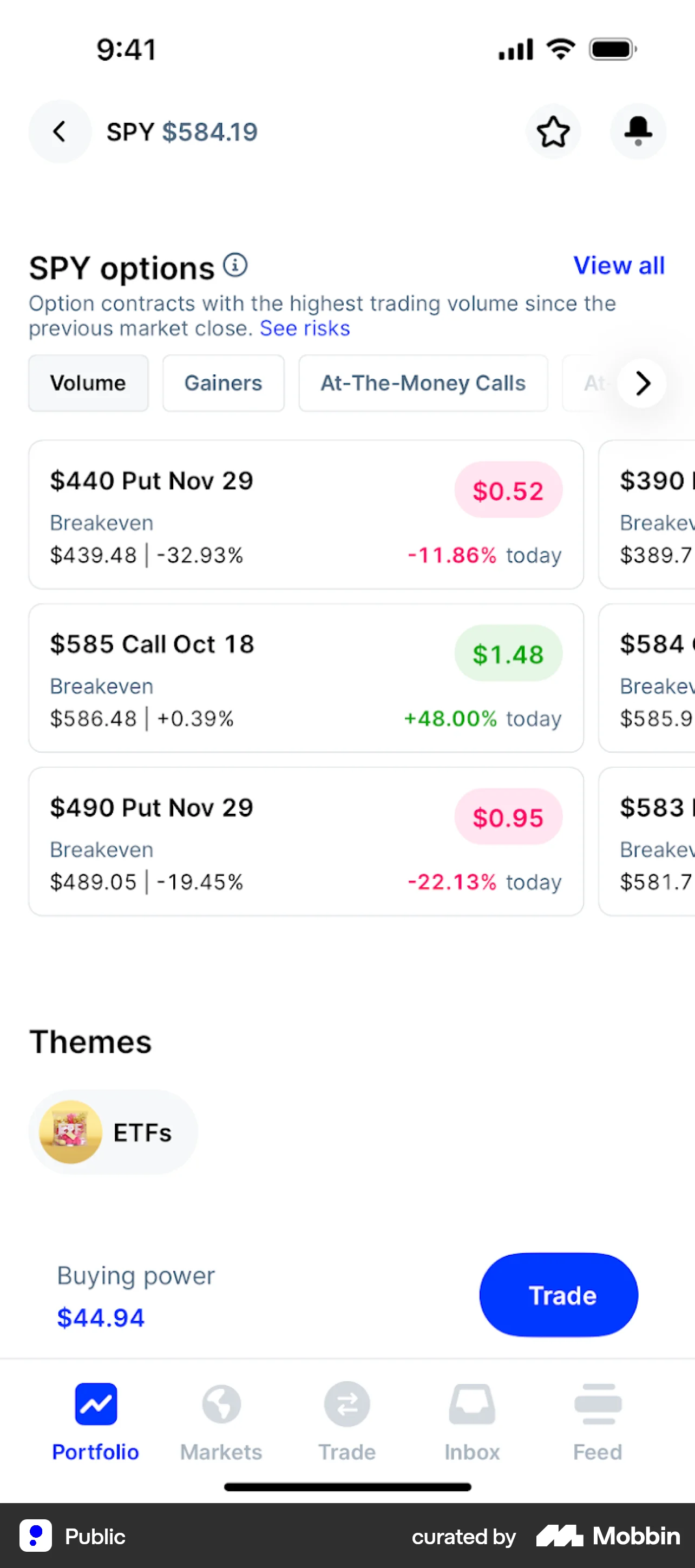
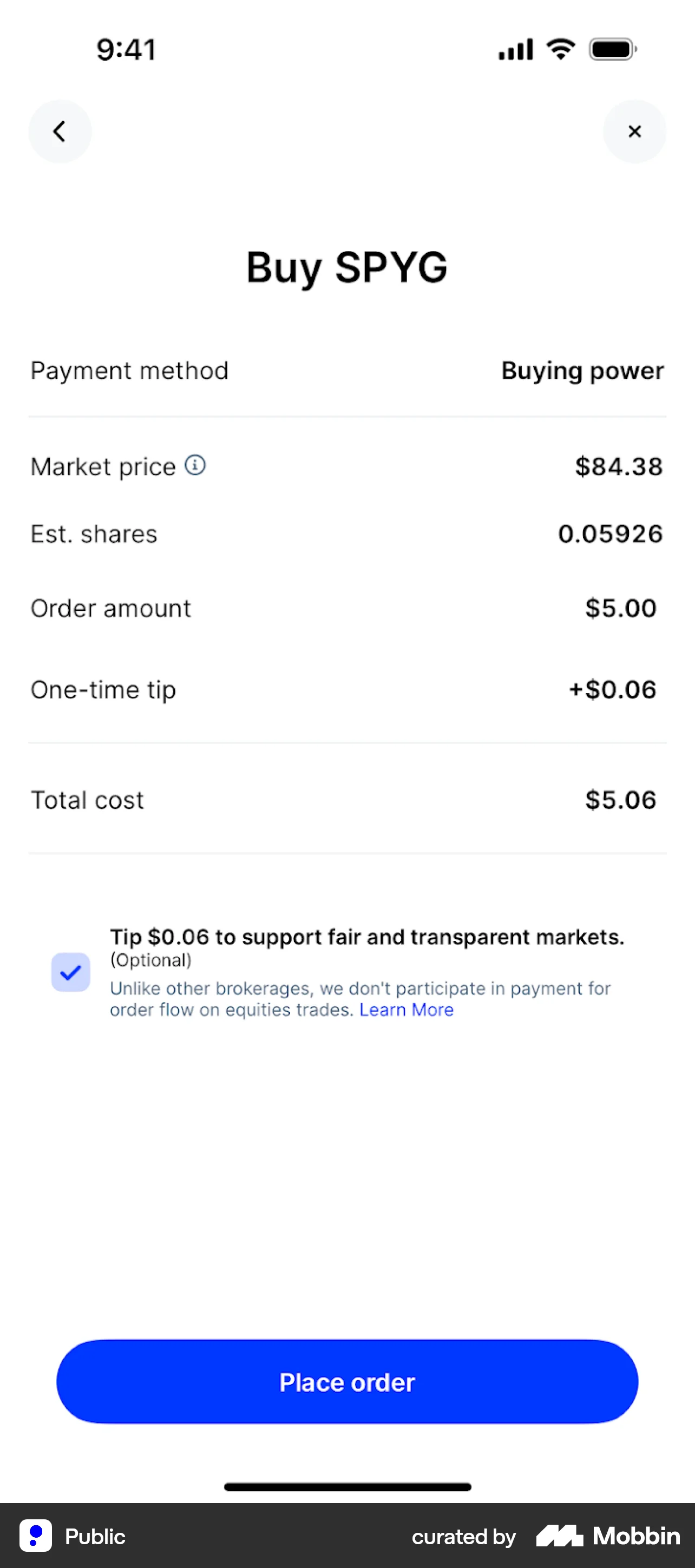
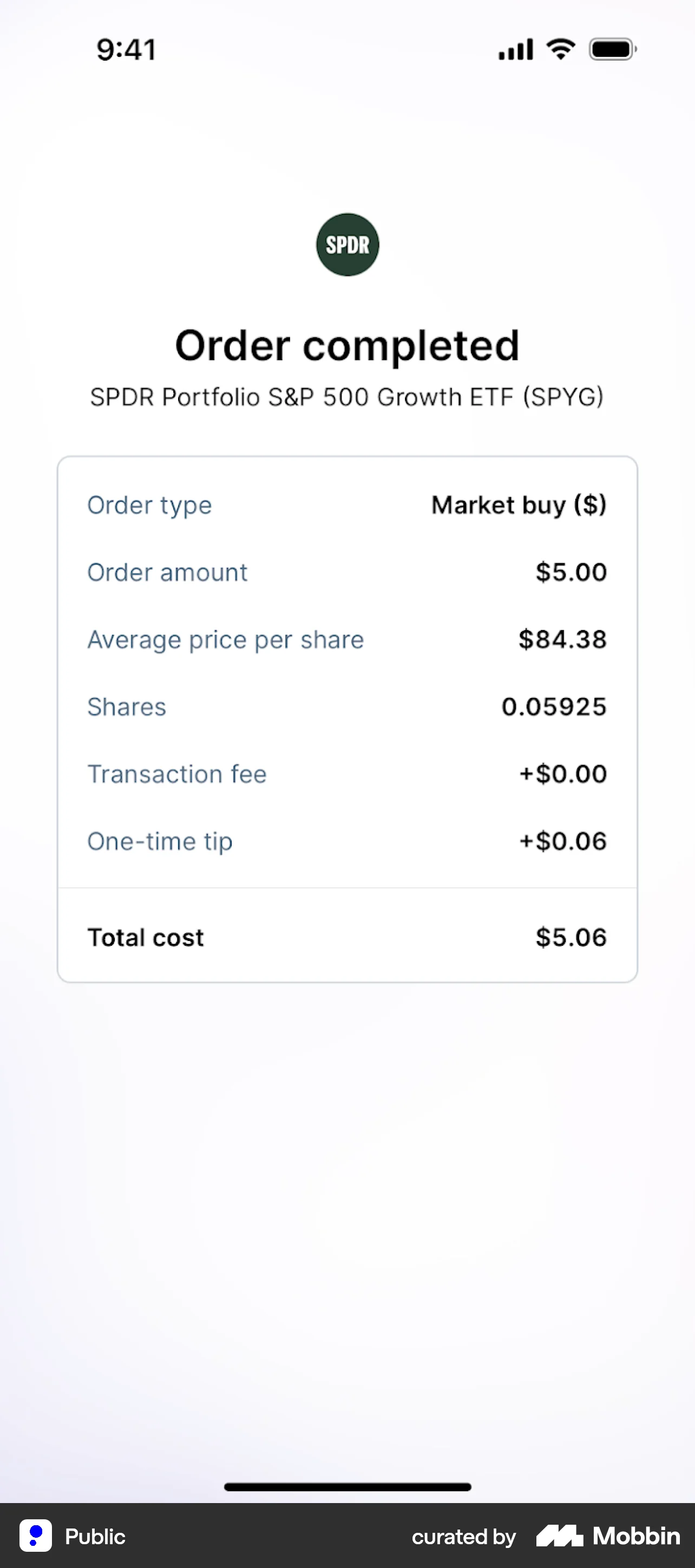
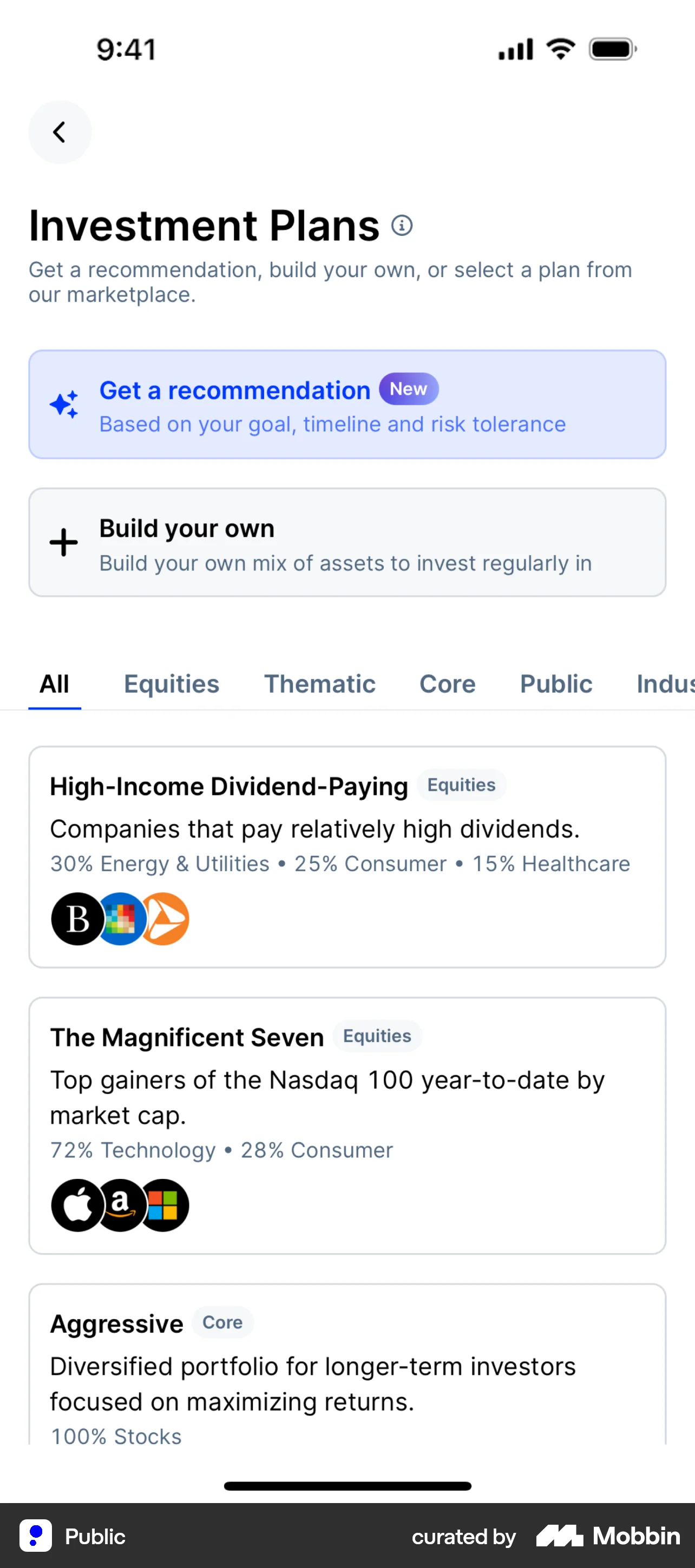
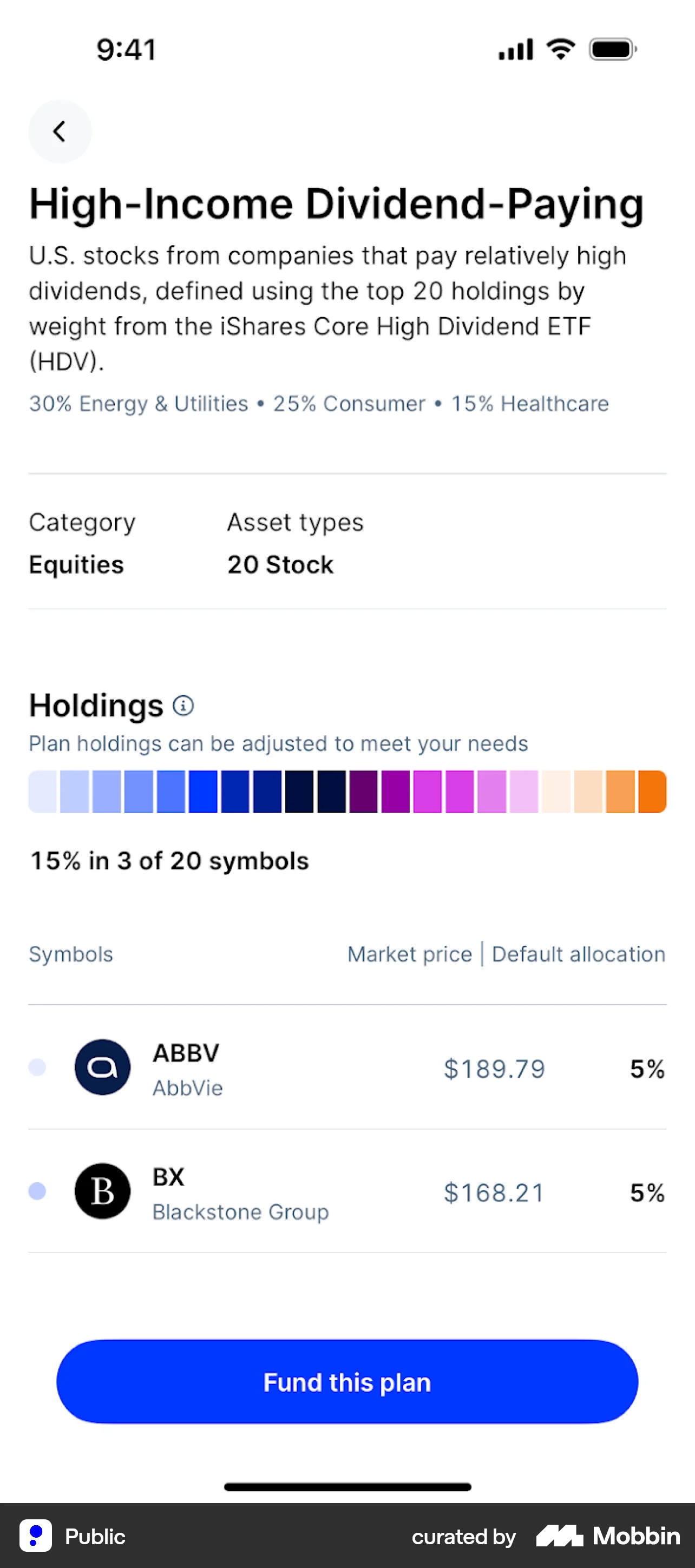
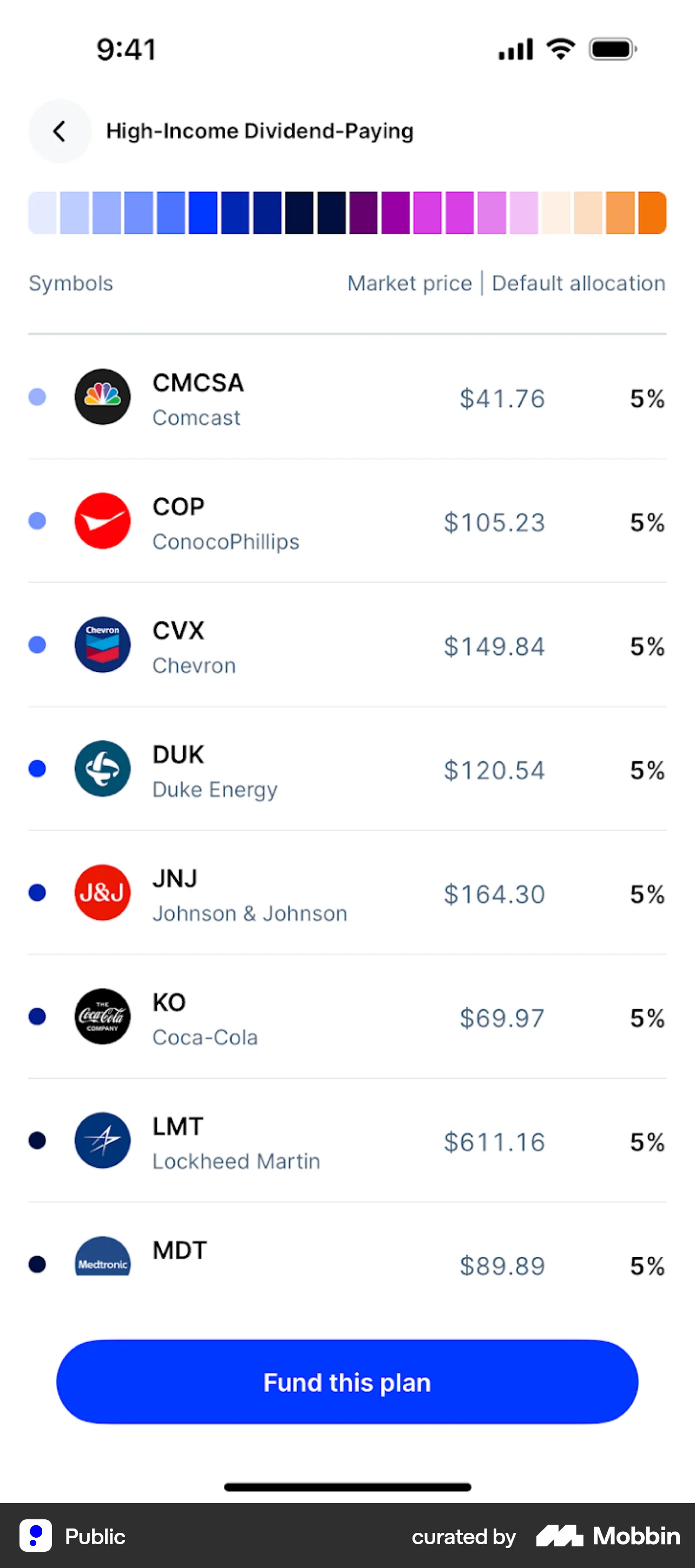
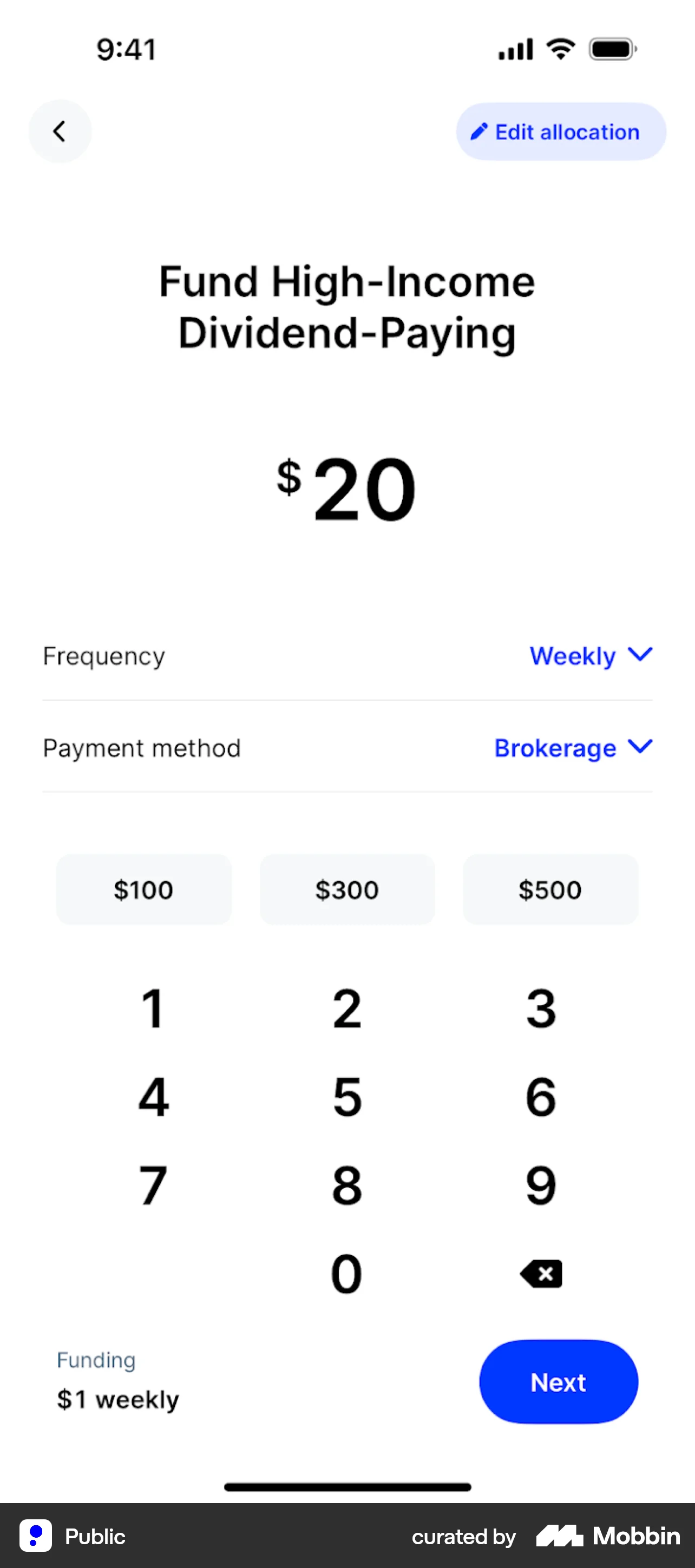
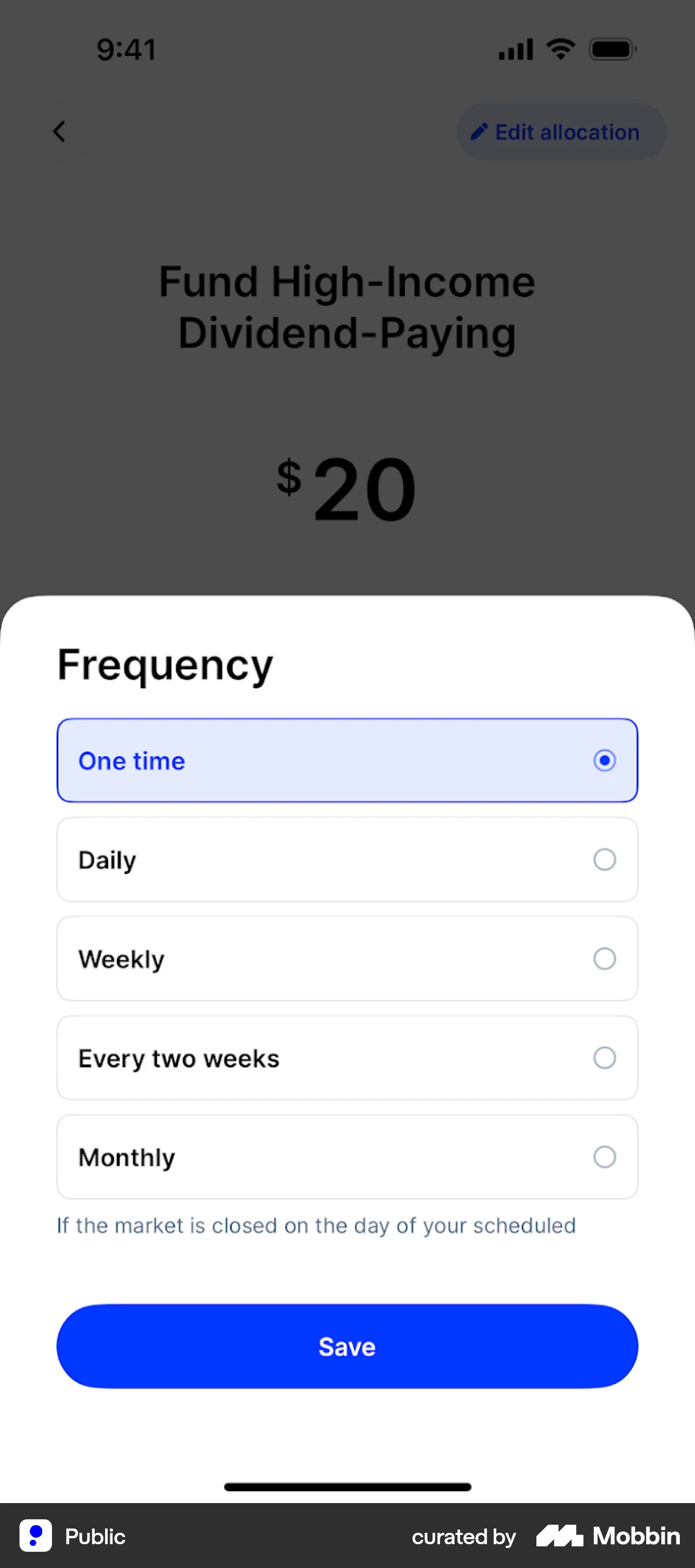
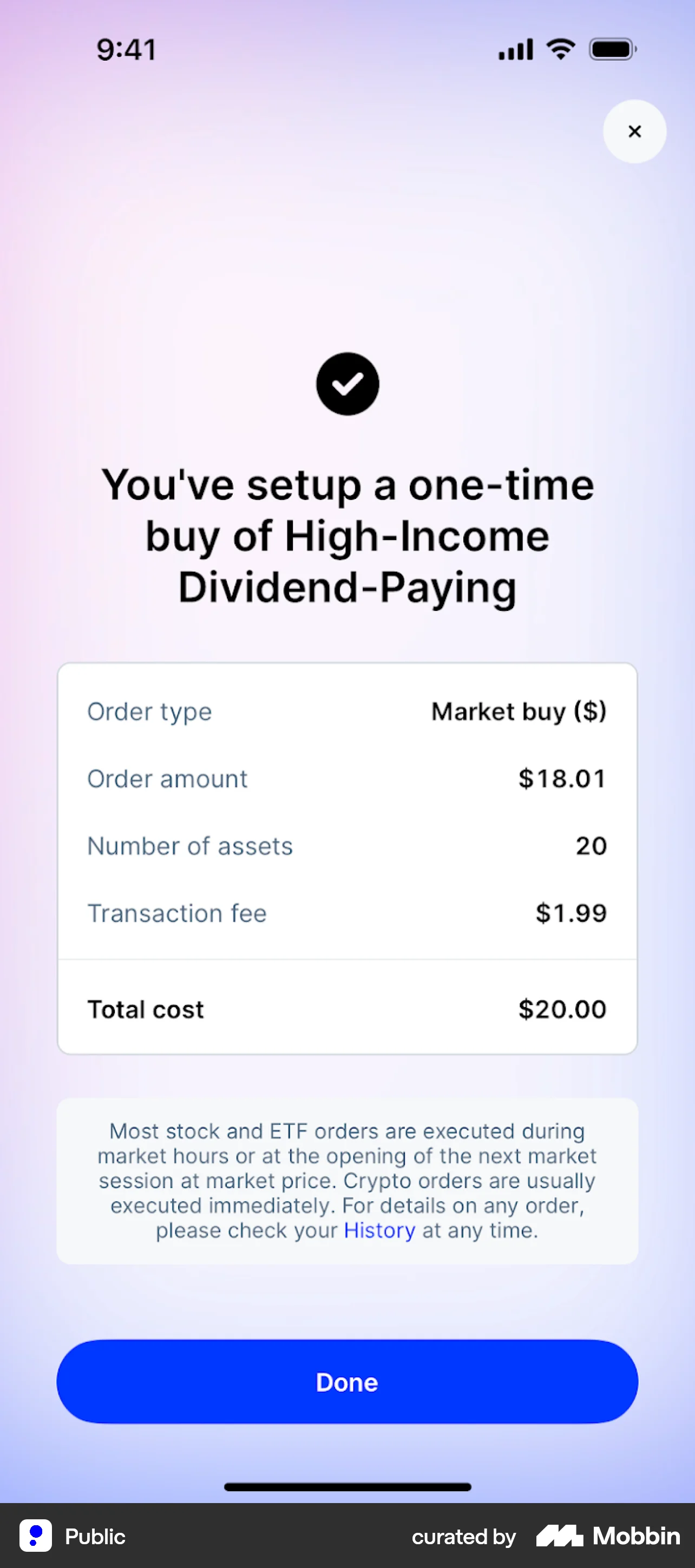
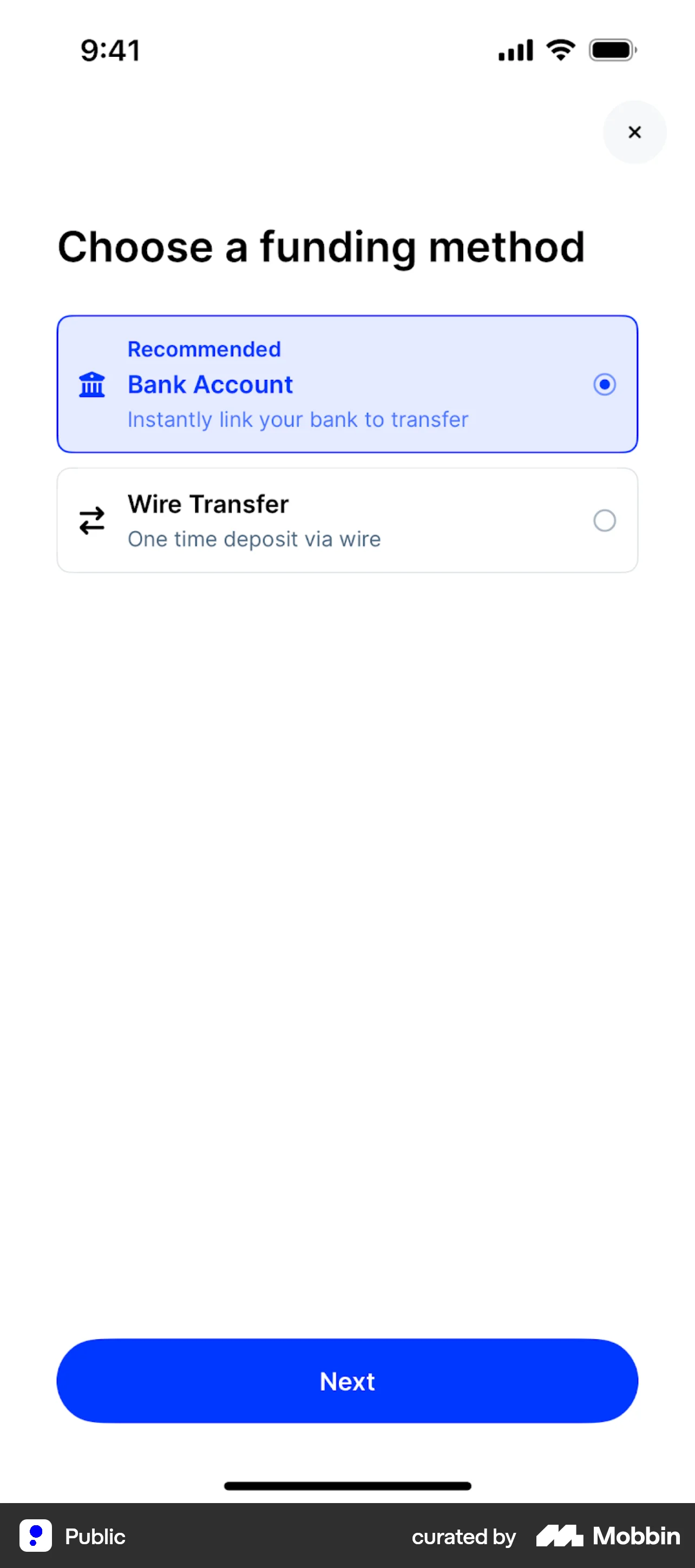
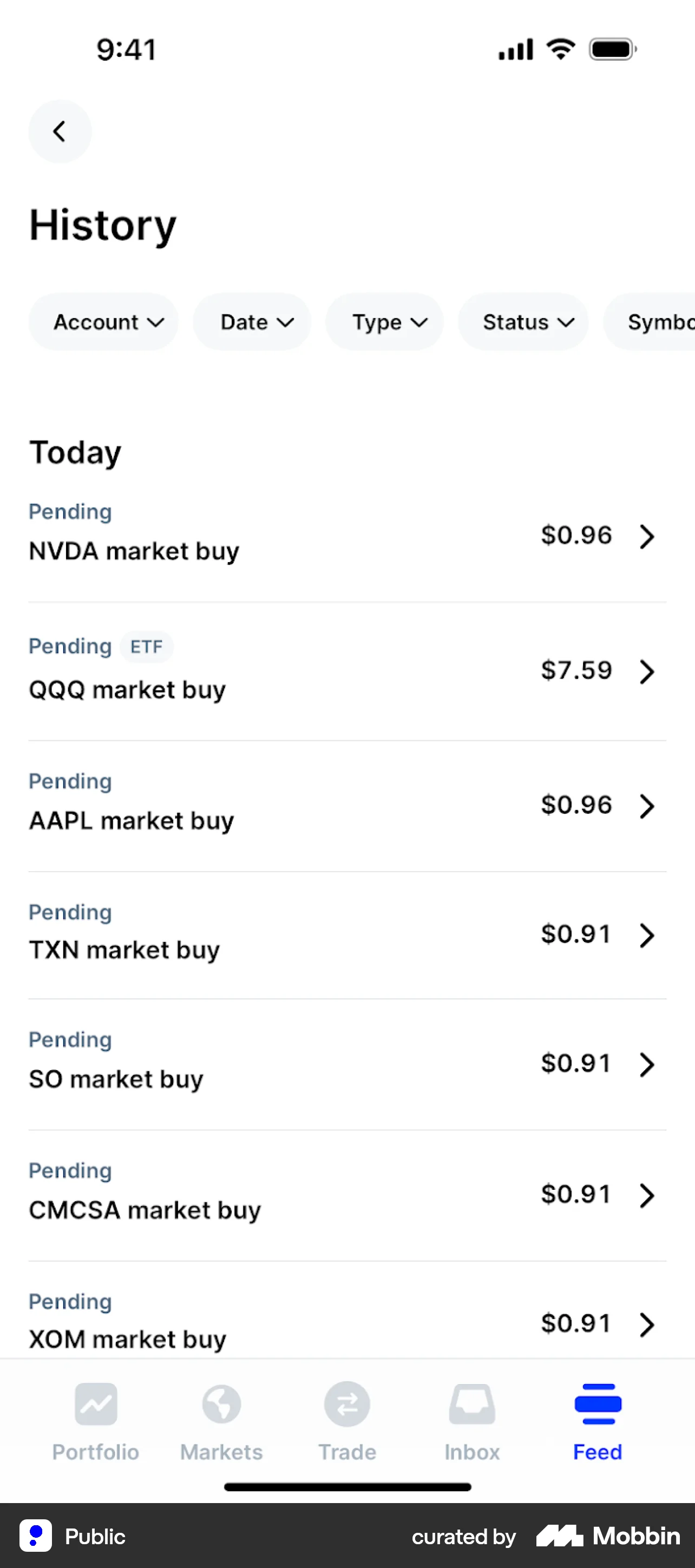
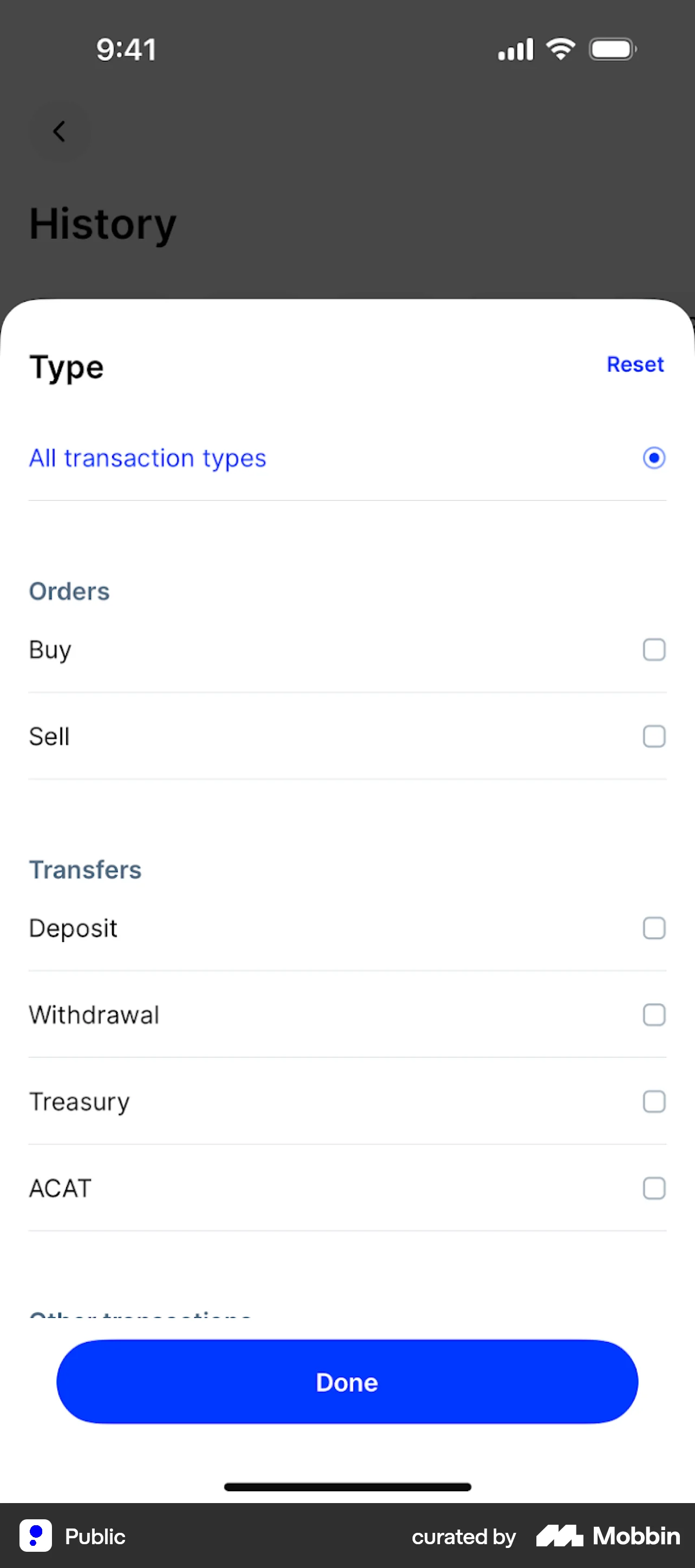
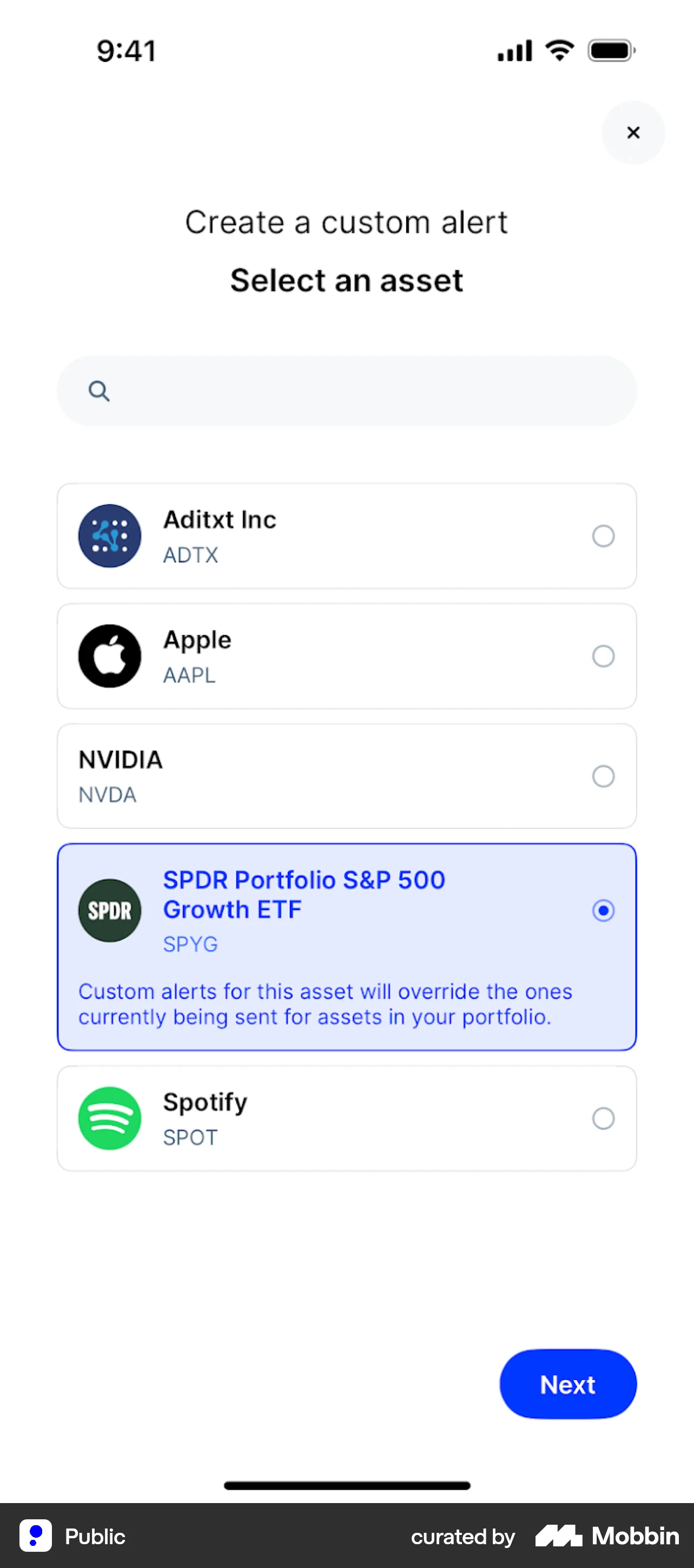
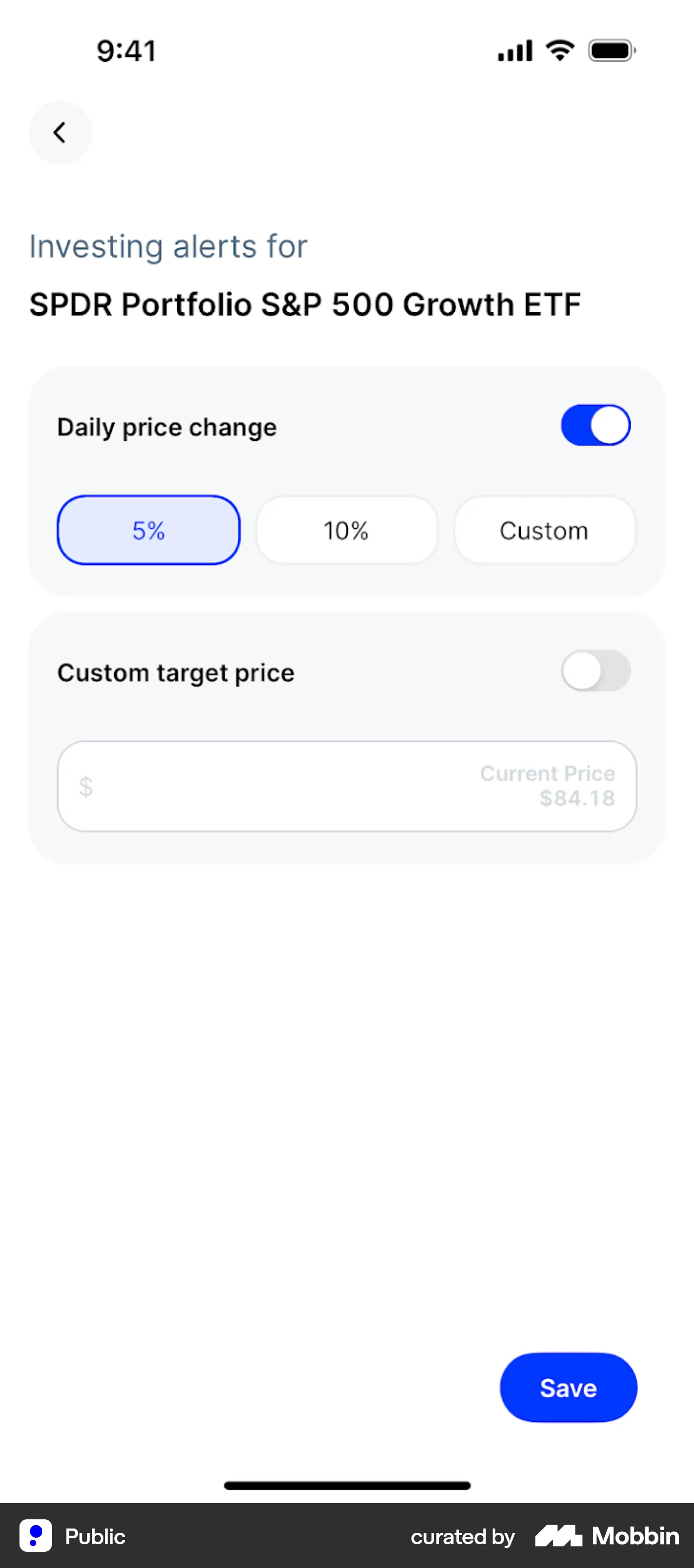
Raymond James (Full-service / wealth)
Primary navigation
5 tabs, bottom nav: Dashboard, Accounts, Portfolio, Activity, More. Quote screen: back "< Back", ticker (e.g. F) in header.
Home / dashboard
Quote screen (e.g. F – Ford Motor Co): ticker F, FORD MOTOR CO; price, change (red if negative); "15-Minute Delayed" timestamp; menu (chevrons): Market Data, Dividends, Price History, Volume History, Market News, Company Address; Disclosures. Market Data (drill-down): Previous Close, Open, High, Low, Volume, Bid/Ask Size, Bid, Ask, 52 Week High/Low, EPS, P/E Ratio, Est. Annual Income/Share, Est. Dividend Yield, Market, Security Type. Dividends: list (date, amount). Price History: Price Change %, line chart; time range 3M, 1Y, 3Y, 5Y. Volume History: link.
LOB placement
Investing: Quote (from More or elsewhere) with menu to Market Data, Dividends, Price History, Volume History, Market News, Company Address. Dashboard, Accounts, Portfolio, Activity, More. Depth TBD from more screens.
Depth of hierarchy
Quote → Market Data (full metrics); Quote → Dividends, Price History, Volume History.
Cross-LOB patterns
Quote and sections tied to symbol.
Personalization
TBD from more screens.
Screenshots
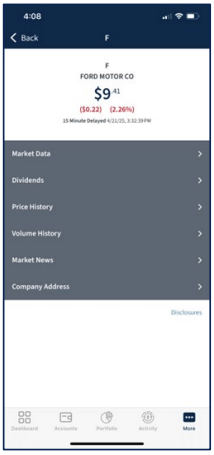
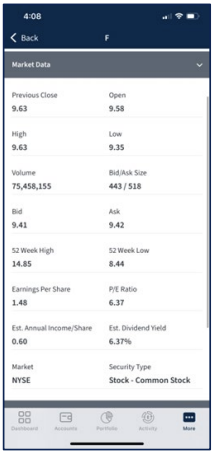
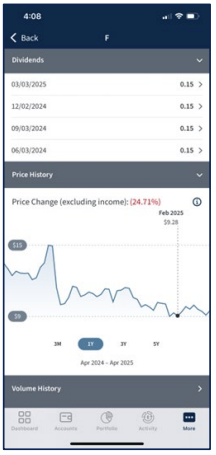
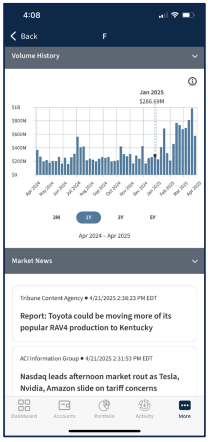

RBC Wealth Management (Full-service / wealth)
Primary navigation
Header: Cancel, ticker (e.g. F). No bottom nav visible in quote flow; primary nav TBD from more screens.
Home / dashboard
Quote screen (e.g. F – Ford Motor Company): tabs Market Details | News. Market Details: company name FORD MOTOR COMPANY, ticker F; Market Overview (price, daily change in green; timeframe Intraday | One Year; line chart, "Last updated" timestamp); Key Data (Last, Change, 52 week low/high, Open, High, Low, Prev close, Volume, Shares out, Market cap, Avg volume, P/E, EPS, Dividend, EX Date, Yield). News: feed (headline, timestamp, source; chevron per article).
LOB placement
Wealth/investing: Quote with Market Details (chart, Key Data) and News tabs.
Depth of hierarchy
Quote → Market Details (chart + Key Data) or News.
Cross-LOB patterns
Quote and tabs tied to symbol.
Personalization
TBD from more screens.
Screenshots
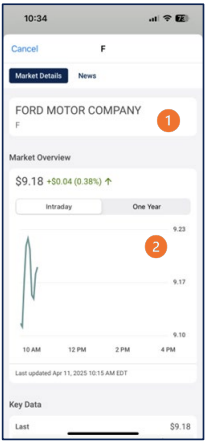
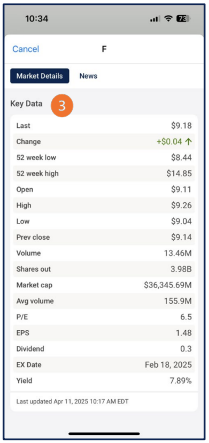
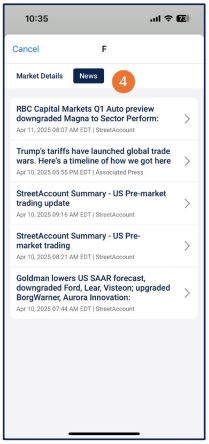
Robinhood (Self-directed / investing + crypto)
Partial audit. This entry is based on 16 screenshots. Primary navigation (5-tab bottom bar), Investing/Managed dashboards, Profile (hamburger → Menu), Transfers (gear tab), Spending settings, and detail screens (Select account, Portfolio options, Tax loss harvesting, crypto quote) are visible. What follows is a record of what is visible.
Primary navigation
5-tab bottom navigation: Investing (line graph—portfolio/dashboard), gear (Transfers/Settings hub—active on Transfers and Spending settings), Browse (star/crystal), dollar/cash (Spending—active on Spending settings in one flow), person (Profile). First = Investing; second = gear; fourth = dollar; fifth = Profile. Profile has hamburger → Menu (Investing, Spending, Crypto, Transfers, Rewards, Gold, History). Nav visible on Investing, Managed, Browse, IRA, Profile, Menu, quote, Transfers, Spending settings.
Home / dashboard
Investing tab (first tab) = primary dashboard: title "Investing" with dropdown chevron; Gold badge (yellow); search, notification bell (badge). Current value and daily change (e.g. ▲ $0.06 (0.23%) Today); line chart; timeframe selector LIVE, 1D, 1W, 1M, 3M, YTD, 1Y (gear icon). Buying power (amount, arrow). Robinhood Strategies promo card (early access to expert-managed portfolio; X to dismiss; Get started). Managed view (when selected): account-type tabs Managed | Credit Card | Joint | Add; value and % change; bar chart Appreciation / Income / Fees; timeframes 1M, 3M, YTD, 1Y, ALL; COMPARE; View all insights; Deposits; Gold perks. Scroll: allocation (US stocks, US bonds, International stocks, Cash with %); "Transfer accounts in"; Account (Portfolio options, Tax loss harvesting); fee disclaimer (0.25%, disclosures). IRA promo screen: "3% IRA match"; earn 3% with Gold or 1% without; IRA/401(k) transfers 1%; Get started. Browse = discovery hub (search, categories, Trending lists, Market news). Profile (person tab): hamburger (opens Menu); search, bell; profile placeholder, Edit profile; Total in Robinhood; Add account; Individual investing (Total individual value, Individual holdings, Individual cash, Crypto holdings); Spending (Account value, Transfer). Menu (from hamburger): back; title "Menu"; Gold badge; list with chevrons—Investing (Balances, recurring investments, DRIP, Stock Lending), Spending (Debit card, paychecks, rewards), Crypto (Transfer limits), Transfers (Deposits, withdrawals, account transfers), Rewards (Invite friends, earn stocks), Robinhood Gold (Membership details), History (Activity across all accounts). Portfolio options (Managed): slide-up modal—Update investor profile (answers determine allocation), Restrict individual stocks (limit what's included); Close. Crypto quote (e.g. PNUT): back; price; chart, bell, star, +; About (Show more); Stats (52wk high/low, 24h volume, Market cap, Circulating supply); disclaimer; Buy. Select an account (Investing): slide-up from "Investing" dropdown—"Select an account"; Individual investing ($ total balance, selected); Add account; Close; handle. Spending settings: back; title "Spending settings"; Settings (Account & routing numbers—Show); Debit card (Lock card, Location protection, Spend alerts, Backup coverage, Change PIN, Add to Apple Wallet—toggles and arrows); Pay & Request (Edit profile, Manage profile visibility); 5-tab nav (dollar active). Tax loss harvesting (Managed → Account): back; title "Tax loss harvesting"; year selector (2026); copy "Once a year, we'll automatically sell managed holdings at a loss to offset gains"; Learn more; Status card (Not available for this account; View requirements); Gains & losses (account dropdown Managed individual; Net realized gain, Net unrealized gain); no bottom nav. Transfers: back; title "Transfers"; primary actions Deposit, Withdraw, Transfer; list—Transfer accounts in, Deposit crypto, Send a wire transfer, Set up direct deposit, Create a recurring deposit, View your transfer limits; Linked accounts (e.g. Individual Cash Account, Checking, Verified); 5-tab nav (gear active).
LOB placement
Investing tab (first tab): portfolio value, chart, Buying power, Robinhood Strategies (expert-managed). Managed (expert-managed): tabs Managed | Credit Card | Joint | Add; performance (Appreciation/Income/Fees); allocation (US stocks, US bonds, International, Cash); Transfer accounts in; Portfolio options, Tax loss harvesting. IRA: 3% match promo (Gold/1%; transfers 1%); Get started. Browse tab: search; categories (dividend yield, 52-week highs/lows); Trending lists (crypto, popular, options, IPO Access, etc.); Market news. Crypto: Activate crypto transfers (onboarding); Choose a cryptocurrency (search, list). Portfolio: Compare your portfolio returns (vs benchmark, 1M/3M/YTD/ALL). Profile (person tab): total, Individual investing + Spending summary; hamburger → Menu. Menu: cross-LOB hub—Investing, Spending, Crypto, Transfers, Rewards, Robinhood Gold, History (each with subtitle). Managed detail: Portfolio options slide-up (Update investor profile, Restrict individual stocks). Crypto quote: asset detail (About, Stats, disclaimer, Buy). Select an account (Investing dropdown): Individual investing, Add account. Spending settings (from Menu → Spending or dollar tab): Settings (Account & routing numbers); Debit card (Lock card, Location protection, Spend alerts, Backup coverage, Change PIN, Add to Apple Wallet); Pay & Request (Edit profile, Manage profile visibility). Tax loss harvesting (Managed → Account): status, Gains & losses (account selector; realized/unrealized). Transfers (gear tab or Menu → Transfers): Deposit, Withdraw, Transfer; Transfer accounts in, Deposit crypto, wire, direct deposit, recurring, limits; Linked accounts.
Depth of hierarchy
Investing tab: "Investing" (dropdown), Gold badge; search, bell; current value, daily change; line chart; LIVE/1D/1W/1M/3M/YTD/1Y; Buying power; Robinhood Strategies card (X, Get started). Managed (same tab, account selector): tabs Managed | Credit Card | Joint | Add; value, % change; bar chart Appreciation/Income/Fees; 1M/3M/YTD/1Y/ALL; COMPARE; View all insights; Deposits; allocation (US stocks, US bonds, International, Cash %); Transfer accounts in; Account (Portfolio options, Tax loss harvesting); 0.25% fee disclaimer. IRA promo: back; "3% IRA match"; copy (3% with Gold, 1% without; transfers 1%); Limitations apply; page dots; Get started. Browse (5-tab nav): back; title "Browse"; search bar; category rows (Highest dividend yield, New 52-week highs/lows—each with icon, description, arrow); "Show less"; Trending lists (info icon; horizontal tags); Market news (info icon). Activate crypto transfers (modal or standalone): close X; headline "Activate crypto transfers"; "Send and receive between Robinhood Crypto and crypto wallets"; Get started button. Choose a cryptocurrency: X; title "Choose a cryptocurrency"; search "Search for crypto"; scrollable list (e.g. AVAX/Avalanche, BTC/Bitcoin, BCH, CRV, LTC, DOGE, ENA, ETH, ETC—ticker bold, full name below, chevron). Compare your portfolio returns: back; title "Compare your portfolio returns"; "Explore how your investments are performing compared to the market."; table Time | Your portfolio | Benchmark (info icon); rows 1M, 3M, YTD, ALL with % returns (green); disclaimer; Learn more. Profile: hamburger → Menu; Total in Robinhood; Individual investing (value, holdings, cash, crypto); Spending (value, Transfer); Edit profile; Add account. Menu: "Menu" title; back; Gold badge; list (Investing, Spending, Crypto, Transfers, Rewards, Robinhood Gold, History—each with subtitle and chevron). Portfolio options (from Managed Account): slide-up modal—"Portfolio options"; Update investor profile (Your answers determine allocation); Restrict individual stocks (You can limit what's included); Close; handle. Crypto quote: back; price (e.g. $0.1563 PNUT); chart, bell, star, +; About (meme token, Show more); Stats (52 wk high/low, 24h volume, Market cap, Circulating supply); crypto disclaimer; Buy; 5-tab nav (dollar active on quote). Select an account (Investing title tap): slide-up "Select an account"; Individual investing (icon, $ total balance, radio selected); Add account (plus icon); Close; handle. Spending settings: back; "Spending settings"; Settings (Account & routing numbers—Show); Debit card (Lock card, Location protection, Spend alerts, Backup coverage [i], Change PIN, Add to Apple Wallet—toggles/arrows); Pay & Request (Edit profile, Manage profile visibility). Tax loss harvesting: back; "Tax loss harvesting"; 2026 dropdown; description; Learn more; Status (Not available for this account; View requirements); Gains & losses (Managed individual dropdown; Net realized gain, Net unrealized gain); no bottom nav. Transfers: back; "Transfers"; Deposit | Withdraw | Transfer (three buttons); list (Transfer accounts in, Deposit crypto, Send a wire transfer, Set up direct deposit, Create a recurring deposit, View your transfer limits—each with icon, chevron); Linked accounts (Individual Cash Account, Checking, Verified). One level of drill in each flow; full depth TBD.
Cross-LOB patterns
Investing tab hosts self-directed and Managed (expert-managed); Select an account slide-up supports multiple accounts. Menu (Profile → hamburger) is a cross-LOB hub: Investing, Spending, Crypto, Transfers, Rewards, Gold, History. Transfers (gear tab) is a money-movement hub: Deposit, Withdraw, Transfer; crypto, wire, direct deposit, recurring, limits; Linked accounts. Spending settings (debit card, Pay & Request) and Tax loss harvesting (Managed) extend LOB depth. Robinhood Strategies and IRA (3% match) are cross-sell. Profile aggregates Individual investing + Spending. Crypto quote supports discovery-to-trade. Compare portfolio is distinct.
Personalization
Investing and Managed show user-specific value, chart, allocation. Profile shows total, Individual investing, Spending. Gold badge and Gold perks indicate tier. Portfolio options (Managed): Update investor profile, Restrict individual stocks. Spending settings: toggles (Lock card, Location protection, Spend alerts, Backup coverage); Change PIN, Add to Apple Wallet; Edit profile, Manage profile visibility. Edit profile also on Profile. Tax loss harvesting shows status and Gains & losses by account. No other customization controls visible in the sixteen screens (TBD).
Observations and conclusions
What we see: 5-tab bottom nav: Investing, gear (Transfers hub), Browse, dollar (Spending), person (Profile). Investing: portfolio value, chart, Buying power; Robinhood Strategies; Select an account slide-up (Individual investing, Add account). Managed: tabs; bar chart; allocation; Transfer accounts in; Portfolio options slide-up; Tax loss harvesting (status, Gains & losses, no nav). IRA: 3% match (Get started). Browse: search; categories; Trending lists; Market news. Crypto: Activate transfers; Choose cryptocurrency; quote (PNUT—About, Stats, Buy). Portfolio: Compare returns (vs benchmark). Transfers (gear): Deposit, Withdraw, Transfer; list (Transfer accounts in, Deposit crypto, wire, direct deposit, recurring, limits); Linked accounts. Spending settings: Account & routing numbers; Debit card (Lock, Location protection, Spend alerts, Backup coverage, Change PIN, Apple Wallet); Pay & Request (Edit profile, Manage profile visibility). Profile: hamburger → Menu; total; Individual investing + Spending. Limitations: 16 screens; full IA and some flows not documented. Audit remains partial.
Screenshots
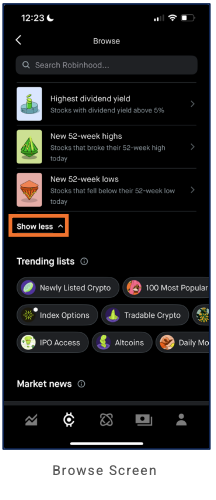
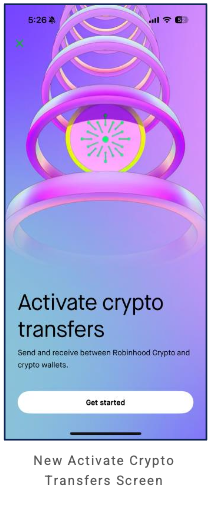
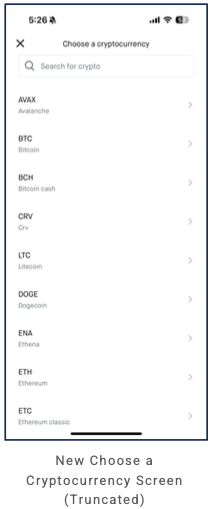
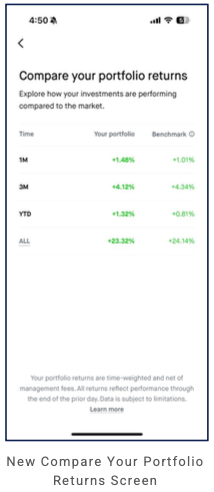
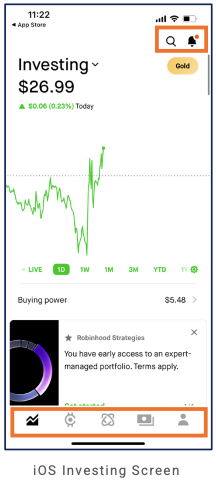
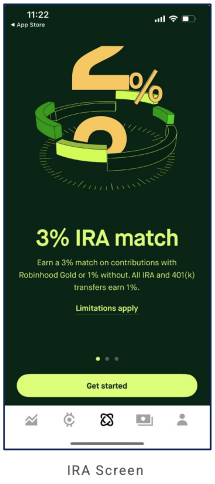
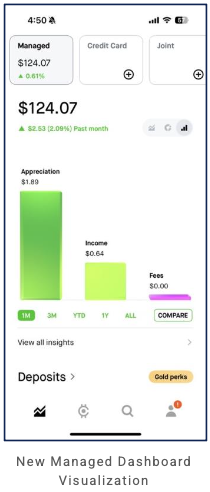
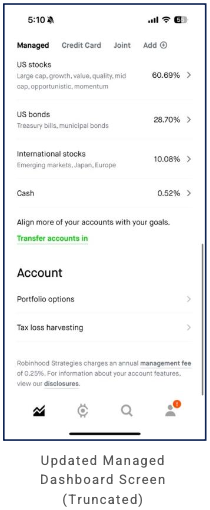
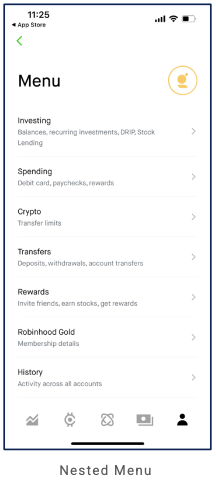
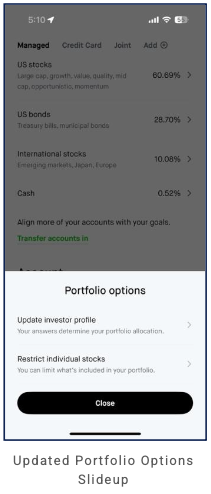
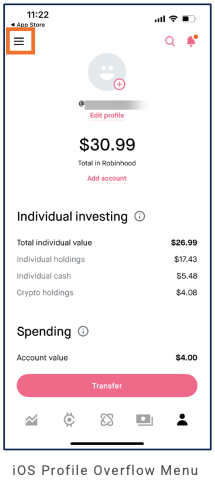
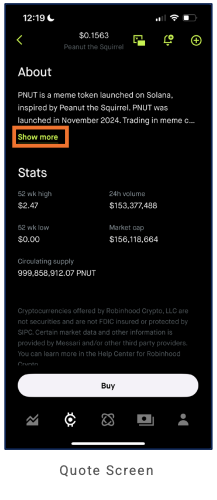
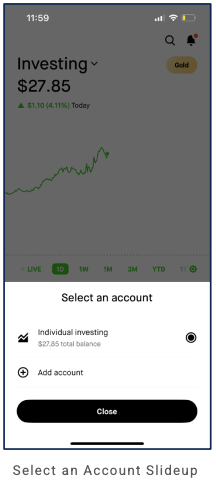
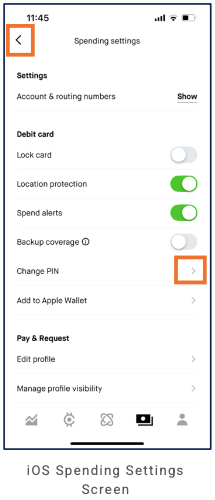
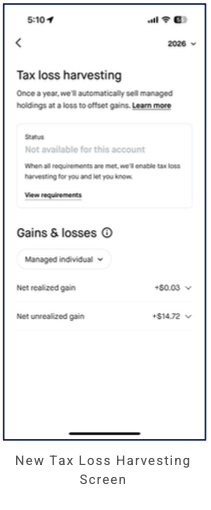
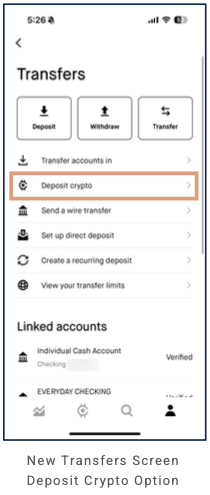
SoFi (Bank + investing + lending)
Complete audit. This entry is based on 38 of 38 screenshots. Primary navigation (5-tab bottom bar: Home, Banking, Credit card, Invest, Loans). Header: profile (left), SoFi logo + grid (center), bell (right). Home tab (scrollable): greeting; reward pills (0 pts →, Get $75 →); product cards Banking • 2, Credit Card, Invest • 2 (expandable—expanded shows Banking Checking/Savings detail); quick links; Relay insights (View dashboard → Relay dashboard: Summary | Net worth tabs; Spending with target; bar chart; Recent activity); or Credit Score, Activity (Recent | Recurring; Hide external accounts; PENDING; VIEW ALL)—header variant Get + Plus pill; or More you can do (Member Benefits | Banking | Investing)—SoFi Plus, Life Insurance cards; More for you Invest Holdings; or recommendation cards. FAB (list icon). Banking tab: dashboard (Total available balance; Checking/Savings with APY; tap Savings → Savings dashboard—total incl. Vaults, APY, Vaults list e.g. Emergency Fund/Taxes/UK Move, Add new Vault >; Transfer, Deposit, Pay, Zelle®; Activity CHECKING | SAVINGS, Statements >); Banking More (Account numbers show/copy, Account management: Beneficiaries, Joint account holder, Linked bank accounts, Notifications and alerts). Beneficiaries (Select account—Joint Checking/Savings; SSN/DOB tip; See terms, FAQs). Checking dashboard (Banking → tap Checking): balance, APY, Transfer/Deposit/Pay/Zelle®, Cards, Activity ALL | SCHEDULED. Roundups (Manage Roundups—round up to Vault e.g. Emergency Fund; toggle; Done). Order checks (confirmation "Your checks are on the way!"; 10-14 days; Order a checkbook). Overdraft (Protection | Coverage; toggle, Covered by savings; Learn more, Compare overdraft options). Profile (header) → Profile overflow (My info, Membership & Rewards Get + Plus, Investor profile, Goals, Document center, Settings, Invite friends, Referral stats, Our products, Help). Invest quick actions slide-up (Transfer assets, Withdraw, Refer a friend). Quote details (tap symbol): Details, About, News, Analyst ratings, Bulls say/Bears say, Earnings, Social (feed). Quote screen top (price, graph, 1D–5Y; when user holds: Your investments—Brokerage, shares, total value, total return, avg cost, dividends; Details, Trade). Quote Recent activity (per symbol: dividends, buys; VIEW ALL). Credit card: Credit Card tab = dashboard (balance, available credit, points; Pay, Statements, Rewards, More; payment status; travel cross-sell); Credit card More (Manage: Your card, Authorized users, Documents, Balance transfer; Support: FAQ, Virtual assistant Start chat, Phone support); drill to Available credit. Invest tab: dashboard (balance, performance, graph; Accounts cards Self-directed/Invest/Add or Investments list, or Watchlist STOCKS & ETFS | CRYPTO, or More you can do + Recent activity); FAB (Refer, Transfer assets, Withdraw, Add cash, Buy & Sell; X to close). Home Preferences (CONTENT reset to show all). Invest, Loans tabs TBD. Settings (Profile → Settings): Security, Notification preferences, Privacy preferences, Home preferences, App appearance. FAB (Home) opens "What do you want to do?" slide-up: Trade stock, Send money, Transfer money, Get $75, Get help. Savings dashboard → Activity (Statements >; ALL | SCHEDULED; transaction list by date). SoFi audit complete (38 screens).
Primary navigation
5-tab bottom navigation: Home (hub), Banking, Credit card, Invest, Loans. Header: profile (left), SoFi logo + grid icon (center), bell (right).
Home / dashboard
Home tab = scrollable dashboard. Greeting (Good morning/Good afternoon). Reward pills (e.g. 0 pts →, Get $75 →). Product cards: Banking • 2 (balance, transactions today, expand arrow—expanded shows Checking/Savings detail), Credit Card (available credit, limit), Invest • 2 (value, day change %). Quick links: Personal loans, Life insurance, education. Relay insights (View dashboard >): SPENDING, NET WORTH ("4 SoFi | 7 external"). Tapping View dashboard opens Relay dashboard (back, +, search): Summary | Net worth tabs; Top category / Recategorize insight cards; Spending (amount, target, On track); bar chart by month; Recent activity (transaction list). Alternate scroll: Credit Score (e.g. 774 Good); Activity (Recent | Recurring; Hide external accounts; PENDING; VIEW ALL)—header variant with Get + Plus pill. Or More you can do (Member Benefits | Banking | Investing tabs)—SoFi Plus (Premium perks), Life Insurance (Protect what matters), other cards; More for you Invest Holdings (NVDA, SQ, AMD). Or recommendation cards: SoFi IRA, Relay Fee finder, Invest General market news. FAB (list icon) bottom right.
LOB placement
Banking, Credit card, Invest surface on Home as product cards (expandable). Loans = dedicated tab. Banking tab = dashboard: Total available balance (i); Checking/Savings with APY and balances (tap **Savings** → **Savings dashboard**: total "Savings incl. Vaults" (i), Current APY (i), Vaults / Available savings (i), Transfer, Deposit, **Vaults** list e.g. Emergency Fund/Taxes/UK Move, Add new Vault >); quick actions Transfer, Deposit, Pay, Zelle®; Activity (Statements >; CHECKING | SAVINGS tabs). Banking More (back): Account numbers (show/hide, copy—Routing, Checking, Savings); Account management (Beneficiaries, Joint account holder, Linked bank accounts, Notifications and alerts). Beneficiaries (More → Beneficiaries): Select an account (Joint Checking, Joint Savings); "Before you get started" (SSN, DOB for verification); See terms and conditions, FAQs. Checking dashboard (Banking → tap Checking): Available balance (i), APY (i), Balance incl. pending (i); Transfer, Deposit, Pay, Zelle®; Cards (Debit card); Activity (Statements >; ALL | SCHEDULED); ellipsis. Roundups (Manage Roundups): round up debit card purchases to nearest dollar, add change to a Vault (e.g. Emergency Fund); toggle; Learn more; Round up to [Vault] (>); Done. Order checks: check preview; "Your checks are on the way!"; delivery 10-14 business days, reorder date; Account, Last ordered, Names, Mailing address; Order a checkbook button. Overdraft (back): Protection | Coverage tabs; "Automatically cover transactions with your savings" (general savings, not Vaults); Learn more; Checking accounts—toggle per account, Covered by [savings]; Compare overdraft options. Profile (header left) → Profile overflow menu: blue header (profile pic, name, Member since; X close); My info, Membership & Rewards (Get + Plus pill), Investor profile, Goals, Document center, Settings, Invite friends, Referral stats, Our products, Help. Invest quick actions (slide-up from FAB/More): Transfer assets, Withdraw, Refer a friend (Get $75 in stock). Quote details (Invest → tap symbol e.g. F): back, ticker, search, star; Quote screen top (price, daily %, line graph, 1D | 1W | 1M | 3M | 1Y | 5Y, Details card, Trade button); scroll: Details, About (company, description), News, Analyst ratings (Buy/Hold/Sell %); Current price, 1Y price target; Bulls say / Bears say cards; Earnings (Expected vs Actual EPS chart); Social (feed: user actions e.g. limit order, Sold; like, comment). Quote Recent activity (per symbol e.g. GE): Recent activity (dividends, limit buy, market buy; VIEW ALL), Social, Trade. Credit card tab = Credit Card dashboard: Current balance, Available credit, Points; Pay, Statements, Rewards, More; payment status ("Nothing is due"); cross-sell (Book stays, flights, cars—SoFi Member Prices, 3% cash back). Drill to Available credit (limit/available/balance; Credit 101; back). Credit card More (Credit Card dashboard → More): Manage (Your card—View/freeze/replace, Authorized users, Documents, Balance transfer); Support (FAQ, Virtual assistant Start chat 24/7, Phone support). Invest tab = Invest dashboard (balance, performance e.g. Past week %; line graph; timeframe filters 1W | 1M | 6M | YTD | 1Y | MAX; Add cash, Explore & Trade, More; Buying power, Withdrawable; Accounts). Variants: Accounts horizontal cards (Self-directed, Invest robo, Add account) with Trade pill FAB; or Buying power/Cash card and Investments holdings list (e.g. AMD, AAPL, NVDA); or promo banner (e.g. private market opportunities) and Watchlist (STOCKS & ETFS | CRYPTO; ticker list); or More you can do (Recurring deposits, Crypto, Options) and Recent activity (dividends by date; Trade button). FAB opens vertical menu (Refer, Transfer assets, Withdraw, Add cash, Buy & Sell; X to close). Home Preferences (back): CONTENT "Reset viewing preferences to show all available content." Reset button. Relay aggregates Spending + Net Worth (SoFi + external). Member Benefits (rewards, Life Insurance). Cross-sell: Personal loans, Life insurance, education; SoFi IRA; Relay Fee finder. Invest, Loans tab depth TBD from more screens.
Depth of hierarchy
Home → product cards (tap to expand/drill); Relay insights → View dashboard → Relay dashboard (Summary | Net worth; Spending, bar chart, Recent activity); Activity → Recent | Recurring; Hide external accounts. Banking tab → dashboard (3-dot menu) → More (Account numbers, Account management). Dashboard → tap Savings → Savings dashboard (total Savings incl. Vaults, APY; Vaults / Available savings; Transfer, Deposit; Vaults list e.g. Emergency Fund, Taxes, UK Move; Add new Vault >). More → Beneficiaries → Select an account (Joint Checking, Joint Savings); "Before you get started" banner. Banking dashboard → tap Checking → Checking dashboard (balance, APY, quick actions, Cards, Activity ALL | SCHEDULED; ellipsis); or → Roundups (Manage Roundups); or Order checks (confirmation, Order a checkbook); or → Overdraft (Protection | Coverage). Profile (header) → Profile (header) → Profile overflow. Invest tab → Invest dashboard → FAB or quick actions slide-up (Transfer assets, Withdraw, Refer a friend); or tap symbol → Quote (top: price, graph, when user holds Your investments—Brokerage, shares, total value, total return, avg cost, dividends; Details, Trade); scroll → Details, About, News, Analyst ratings, Bulls say/Bears say, Earnings, Social; or Quote Recent activity (per symbol: dividends, buys; VIEW ALL; Trade). Credit card tab → Credit Card dashboard → More (Manage, Support); or drill to Available credit (back; Credit 101, limit/available/balance). Profile overflow → Settings (Security, Notification preferences, Privacy preferences, Home preferences, App appearance; each with icon, chevron). Home → Home Preferences (CONTENT Reset). FAB (Home list icon) → "What do you want to do?" slide-up (Trade stock, Send money, Transfer money, Get $75, Get help). Savings dashboard → Activity (Statements >; ALL | SCHEDULED; transaction list by date). More you can do → Member Benefits | Banking | Investing tabs + horizontal cards. More for you → Invest Holdings (symbol list). Recommendation cards (SoFi IRA, Fee finder, Invest news) with primary/secondary CTAs. FAB. Full depth TBD from remaining 3 screens.
Cross-LOB patterns
Net worth aggregates 4 SoFi | 7 external accounts. Relay (from Home View dashboard) provides full Relay dashboard with Summary | Net worth tabs, Spending (target, On track), bar chart, and Recent activity—cross-LOB spending and net worth view. Activity with Hide external accounts link. Home surfaces banking, credit card, invest, loans, and benefits in one scroll. Savings dashboard (Banking → Savings) surfaces goal-oriented Vaults (e.g. Emergency Fund, Taxes, UK Move) with Add new Vault. Credit Card dashboard includes cross-sell card (Book stays, flights, cars through SoFi—SoFi Member Prices, 3% cash back with SoFi Credit Card). Quote screen when user holds position shows Your investments (Brokerage, shares, total value, total return, avg cost, dividends) alongside price and Trade.
Personalization
Home Preferences (CONTENT): Reset viewing preferences to show all available content (Reset button). Settings (Profile overflow → Settings): Security, Notification preferences, Privacy preferences, Home preferences, App appearance (each with icon, chevron). FAB on Home (list icon) opens "What do you want to do?" slide-up: Trade stock, Send money, Transfer money, Get $75, Get help. FAB on Invest (Refer, Transfer assets, Withdraw, Add cash, Buy & Sell). SoFi audit complete (38 screens).
Screenshots
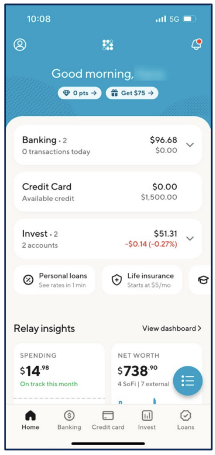
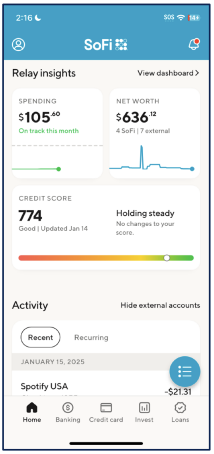
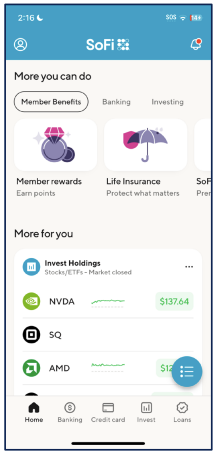
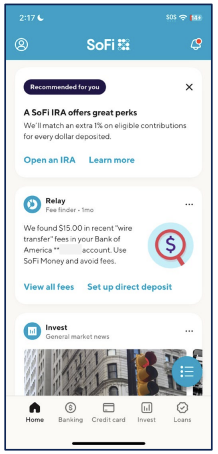
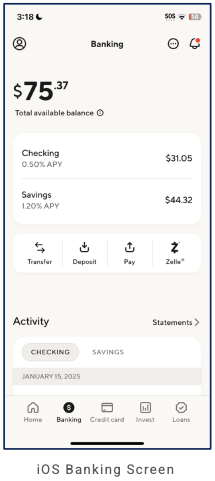
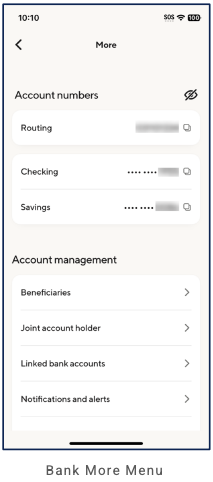
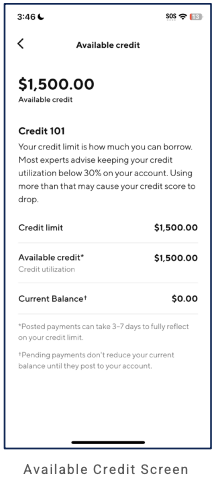
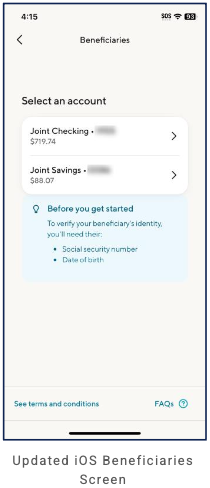
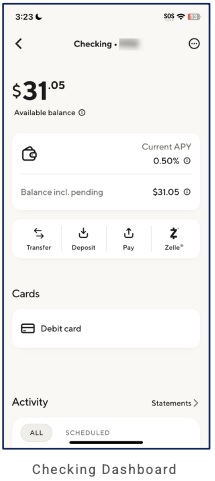
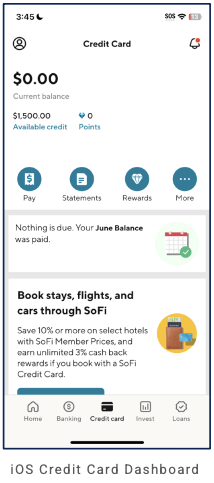
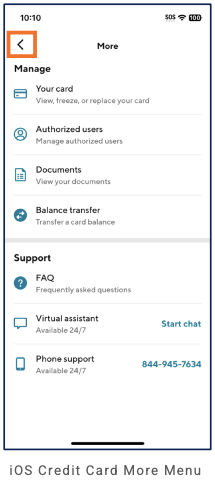
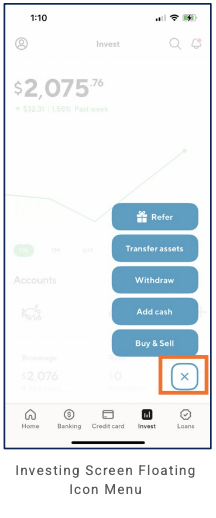
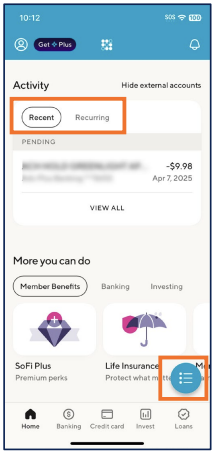
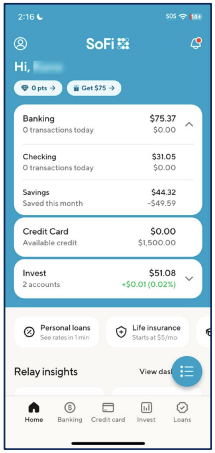
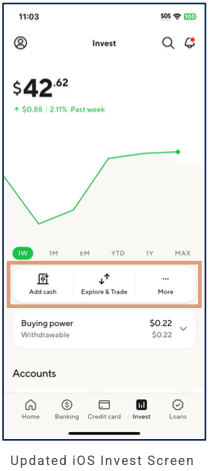
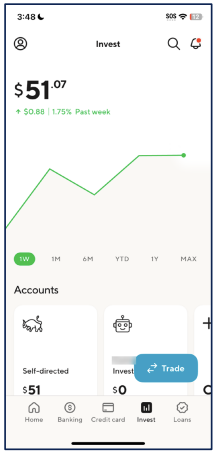
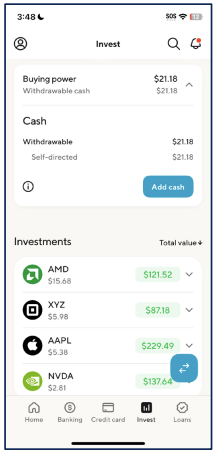
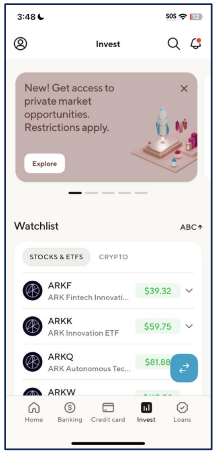
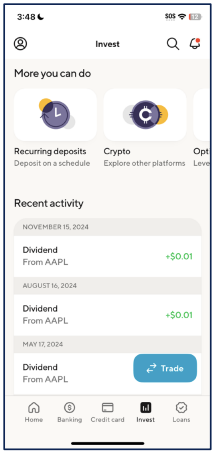
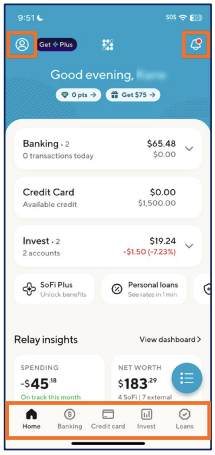
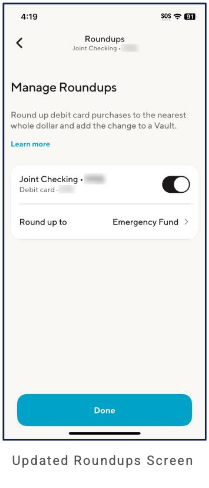
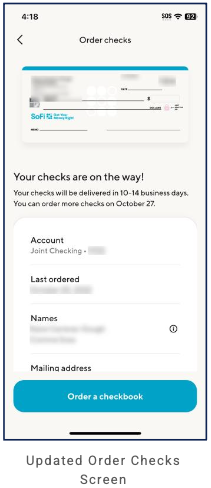
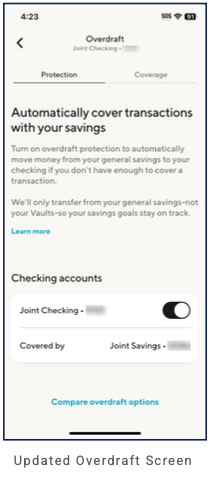
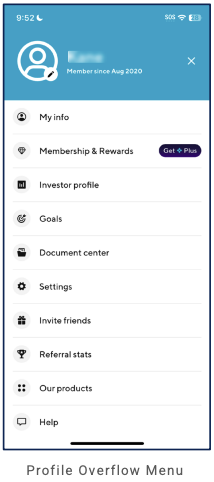
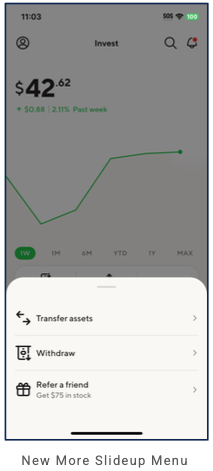
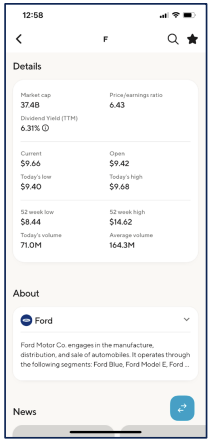
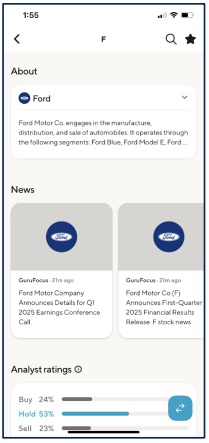
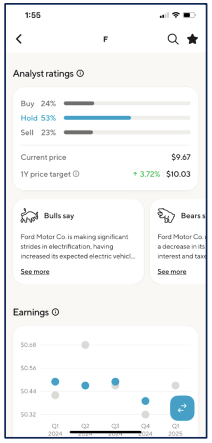
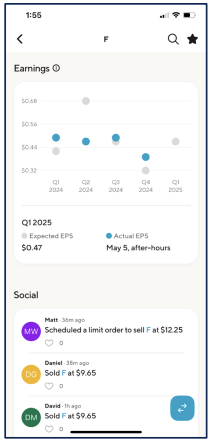
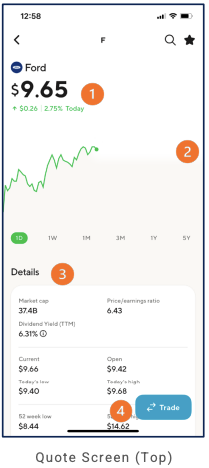
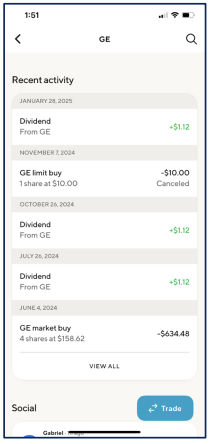
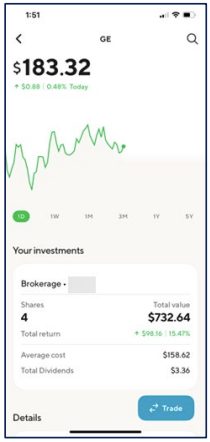
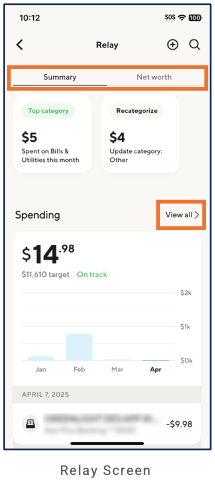
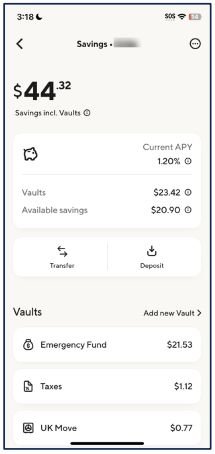
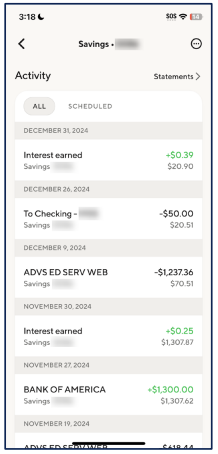
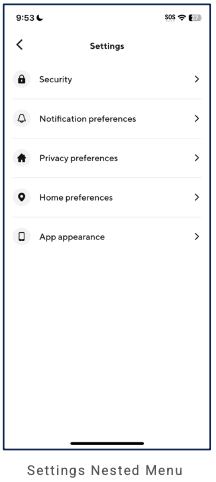
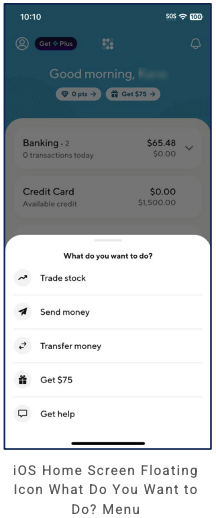
T. Rowe Price (Asset management / investing)
Partial audit. This entry is based on the full set of 14 screenshots provided. Quote and charting flows (Brokerage and Quotes & News) are fully documented; primary navigation and home/dashboard were not captured. What follows is a record of what is visible.
Primary navigation
Not visible in provided screens. Captured views show a Brokerage Accounts context (dark blue header with "Brokerage Accounts" and Close) and a Quotes & News context (header with "Quotes & News", < Back). No bottom navigation bar appears; primary tab count and labels are TBD.
Home / dashboard
Not captured. No home or accounts dashboard screens were provided. All screens are within a brokerage/quote or Quotes & News flow.
LOB placement
From the captured flow: Brokerage is the visible LOB—header "Brokerage Accounts"; T. Rowe Price branding bar (hamburger, logo, Quick search, ram icon); Real-Time | Delayed ON, Turn Help ON; Symbol Search; Quick Quote (Overview/Your Total Balance; Quick Quote with X, Full Quote link; symbol, price, BID/ASK, Volume, Open/Close, 52W; chart) and Full quote for a symbol (e.g. Boeing Co/BA or Ford F). From full quote scroll, SEC Filings is a dedicated screen (Filter: Show All Types, Trailing Twelve Month; table TYPE, FILING DATE, CATEGORY). Quotes & News (header with < Back) surfaces a quote view: Stock Quote (symbol, company, timestamp; Last, Change, Volume, Bid/Ask) and Detailed Quote (Open, High, Low, Previous Close, Volume, 52 High/Low, Shares Outstanding, Market Cap); then metrics (P/E, EPS, Dividend, Div Yield, Ex Date, Pay Date) and Interactive Charting (timeframe e.g. 1Y, Chart Options; area chart). Further scroll: Performance (as of date; 1W, 1M, 3M, 1Y, 5Y with % and red/green bars); News Headlines & Press Releases (timestamp, headline, source); Analyst Ratings (as of date; Buy, Overweight, Hold, Underweight, Sell with counts and bars; Mean Recommendation); Financials (Balance Sheet | Income | Cash Flow tabs; Dec 2023/2024 columns; Total Assets/Liabilities/Equity expandable, Total Assets bar chart 2021–2024); Company Profile (Industry, Sector, Employees, CEO, Address, Phone, Website; description). Same context → Advanced Charting (Adjust Chart: styles, compare to index/symbol). Investing/research-oriented; other LOBs not visible.
Depth of hierarchy
Brokerage quote flow (Brokerage Accounts header): Symbol Search (Enter name or symbol) or nav bar search. Quick Quote view: Overview/Your Total Balance; "Quick Quote" (dismissible with X), "Full Quote" link and dropdown; symbol (e.g. F FORD MOTOR CO), price, change; BID/ASK (size, exchange); Volume, Open/Close; 52 Week High/Low; quote timestamp and disclaimer; line chart. Full quote (e.g. Boeing Co/BA or Ford F): company name, ticker, Add to Watchlist; Sector, Industry; Last price, Today's Change; BID/SIZE, ASK/SIZE; Day's Low/High; Volume. Scroll: 52 Week Range; Dividend (Most Recent, Ex-Dividend Date, Dividend Yield, Annualized Dividend); Market data disclaimer; Trade button; Summary dropdown. Price Performance: timeframe "Current" with refresh; Yesterday's/Today's Change; line chart. Further scroll: Upcoming Calendar Events (Next Earnings, earnings summary); Fundamentals (EPS, REVENUES bar charts; symbol "compared to the market" sliders—PRICE/BOOK, TOTAL DEBT/EQUITY, PRICE/SALES, RETURN ON EQUITY). SEC Filings: dedicated screen with Filter (Show All Types, Trailing Twelve Month); table columns TYPE (e.g. 8-K, 10-Q, DEFA14A, 4, ARS, DEF 14A, PX14A6G—clickable), FILING DATE, CATEGORY (Company Events, Quarterly Financials, Excluded, InsiderActivity, Annual Report, Proxy Statement). Quotes & News (header < Back): Stock Quote (e.g. F NYSE, Ford Motor Company; timestamp; Last Price, Change, Volume, Bid/Ask) + Detailed Quote (Open, High, Low, Previous Close, Volume, 52 High/Low, Shares Outstanding, Market Cap); search icon. Scroll: P/E, EPS, Dividend, Div Yield, Ex Date, Pay Date; Interactive Charting (timeframe e.g. 1Y, Chart Options; area chart US:F). Further scroll: Performance (as of date; 1W, 1M, 3M, 1Y, 5Y % with horizontal bars); News Headlines & Press Releases (timestamp, headline, source); Analyst Ratings (as of date; Buy/Overweight/Hold/Underweight/Sell with counts and bars; Mean Recommendation); Financials (Balance Sheet | Income | Cash Flow; Dec 2023/2024; Total Assets/Liabilities/Equity with expand + and Total Assets bar chart 2021–2024); Company Profile (Industry, Sector, Employees, CEO, Address, Phone, Website link; company description). From Quotes & News, Advanced Charting (< Back): Adjust Chart—Chart Styles (Line, Mountain, OHLC, Candlestick); Compare To Index (S&P 500, DJIA, NASDAQ); Compare To Symbol (Enter Symbol/Company Name, search). One level of drill within quote and charting; primary nav TBD.
Cross-LOB patterns
Quote and charting are symbol-centric. Brokerage flow: Quick/Full quote, SEC Filings. Quotes & News flow: Stock Quote + Detailed Quote, metrics, Interactive Charting; Performance (1W–5Y bars), News Headlines & Press Releases, Analyst Ratings, Financials (Balance Sheet/Income/Cash Flow), Company Profile; separate entry to Advanced Charting. Full quote in Brokerage combines key stats, 52-week/dividend, Trade, Performance, calendar, fundamentals, SEC Filings.
Personalization
Add to Watchlist is present on the quote screen. No other personalization controls visible in the fourteen screens; more screens may expose preferences (TBD).
Observations and conclusions
What we see: A brokerage quote–centric flow: header "Brokerage Accounts" with Close; T. Rowe Price nav (hamburger, logo, Quick search, profile/ram icon). Quick Quote (Overview; Quick Quote/Full Quote toggle): symbol, price, change, BID/ASK, Volume, Open/Close, 52W, line chart. Full quote (e.g. BA or F): key stats, Add to Watchlist; 52-week range, dividend info, Trade; Summary; Price Performance chart; Upcoming Calendar Events, Fundamentals (EPS, Revenues, symbol vs market sliders). SEC Filings (dedicated screen): Filter (type, Trailing Twelve Month); table TYPE, FILING DATE, CATEGORY. Quotes & News (header < Back): Stock Quote + Detailed Quote (F, Ford; Last, Change, Volume, Bid/Ask; Open, High, Low, 52W, Market Cap); P/E, EPS, Dividend, Div Yield, Ex Date, Pay Date; Interactive Charting (1Y, Chart Options, area chart). Further scroll: Performance (1W/1M/3M/1Y/5Y bars); News Headlines & Press Releases; Analyst Ratings (Buy/Hold/Sell, Mean Recommendation); Financials (Balance Sheet | Income | Cash Flow; Total Assets/Liabilities/Equity; Total Assets chart); Company Profile (Industry, Sector, Employees, CEO, Address, Phone, Website; description). Quotes & News → Advanced Charting: Adjust Chart (Line/Mountain/OHLC/Candlestick), Compare To Index/Symbol. Limitations: All 14 provided screens documented; primary navigation and home/dashboard were not captured. Partial record for overall IA.
Screenshots
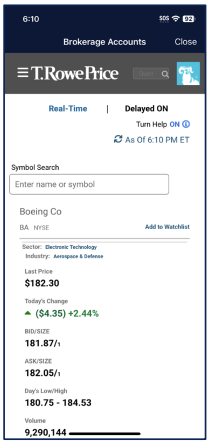
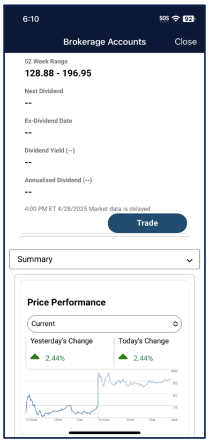
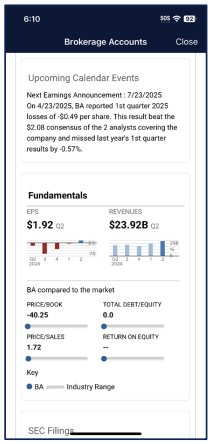
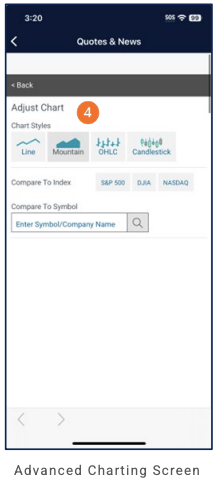
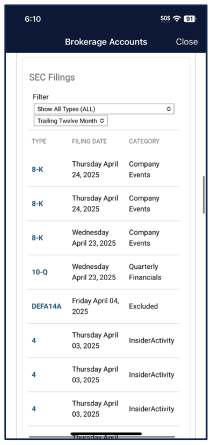
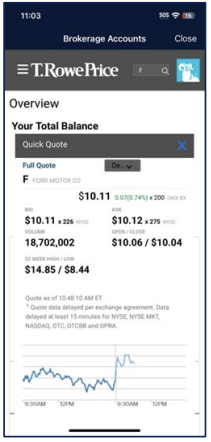
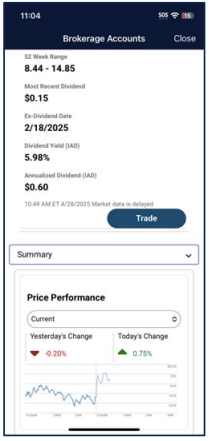
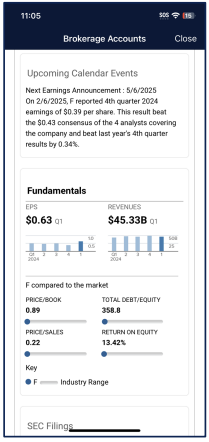
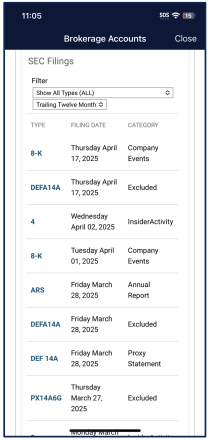
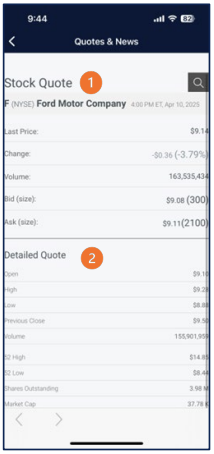
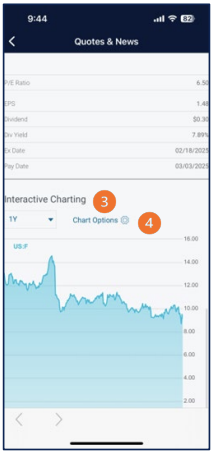

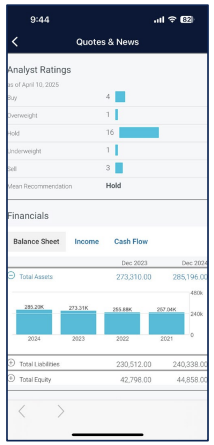

TIAA (Retirement / wealth)
Primary navigation
3 tabs, bottom nav: Home, Actions, Profile. Header: TIAA logo (left), greeting "Hi, [name]" or Total balance (e.g. $312,844.82) in center, notification bell with badge (e.g. "2") right.
Home / dashboard
Home is a single scrollable screen; the first three screenshots document three scroll positions. (1) Total balance (e.g. $312,844.82), "As of dates vary"; performance Since 12/31/2024 (-$197.61 -0.95%, red arrow, (i)). Announcement banner ("1 of 2", e.g. Passkeys available, X dismiss). Brokerage (tab blue underline, ellipsis): Total balance "As of today at [time]"; account rows (name, balance, chevron)—e.g. TIAA Personal Portfolio. (2) IRA promo: "Open an IRA in just a few simple steps", Get started. Outside Assets (blue underline): Total balance (arrow); "Balances not updated?" Learn more. Asset Allocation (blue underline): donut + legend (Equities, Fixed Income, Money Market %). (3) Goals (blue underline): + Create goal; goal card (e.g. General investing, progress). Meet your financial professional (blue underline): "Schedule an appointment", Book now. Last login; Privacy notices (TIAA, TIAA Trust, EverBank, ©2025). Actions tab: header "Actions"; list (blue links, chevron): Transfer money, Trade, Open an IRA, Add / Manage external accounts, View statements. Brokerage options lightbox (from Brokerage ellipsis on Home): title "Brokerage options"; Transfer Money, Buy, Sell, Add/Manage external accounts, View statements; Cancel. External accounts (back, "External accounts"): list of linked external accounts (e.g. Ally Bank Checking) with Status: Verified, ellipsis per account; Add account (yellow CTA). TIAA Brokerage (investing dashboard, from Home Brokerage account row): back, "TIAA Brokerage" (masked id), search; Total Value (e.g. $12,910.55) "as of today at [time]"; tabs Summary | Activity | Research. Summary: Securities/Cash; "View account balance" → Balances slide-up (Close; Total value, Securities, Cash; Cash account/Account type; Securities: Stock/ETF, Fixed Income, Mutual funds, Options, Other; Cash: available to invest, available to withdraw). Balance History (1W/6M/1Y/ALL, line chart); My holdings (Total Value sort); holding rows with Add Money; yellow Add Money. Activity: Past activity (Last 24 months, filter); table Date, Sym, Activity, Qty, Amount; Add Money. Research: Markets (DJIA, NASDAQ, S&P 500); More; Watchlist; Add Money. Home tab stays active in brokerage drill-down. Inbox (from notification bell or Profile): back, "Inbox", search; tabs Notifications (count), Messages, Files; list of "Transaction Status" items (date, subtitle e.g. Quarterly Review: TIAA Personal Portfolio account, Step 1/3: Finish your application). Portfolio screen (TIAA Personal Portfolio, from Home Brokerage account row): back, "TIAA Personal Portfolio"; tabs Summary | Activity; Summary: Current balance, 2025 starting balance; Projected future value at retirement age (e.g. 55)—strong/average/weak market scenarios with line graph (Today–2027); Add Money. Profile tab (overflow): header bell (badge), envelope, folder; profile (pic/name, Edit personal info); list: Statements, Upload files, Contact financial consultant, Settings, Contact us; More: Fund tracker, Locate an office; bottom nav Profile active. Statements (from Profile): back, "Statements"; Statements and documents (chevron), Tax statements (chevron). Quote screen (e.g. F – Ford Motor Co., from Research/search): back, ticker, company name; price; BUY; Performance (graph, 1D/1W/6M/1Y/ALL); Quote details (Bid, Ask, Last, Open, high/low, 52Wk, Volume, Mkt cap, P/E, Div/Yield); About; no bottom nav in quote flow.
LOB placement
Investing/retirement: Home surfaces Total balance, Brokerage (account list), Outside Assets, Asset Allocation. TIAA Brokerage (brokerage-account drill-down): Summary, Activity, Research. Quote screen (symbol drill-down): price, BUY, Performance, Quote details, About. TIAA Personal Portfolio (portfolio-account drill-down): Summary (current/starting balance, projected value at retirement), Activity. Inbox (Notifications/Messages/Files). Actions tab; Brokerage options lightbox; External accounts. Goals and Meet your financial professional on Home. Profile tab: Statements, Upload files, Contact financial consultant, Settings, Contact us; More (Fund tracker, Locate an office).
Depth of hierarchy
Home → Brokerage account row → TIAA Brokerage (Summary | Activity | Research) or TIAA Personal Portfolio (Summary | Activity). Research/watchlist or search → Quote screen (BUY, Performance, Quote details, About). View account balance → Balances slide-up. Notification bell → Inbox. Brokerage ellipsis → Brokerage options lightbox. Actions tab → action list. Add/Manage external accounts → External accounts. Profile tab → Statements → Statements and documents | Tax statements; Upload files, Contact financial consultant, Settings, Contact us; More (Fund tracker, Locate an office). Goals; Meet your financial professional.
Cross-LOB patterns
Total balance aggregates; Brokerage + Outside Assets + Asset Allocation on one scroll; Goals and advisor scheduling on Home. Add/Manage external accounts and External accounts support Outside Assets. Brokerage dashboard: Summary/Activity/Research, Balances modal. Inbox unifies Transaction Status, account reviews, application progress. Portfolio screen: retirement-age projection. Profile hub: Statements (nested Statements and documents / Tax statements), advisory (Contact financial consultant), Settings, Fund tracker, Locate an office. Quote screen (brokerage/trading): BUY, Performance, Quote details.
Personalization
Inbox: Notifications/Messages/Files tabs; Transaction Status list. Profile: Edit personal info; Statements (Statements and documents, Tax statements); Settings; Fund tracker; Locate an office. Portfolio: personalized projection at retirement age. TIAA audit complete (16 screens).
Screenshots
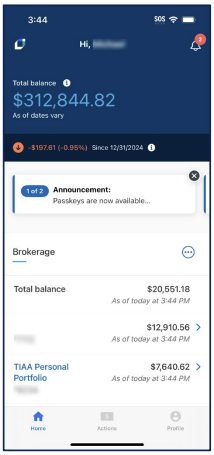
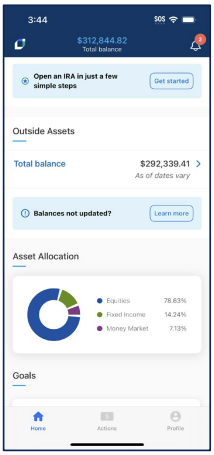
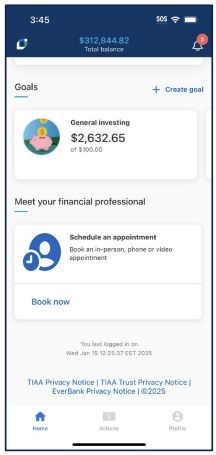
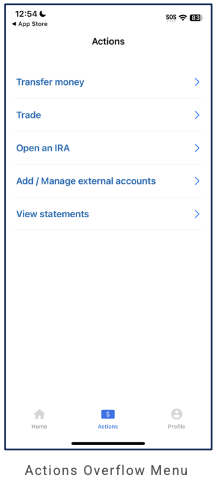
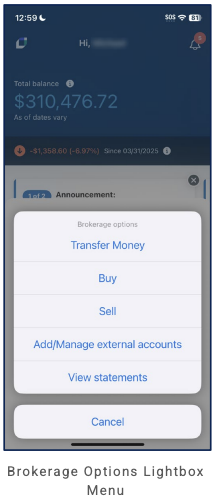
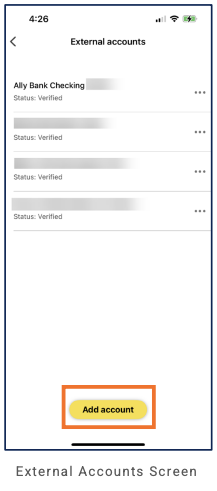
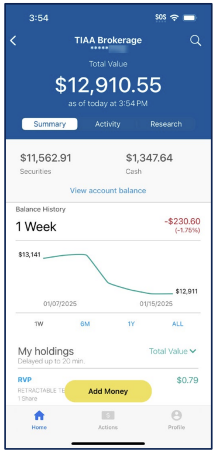
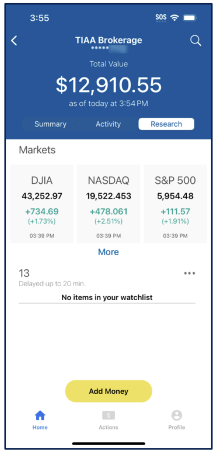
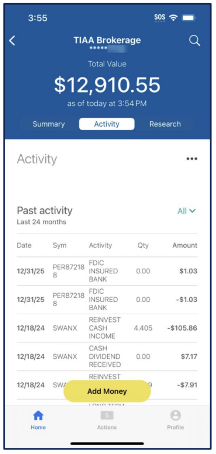
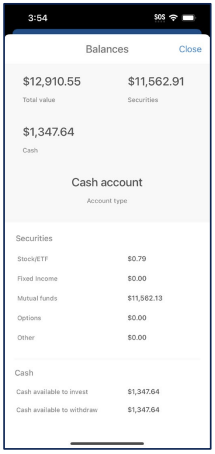
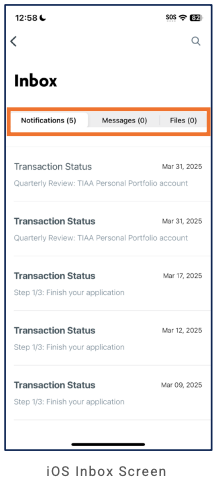
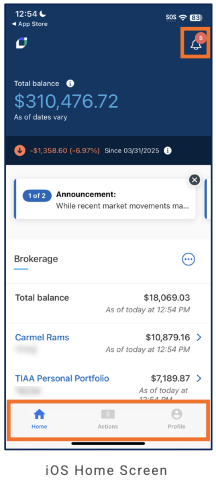
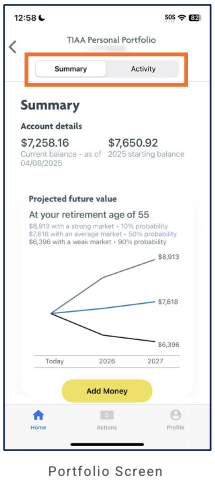
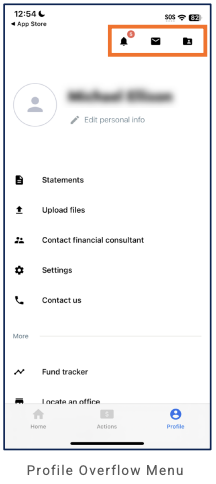
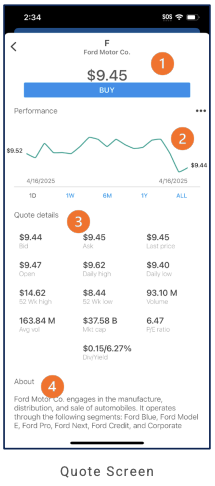
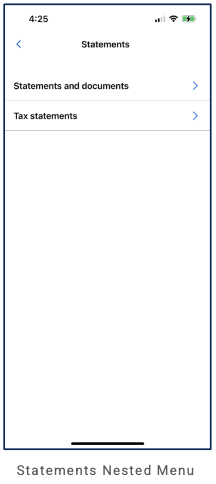
Thinkorswim (Investing / trading – Schwab)
Partial audit. This entry is based on all 19 screenshots (audit complete). Primary navigation (5-tab bottom bar: Overview, Positions, News, Trade, More with badge). Header: All Accounts dropdown, Settings (gear), Search. Overview tab is a scrollable dashboard: Account Balances (Net Liq, P/L Day, Option Buying Power, Cash & Sweep Vehicle); ACCOUNTS (1 of 21), Show All; My Position Movers (position tiles grid); Markets (indices, time to close); Orders (Working, Filled, Canceled); Watchlists (default, SPY, AAPL cards); Calendar (Week | Today, event-dot legend); Portfolio Digest (news with Symbol/Industry tabs); News feed; Trader TV (Schwab Network, CNBC); Chatrooms (Trader Lounge, Swim Lessons). Positions tab: holdings table by account (Symbol, Trade Price, Margin, Delta; gear, dropdown); contextual help (X, ?) opens Actions slider (Position icons, Working order, 24-hour trading; pagination). Customize Menu (More): long-press and drag to reorder grid (Alerts, Balances, Messages, Transfers, Watchlist, Calendar, Orders, Trader TV, Chat Rooms, Settings, Help, Logout). Customize Overview: VISIBLE/HIDDEN widgets (Account Balances, My Position Movers with gear; Markets, Orders, Watchlists, Calendar, Portfolio Digest, Trader TV, Chatrooms); RESET TO DEFAULTS; reorder. Orders screen (Working | Filled | Canceled | All | Saved; Hide Columns; empty state with link to All). More tab opens overflow slide-up (All Accounts/Switch Account; grid: Alerts, Balances, Messages, Transfers, Watchlist, Calendar, Orders, Trader TV, Chat Rooms, Settings, Help, Logout). Pinned Accounts slide-up (Net Liq, eye; PINNED ACCOUNTS EDIT, OTHER ACCOUNTS). Portfolio Digest sort lightbox (Most Recent, Most Relevant, Cancel). Settings (More → Settings): ACCOUNT OPTIONS (Group by Account, Default Account); LOGIN & SECURITY (Security Settings, Request Authentication, Device Management, Privacy Mode); NOTIFICATIONS (Push, Message Sound); HELP SUGGESTIONS (In-App Help). Trade tab: Streaming Quote swipe menu (watchlist "default", pencil; quote list with mini-chart, price, change); Trade ticket (Buy SPY/IWM): Close | Buy [ticker] | gear; price, Bid/Ask; Order Type dropdown (Market, Limit, Stop, Stop Limit, Trail Stop, Trail Stop Limit, MOC, LOC); Limit, Day; form (Limit price, Shares, Position, Exchange, Account, Tax Lot Method); More slide-up (Create Advanced Order, Save Order, View Orders, View Positions, View Balances); More, Review buttons.
Primary navigation
5-tab bottom navigation: Overview (grid icon, selected), Positions (briefcase), News (newspaper), Trade (chart/arrow), More (three dots, badge e.g. 9). Header: All Accounts dropdown (left/center), Settings (gear), Search (magnifying glass) right.
Home / dashboard
Overview tab = home/dashboard (scrollable). (1) Account Balances—Net Liq (eye icon), P/L Day (green); Option Buying Power; Cash & Sweep Vehicle. ACCOUNTS (1 of 21) with Show All; one account (e.g. IRA) with balance and P/L Day. My Position Movers—0.52% P/L Day (info icon); grid of position tiles (IVV, ITOT, AGG, MBB with price, change, value). (2) Markets—"2:07:12 until close"; list SDJI, SPX, RUT, NDX (value, % change). Orders—Working, Filled, Canceled (0 each). Watchlists—grid/list toggles; "default" row; horizontal cards (SPY, AAPL, SPX with price and change). (3) Calendar—Week | Today; 5-day strip (TUE–SAT) with colored dots; legend (Conference Calls, Earnings, Splits, Dividends, Economic Events, Futures Liquidation). Portfolio Digest—tabs Portfolio Digest | Symbol | Industry; "Most Relevant" dropdown; news list (headline, ticker, value, date). (4) News feed (e.g. Meta headlines, META ticker, View All). Trader TV—Schwab Network, CNBC US Video, CNBC International cards. Chatrooms—Trader Lounge, Swim Lessons (live indicators).
LOB placement
Investing/trading only. Overview aggregates balances, accounts, position movers, markets, orders, watchlists, calendar, portfolio digest/news, Trader TV, Chatrooms. Positions tab: holdings table grouped by account with Symbol, Trade Price, Margin, Delta; gear and Trade Price dropdown; contextual help (?) opens Actions slider (Position icons, Working order, 24-hour trading/EXTO). More tab: overflow slide-up (All Accounts/Switch Account; grid Alerts, Balances, Messages, Transfers, Watchlist, Calendar, Orders, Trader TV, Chat Rooms, Settings, Help, Logout); Customize Menu to reorder. Orders (Working, Filled, Canceled, All, Saved; Hide Columns; empty state). Pinned Accounts slide-up (Net Liq, PINNED/OTHER, EDIT). Portfolio Digest lightbox sort (Most Recent, Most Relevant). Settings (More): Account options, Login & security, Notifications, Help. Trade: Streaming Quote swipe menu (watchlist, quote list); Trade ticket (Buy, Order Type dropdown, Limit/Day, form); More slide-up (Create Advanced Order, Save Order, View Orders, View Positions, View Balances).
Depth of hierarchy
Overview → tappable sections (Account Balances arrow, ACCOUNTS Show All, My Position Movers arrow, Orders arrow, Watchlists default). All Accounts dropdown opens Select Account slide-up (Cancel | Select Account | eye; Live Trading | paperMoney® toggle; All Accounts + scrollable account list with balance and P/L). Account Balances section → Account Balances customize slide-up (Pinned Accounts; VISIBLE/HIDDEN metrics, reorder). Overview → Customize slide-up (VISIBLE WIDGETS / HIDDEN WIDGETS: Account Balances, My Position Movers (gear), Markets, Orders, Watchlists, Calendar, Portfolio Digest, Trader TV, Chatrooms; RESET TO DEFAULTS; reorder). Positions tab: holdings table; contextual help (?) → Actions slider (Position icons, Working order, 24-hour trading; handle, X, pagination). More tab → overflow slide-up (All Accounts/Switch Account; grid Alerts, Balances, Messages, Transfers, Watchlist, Calendar, Orders, Trader TV, Chat Rooms, Settings, Help, Logout); Customize Menu (reorder). Orders screen: Working | Filled | Canceled | All | Saved; Hide Columns; Symbol, gear, Status, Side; empty state. Account Balances / ACCOUNTS → Pinned Accounts slide-up (Close | Net Liq | eye; PINNED EDIT, OTHER ACCOUNTS). Portfolio Digest "Most Relevant" dropdown → lightbox (Most Recent, Most Relevant, Cancel). More → Settings (Account options, Login & security, Notifications, In-app help). Trade tab: Streaming Quote swipe menu (default watchlist, pencil; quote list with mini-chart, price, change); Trade ticket (Close | Buy [ticker] | gear; price, Order Type dropdown Market/Limit/Stop/Stop Limit/Trail Stop/Trail Stop Limit/MOC/LOC, Limit, Day, form); Trade ticket More slide-up (Create Advanced Order, Save Order, View Orders, View Positions, View Balances). Search.
Cross-LOB patterns
Single Overview hub combines portfolio (balances, accounts, position movers), markets, orders, watchlists, calendar/events, news (Portfolio Digest + feed), video (Trader TV), and community (Chatrooms). No banking or other LOBs visible.
Personalization
All Accounts dropdown → Select Account slide-up (Live/paperMoney®; account list; eye) or Pinned Accounts slide-up (Net Liq, eye; PINNED ACCOUNTS EDIT, OTHER ACCOUNTS; balance and P/L Day). Account Balances customize: Pinned Accounts; VISIBLE/HIDDEN metrics; RESET. Overview customize: VISIBLE/HIDDEN widgets; RESET TO DEFAULTS; reorder. More overflow: grid (Alerts, Balances, Messages, Transfers, Watchlist, Calendar, Orders, Trader TV, Chat Rooms, Settings, Help, Logout); Customize Menu to reorder. Orders: Working/Filled/Canceled/All/Saved; Hide Columns. Portfolio Digest sort: lightbox Most Recent / Most Relevant. Settings (More): Group by Account, Default Account; Security, Request Authentication, Device Management, Privacy Mode; Push Notifications, Message Sound; In-App Help. Trade: Streaming Quote swipe menu (watchlist, quote list); Trade ticket Order Type (Market, Limit, Stop, etc.); Trade ticket More (Create Advanced Order, Save Order, View Orders, View Positions, View Balances). Eye icon (show/hide balance). Watchlists grid vs list. Positions: table columns, Trade Price; contextual help (?) → Actions slider. More badge.
Screenshots
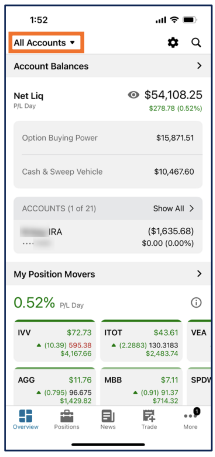
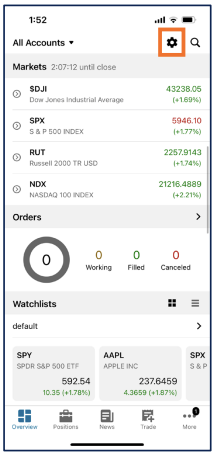
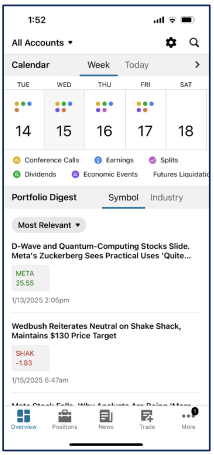
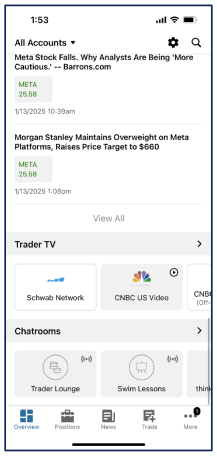
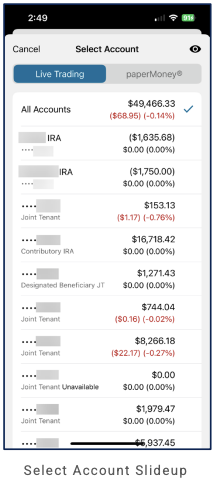
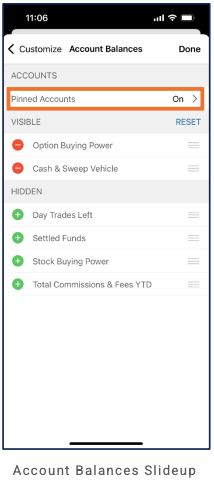
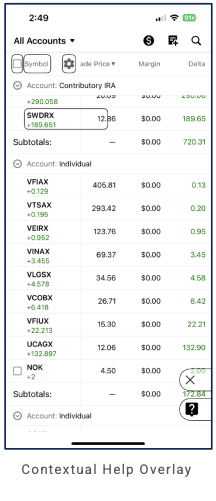
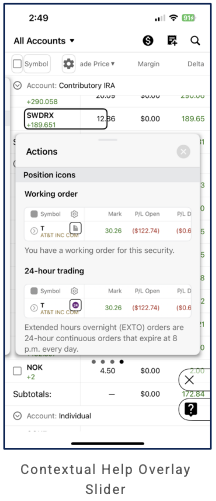
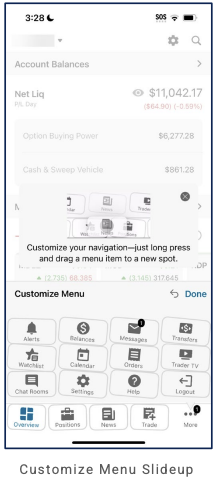
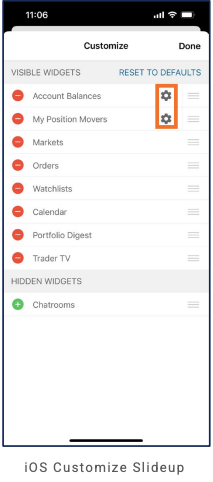
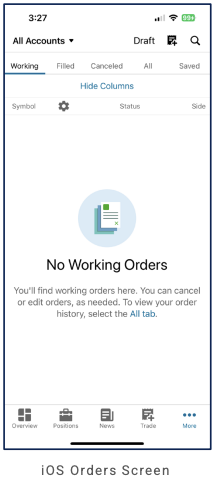
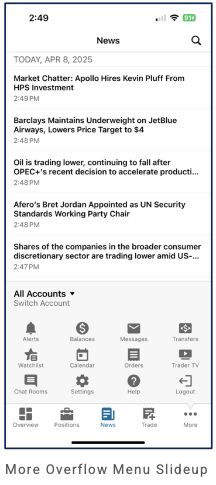
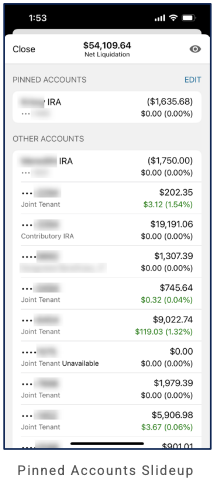
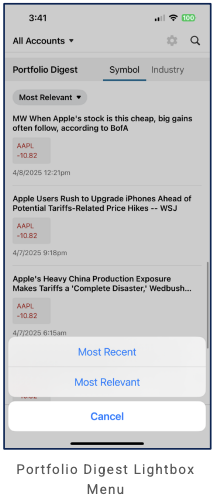
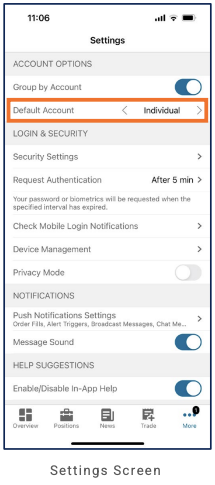
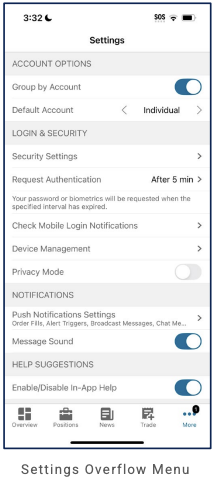
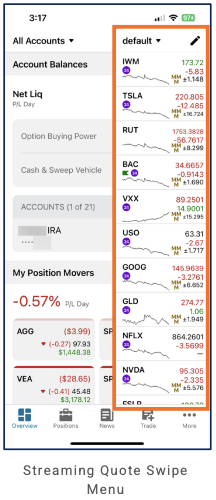
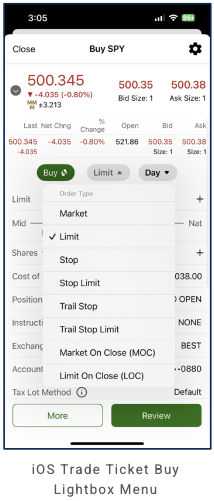
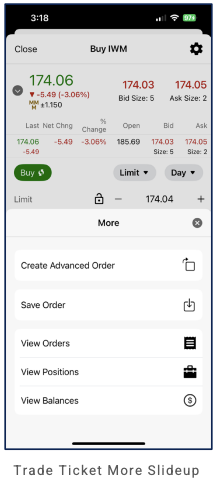
US Bancorp Self-Directed Investing (Investing standalone)
Primary navigation
Header: X (close), title "Quote". No bottom nav visible in quote flow; primary nav TBD from more screens.
Home / dashboard
Quote screen (e.g. F – Ford Motor Company): ticker F, TRADE, + WATCHLIST; company name, timestamp "as of … ET", Exchange List link; Last, Change (red if negative), Bid, Ask; volume/exchange (x 54 FINR, x 89 NYSE, x 88 OTHR). Tabs: Performance, Fundamentals, Options Chain, News. Performance: timeframes 1D, 1W, 1M, 3M, 6M, 1Y; line chart (price) + volume bar chart. Fundamentals: Volume, High, Open, Low, Prev. Close, 52W High, Exchange, 52W Low, PE, Yield, EPS, Amount, Dividend Ex-Date, Dividend Pay Date. Options Chain: Expiration, Type (Call); table Strike (ITM), Last, Bid, Ask, Change. News: feed (headline, timestamp, expand chevron).
LOB placement
Invest only: Quote screen with Performance (chart, volume), Fundamentals, Options Chain (filters + table), News; TRADE and + WATCHLIST.
Depth of hierarchy
Quote → Performance / Fundamentals / Options Chain / News tabs; TRADE, + WATCHLIST.
Cross-LOB patterns
Quote and tabs tied to symbol.
Personalization
TBD from more screens.
Screenshots
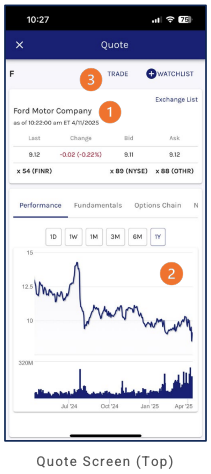
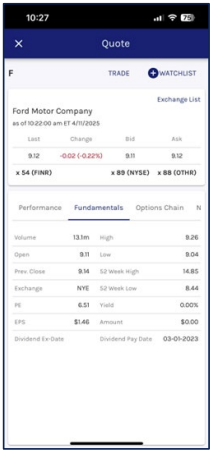
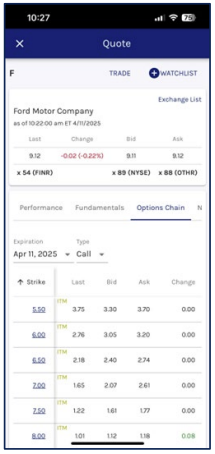
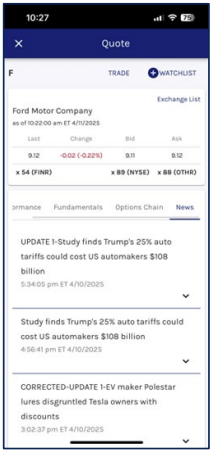
USAA (Bank + insurance / financial services)
Primary navigation
4 tabs, bottom nav: Home, Products, Search, Chat. Header: back, screen title (e.g. Balance Details, USAA CLASSIC CHECKING, Chat). Dark blue nav with yellow accent for active tab.
Home / dashboard
Home screen: Displays the user's accounts broken down by line of business (banking, investing, insurance). (Documented from 2 partial screenshots; no full home screen capture available.) Bank account (e.g. USAA Classic Checking): back, account name; Available Balance card with Learn More; quick actions My Account & Card, Transfer & Pay Bills, Deposit, More; expandable cards Recent Transactions (no transactions, View more transactions), Find a USAA ATM (expanded: copy on surcharge-free ATMs, Locate an ATM), January Snapshot (Track spending across accounts, View spending snapshot), Recent Statements (list with dates, View more statements). Balance Details (drill-down): Available/Current/Deposits on hold/Pending (each with Learn More). Customize (modal/screen): X to close; "Drag to reorder. Tap accounts and subgroups to modify. All changes are autosaved."; Banking section with account list (nickname, "Account Hidden" where hidden, arrow, reorder handle); bottom Reorder groups | Create subgroup. Create Subgroup: Back; form Subgroup name, Group (Select group, chevron); Save. Edit Account: Back; Account name (read-only); Display account toggle; Display balance toggle; Save. Products tab: header "Products"; list (icon, title, description, arrow): Banking (Explore and apply), Insurance (Get a quote), Investing (Learn more), Retirement (Explore retirement options), USAA Perks (Discover all your perks), Advice (Get personalized advice). Search: predictive search (suggestions e.g. bank statement, bank routing number, bank transfer); Cancel; keyboard. Leave confirmation: modal "Any progress you've made will not be saved." "Are you sure you want to leave?" Cancel | Exit (e.g. leaving Products). Profile (slide-up): Profile, Chat, X; user/USAA Number masked; Log off; Edit nickname and profile image; Inbox, Documents, Send documents to USAA; About me, Contact information, Family members, Bank overdue bill contact preferences. Reorder Groups: Back; "Drag to reorder. All changes are autosaved."; Banking, Retirement & Investments, Insurance (reorder handle each). Search (tab): "What can we help you find?"; Top Searches (Zelle®, routing number, Transfer funds, Activate card, ATM, insurance quote, proof of insurance, Update auto policy, View insurance bill). Transfer Funds: Back; tabs Transfer | Activity; form From, To, Amount, Frequency (e.g. Once, today), Memo (optional); Next; Transfer funds FAQ. Accounts (aggregated): 1099 banner; "Only Morgan Stanley accounts" toggle; View All Accounts; Total Wealth, Total Assets, Today's Change, Total Liabilities; Assets list. Chat: virtual assistant; conversation, quick action (e.g. Transfer Funds).
LOB placement
Home: accounts displayed by line of business (banking, investing, insurance). Banking: account view; Balance Details; Customize; Create Subgroup; Edit Account; Transfer Funds (Transfer | Activity; From/To/Amount/Frequency/Memo; Next). Products: dedicated tab (Banking, Insurance, Investing, Retirement, USAA Perks, Advice). Search: dedicated tab (predictive; Top Searches list). Chat: dedicated tab. Profile: slide-up. Customize: Reorder Groups (Banking, Retirement & Investments, Insurance). Accounts view with aggregation (Total Wealth/Assets, toggle, Assets list). Leave confirmation. LOB depth TBD from more screens.
Depth of hierarchy
Account → Balance Details; account → expandable cards. Customize → drag reorder, tap to modify (Edit Account: Display account, Display balance); Create Subgroup (name, Group, Save). Chat: suggested actions → conversation → quick action.
Cross-LOB patterns
Home surfaces accounts by LOB (banking, investing, insurance). Balance Details explains balance types. Chat surfaces tasks. Customize (autosaved): reorder, hide/show account and balance per account; groups/subgroups.
Personalization
Customize: drag to reorder accounts; tap account → Edit Account (Display account, Display balance toggles); Reorder groups; Create subgroup (name, Group). Autosaved.
Screenshots
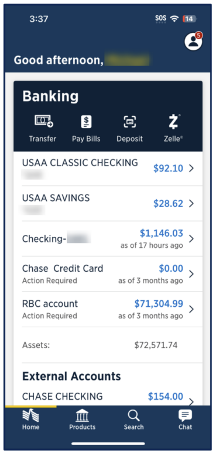
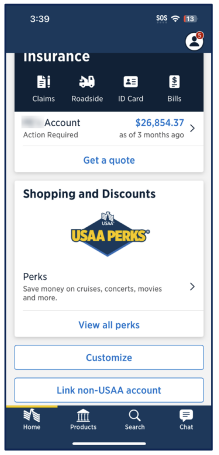
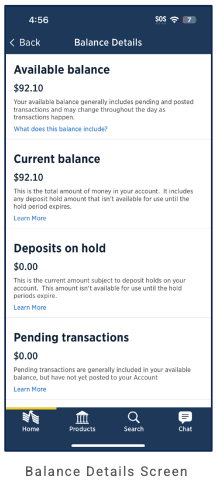
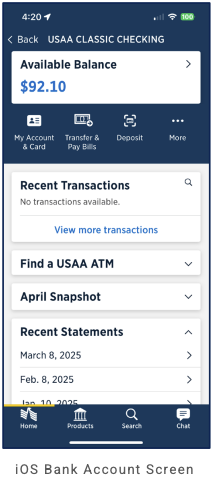
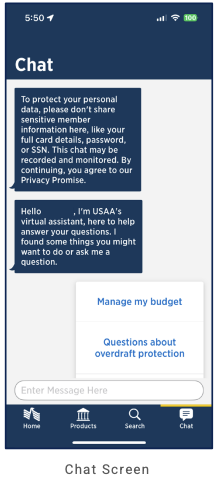
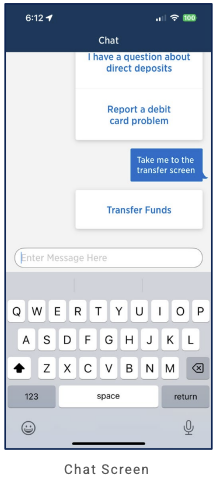
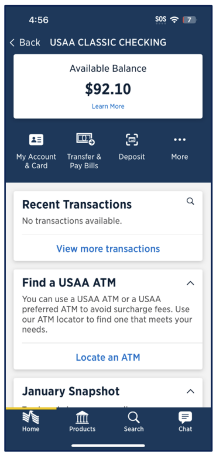
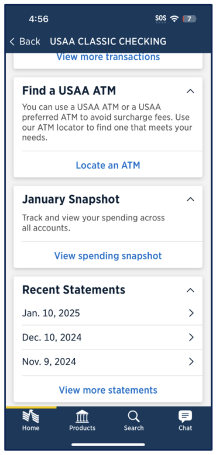
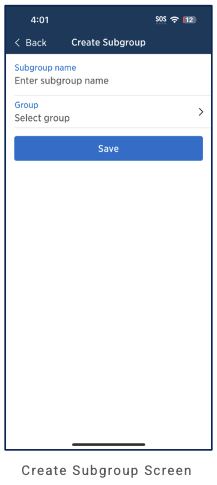
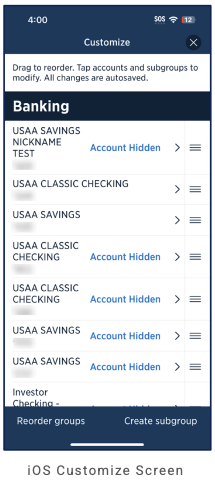
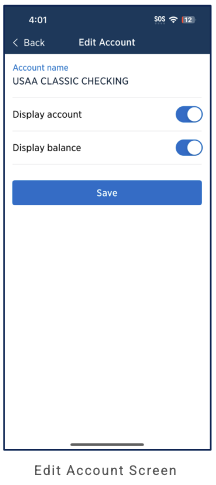
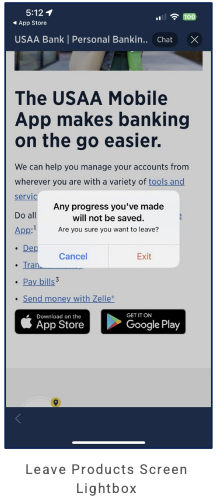
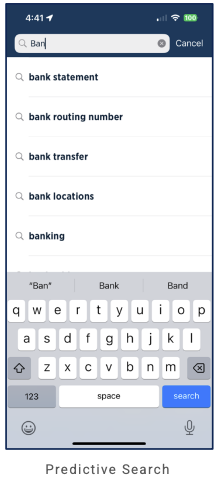
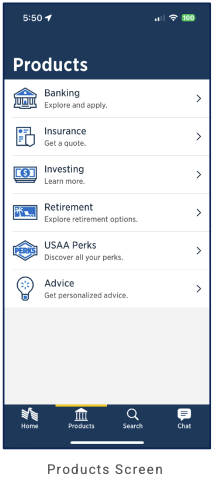
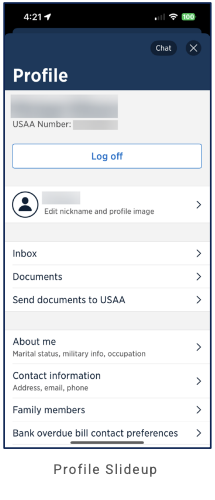
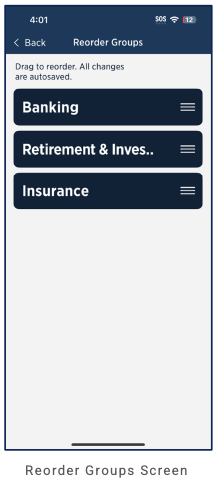
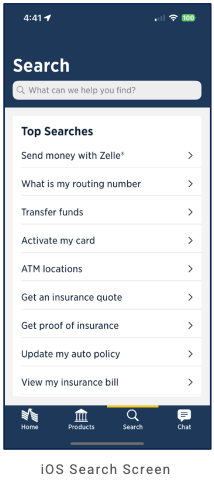
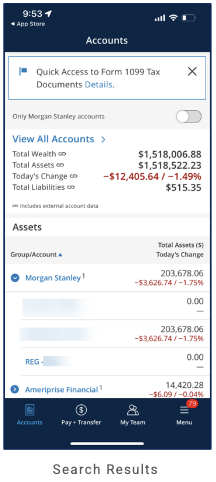
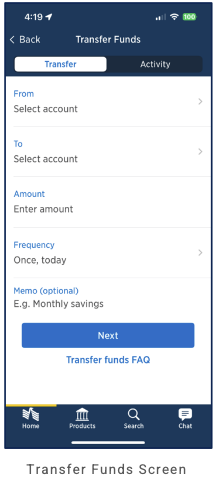
US Bank (Bank)
Partial audit. This entry is based on 28 of 28 screenshots. Primary navigation (5-tab bottom bar: Accounts, Transfer & pay, Plan & track, Products & offers, and fifth tab). Header: hamburger (left), U.S. Bank Smart Assistant search bar (magnifying glass, microphone). Accounts tab = home (scrollable): Welcome; alert banner; quick actions (Deposit check, Send | Zelle®, Pay bills, overflow); content cards (TRENDING NOW, OVERVIEW, or Cash Back Deals, Savings Pre-Commitment, Home Mortgage, or mortgage/checking promo and Smart Assistant Shortcuts); Assets CHECKING & SAVINGS (account rows with balance, arrow). Checking account drill-down: back, account name, search; tabs Overview | Upcoming | Manage. Overview: Current balance, Available balance (info icon); Search, Sort; COMPLETED transactions (View more transactions); SAVINGS PRE-COMMITMENT card (kebab). Alternate Overview: promo cards (EARN MORE SMARTLY / Smartly Visa, TRENDING NOW, FIND YOUR NEXT CARD; ellipsis each). Upcoming tab: Available balance, info; "Upcoming transactions... Learn more"; SCHEDULED & EXPECTED; "You have no scheduled transactions in the next 7 days"; Schedule a bill payment button. Dashboard variant: COMPLETED transactions, View more; CD SPECIAL promo (CD rates up to 4.00% APY, ellipsis). Cancel transfer confirmation: "Want to cancel your transfer?"; "You'll lose all the info you've added so far."; X; Yes, cancel transfer; No, continue transfer. Accounts home variant: hamburger, speech bubble, search, mic; Welcome; quick actions; CASH+® VISA® promo (X); Assets (three account rows). Credit card (from account list): back, search; tabs Overview | Rewards | Manage. Overview: Current balance, remaining credit; Statement balance, Autopay; Make a payment, Explore ExtendPay; Track your card (Go); Search, Sort; COMPLETED transactions; or promo cards (REAL-TIME REWARDS, U.S. BANK EXTENDPAY® PLAN; ellipsis). Rewards tab: Perks+ Visa Signature® Card; points balance; Redeem rewards, Rewards summary, Card benefits; HEADS UP (changes notice); EARN REWARDS (5X Travel Center, 2X gas/grocery). Manage tab: ACCOUNT DETAILS (nickname, type, credit limit, Request increase, Statement closing, View statements); PAYMENT SETTINGS (Autopay, ExtendPay); CARD CONTROLS (Activate). External account: SHOW ON DASHBOARD toggles; ACCOUNT REFRESH; Remove linked accounts. Help center slide-up: Search help topics; article (e.g. set up financial goal and fund it). Checking Manage: ACCOUNT DETAILS (name, Smartly Checking, account & routing, Interest, fees), CARD CONTROLS (Activate), ACCOUNT SERVICES (statements, overdraft, notifications, direct deposit, Smart Rewards, Greenlight, status dashboard), ACCOUNT OPTIONS (stop payments, order checks, foreign currency). Overflow menu: hamburger top-left → Menu (Profile & settings, Smart Rewards; MANAGE, DOCUMENTS, CUSTOMER SUPPORT; Log out). Smart Assistant predictive search (Search results, quick actions, send, mic). Products & offers tab: Products | Life moments; FINANCIAL PRODUCTS (Checking, Savings, CD, Credit cards, Personal loans, Home mortgage/refinance/equity). Profile & settings: Personal details, Login preferences, Email marketing, Alerts & notifications, Language. Shortcuts: FAVORITES (remove, reorder), MORE SHORTCUTS (add, toggle). Smart Assistant hub (Top searches, Shortcuts, Related articles). Smart Rewards lightbox (Add other accounts, View rewards dashboard). Transfer & pay tab: TRANSFERS, PAYMENTS & BILLS (Zelle®, Pay bills), DEPOSITS; See transaction limits. Plan & track tab TBD. Audit complete (28 of 28).
Primary navigation
5-tab bottom navigation: Accounts (hub/home), Transfer & pay, Plan & track, Products & offers, and a fifth tab (+ or More). Header: hamburger (left, opens overflow Menu), U.S. Bank Smart Assistant (search bar with magnifying glass and microphone; opens predictive search with Search results and quick actions).
Home / dashboard
Accounts tab = home (scrollable). (1) Welcome + name; alert banner (e.g. disaster relief, usbank.com/DisasterRelief). Quick actions: Deposit check, Send | Zelle®, Pay bills, overflow (…). Content cards: TRENDING NOW ("Is a market correction coming?", X dismiss); OVERVIEW ("Life it. Be covered."). Assets — CHECKING & SAVINGS: two checking account rows (U.S. Bank logo, balance, arrow). (2) Alternate: primary actions Open a new account, Link external accounts, Make an appointment, View transaction limits; VIEW TRANSACTIONS "Review your most recent transactions" with recent list (e.g. Monthly Maintenance Fee Waived +$6.95, Zelle $10.00). (3) CASH BACK DEALS: carousel (Puffy 10%, Stitch Fix $12, Potbelly 10%; Activate, "new"); View all deals (44). SAVINGS PRE-COMMITMENT: "Expecting a tax refund or bonus?", piggy bank icon; ellipsis. U.S. BANK HOME MORTGAGE (partial). (4) U.S. BANK HOME MORTGAGE card ("A mortgage that's flexible and affordable"); CHECKING promo (direct deposit); SMART ASSISTANT SHORTCUTS (partial).
LOB placement
Banking-focused. Accounts hub surfaces checking & savings (Assets); tap account row → Checking account (Overview | Upcoming | Manage) or Credit card (Overview | Rewards | Manage). Checking: balance, COMPLETED, CD SPECIAL, Upcoming (Schedule a bill payment). Credit card: Overview (balance, Statement, Autopay, Make a payment, ExtendPay, Track card, COMPLETED; or REAL-TIME REWARDS, ExtendPay® Plan cards); Rewards (points, HEADS UP, EARN REWARDS); Manage (Account details, Payment settings, Card controls). Cancel transfer confirmation. External/linked accounts (e.g., Ally linked into US Bank): show or hide each external account on the dashboard; SHOW ON DASHBOARD toggles, ACCOUNT REFRESH, Remove linked accounts. Help center slide-up (Search help topics; article e.g. set up financial goal and fund it). Checking Manage: ACCOUNT DETAILS (name, type Smartly Checking, account & routing number, Interest, fees), CARD CONTROLS (Activate), ACCOUNT SERVICES (statements, overdraft, notifications, direct deposit, Smart Rewards, Greenlight, status dashboard), ACCOUNT OPTIONS (stop payments, order checks, foreign currency). Overflow menu: hamburger (top-left on home) → Menu (Profile & settings, Smart Rewards; MANAGE: Manage accounts, Manage cards, Notifications, Security center; DOCUMENTS: Statements & docs; CUSTOMER SUPPORT: Help & services; Log out). Smart Assistant (search bar): predictive search (Search results, e.g. zelle help/fees/request; quick actions above keyboard; send, mic). Products & offers tab: segmented control Products | Life moments; FINANCIAL PRODUCTS (Checking, Bank Smartly® Savings, CD, Credit cards, Personal loans, Home mortgage/refinance/equity). Profile & settings (from Menu): Personal details, Login preferences, Email marketing preferences, Alerts & notifications, Language. Shortcuts: FAVORITES (remove, reorder); MORE SHORTCUTS (add, toggle). Smart Assistant hub: Top searches (recurring expenses, Categorize expenses, Update income); Shortcuts (Create savings goal, Set up direct deposit, Show money brief); Related articles; search bar, mic. Smart Rewards lightbox (from Manage → Smart Rewards): Add other accounts, View rewards dashboard, Cancel. Smart Assistant search results: Top Search Results, Related articles; search bar. Transfer & pay tab: TRANSFERS (internal, View & edit, External & wires), PAYMENTS & BILLS (Zelle®, Pay bills), DEPOSITS (Deposit check, View mobile check deposits); See transaction limits. Audit complete (28 of 28 screens).
Depth of hierarchy
Home → quick actions (Deposit check, Send \| Zelle®, Pay bills, overflow); Assets → account row (arrow) → Checking account (back, account name, search; tabs Overview | Upcoming | Manage). Overview: Current/Available balance (info), Search, Sort, COMPLETED transactions (View more), SAVINGS PRE-COMMITMENT or promo cards or CD SPECIAL (4.00% APY, ellipsis). Upcoming tab: Available balance; "Upcoming transactions... Learn more"; SCHEDULED & EXPECTED; no scheduled message; Schedule a bill payment. Transfer flow: Cancel transfer confirmation (Yes, cancel / No, continue). Credit card (from Assets): back, search; tabs Overview | Rewards | Manage. Overview → balance, Statement, Autopay, Make a payment, Explore ExtendPay, Track your card (Go), Search, Sort, COMPLETED; or promo cards (REAL-TIME REWARDS, ExtendPay® Plan; ellipsis). Rewards → points, Redeem/Rewards summary/Card benefits, HEADS UP, EARN REWARDS. Manage → ACCOUNT DETAILS (nickname, type, credit limit, Request increase, Statement closing, View statements), PAYMENT SETTINGS (Autopay, ExtendPay), CARD CONTROLS (Activate). Checking Manage (Overview | Upcoming | Manage): ACCOUNT DETAILS (name, type Smartly Checking, account & routing number, Interest, fees), CARD CONTROLS (Card… Activate), ACCOUNT SERVICES (View statements & docs, Overdraft resources, Manage notifications, Set up direct deposit, View Smart Rewards, Greenlight, View status dashboard), ACCOUNT OPTIONS (Stop payments, Order checks, Order foreign currency). External/linked accounts (e.g., Ally in US Bank): show or hide each linked account on dashboard; SHOW ON DASHBOARD toggles; ACCOUNT REFRESH; Remove linked accounts. Help center slide-up: X, Search help topics; article (e.g. set up financial goal and fund it—Plan & track → My goals; step-by-step). Overflow menu: hamburger (top-left) → Menu (back, "Menu"): Profile & settings, Smart Rewards; MANAGE (Manage accounts, Manage cards, Notifications, Security center); DOCUMENTS (Statements & docs); CUSTOMER SUPPORT (Help & services); Log out (red). Smart Assistant predictive search: X, Smart Assistant + logo, gear; Search results (suggestions e.g. zelle help, zelle fees); search input, Cancel; quick actions above keyboard; send, mic. Products & offers tab (fifth): title, search; Products | Life moments; FINANCIAL PRODUCTS list (Checking, Savings, CD, Credit cards, Personal loans, Home mortgage/refinance/equity). Profile & settings (Menu → Profile & settings): Personal details, Login preferences, Email marketing preferences, Alerts & notifications, Language (English). Shortcuts: Done; FAVORITES (Deposit check, Send | Zelle®, Pay bills, Internal transfer, Statements, Lock/unlock card, External transfer—minus, reorder); MORE SHORTCUTS (ATM & branch, Credit score, Mobile deposits, Wire transfer—plus, toggle). Smart Assistant hub: Top searches (Show recurring expenses, Categorize expenses, Update income); Shortcuts (Create savings goal, Set up direct deposit, Show money brief); Related articles (3); bottom search bar, mic. Smart Rewards lightbox (Manage → Smart Rewards): "Choose one of the following actions:" Add other accounts, View rewards dashboard, Cancel. Smart Assistant search results: Top Search Results (e.g. Focus Card bills), Related articles (4); search bar. Transfer & pay tab: title, search; illustration; TRANSFERS (Make internal transfer, View & edit internal transfers, External transfers & wires); PAYMENTS & BILLS (Send & request money with Zelle®, Pay bills); DEPOSITS (Deposit a check, View mobile check deposits); See your transaction limits; 5-tab nav (Transfer & pay active). Content cards (TRENDING NOW, CASH+ promo) dismissible (X). Card overflow (…) for more quick actions.
Cross-LOB patterns
Single Accounts view aggregates checking & savings; alert banner for situational messaging; content cards mix trending/market, overview, cash-back deals, savings pre-commitment, and mortgage/checking promos.
Personalization
TBD from more screens.
Screenshots
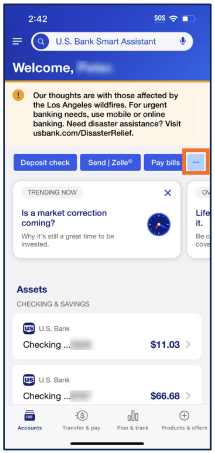
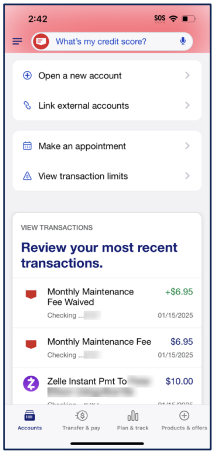
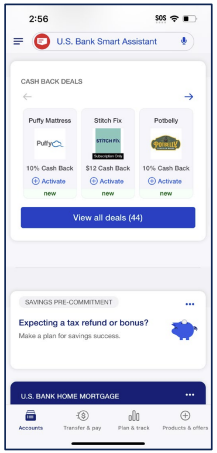
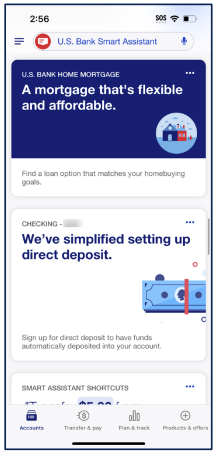
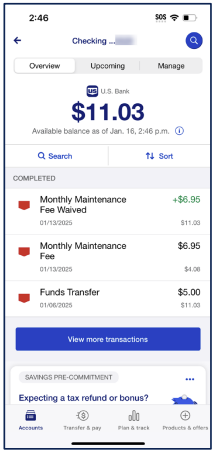
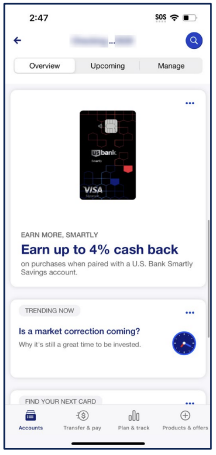
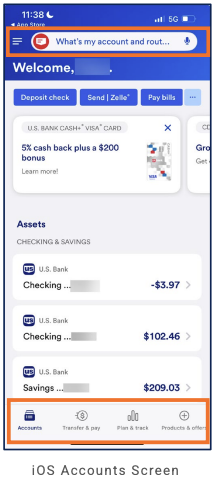
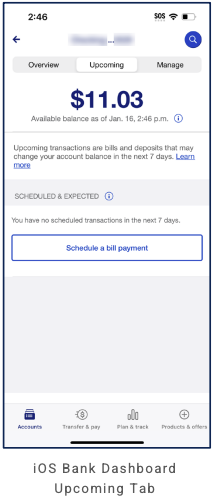
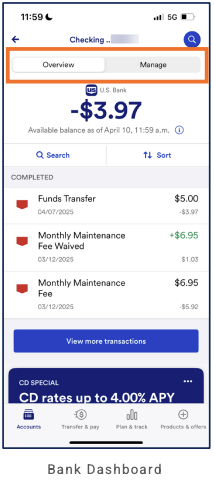
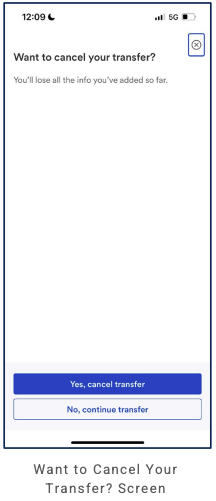
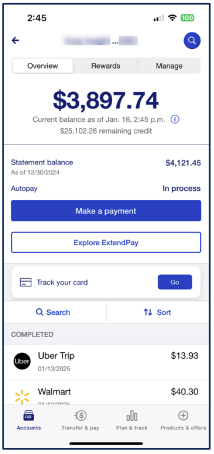
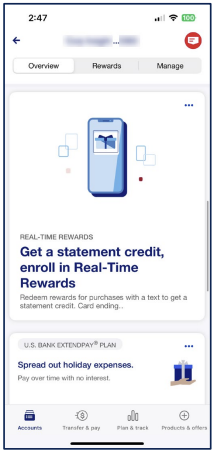
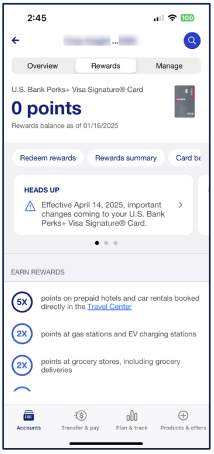
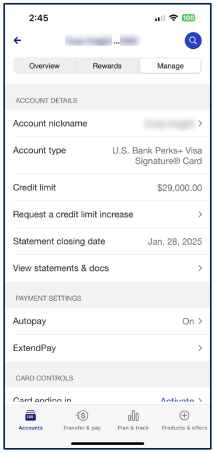
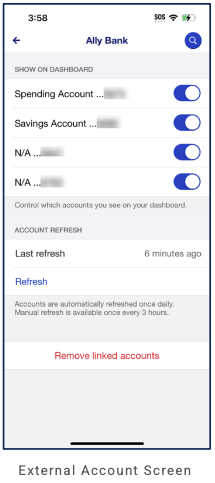
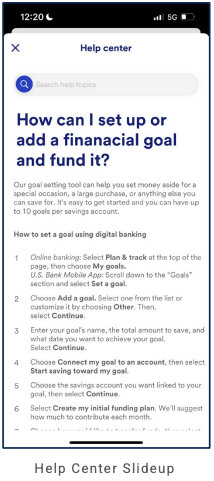
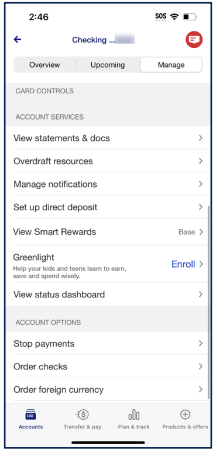
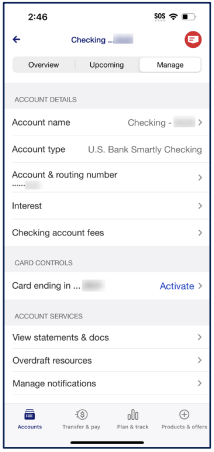
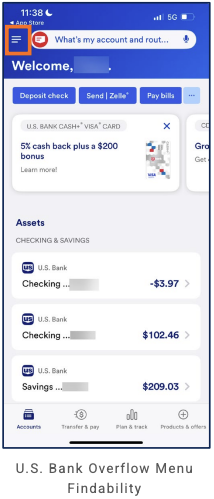
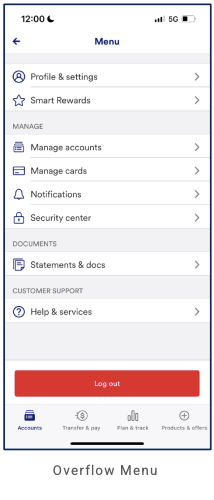
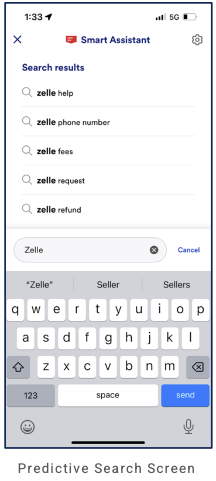
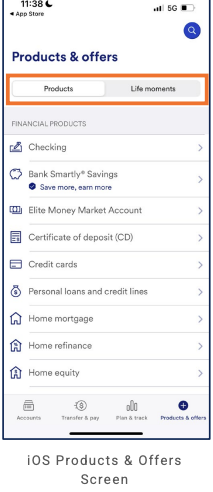
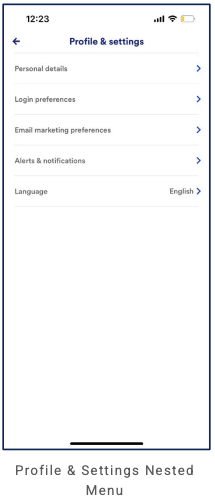
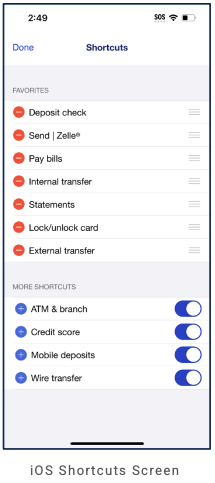
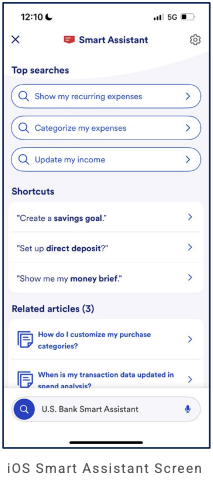
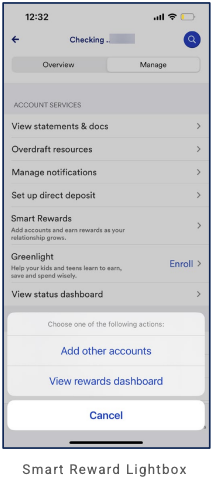
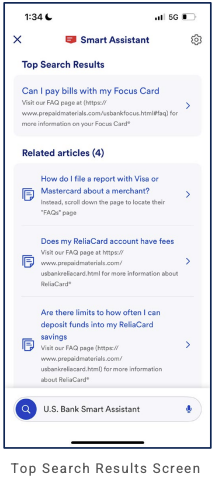
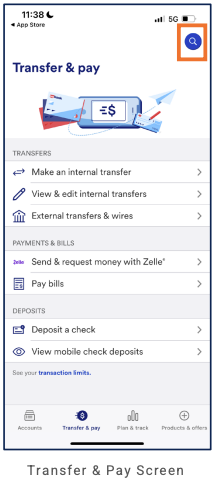
Truist (Bank + regional)
Partial audit. This entry is based on 18 screenshots. Primary navigation (5-tab bottom bar), Home dashboard, Customize home (including Show/Hide), insights, account customization, Truist Assist, Checking (dashboard + details), Transfer & Pay (options + form), More overflow menu, and Profile & Settings are visible. What follows is a record of what is visible.
Primary navigation
5-tab bottom navigation: Home (house icon), Accounts (dollar + list icon), Transfer & Pay (left-right arrow), Deposits (document + up-arrow), More (three dots). Purple/teal accent for active tab; labels visible. Home is active on Home and Checking dashboard screens. Account customization slide-up is triggered from the Accounts section ellipsis on Home. Customize home (from quick-links pencil or Insights Customize): back, full screen; leads to Customize Quick Links and Customize tiles (nested, back only). More tab (fifth): full-screen overflow—title "More", Sign out (right); Help & support, Profile & settings (two primary buttons); Actions; Tools; 5-tab nav (More active). Profile & Settings (from More): back only; no bottom nav (nested). Transfer & Pay tab (third): full-screen options—"What do you want to do?"; three cards (Transfers & pay Truist accounts, Bill payments, Send Money with Zelle®); 5-tab nav (Transfer & Pay active). Tapping first card → transfer form (back only; tabs Transfer | Manage | External accounts). Truist Assist and Account details show back only (nested flows).
Home / dashboard
Header: Personalized greeting (e.g. "Good morning", "Good afternoon") on left; right: envelope (messages/notifications), person (profile/settings). Quick links (horizontal scrollable pills): edit/pencil (customize), Transfer, Zelle®, Pay bills, Deposit (more off-screen). Insights row: "View all insights" (lightbulb icon), Customize (pencil). Insights section (when visible): e.g. "Upcoming activity" card (New - [date]; -$X.X outgoing, $X.X incoming; Review activity button); pagination dots; View all insights link; Experian® Credit Center promo. Show/Hide (from Customize home → Accounts → Show/hide): back; title "Show/Hide"; tabs Home screen | Accounts; "You can show up to 12 accounts on your home screen"; list (e.g. Checking, Savings—each with label, masked identifier, toggle on/off). Transfer & Pay tab: title "Transfer & Pay"; "What do you want to do?"; View fees and delivery speeds (info link); three cards—Transfers & pay Truist accounts (transfer money, pay Truist accounts, manage scheduled, view history), Bill payments (make payment, manage, add payees, view history), Send Money with Zelle® (send/receive, add recipients, view history)—each with icon, chevron; 5-tab nav (Transfer & Pay active). Transfers and pay Truist accounts (from first card): back; title "Transfers and pay Truist accounts"; tabs Transfer | Manage | External accounts (Transfer selected); From, To (Select account); Frequency (e.g. One time); Amount (Enter amount); Transaction date; Memo (Optional, 0/32, disclaimer); Continue, Cancel; floating chat; no bottom nav. Customize home (from Edit/Customize): back; "Customize home"; "Here are a few ways to customize your home screen"; Accounts (choose which to see, order)—Show/hide, Reorder buttons; Quick Links (shortcuts to tasks)—Customize your links; Tiles (add/remove home tiles)—Customize your tiles. Customize Quick Links: back; "Customize Quick Links"; "Add up to 6 links"; list with toggle + reorder icon per item—Transfer money, Send Money with Zelle®, Pay bills, Manage card controls (on); Manage alerts, Open an account, Order checks (off). Customize tiles: back; "Customize tiles"; "You can choose the tiles you'd like to see on your home screen"; list with toggles—Insights, Experian® Credit Center, Spending, Budget, Goals, Deals (each with short description). Accounts section: title "Accounts" with ellipsis (more options); Truist | Linked tabs—Truist shows internal accounts (e.g. Savings, Checking, Test); Linked shows external linked accounts (e.g. Chime Savings, Chime Checking, Discover it chrome Card) grouped as Cash & Savings and Cards & Loans with balance and "As of [date]"; account rows have right arrow (tap for details). CTAs: View all accounts, Link accounts (chain icon), Open account (document+ icon). Promo: Paze™ online checkout (Activate your wallet or manage your eligible Truist cards). Scroll: Spending (donut chart—month, total e.g. $2,199.31 Month to Date; "All Expense Accounts" dropdown; Go to spending); Budget ($0.00 spent, $100.00 left; progress bar; Out of $100.00 budgeted; Go to budget); Goals (Go to Goals; e.g. Coffee goal). Truist account customization (from Accounts ellipsis): slide-up modal—"Truist account customization"; Show/hide accounts, Reorder accounts, Nickname accounts, More options (each with chevron); handle. Checking dashboard (from account row): back; title "Checking"; FDIC banner; Current balance; Available Balance as of [date]; View account details link; quick actions Statements, Card Controls, ellipsis; Activity tabs Recent | Upcoming; Search Transactions; Pending (total, list); Posted (date, balance, list); 5-tab nav (Home active). Account details (from View account details): back; "Account Details"; "Checking"; FDIC; Account name (e.g. TRUIST ONE CHECKING), Account number (Show), Routing number; As of [date]; Balance (Available, Current with info icons); Interest (rate, APY, Interest paid YTD); Overdraft options ($100 Negative Balance Buffer, Overdraft Services); no bottom nav. Truist Assist: back; title "Truist Assist"; vertical ellipsis; chat (user "Where is bill pay?"; assistant replies on bill pay, eBills, cutoff times, setup); action buttons Pay a bill, Cutoff times & limits, Payment setup, eBill information; "Write a message..." input; send; no bottom nav. More tab: title "More"; Sign out (top right); Help & support, Profile & settings (two large pill buttons with icons); Actions (Manage security settings, Manage card controls, Use biometric sign-in, Adjust alert preferences—each with chevron); Tools (Planning & goals—"Track spending, set budgets, link accounts"; Experian® Credit Center—"View and help improve your credit"—each with chevron); 5-tab nav (More active). Profile & Settings (from More): back; title "Profile & Settings"; profile picture placeholder (+); name placeholder; Last sign-in (timestamp); View sign-in History link; list—Personal information, Security center, Privacy, Alerts, Account settings, Preferences (each with icon, chevron); Close an account (external-link icon); floating chat button; no bottom nav. Leaving Truist native alert (e.g. from external link on Home): title "Leaving Truist"; "This link will take you to an external site. Do you want to continue?"; No, Yes buttons. Home scroll may also show Money and Mindset card (Learn More), Recent Activity (transactions, View all transactions), floating chat icon.
LOB placement
Home aggregates banking (Truist accounts: Savings, Checking) and linked (external Cash & Savings, Cards & Loans). Quick links surface Transfer, Zelle®, Pay bills, Deposit. Spending, Budget, and Goals are personal-finance LOBs on the same Home scroll. Paze™ promo suggests digital wallet/card management. Accounts section on Home has ellipsis → Truist account customization slide-up (Show/hide, Reorder, Nickname, More options). Tapping an account row → Checking (or other account) dashboard (balance, Statements, Card Controls, Activity Recent/Upcoming); View account details → Account details (Balance, Interest, Overdraft options). Truist Assist (chatbot): conversational help with action buttons (e.g. bill pay—Pay a bill, Cutoff times & limits, Payment setup, eBill information). Customize home (from pencil/Customize): hub for Accounts (Show/hide, Reorder), Quick Links (up to 6, toggle + reorder), Tiles (Insights, Experian® Credit Center, Spending, Budget, Goals, Deals—toggle each). Insights tile on Home can show e.g. Upcoming activity (outgoing/incoming snapshot, Review activity); View all insights; Experian® Credit Center enrollment promo. More tab: Help & support, Profile & settings (primary CTAs); Actions (security settings, card controls, biometric sign-in, alert preferences); Tools (Planning & goals, Experian® Credit Center). Profile & Settings (from More): profile summary (pic, name, Last sign-in, View sign-in History); Personal information, Security center, Privacy, Alerts, Account settings, Preferences; Close an account; floating chat. Leaving Truist alert confirms external links (No/Yes). Home may include Money and Mindset tile, Recent Activity, floating chat. Customize home → Show/hide: Home screen | Accounts tabs; up to 12 accounts on home screen; per-account toggle (Checking, Savings, etc.). Transfer & Pay tab: three-option hub—Transfers & pay Truist accounts (→ form: Transfer | Manage | External accounts tabs; From/To, Frequency, Amount, Transaction date, Memo; Continue/Cancel), Bill payments, Send Money with Zelle®. Accounts tab and Deposits tab content not yet documented (TBD).
Depth of hierarchy
Home: greeting; quick links (Edit, Transfer, Zelle®, Pay bills, Deposit); View all insights, Customize; Accounts (Truist | Linked tabs; account cards with balance, arrow); View all accounts, Link accounts, Open account; Paze™ promo; Spending (donut, All Expense Accounts dropdown, Go to spending); Budget (progress bar, Go to budget); Goals (Go to Goals). Accounts ellipsis → Truist account customization slide-up: title; Show/hide accounts, Reorder accounts, Nickname accounts, More options (chevrons); handle. Account row tap → Checking dashboard: back, Checking; FDIC; current balance; Available Balance as of [date]; View account details; Statements, Card Controls, ellipsis; Activity (Recent | Upcoming); Search Transactions; Pending (total, items); Posted (date, balance, items). View account details → Account details: back, Account Details, Checking; FDIC; Account name, number (Show), routing; Balance (Available, Current); Interest (rate, APY, YTD); Overdraft options (Negative Balance Buffer, Overdraft Services). Truist Assist: back, Truist Assist, ellipsis; user message; assistant replies (bill pay, eBills, cutoff times); buttons Pay a bill, Cutoff times & limits, Payment setup, eBill information; message input, send. Customize (Insights or quick-links pencil) → Customize home: back, title; intro text; Accounts (Show/hide, Reorder buttons); Quick Links (Customize your links button); Tiles (Customize your tiles button). Customize your links → Customize Quick Links: back, title; "Add up to 6 links"; list (Transfer money, Zelle®, Pay bills, Manage card controls, Manage alerts, Open an account, Order checks) with toggle and reorder icon. Customize your tiles → Customize tiles: back, title; intro; list (Insights, Experian® Credit Center, Spending, Budget, Goals, Deals) with description and toggle. Home Insights (when Insights tile on): section title Insights; card(s) e.g. Upcoming activity (New - date, outgoing/incoming amounts, Review activity); pagination; View all insights; Experian® Credit Center promo. More tab → Profile & Settings: back, title; profile pic (+), name, Last sign-in, View sign-in History; list (Personal information, Security center, Privacy, Alerts, Account settings, Preferences—icon, chevron); Close an account (external link); floating chat FAB. Leaving Truist alert: modal "Leaving Truist"; external-site copy; No, Yes. Customize home → Accounts → Show/hide → Show/Hide screen: back, title; Home screen | Accounts tabs; "You can show up to 12 accounts on your home screen"; list (Checking, Savings, etc.) with toggle per row. Transfer & Pay tab → Transfer & Pay options: What do you want to do?; View fees and delivery speeds; three cards (Transfers & pay Truist accounts, Bill payments, Zelle®). First card → Transfers and pay Truist accounts form: back, title; Transfer | Manage | External accounts tabs; From, To (Select account); Frequency; Amount (Enter amount); Transaction date; Memo (Optional, 0/32, disclaimer); Continue, Cancel; floating chat. Full depth for Accounts, Deposits tabs not yet captured.
Cross-LOB patterns
Truist vs Linked tabs on Home provide clear separation of internal vs external accounts; Linked aggregates Cash & Savings and Cards & Loans from other institutions. Spending/Budget/Goals sit on the same dashboard as account summaries, blending banking and personal-finance management. Quick links (Transfer, Zelle®, Pay bills, Deposit) support cross-task access. Truist Assist bridges help and actions: conversational entry to bill pay, eBills, cutoff times, payment setup via chat and action buttons.
Personalization
Time-based greeting (Good morning/afternoon). Show/Hide (Customize home → Accounts → Show/hide): up to 12 accounts on home screen; Home screen | Accounts tabs; per-account toggle (Checking, Savings, etc.). Customize home is a dedicated personalization hub: Accounts (Show/hide, Reorder), Quick Links (up to 6, toggle + reorder—Transfer money, Zelle®, Pay bills, Manage card controls, Manage alerts, Open an account, Order checks), Tiles (Insights, Experian® Credit Center, Spending, Budget, Goals, Deals—toggle each). "View all insights" and Insights tile (e.g. Upcoming activity) are configurable. "2 New Insights" / "3 New Insights" when present. Truist account customization (Accounts ellipsis): Show/hide, Reorder, Nickname, More options. Profile & Settings (More): Personal information, Security center, Privacy, Alerts, Account settings, Preferences (each drills to nested settings). No other customization controls visible in the eighteen screens (TBD).
Observations and conclusions
What we see: 5-tab bottom nav: Home, Accounts, Transfer & Pay, Deposits, More. Home: greeting; quick links (Edit opens Customize home); Insights (View all, Customize; tile can show Upcoming activity card, View all insights, Experian® Credit Center promo); Accounts (Truist | Linked); ellipsis → account customization slide-up; View all accounts, Link accounts, Open account; Paze™ promo; Spending, Budget, Goals. Customize home: Accounts (Show/hide, Reorder), Quick Links (Customize your links), Tiles (Customize your tiles). Customize Quick Links: up to 6 links; toggles + reorder (Transfer money, Zelle®, Pay bills, Manage card controls, etc.). Customize tiles: Insights, Experian® Credit Center, Spending, Budget, Goals, Deals (toggles). Checking dashboard: FDIC; balance; Statements, Card Controls; Activity. Account details: Balance; Interest; Overdraft options. Truist Assist: chat; action buttons. More tab: Help & support, Profile & settings; Actions (security, card controls, biometric, alerts); Tools (Planning & goals, Experian® Credit Center). Profile & Settings: profile summary; Personal information, Security center, Privacy, Alerts, Account settings, Preferences; Close an account; floating chat. Leaving Truist native alert for external links (No/Yes). Transfer & Pay tab: "What do you want to do?"; three cards (Transfers & pay Truist accounts, Bill payments, Zelle®); first card → form (Transfer | Manage | External accounts; From/To, Frequency, Amount, Date, Memo; Continue/Cancel). Show/Hide (Customize home → Accounts): Home screen | Accounts tabs; up to 12 accounts; per-account toggles. Customize home (Accounts + Quick Links + Tiles) is a major personalization differentiator. Limitations: 18 screens; Accounts, Deposits tab content not documented. Audit remains partial.
Screenshots
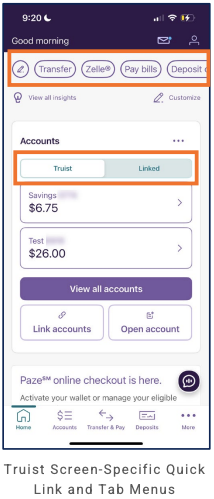
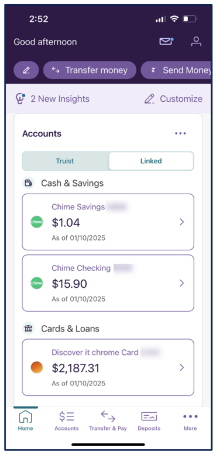
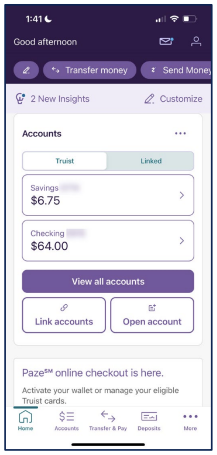
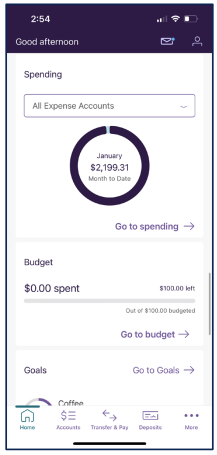
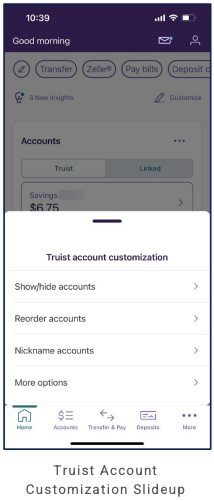
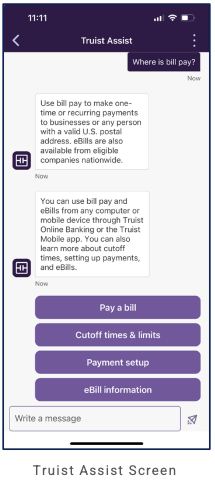
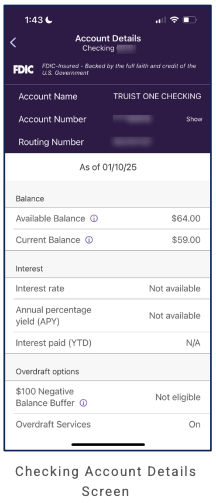
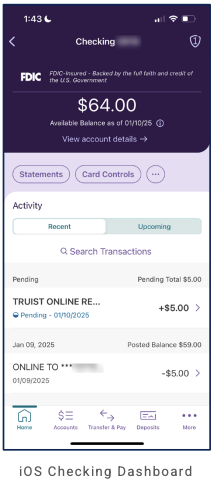
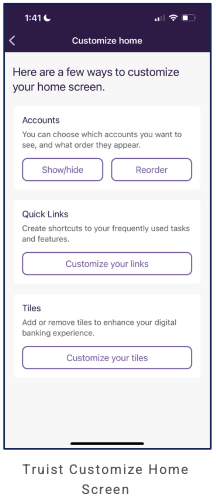
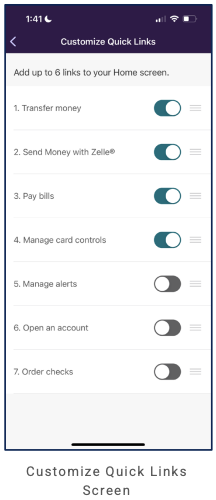
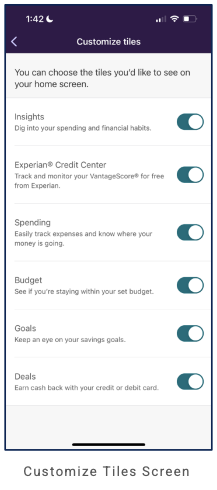
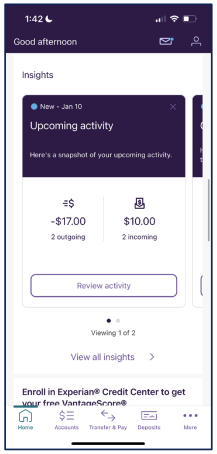
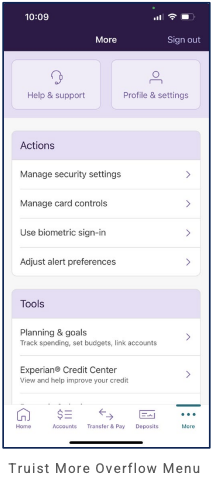
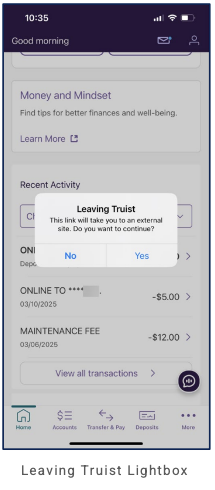
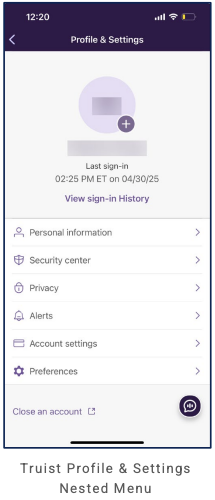
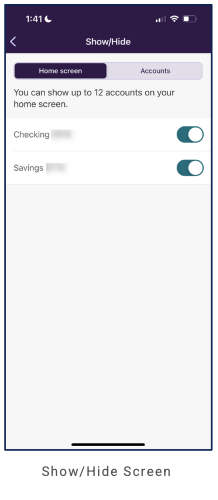
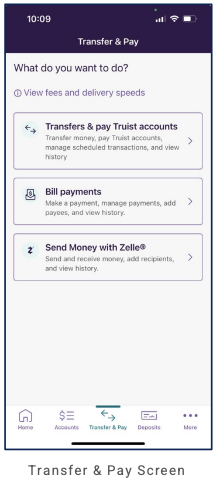
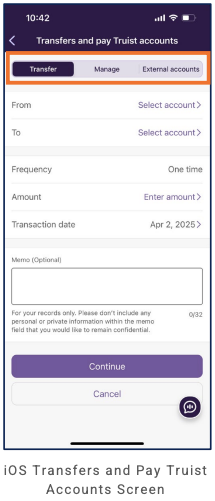
UBS (Wealth / full-service)
Partial audit. This entry is based on a limited set of screenshots (17 screens). What follows is a record of what is visible; Milestones tab content is not yet documented.
Primary navigation
5-tab bottom navigation: Home (house icon), Accounts (stacked bars icon), Banking Services (building icon), Milestones (mountain/flag icon), Menu (hamburger). Red accent for active tab; labels visible. From Accounts tab, a slide-up menu lists sub-sections: Balances, Holdings, Activity, Performance, Activity (Beta—with checkmark), Financial Tools, Statements & Tax Forms, Transfer Investments (each with chevron). From Banking Services tab, a slide-up menu lists At a Glance (with arrow) and Deposit (Deposit Checks, Direct Deposit, Transfer Funds In, Receive a Wire Instructions, Deposit to UBS Core Savings), Pay & Transfer (Transfer Funds, Pay a Bill, Pay UBS Credit Card or Line, Send and Receive with Zelle®). From Menu tab, a slideout overflow (drawer from right) lists: gear (Settings), My Information (checkmark when active), Statements & Tax Forms, Financial Plan, Relationships, Support, Feedback, Legal and Disclosures (each with arrow); Contact Financial Advisor, Sign out. Milestones is a notable differentiator (goals or life-events focus).
Home / dashboard
Header: UBS logo (left); right: message/paper-plane icon, envelope icon with red badge (e.g. "12" unread), profile icon. Greeting: "Welcome," plus personalized name (blurred in capture). Quick actions (three pill buttons): Deposit Checks, Transfer, Holdings. Net Balance card: "Updated: Today, 2:00 p.m. ET"; segmented control UBS | All (toggle between UBS-only and all linked accounts); large net balance value; "UBS accounts only" or "Includes your UBS and external accounts" with "Learn more" link (opens Learn More slide-up: definitions for Total Assets, Total Liabilities, external accounts; Done); optional Action needed banner (e.g. "Update external account(s) to include in Net Balance") with arrow; breakdown: Total Assets (UBS Financial Services, External Assets), Total Liabilities (UBS Liabilities, External Liabilities); red links "+ Add External Account", "Go to Balances >". Cash card: title "Cash", total; Cash Available, Cash Alternatives; "Go to Cash at a Glance >". Scroll: Recent Activity (header + "View Activity"; empty state e.g. "There is no investment related activity in the last 8 days"). Market Insights: "As of [date] 2:00 PM ET"; two index widgets (e.g. SPX, DJIA) with intraday line charts, current value, change (+/-, %); news headlines with timestamps below.
LOB placement
Home surfaces aggregated net balance (UBS vs. All) with UBS Financial Services and external assets/liabilities; Cash (UBS accounts); quick actions for Deposit Checks, Transfer, Holdings. Accounts tab exposes a slide-up with Balances, Holdings, Activity (and Activity Beta), Performance, Financial Tools, Statements & Tax Forms, Transfer Investments. Banking Services tab → slide-up menu (At a Glance; Deposit: Deposit Checks, Direct Deposit, Transfer Funds In, Receive a Wire Instructions, Deposit to UBS Core Savings; Pay & Transfer: Transfer Funds, Pay a Bill, Pay UBS Credit Card or Line, Zelle®); first item At a Glance → cash overview (UBS Cash total, Core Savings promo, Make a deposit). Menu tab → slideout overflow (Settings gear; My Information, Statements & Tax Forms, Financial Plan, Relationships, Support, Feedback, Legal and Disclosures; Contact Financial Advisor, Sign out). Milestones completes the set. Cross-LOB aggregation (external accounts) on Home; "Action needed" for external-account updates when relevant.
Depth of hierarchy
Home acts as dashboard: greeting, quick actions, Net Balance (UBS/All, drill to Balances), Cash (drill to Cash at a Glance), Recent Activity, Market Insights. Accounts → slide-up menu (Balances, Holdings, Activity, etc.). Balances screen: title with dropdown; "+ Add external accounts"; UBS | All toggle; on UBS tab: INTRADAY | PRIOR DAY; Investments (Total Value, Change in Value; expandable "Accounts Not in Group"); Credit Line (e.g. UBS Financial Services Inc., account rows); on All tab: Current Balance, Investment Assets; Investment Accounts list (UBS + External with last-refresh timestamps). From Accounts slide-up, Performance: title with dropdown; account selector; Total Value, change (red when negative); tabs Performance | Value Over Time; period selector (MTD, QTD, YTD, 3Y, 5Y, All); date range; bar chart Your Portfolio vs Benchmarks (legend). From Accounts, drill to account details (e.g. RMA or secondary investing account): back, account name with pencil (Nickname slide-up); Total Value, Daily Performance, Unrealized G/L, Cash Available; Holdings, Activity. Nickname Account slide-up: 15-char nickname, Apply/Cancel, Disclosure. Banking Services → slide-up menu (At a Glance, Deposit, Pay & Transfer options) or direct to At a Glance; Transfer Funds (from Pay & Transfer): title with dropdown; tabs Make a Transfer | Scheduled Transfers | Transfer History; "Choose a UBS Account"; Transfer funds in, Transfer funds out; legal/disclosure links. Learn More slide-up (from Net Balance "Learn more"): disclaimer; Total Assets/Liabilities and external accounts definitions; Done. Menu → slideout overflow (right drawer): Settings gear; My Information, Statements & Tax Forms, Financial Plan, Relationships, Support, Feedback, Legal and Disclosures; Contact Financial Advisor, Sign out. From Menu (e.g. via Settings gear) → Settings screen: Face ID (toggle Enabled/Disabled), Increased Security Settings (toggle), e-Delivery Settings, Reset Username, Reset Password, Card On/Off, Zelle® Maintenance, IRA Beneficiary Information (each with arrow). Milestones depth TBD.
Cross-LOB patterns
Net Balance and Balances (Accounts) both support UBS vs. All and "+ Add external accounts"; Balances shows Investment Accounts (UBS + external with refresh timestamps) and Credit Line. Cash is a distinct card on Home with "Go to Cash at a Glance" → At a Glance (Banking Services): cash summary and Core Savings promo. Market Insights blend investing context with news on Home.
Personalization
Personalized welcome and notification badge. Nickname Account (slide-up from account details via pencil): give accounts custom nicknames (up to 15 characters, no special characters); Apply/Cancel; Disclosure link. Menu slideout: Settings (gear), My Information (profile/settings), Statements & Tax Forms, Financial Plan, Relationships, Support, Feedback, Legal and Disclosures; Contact Financial Advisor, Sign out. Settings (nested under Menu): Face ID, Increased Security Settings (toggles); e-Delivery, Reset Username, Reset Password, Card On/Off, Zelle® Maintenance, IRA Beneficiary Information (drill-downs).
Observations and conclusions
What we see: 5-tab primary navigation with a distinct Milestones tab. Home: quick actions, Net Balance (UBS vs. All), Cash (Go to Cash at a Glance), Recent Activity, Market Insights. Accounts: slide-up menu → Balances (UBS | All; Intraday | Prior Day on UBS tab; Investments, Credit Line; external accounts in All with refresh timestamps); account details (RMA), Nickname slide-up. Banking Services: slide-up menu (At a Glance, Deposit, Pay & Transfer—Deposit Checks, Direct Deposit, Transfer Funds In, Wire Instructions, Core Savings; Transfer Funds, Pay a Bill, Pay UBS Credit Card/Line, Zelle®); At a Glance screen (UBS Cash, Core Savings, Make a deposit); Transfer Funds (Make a Transfer | Scheduled Transfers | Transfer History; Choose a UBS Account; Transfer funds in/out). Learn More slide-up (Net Balance definitions, Done). Menu: slideout overflow (right drawer)—Settings, My Information, Statements & Tax Forms, Financial Plan, Relationships, Support, Feedback, Legal and Disclosures; Contact Financial Advisor, Sign out; Settings (Face ID, Increased Security toggles; e-Delivery, Reset Username/Password, Card On/Off, Zelle® Maintenance, IRA Beneficiary). Accounts → Performance (account selector, Performance | Value Over Time, MTD–All, bar chart vs benchmarks). Account details (RMA or secondary investing): same pattern (Total Value, Daily Performance, Holdings, Activity, nickname). Header: message, notifications (badge), profile. Limitations: Milestones tab content not yet documented. Audit remains partial.
Screenshots
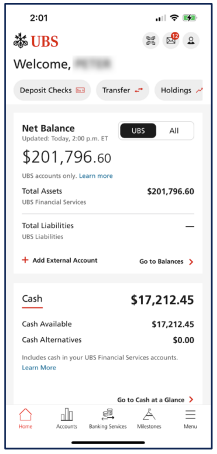
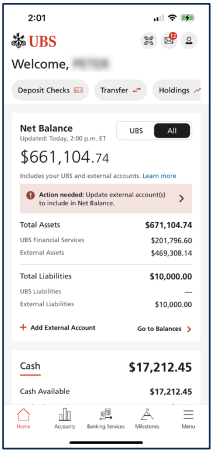
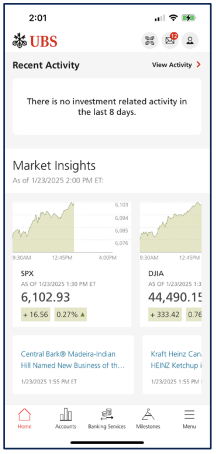
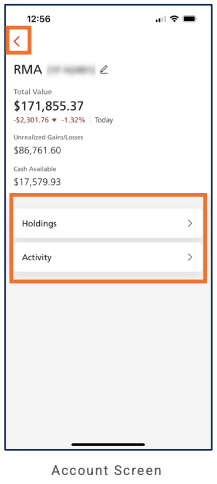
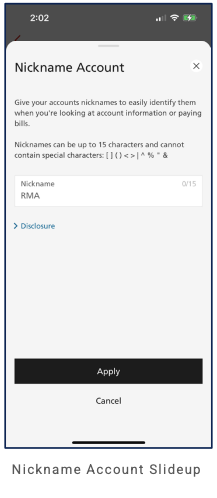
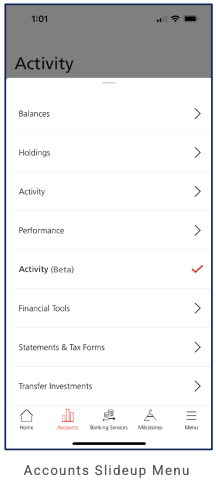
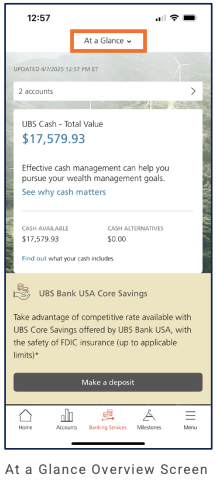
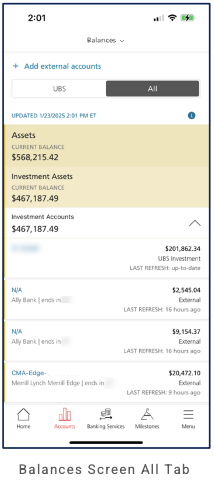
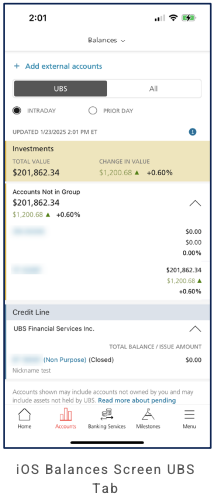
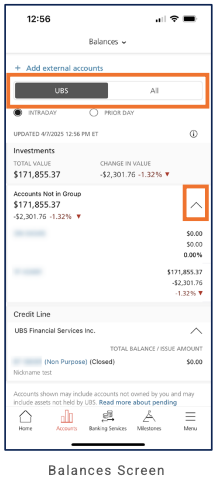
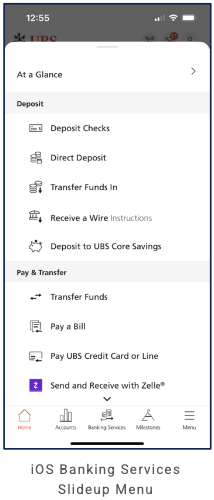
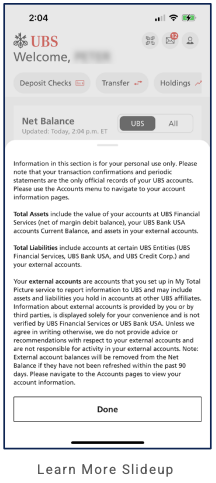
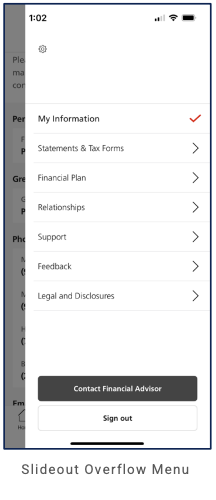
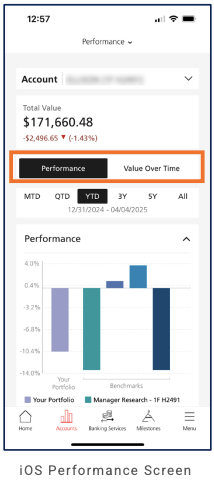
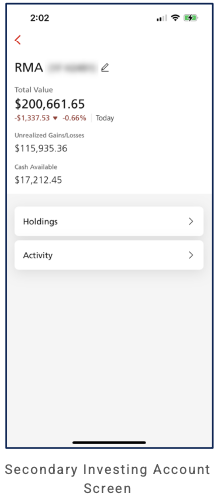
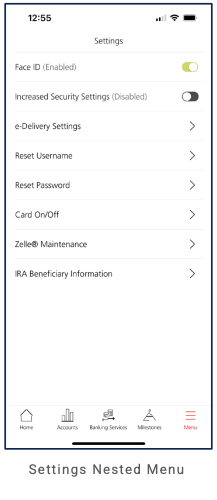
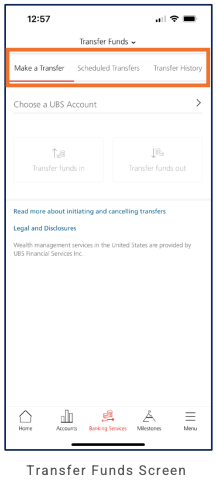
Vanguard (Investing / self-directed)
Partial audit. This entry is based on 18 screenshots. Primary navigation (4-tab bottom bar), Portfolio home/dashboard, Activity, Brokerage account, Performance (drill), Profile overflow menu, Personal info, Research tab (hub: Overview, Watchlist, Compare funds, Learn; Market overview; Learn modules; Quote screen), Transact tab (Get quote; ETFs/stocks Buy or sell, Mutual funds Buy/Sell; Transfer money Deposit/Withdraw; Have a check?; Account activity Open orders/Transaction history; Additional options Bank information, Watchlist, Open an account), and Update address and phone (embedded slide-up, non-optimized) are visible. What follows is a record of what is visible.
Primary navigation
4-tab bottom navigation: Portfolio (line graph icon, active on captured screens), Transact (X/cross-arrows icon), Research (magnifying glass icon), Profile (person icon—notification badge visible). Burgundy/maroon accent for active tab; labels visible. Research tab: header "Research" (center), search (magnifying glass right). Transact tab: header "Transact" (center). Portfolio is active on home and on Brokerage account drill-down (back arrow; 4-tab nav persists). Profile tab (fourth): full-screen overflow—Log out (top right); Profile title; avatar, name; Edit personal information, Open an account (chevrons); Account and Settings list; 4-tab nav (Profile active). Personal info (from Profile): back only; nested under Profile.
Home / dashboard
Portfolio tab = primary dashboard. Header (dark red/burgundy): V logo (left); TOTAL ASSETS (e.g. $439,405.82); "as of [date] [time], ET"; help (question mark in circle, right). Time period selector: YTD, 1YR, 3YR, 5YR, 10YR (horizontal segments; e.g. 10YR selected). Scroll 1: PERFORMANCE RETURNS card (info icon)—dollar gain (e.g. $33,016.36), percentage (e.g. 12.10% with green up arrow); date range (e.g. 01/01/2015 – 01/16/2025; as of 12/31/2024). MY ACCOUNTS card—account rows (e.g. Brokerage Account, balance $118.00; as of [date]). Scroll 2: Extended account list—Vanguard brokerage accounts (masked name, balance, as of date; some with % performance; "Account has a purchase restriction" with Remove restriction link); EXTERNAL accounts (e.g. Ally Bank - Investment - N/A, TD Bank - Bank - Checking) with "Last reported balance" and balance; list scrollable. Scroll 3: Open an account CTA (link). COST BASIS card (info icon)—"Check the cost basis across your accounts for each of your holdings." PORTFOLIO WATCH card—Your portfolio vs Target asset mix (horizontal bar charts); table: Stocks (You 34.0%, Target 68%), Bonds (6.8%, 32%), Short-Term (3.2%, 0%), Other (56.0%, 0%) with color squares. Scroll 4: PORTFOLIO WATCH (same card); ACTIVITY card—Transaction history, Open orders (each with chevron); Disclosures link. 4-tab nav on all views. Brokerage account (from account row tap): back; title "Brokerage" (masked id); Balance (e.g. $34,823.18 or $47,884.19) "As of [date] [time] ET"; Settlement fund (amount; Vanguard Federal Money Market Fund; 7-day SEC Yield %, as of date); Total credits and debits; Margin buying power / Funds available to trade (when shown); "- Hide details"; Deposit, Withdraw buttons; Holdings (List | Table toggle; Mutual funds; DAY CHANGE dropdown)—fund rows (ticker, name, value, day change $ and %); or Performance (chevron)—total $, Returns period, % (e.g. 12.1%); line graph (e.g. Jan 2016–Jan 2026); as of date; Recent activity (chevron)—entries (e.g. VSEQX Capital gain (LT), Reinvestment (ST gain) with date, amount/shares); Cost basis (chevron). 4-tab nav (Portfolio active). Performance (from Brokerage Performance chevron): back; title "Performance"; filter/sort icon (right); Investment returns ($), Rate of return (%); tabs Balance | Activity | Returns | Overview (e.g. Balance selected); date range (e.g. 04/01/2015 – 04/09/2025); line graph (balance over time); time range YTD, 1YR, 3YR, 5YR, 10YR; Beginning balance, Deposits & withdrawals (info icon), Ending balance; 4-tab nav (Portfolio active). Profile tab: Log out (top right); "Profile" title; avatar, name; Edit personal information (chevron); + Open an account (chevron); banner (tax forms in Document Center; X to dismiss); Account—Message center, Document center, Banking preferences, Account preferences, Paperless delivery (each with icon, chevron); Settings—Authentication requests, Notifications (each with icon, chevron); 4-tab nav (Profile active). Personal info (from Edit personal information): back; title "Personal info."; avatar, name, Client; Address and phone, Email, Date of birth, Beneficiaries, Trusted contact (chevrons or value); "Visit vanguard.com to edit your email or date of birth" (link); 4-tab nav (Profile active). Portfolio screen (variant): same structure—TOTAL ASSETS, period selector, PERFORMANCE RETURNS, MY ACCOUNTS; 4-tab nav.
LOB placement
Portfolio tab surfaces total assets and timeframe (YTD–10YR); performance returns (monetary and %); my accounts (Vanguard brokerage and external—e.g. Ally Bank Investment, TD Bank Checking) with balances and "Last reported balance" for external. Cost basis (cross-account holdings) and Portfolio Watch (asset allocation: Stocks, Bonds, Short-Term, Other vs target mix) extend the investing LOB. Open an account CTA. Activity (on Portfolio scroll): Transaction history, Open orders (drill from Portfolio). Brokerage account (from MY ACCOUNTS row): Balance; Settlement fund (Vanguard Federal Money Market Fund, yield); Deposit, Withdraw; Holdings (List/Table, DAY CHANGE; mutual fund rows with value, day change); Performance (total return, period, %; line chart); Recent activity (transaction list); Cost basis. Performance (from Brokerage): Investment returns, Rate of return; Balance | Activity | Returns | Overview tabs; line graph; YTD–10YR; Beginning balance, Deposits & withdrawals, Ending balance. Profile tab: Log out; Edit personal information → Personal info (Address and phone, Email, Date of birth, Beneficiaries, Trusted contact; vanguard.com for email/DOB edits); Open an account; Account (Message center, Document center, Banking preferences, Account preferences, Paperless delivery); Settings (Authentication requests, Notifications). Research tab: Quote screen (symbol e.g. F – Ford Motor Co.): header back, F STOCK • NYSE (info icon), circular + (add to watchlist); company name and current price ($9.61), change (+$0.21, 2.23% in green) and timestamp (as of 11:13 AM EDT); Price chart (info icon, timestamp)—time range tabs 1D, 5D, 1M, 3M, 1YR, 5YR (1D selected, teal); line chart (Y-axis price $9.40–$9.65, X-axis 10AM–4PM); full-width Buy button (maroon); 4-tab nav (Research active). Quote scroll (continued): Performance (info icon)—52-week range bar ($8.44–$14.85 with current-price indicator); time-based % (1 week ▲13.06%, 1 month ▼1.34%, 3 months ▼4.66%, 1 year ▼20.81%, 5 years ▲85.88%) with small horizontal bars (green/red). Detailed quote information (info icon)—two-column layout: Open, Day high/low, Prev close, 52-week high/low, 30-day avg vol, Volume; Bid (Size), Ask (Size), Q/S, Mkt cap, EPS, P/E ratio, Div yield; disclaimer (Quotes delayed at least 15). Analyst ratings (info icon; as of 04/2025)—Mean recommendation: Hold; horizontal stacked bar (64% Hold, 16% Buy, 12% Sell, 4% Underweight, 4% Overweight) with color labels. Company information (info icon)—Industry (Motor Vehicles), Sector (Consumer Durables), Employees (171,000), CEO, Address. Buy button and 4-tab nav persist on all quote scroll positions. Research hub (before quote drill): horizontal sub-tabs Overview (selected), Watchlist, Compare funds, Learn (scrollable); Market overview (info icon, timestamp)—three cards (S&P 500, DJIA, NASDAQ: value, mini red line chart, change in red); Learn (arrow)—"Resources to guide your investment journey"; horizontal cards (e.g. Investing basics—"What's a mutual fund?", "What's an ETF?" with visuals). Transact tab: (1) Get quote search bar (placeholder, magnifying glass); ETFs and stocks | Mutual funds—ETFs/stocks: Buy or sell (single button); Mutual funds: Buy, Sell (separate buttons); "Learn more about buying and selling" (teal link); Transfer money (info icon)—Deposit, Withdraw buttons; Have a check?—promo (mobile deposit, Vanguard Brokerage Account), LEARN HOW (teal). (2) Alternate Transact view: Account activity—Open orders (View your current open orders), Transaction history (View your recent transactions), each with chevron; Additional options—Bank information, Watchlist, Open an account, each with chevron. Update address and phone (from Personal info): slide-up with X and "Update address and phone" title; left/right arrows (multi-step); embedded web-style content—"An important message" (regulatory requirement, consequences), Street address and other fields, Continue; "Need assistance?" sidebar (Vanguard Support, phone, hours); footer (© Vanguard, Contact us, Privacy, etc.). Content is non-optimized for mobile (dense text, desktop-like layout, large empty area below).
Depth of hierarchy
Portfolio: header (V logo, TOTAL ASSETS, as of date, help); period selector (YTD, 1YR, 3YR, 5YR, 10YR); PERFORMANCE RETURNS (info icon; $ and %; date range); MY ACCOUNTS (account rows with balance, as of). Scroll: more account rows (brokerage with optional % and purchase-restriction message + Remove restriction; external with EXTERNAL tag, Last reported balance); Open an account; COST BASIS (info icon; copy); PORTFOLIO WATCH (Your portfolio vs Target asset mix bars; table You/Target % with legend). Account row tap → Brokerage: back, Brokerage (masked); Balance, As of; Settlement fund (name, yield); details (Hide details); Deposit, Withdraw; Holdings (List | Table; Mutual funds; DAY CHANGE)—fund cards (ticker, name, value, day change $ and %); Recent activity (chevron)—transaction entries (description, date, amount/shares); Cost basis (chevron). Alternate Brokerage view: same header/balance/settlement; Performance (chevron)—$, Returns period, %; line graph (date range). Portfolio scroll also includes ACTIVITY card (Transaction history, Open orders) and Disclosures link. Brokerage Performance (chevron) → Performance screen: back, title; Investment returns, Rate of return; Balance | Activity | Returns | Overview tabs; date range; line graph; YTD–10YR selector; Beginning balance, Deposits & withdrawals (info), Ending balance. Profile tab → Profile overflow: Log out; avatar, name; Edit personal information, Open an account; tax forms banner; Account list (Message center, Document center, Banking preferences, Account preferences, Paperless delivery); Settings (Authentication requests, Notifications). Edit personal information → Personal info: back, title; avatar, name, Client; Address and phone, Email, Date of birth, Beneficiaries, Trusted contact (chevrons); vanguard.com link for email/DOB. Research tab → Research hub: sub-tabs Overview | Watchlist | Compare funds | Learn; Overview: Market overview (S&P 500, DJIA, NASDAQ cards), Learn (Investing basics cards). Research → Quote: back, F STOCK • NYSE, + (watchlist); company name, price, change, timestamp; Price chart (1D–5YR tabs, line chart); Buy; scroll → Performance (52-week range, 1w/1m/3m/1y/5y %), Detailed quote information (Open, Day high/low, Bid/Ask, Q/S, Mkt cap, EPS, P/E, Div yield), Analyst ratings (Mean Hold, stacked bar), Company information (Industry, Sector, Employees, CEO, Address). Transact tab: Get quote bar; ETFs/stocks Buy or sell, Mutual funds Buy/Sell; Transfer money Deposit/Withdraw; Have a check? LEARN HOW; or list view: Account activity (Open orders, Transaction history), Additional options (Bank information, Watchlist, Open an account). Edit personal information → Update address and phone: slide-up (X, title, step arrows); embedded form (regulatory message, Street address, Continue; Need assistance? sidebar; footer)—non-optimized for mobile.
Cross-LOB patterns
External accounts (Ally Bank, TD Bank) are included in the same Portfolio view with an EXTERNAL tag and "Last reported balance," providing aggregated visibility of Vanguard + linked external accounts. Portfolio Watch compares current allocation (Stocks, Bonds, Short-Term, Other) to target mix. Cost basis is cross-account (holdings).
Personalization
Time period selector (YTD–10YR) drives performance display. Profile tab has a notification badge (unread/action). Profile: Edit personal information (Personal info—Address and phone, Email, DOB, Beneficiaries, Trusted contact); Account preferences, Paperless delivery, Notifications. Email and date of birth edits directed to vanguard.com. Update address and phone (from Personal info) uses an embedded slide-up with web-style, non-mobile-optimized content (regulatory message, form fields, sidebar, footer)—notable for IA/UX audit. No other customization controls visible in the 18 screens.
Observations and conclusions
What we see: 4-tab bottom nav: Portfolio, Transact, Research, Profile (notification badge). Portfolio (home): burgundy header, TOTAL ASSETS, period selector YTD–10YR; PERFORMANCE RETURNS; MY ACCOUNTS (brokerage + EXTERNAL); Open an account; COST BASIS; PORTFOLIO WATCH; ACTIVITY (Transaction history, Open orders); Disclosures. Brokerage account: Balance, Settlement fund, Deposit/Withdraw; Holdings; Performance (chevron) → Performance screen (Investment returns, Rate of return; Balance | Activity | Returns | Overview; line graph; Beginning/Ending balance, Deposits & withdrawals); Recent activity; Cost basis. Research tab – Quote screen: header back, ticker • exchange (e.g. F STOCK • NYSE), + watchlist; company name, current price, change %, timestamp; Price chart with 1D/5D/1M/3M/1YR/5YR tabs and line chart; prominent Buy button (maroon). Scroll: Performance (52-week range bar, 1w/1m/3m/1y/5y % with green/red bars); Detailed quote information (Open, Day high/low, Prev close, 52W, Volume, Bid/Ask, Q/S, Mkt cap, EPS, P/E, Div yield; disclaimer); Analyst ratings (Mean: Hold; stacked bar Hold/Buy/Sell/Underweight/Overweight); Company information (Industry, Sector, Employees, CEO, Address). Buy and 4-tab nav (Research active) persist. Research hub (Overview selected): Market overview (S&P 500, DJIA, NASDAQ with value, mini chart, change); Learn (Investing basics cards—mutual fund, ETF). Transact tab: task-oriented layout—Get quote; ETFs/stocks Buy or sell, Mutual funds Buy / Sell; Transfer money Deposit / Withdraw; Have a check? (mobile deposit promo, LEARN HOW); or list view—Account activity (Open orders, Transaction history), Additional options (Bank information, Watchlist, Open an account). Profile tab: Log out; Edit personal information → Personal info (Address and phone, Email, DOB, Beneficiaries, Trusted contact; vanguard.com for email/DOB); Open an account; Account (Message center, Document center, Banking preferences, Account preferences, Paperless delivery); Settings (Authentication requests, Notifications). Update address and phone (from Personal info): embedded slide-up with non-optimized web content (regulatory message, form, sidebar, footer; large empty area). Clean, investing-focused dashboard; Research hub + Quote and Transact (two surfaces) complete the 4-tab picture. Limitations: 18 screens; audit documents all four tabs; Update address/phone called out as non-optimized. Audit remains partial (no full flow capture).
Screenshots
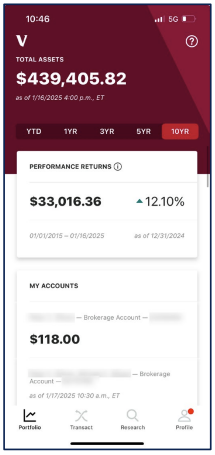
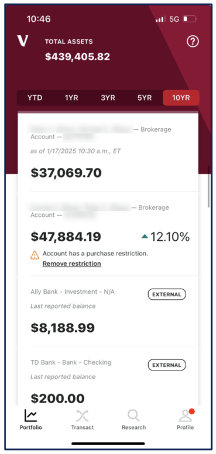
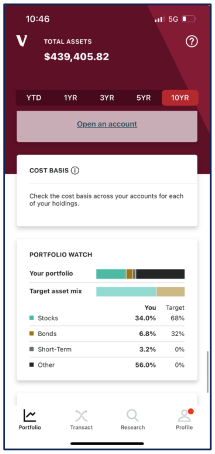
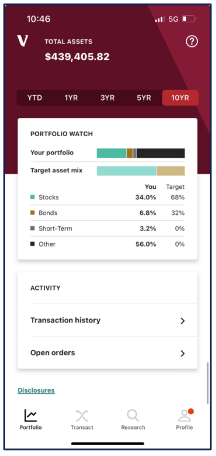
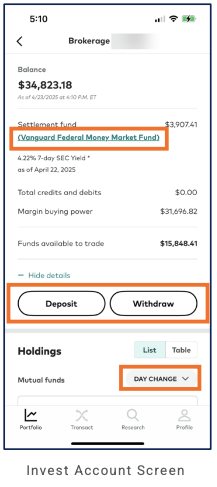
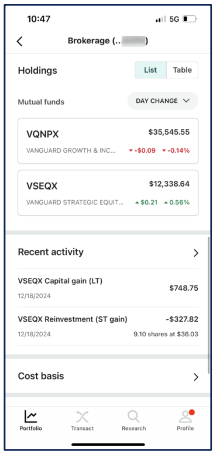
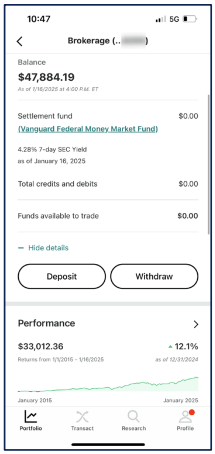
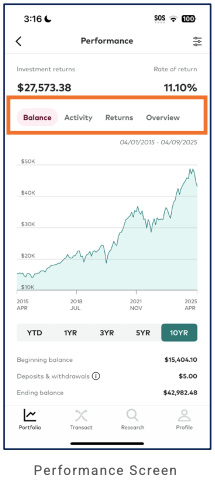
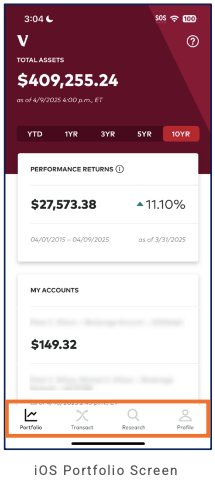
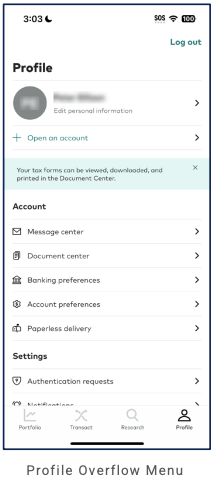
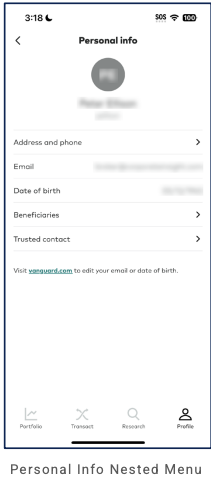
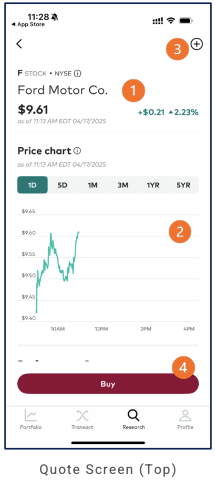
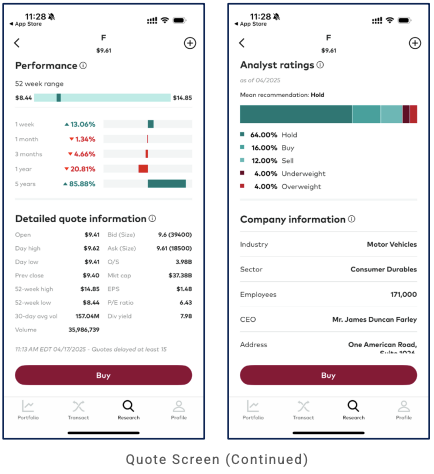
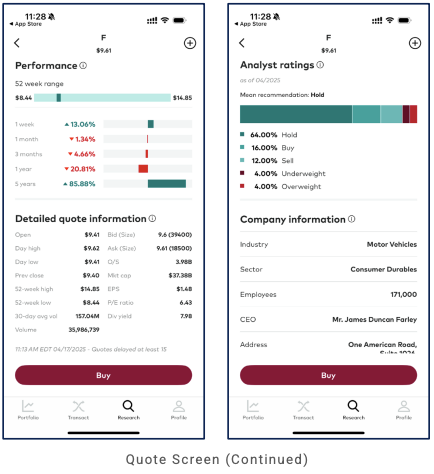
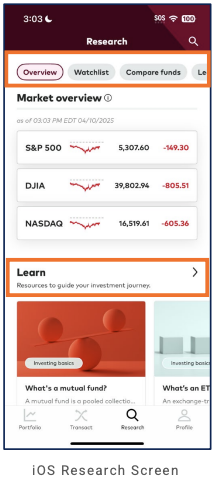
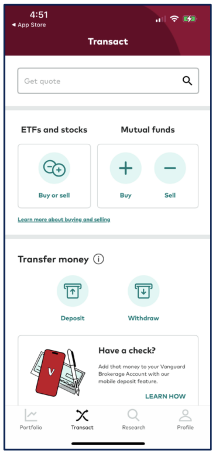
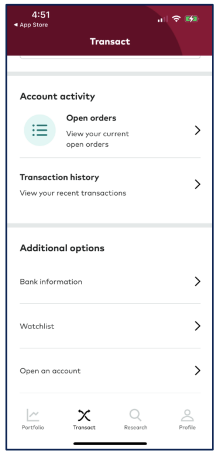
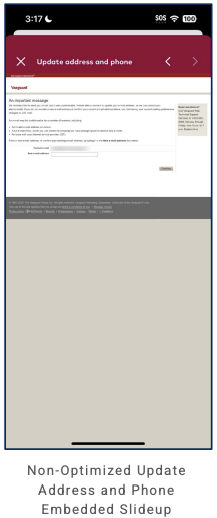
Wells Fargo (Bank + card)
Partial audit. This entry is based on 37 screenshots. Primary navigation (5-tab bottom bar), Accounts home (greeting; Cash Accounts, Investments; or checking + credit card cards, Open an account; or Brokerage, LifeSync®, FICO® alert, My Wells Fargo Deals; or Recent transactions + My Wells Fargo Deals), credit card (Active Cash Card: Overview | Manage—card visual, Turn card on or off, Replace card, Card details, Switch my card; Account details—Autopay, Rewards®, Cash advance limit, Balance summary; details screen with balance summary card + legal; Digital wallet & Services for card: Paze, Apple Pay, PayPal; View statements, Access Rewards®, View benefits, Manage alerts, Add authorized users), checking account (Overview | Manage | Routing & balance info: Overview with Pending/Completed transactions; Manage tab with card visual, Turn card on or off, Replace card, Manage limits, Card details; Digital wallet hub: Paze, Apple Pay, PayPal; Services: View statements, Order checks, Switch checking accounts, Manage alerts, Save As You Go®, View monthly service fee summary; Routing & balance info: Account info with View/reveal, routing numbers for direct deposit and wires, Balance info current/pending); Interest card and legal disclosures (Terms, FDIC, trademark notices); Available balance help modal (accordion FAQ). And brokerage/investing account (Portfolio | Quotes | Market research; Performance; Estimated income; Asset allocation; Holdings; Recent activity; Get quotes; Market research: Markets, News, Research, Watchlist; Latest markets; Watchlist with Edit Watchlist) are visible. Pay & Transfer tab: Transfer, Send Money (Zelle), Pay Bills, Wire Money, Pay Card. Menu tab: Profile & Settings (Profile: Contact Information, Language Preference, Push Notifications, Manage Banking Alerts; Settings: Username, Password); Security Center (Your progress so far—recommendations checklist; More security options: Privacy preferences); Card Settings; Account Services; Statements & Documents; Help & Support; Share feedback; Legal and privacy information. Pay & Transfer flow: Review and Transfer (From/To, schedule, Amount; Cancel | Make Transfer). Contextual slide-up: Select one (Edit, Delete); Zelle® contact management. Need help? opens conversational assistant: move money (Transfer, Zelle®, Pay a bill, Wire); travel plans response (Update contact info); Zelle® options (Send, Request, Manage recipients, View recent, Learn more); “Type or say something” (voice). Checking tab menu variant (Overview | Manage | Routing & balance info). Deposit and Explore tab content not yet captured.
Primary navigation
5-tab bottom navigation: Accounts (house icon, active on captured screens), Deposit, Pay & Transfer, Explore, Menu. Red highlight for active tab (Accounts). Header (consistent across screens): back arrow, Need help? (search bar with magnifying glass), brand icon (purple/white), bell with notification badge (e.g. 3), Sign off (right).
Home / dashboard
Accounts tab = home/dashboard. Home (variant 1): greeting "Good afternoon," (name); Cash Accounts (expandable)—3 accounts, total available $30.35; Investments (expandable)—3 accounts, total $105,827.10; nested cards Intuitive Investor (Wells Fargo Clearing Services, $15,464.28, "Total account value as of previous close"), Brokerage (Wells Fargo Advisors Financial Network, $46,000.43); + Subaccounts link. Home (variant 2): greeting; Wells Fargo Rewards® ($6.38 cash rewards, chevron); Checking card—balance $227.91, "Available balance"; embedded promo "Got $500? You can invest" (Learn more, X); Active Cash Card card—$5,525.84 Outstanding balance; Open an account (Explore all)—Checking, Savings & CDs, Credit cards, Loans (icons). Home (variant 3 / scroll): Brokerage card ($44,362.39, Wells Fargo Advisors Financial Network; "Total account value as of previous close"; + Subaccounts, View all brokerage accounts); LifeSync® (Set and track your money goals); FICO® Score alert ("Your FICO® Score went down", Updated 01/04/2025); My Wells Fargo Deals (info icon, View all 9+)—horizontal cards (e.g. Turo $10 Cash back, Vanguard 10% Cashback, Oura $20 Cashback, expiry/days left). Credit card account (Active Cash Card): light purple header; balance, credit limit bar, sub-tabs Overview | Manage | Account details; Overview: Payment info, Set up Autopay, Make payment; Transactions (Pending/Completed, search, filter, See all); Rewards/offers (cash rewards, Explore rewards, Offers, My Wells Fargo Deals with Activate). Checking account: light purple header; CHECKING (masked); balance (e.g. $33.18); "Available balance" (info); Account & routing numbers (link); sub-tabs Overview | Manage | Routing & balance info; Transactions (info icon, search, filter)—list with green check, date, description, amount. Brokerage/investing account (from Home Investments or View all brokerage accounts): back; BROKERAGE (masked); "As of [date] [time] ET" + refresh. Total account value (e.g. $46,000.50), Day change ($0.00, 0.00%). Sub-tabs Portfolio | Quotes | Market research; Customize (purple link). Performance (info icon)—toggle Short term | Long term; list 1 month, 3 months, Quarter-to-date, Year-to-date (% and date ranges; red if negative). Estimated income (info icon)—3 months | 6 months | 12 months; Chart | Table; bar chart (e.g. Jan–Mar); Current month, Next 3 months, Estimated annual income. Asset allocation (info icon)—horizontal stacked bar; Equities, Fixed Income (%, $). Category view Real Assets (dropdown): Holdings snapshot—Mutual Funds (17 holdings, $46,000.50, Day change +$203.15 +0.44%); See all holdings (purple); Top holdings (search, filter)—rows (ticker e.g. MLAIX, MEIIX, name, type Mutual Fund, value, Last price, Prev change, Unrealized, Shares). Recent activity (within brokerage): See all holdings (purple); list (green check, date, type e.g. Advisory Fee/Sell, description, amount in green/red); See all activity (purple); View orders (chevron). Quotes tab: same header (Total account value, Day change); Get quotes—search bar "Search symbol or company"; FINRA's BrokerCheck link; Privacy | Security | Legal; disclaimer ("Investment and Insurance Products are: Not Insured by the FDIC..."). Market research (standalone or from brokerage): close X; title "Market research"; Market Commentary (icon, chevron)—link e.g. "Moving toward the opportunity zone - 01.15.25"; tabs Markets | News | Research | Watchlist; Latest markets—"U.S. markets are open" (green bullet); pills DJIA | S&P 500 | NASDAQ (e.g. DJIA selected); index card (Dow Jones Industrial Average, value, change %, timestamp, Table view, mini line chart 9:30am–4pm); Explore latest markets (purple). Watchlist (from Market research Watchlist tab or elsewhere): X, back; title "Watchlist"; WatchList 3 (dropdown chevron); column headers Symbol, Value/Day Chg; table (e.g. .COMPQ* NASDAQ Composite, .INDU* Dow Jones, .SP* S&P 500, GE, TYX, WFC—value and day change in green); * Delayed Quote; timestamp; Edit Watchlist (gear); Watchlist Disclosures. Checking overview (alternate): MY CHECKING (masked); balance $30.35, Available balance (info); Overview | Manage | Routing & balance info; Transactions (info, search, filter)—Pending (clock: e.g. CONALLA INVESTMENT, RECURRING TRANSFER TO DISCOVER BANK CHK), Completed (green check: date, description, amount). Home/overview (alternate): Recent transactions (green check, date, description, amount; See all transactions); My Wells Fargo Deals (info, View all 9+); horizontal deal cards (e.g. Turo, Vanguard, Oura—Activate). 5-tab nav on all views.
LOB placement
Banking/card: Accounts tab = hub (home). Home surfaces Cash Accounts (expandable, total) and Investments (expandable; Intuitive Investor, Brokerage, + Subaccounts); or checking + credit card cards with balances, Wells Fargo Rewards®, Open an account (Checking, Savings & CDs, Credit cards, Loans); or scroll to Brokerage card, LifeSync®, FICO® Score alert, My Wells Fargo Deals. Tap account card → credit card (Active Cash Card: Overview, Manage, Account details; payment info, Transactions, rewards/offers), checking (balance, Account & routing numbers, Overview | Manage | Routing & balance info, Transactions with search, filter), or brokerage (Total account value, Day change; Portfolio | Quotes | Market research; Customize; Performance; Estimated income; Asset allocation; category → Holdings snapshot, Top holdings; Recent activity, See all activity, View orders; Quotes: Get quotes search, disclaimers; Market research: Commentary, Markets | News | Research | Watchlist, Latest markets index cards; Watchlist (WatchList 3, Symbol/Value/Day Chg table, Edit Watchlist). Checking: Overview with Pending/Completed transactions. Home variant: Recent transactions + My Wells Fargo Deals. Pay & Transfer tab: Transfer, Send Money (Zelle), Pay Bills, Wire Money, Pay Card. Menu tab: Profile & Settings (Profile: Contact Information, Language Preference, Push Notifications, Manage Banking Alerts; Settings: Username, Password); Security Center (Your progress so far—recommendations checklist; More security options: Privacy preferences); Card Settings; Account Services; Statements & Documents; Help & Support; Share feedback; Legal and privacy information. Pay & Transfer flow: Review and Transfer (From/To, schedule, Amount; Cancel | Make Transfer). Slide-up: Select one (Edit, Delete); Zelle® contact management. Need help? (header) opens conversational assistant: move money (Transfer, Zelle®, Pay a bill, Wire); travel plans (Update contact info); Zelle® options (Send, Request, Manage recipients, View recent, Learn more); “Type or say something” (voice). Checking tab menu variant (Overview | Manage | Routing & balance info). Deposit and Explore tab content not yet captured (37 screens total).
Depth of hierarchy
Accounts tab → Home: greeting; Cash Accounts (expand) or Investments (expand with Intuitive Investor, Brokerage, + Subaccounts); or checking + credit card cards, Rewards®, Open an account; or scroll → Brokerage card, LifeSync®, FICO® alert, My Wells Fargo Deals. Tap account card → credit card (Overview | Manage | Account details; payment info, Set up Autopay, Make payment; Transactions; rewards/offers), checking (balance, Account & routing numbers link; Overview | Manage | Routing & balance info; Transactions with search, filter), or brokerage (Total account value, Day change; Portfolio | Quotes | Market research; Customize; Performance; Estimated income; Asset allocation; category → Holdings snapshot, Top holdings; Recent activity, View orders; Quotes → Get quotes; Market research → Commentary, Markets/News/Research/Watchlist, Latest markets; Watchlist → Edit Watchlist, Disclosures). Checking Overview: Pending + Completed transactions. Home: Recent transactions, My Wells Fargo Deals. Pay & Transfer and Menu depth captured; Deposit and Explore TBD.
Cross-LOB patterns
Accounts home aggregates Cash Accounts (e.g. 3 accounts, $30.35) and Investments (e.g. 3 accounts, $105,827.10—Intuitive Investor, Brokerage; + Subaccounts). Alternate home layout: checking + credit card cards with balances; Wells Fargo Rewards®; Open an account (Checking, Savings & CDs, Credit cards, Loans). Scroll: Brokerage (View all brokerage accounts), LifeSync® (goals), FICO® Score alert, My Wells Fargo Deals. Tap Brokerage (or Investments → Brokerage) → brokerage dashboard: Total account value, Day change; Portfolio | Quotes | Market research (Customize); Performance (Short/Long term); Estimated income (3m/6m/12m, Chart/Table); Asset allocation (Equities, Fixed Income); category view (e.g. Real Assets) with Holdings snapshot, Top holdings; Recent activity (See all holdings, See all activity, View orders); Quotes tab (Get quotes search, BrokerCheck, Privacy/Security/Legal, disclaimer); Market research (Market Commentary, Markets | News | Research | Watchlist, Latest markets—DJIA/S&P 500/NASDAQ, index card with chart, Explore latest markets); Watchlist (e.g. WatchList 3 dropdown, Symbol/Value/Day Chg table, Edit Watchlist, Watchlist Disclosures). Checking overview variant: Pending and Completed transactions (search, filter). Home variant: Recent transactions (See all transactions), My Wells Fargo Deals (View all 9+, deal cards with Activate). Investing (Brokerage, Intuitive Investor) and banking (checking, credit card) share the same Accounts hub with full brokerage drill-down.
Personalization
Notification badge (e.g. 1, 3, 4, 5) on bell. Greeting ("Good afternoon," + name) on home. Brokerage: Customize link (Portfolio/Quotes/Market research). Watchlist: Edit Watchlist; multiple watchlists (e.g. WatchList 3 dropdown). No other personalization controls visible in the 37 screens (TBD from more screens).
Observations and conclusions
What we see: 5-tab bottom nav (Accounts, Deposit, Pay & Transfer, Explore, Menu) with consistent header (back, Need help? search, brand icon, bell with badge, Sign off). Accounts home: greeting; expandable Cash Accounts and Investments (Intuitive Investor, Brokerage, + Subaccounts); or checking + credit card cards, Wells Fargo Rewards®, Open an account (Checking, Savings & CDs, Credit cards, Loans); or scroll → Brokerage card, LifeSync®, FICO® Score alert, My Wells Fargo Deals (View all 9+). Credit card (Active Cash Card): balance, credit limit bar, Overview | Manage | Account details; payment info, Set up Autopay, Make payment; Transactions (Pending/Completed); rewards/offers. Checking account: balance, Available balance, Account & routing numbers; Overview | Manage | Routing & balance info; Transactions (search, filter). Brokerage account: Total account value, Day change; Portfolio | Quotes | Market research (Customize); Performance (Short/Long term, 1m/3m/QTD/YTD); Estimated income (3m/6m/12m, Chart/Table); Asset allocation (Equities, Fixed Income); category (e.g. Real Assets) → Holdings snapshot, Top holdings; Recent activity (See all holdings, See all activity, View orders); Quotes (Get quotes search, BrokerCheck, disclaimers); Market research (Market Commentary, Markets | News | Research | Watchlist, Latest markets DJIA/S&P 500/NASDAQ, index card, Explore latest markets); Watchlist (WatchList 3, Symbol/Value/Day Chg, Edit Watchlist, Disclosures). Checking Overview: Pending + Completed transactions. Home variant: Recent transactions, My Wells Fargo Deals. Cross-LOB: Cash Accounts + Investments + Brokerage, LifeSync®, FICO® on one hub; full brokerage drill-down within Accounts. Limitations: 16 screens; Deposit, Pay & Transfer, Explore, and Menu not documented. Audit remains partial.
Screenshots
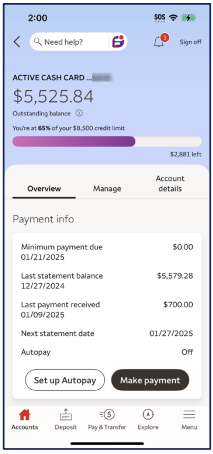
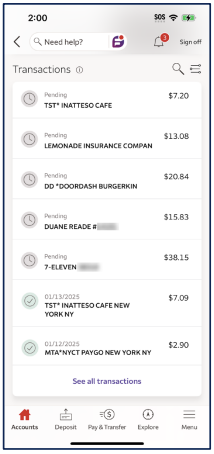
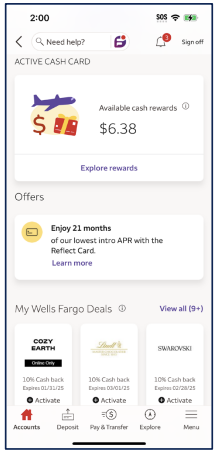
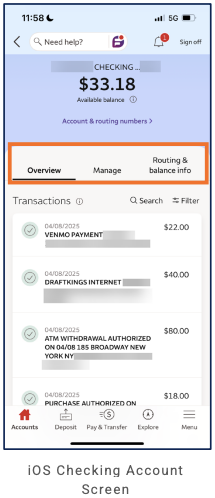
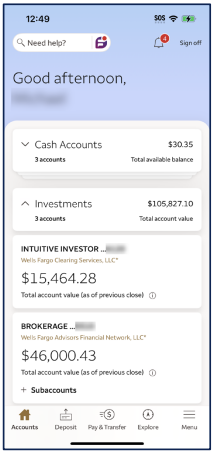
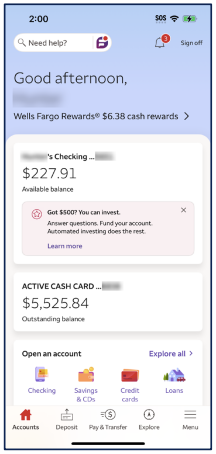
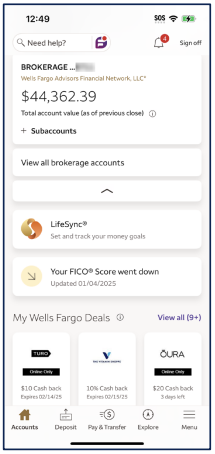
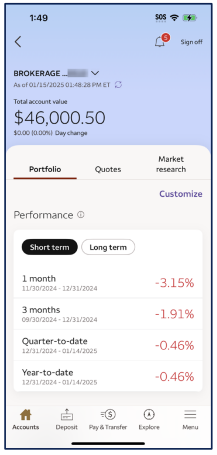
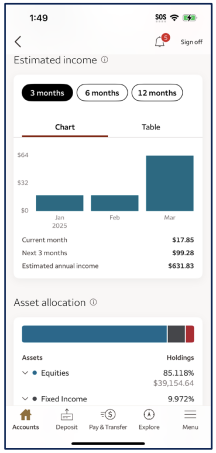
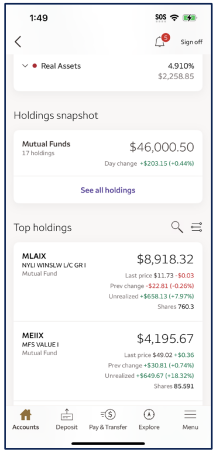
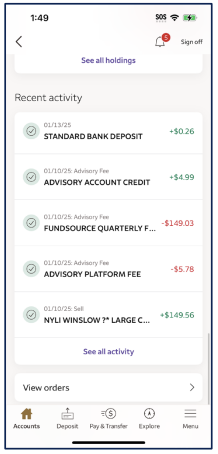
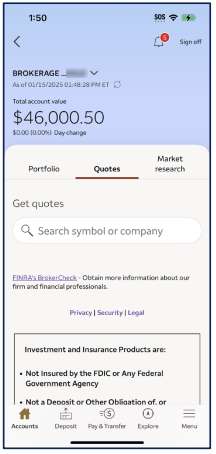
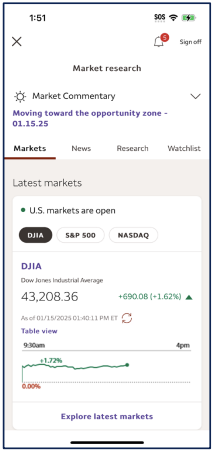
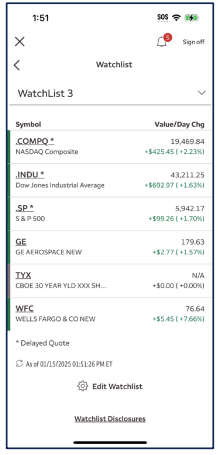
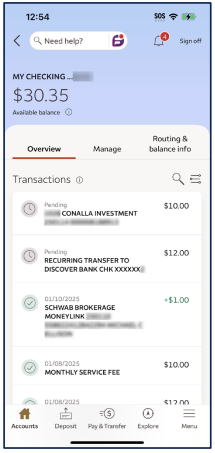
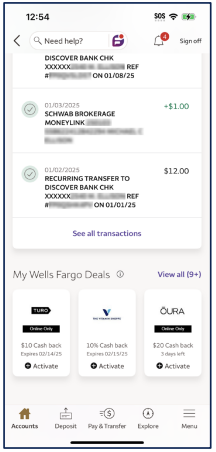
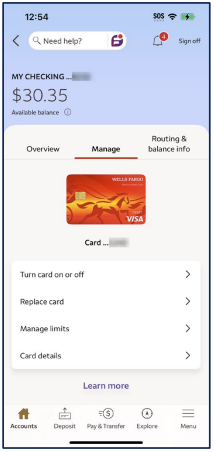
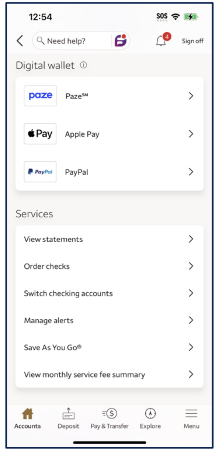
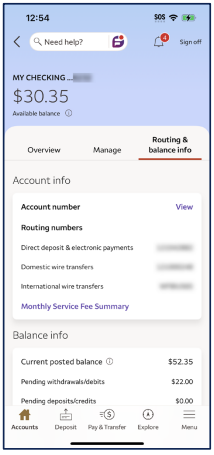
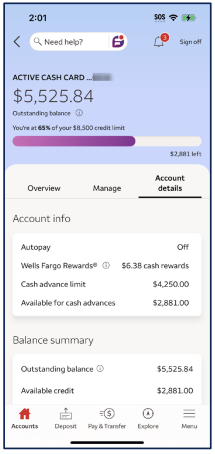
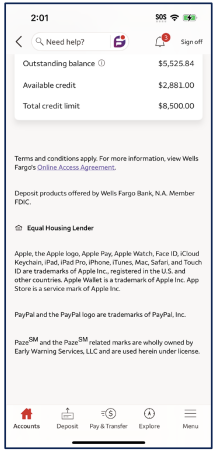
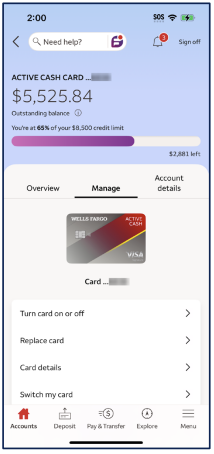
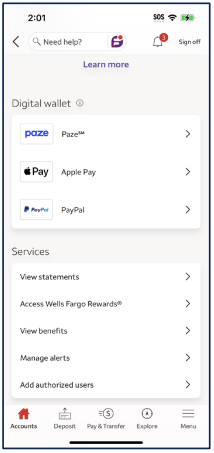
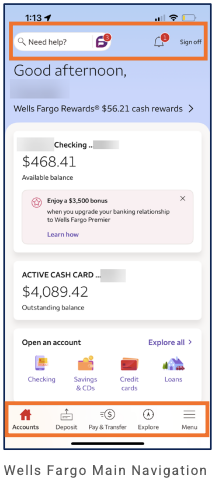
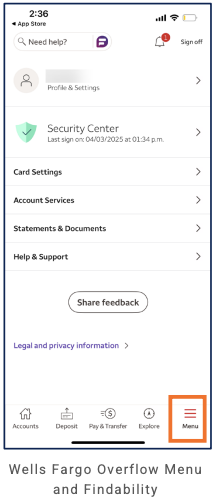
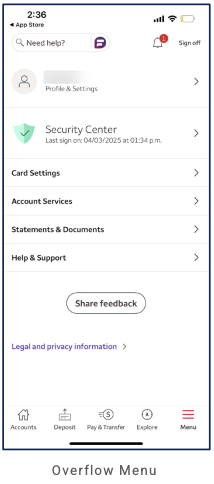
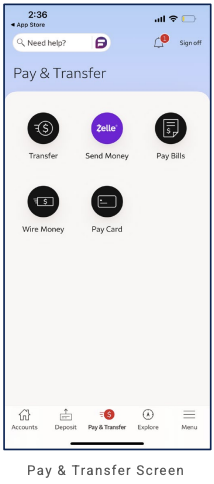
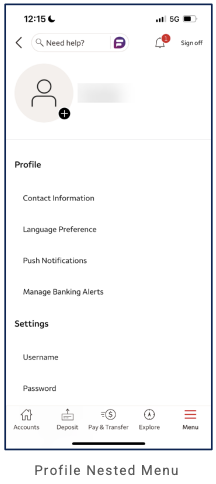
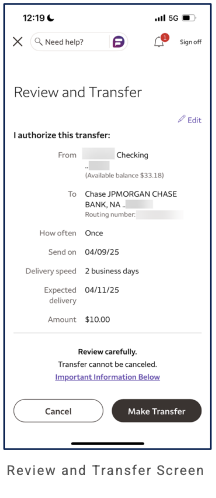
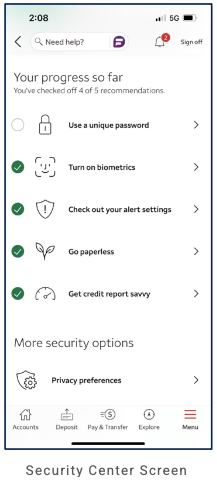
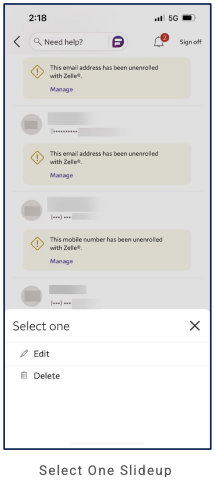
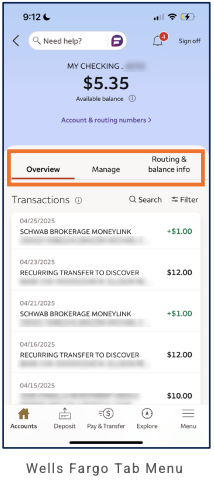
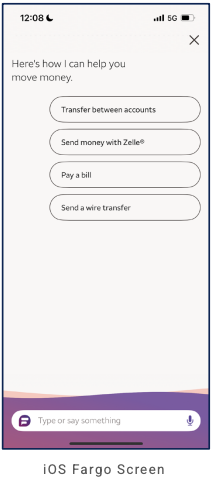
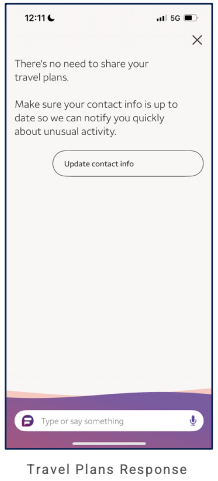
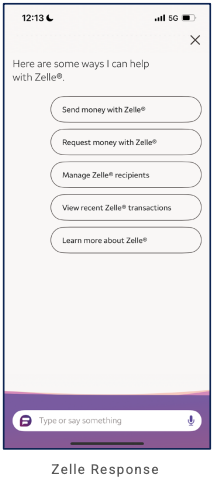
Wells Fargo Advisors (Full-service / wealth)
Partial audit. This entry is based on a limited set of screenshots (11 screens). The images do not give a complete picture of Wells Fargo Advisors’ information architecture or app design layout. What follows is a record of what is visible in the available screens, with observations and caveats noted.
Primary navigation
Not visible in provided screens. The captured screens show a company-detail flow (e.g. Ford Motor Co) with header navigation only: X (close), back arrow, centered company name, bell (alerts), and "Sign off" on the right. No bottom navigation bar appears in these views—consistent with a deep drill-down where primary nav may be hidden or this flow is modal/stack-based. Primary tab count and labels are TBD.
Home / dashboard
Not captured. No home or accounts dashboard screens were provided. The available screens are confined to a single company/symbol context (Ford Motor Co) and its earnings, dividends, and balance sheet sections.
LOB placement
From the captured flow: Quote / company detail is the main surface—company name in header; Watchlist (+) and Alert (bell) below header. Scrollable quote content: Quote (ticker, price, change, Bid/Ask, timestamp, refresh); timeframe tabs (5D, 1M, 6M, YTD, 1Y, 5Y); line chart; "Table view" link; Options card (navigates to Option Chain); Trade button. Below: Stock overview (Key statistics—market cap, 1-day/52-week range, volume, dividend, yield; Data as of; expand chevron); News (headlines, source, timestamp). View financials CTA links to the dedicated financials drill-downs. F vs. sector performance (line chart: symbol vs. Consumer Cyclical sector; legend; "Table view" link; summary e.g. "Over the last 3 months, F has outperformed the Consumer Cyclical sector by 13.43%"). Company info (expandable description; structured data: Employees, Headquarters, Sector, Industry; Market/Quote Disclosures, News Disclosures links). Further scroll: Ratings & research (e.g. Morningstar card with rating, current/target price, View report PDF, View historical ratings, Disclosure; carousel to more research cards); Earnings and financials (EPS bar chart, quarterly values). Dedicated drill-downs from this flow: Earnings, Dividends, Balance sheet, Income, Key ratio snapshot (as previously documented); Option Chain. Investing/research-oriented; other LOBs not visible.
Depth of hierarchy
Company/symbol context opens a quote screen (price, chart, Options card, Trade) that scrolls into Stock overview (Key statistics, News), View financials CTA, F vs. sector performance (chart, Table view, outperform summary), Company info (description, Employees, HQ, Sector, Industry; Disclosure links), then Ratings & research (e.g. Morningstar card, carousel) and Earnings and financials (EPS chart). Dedicated drill-downs from this flow: Company/symbol context → Earnings (Quarterly/Annual toggle; EPS, Diluted EPS, Earnings growth %; Historical EPS bar chart; quarterly table; "Data as of"). Same context → Dividends (Dividend value, Dividend growth 5Y, Ex-date, Current yield, Payout ratio YTD, Pay date; Dividend payment trend chart; "Table view" link; "View all dividends"). Same context → Balance sheet (Quarterly/Annual; Current Ratio, Debt to equity; Assets bar [Current vs Non-current]; Liabilities bar [Current, Non-current, Stockholder equity]; Data as of, refresh icon). Same context → Income (Quarterly/Annual; Net Income, Net profit margin; 5 year income trend line chart; "Table view" link). Same context → Key ratio snapshot (Growth ratios, Profitability ratios, Liquidity ratios, Efficiency ratios—each with "As of 12/2024" and name/value pairs). Option Chain (separate screen or modal): company name, current price, change, timestamp with refresh; horizontal expiration-date tabs (e.g. Apr 25, May 02, May 09, May 16); table Calls (Bid/Ask) | Strike | Puts (Bid/Ask); strike column shaded; rows scrollable. One level of drill (company → financials or options); no primary nav visible.
Cross-LOB patterns
Cannot assess from available screens. Only third-party company financial data (earnings, dividends, balance sheet) is shown; no net worth, account list, or cross-LOB aggregation is visible.
Personalization
Watchlist (+) and Alert (bell) are present for the company/symbol. No other personalization controls appear in the provided screens.
Observations and conclusions
What we see: A quote-centric flow: Quote screen (price, bid/ask, timeframe tabs 5D–5Y, line chart, Table view; Options card → Option Chain; prominent Trade button); scroll to Stock overview (Key statistics card, News feed), View financials CTA, F vs. sector performance (symbol vs. sector chart, outperform summary), Company info (description, Employees, HQ, Sector, Industry; Disclosures), and Ratings & research (e.g. Morningstar card with rating/price/target, View report PDF, carousel); Earnings and financials (EPS bar chart). Deeper sections (Earnings, Dividends, Balance sheet, Income, Key ratio snapshot) and Option Chain (expiration tabs, Calls | Strike | Puts table) as previously described. Header is consistent (X, back, company name, bell, Sign off; Watchlist + Alert). Limitations: Primary navigation, home/dashboard, account list, pay/transfer, and overall IA are not documented. This entry should be treated as a partial record only; conclusions about Wells Fargo Advisors’ full app layout or peer comparison are not possible from the current screenshot set.
Screenshots